




What Are Plugin Management Features?
The plugin management features in Classic Monks are toggles in the Core tab, Plugins subtab. They control how the Plugins page is organized, whether plugins update automatically, and whether the Advanced Plugin Manager is available.
Why You Need It
WordPress’s default plugin management is functional but limited:
- The plugins list is alphabetical, mixing active and inactive plugins
- Automatic updates can break compatibility with no warning
- Plugins abandoned by their authors are a security risk, but WordPress does not flag them
- Installing plugins from URLs or Google Drive requires FTP or external tools
Classic Monks addresses each of these.
How to Enable Plugin Management Features in Classic Monks
Step 1: Navigate to Settings
Click into the Classic Monks plugin settings in your WordPress dashboard.
Step 2: Go to the Plugins Subtab
Click on the Core menu, then click the Plugins subtab.
Step 3: Enable the Features You Want
Toggle on the plugin management features you need. The Advanced Plugin Manager adds the Plugin submenu to the Classic Monks menu.
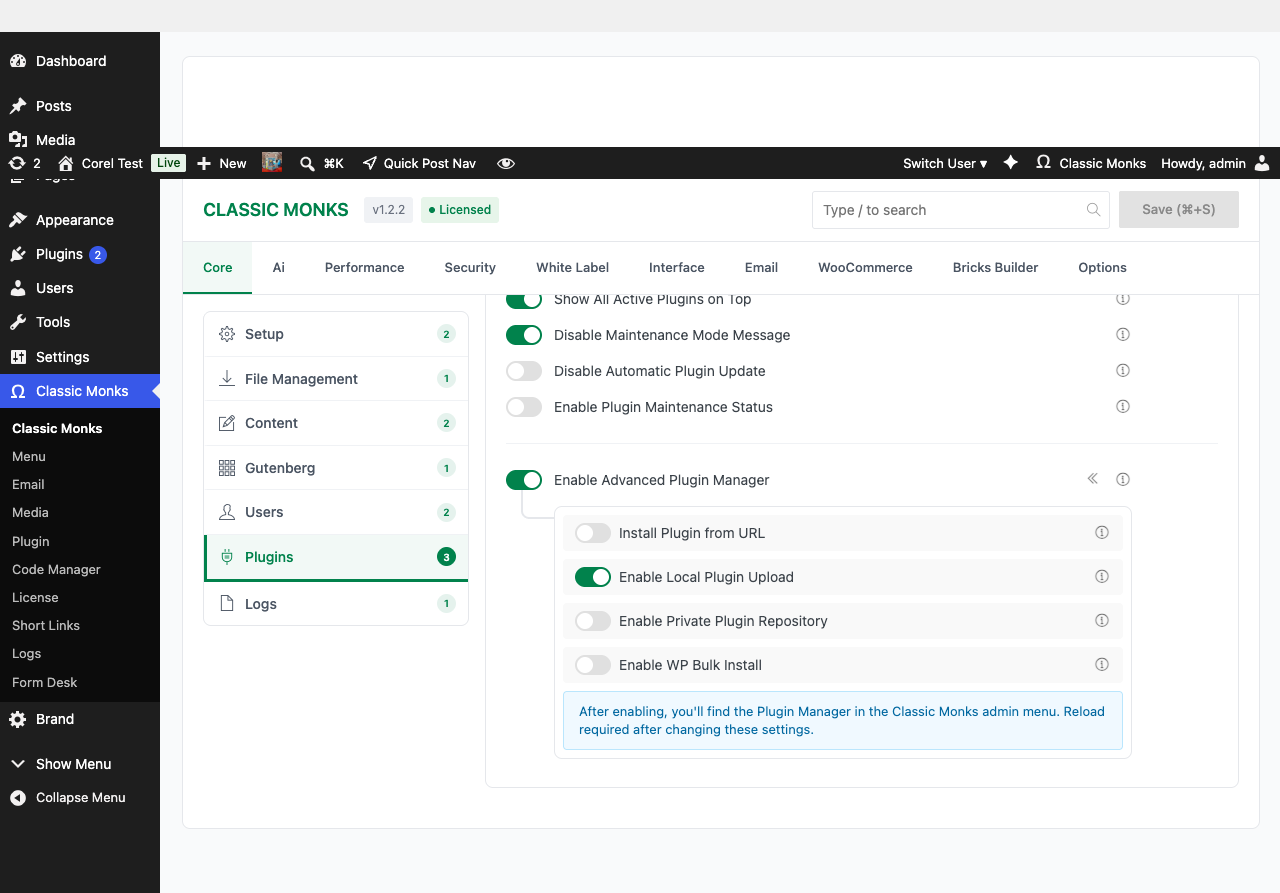
Step 4: Configure Advanced Plugin Manager (If Enabled)
When Enable Advanced Plugin Manager is on, the nested options expand with the four installation method toggles. See the related docs:
- Install Plugin from URL
- Enable Local Plugin Upload
- Enable Private Plugin Repository (Google Drive)
- Enable WP Bulk Install (WordPress.org Author Search)
Step 5: Save Changes
Click Save Changes. Reload the Plugins page to see the new layout.
The Five Plugin Management Toggles
Show All Active Plugins on Top
Automatically reorganizes the Plugins list page to display active plugins first, then inactive, regardless of alphabetical order. Reduces time spent searching for currently enabled plugins.
Disable Maintenance Mode Message
Hides the default WordPress maintenance mode message (“Briefly unavailable for scheduled maintenance. Check back in a minute.”) during core, plugin, and theme updates. Prevents visitor confusion and maintains a professional appearance during background maintenance.
Disable Automatic Plugin Update
Prevents WordPress from automatically updating plugins in the background. Requires manual approval for all plugin updates. Maintains control over plugin versions and prevents compatibility issues from unexpected updates.
Enable Plugin Maintenance Status
Analyzes plugin update history and displays maintenance indicators in the Plugins list:
- Actively maintained: Updated within the last year
- Outdated: Updated 1-2 years ago
- Abandoned: Updated 2+ years ago
Helps identify potentially insecure or abandoned plugins.
Show Admin Warnings for Outdated Plugins
Displays admin notices when plugins have not been updated for more than 2 years. Proactive security risk identification. Requires Enable Plugin Maintenance Status to be on first.
Enable Advanced Plugin Manager
Adds the Plugin Manager submenu to the Classic Monks menu. Provides advanced plugin installation methods (URL, local upload, Google Drive, WordPress.org author search). Page reload required.
Important: If DISALLOW_FILE_MODS is set in wp-config.php, the Advanced Plugin Manager is automatically disabled. See the troubleshooting section.
Configuration Options
| Option | Description | Default |
|---|---|---|
| Show All Active Plugins on Top | Reorder Plugins list with active first. | Off |
| Disable Maintenance Mode Message | Hide “Briefly unavailable” message. | Off |
| Disable Automatic Plugin Update | Stop auto-updates. | Off |
| Enable Plugin Maintenance Status | Show maintenance indicators. | Off |
| Show Admin Warnings for Outdated Plugins | Admin notice for 2+ year old plugins. | Off |
| Enable Advanced Plugin Manager | Add Plugin Manager submenu. | Off |
| Install Plugin from URL | Enable ZIP URL installation. | Off |
| Enable Local Plugin Upload | Enable local ZIP upload. | Off |
| Enable Private Plugin Repository | Enable Google Drive repo. | Off |
| Enable WP Bulk Install | Enable author search and bulk install. | Off |
Plugin Maintenance Status Colors
| Indicator | Meaning |
|---|---|
| Green (Active) | Updated within the last 12 months |
| Yellow (Outdated) | Updated 1-2 years ago |
| Red (Abandoned) | Updated 2+ years ago or no longer maintained |
The status is based on the plugin’s last update date from the WordPress.org repository.
Recommended Configurations
Production / Client Site
Enable:
- Disable Automatic Plugin Update (manual control)
- Enable Plugin Maintenance Status
- Show Admin Warnings for Outdated Plugins
Development Site
Enable:
- Enable Advanced Plugin Manager (for testing plugins)
- Show All Active Plugins on Top (quick visual)
Agency / Multi-Site Manager
Enable:
- Enable Advanced Plugin Manager
- Enable WP Bulk Install (install multiple plugins at once)
- Enable Plugin Maintenance Status
Developer Notes
The Plugin Management features control how the Plugins page is organized and maintained. No developer hooks are currently exposed.
Options used:
| Option | Type | Default |
|---|---|---|
show_active_plugins_on_top |
Boolean | false |
disable_maintenance_mode_message |
Boolean | false |
disable_automatic_plugin_update |
Boolean | false |
enable_plugin_maintenance_status |
Boolean | false |
show_admin_warnings_outdated_plugins |
Boolean | false |
enable_advanced_plugin_manager |
Boolean | false |
Troubleshooting
Plugins List Not Reordering
Cause: Another plugin is also reordering the plugins list, or caching is serving an old page.
Fix: Disable conflicting plugins. Clear all caching.
Maintenance Status Indicators Not Showing
Cause: The WordPress.org API is unreachable, or the cache is stale.
Fix: Test connectivity to api.wordpress.org. Clear the cm_plugin_maintenance_cache transient.
Advanced Plugin Manager Submenu Does Not Appear
Cause: DISALLOW_FILE_MODS is set in wp-config.php, or the toggle is not enabled.
Fix: Remove define('DISALLOW_FILE_MODS', true); from wp-config.php, or disable the corresponding Classic Monks Security setting.
Disable Automatic Plugin Update Does Not Stop Updates
Cause: A managed hosting provider (WP Engine, Kinsta, etc.) forces updates at the server level.
Fix: Configure auto-updates through the hosting provider’s dashboard, or accept that the provider overrides WordPress settings.
Plugin Manager Warning Says “File modifications are disabled”
Cause: DISALLOW_FILE_MODS is true. Classic Monks respects this constant and disables plugin management features.
Fix: Remove the constant or disable the Classic Monks Security setting that enforces it.