




What Is the Disable Password Change Email feature?
When a WordPress user changes their password (via the “Lost your password?” flow, the user profile editor, or an admin resetting it), WordPress sends two emails:
- The new password or a password reset link (always sent)
- A confirmation email: “Your password was changed” (sent to the user’s email)
The Disable Password Change Email feature suppresses the second email. The first email (with the new password or reset link) is still sent. The user can still change passwords; they just don’t get the “your password was changed” notification.
Why You Need It
For most sites, the password change confirmation email is unnecessary:
- Inbox clutter: Users know they changed their password; they don’t need an email to confirm it
- Phishing concern: A real-looking “your password was changed” email can be a phishing vector. Disabling it eliminates the possibility of confusion with a phishing email
- Custom password flows: Sites with custom password reset systems (using plugins or custom code) often have their own confirmation emails; the default WordPress email is redundant
- Admin resets for many users: For sites where admins reset passwords frequently (membership sites, support-driven sites), the confirmation emails become noise
The trade-off: if a user does NOT expect a password change and receives the email anyway, the confirmation can alert them to a security issue. Disabling the email removes this signal. For high-security sites, leave the email enabled.
How to Use Disable Password Change Email in Classic Monks
Step 1: Navigate to Settings
Click into the Classic Monks plugin settings in your WordPress dashboard.
Step 2: Go to the Email Tab
Click on the Email menu, then click the Notifications subtab.
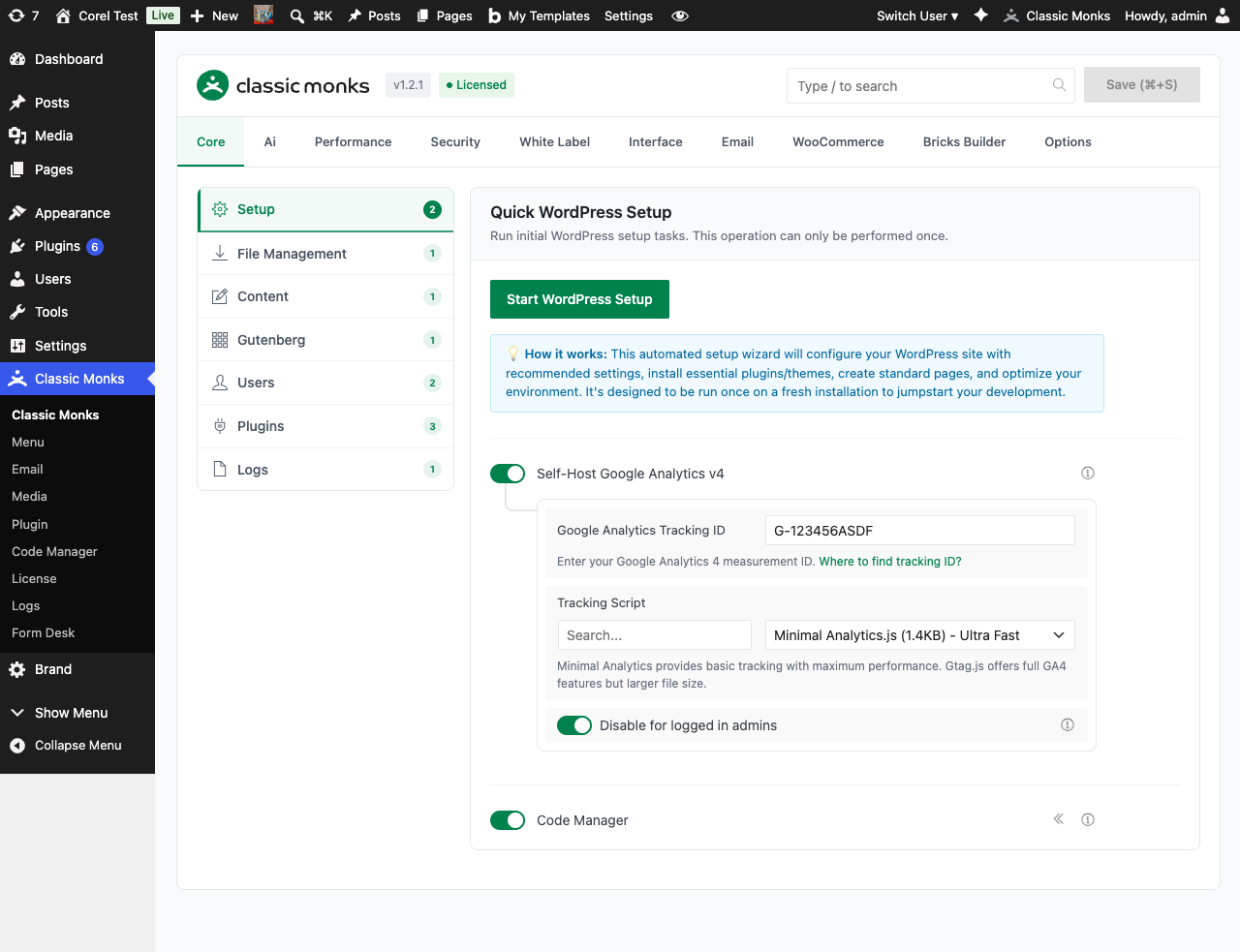
Step 3: Enable Disable Password Change Email
Scroll to the Email Notifications section and toggle on Disable Password Change Email.
Step 4: Save Changes
Click Save Changes.
Step 5: Test
Change a test user’s password (or use the password reset flow). The new password email is sent. The confirmation email is NOT sent.
Configuration Options
| Option | Description | Default |
|---|---|---|
| Disable Password Change Email | Master toggle. | Off |
No nested options.
What Gets Suppressed
| Sent when feature off | Sent when feature on | |
|---|---|---|
| Password reset link email | Yes (always) | Yes (always) |
| “Your password has been changed” confirmation | Yes | No |
The feature only suppresses the confirmation email. The reset link (or new password) email is always sent, because without it, the user can’t actually reset their password.
What Does NOT Get Affected
- New user welcome emails: Separate feature (
Disable New User Email) - Admin email change notifications: Separate feature (
Disable Admin Email Change) - Password reset link emails: Always sent (the feature only suppresses the confirmation)
- WooCommerce password reset emails: Separate flow, controlled by WooCommerce’s email settings
- Custom password reset flows: Plugins that implement their own password reset (e.g., membership plugins) handle their own emails
Advanced Options (Developers)
This feature registers 2 WordPress hooks in email-functions.php:
Filters:
send_password_change_emailcallscm_disable_password_change_email()(Disables password change notification emails)send_password_change_emailcallsapply_filters()(Customizable filter)
// Hooked in email-functions.php
add_filter( 'send_password_change_email', 'cm_disable_password_change_email' );
The feature modifies WordPress behavior by registering or removing hooks. Disabling it reverses those changes.
Troubleshooting
Users are not receiving the password reset email at all
Cause: The toggle is on, but a different issue is blocking the reset link email (not the confirmation email).
Fix: Verify your SMTP Settings is configured correctly. Check the spam folder. The reset email and the confirmation email are different emails; disabling the confirmation does not affect the reset.
The confirmation email is still being sent
Cause: A caching plugin or a custom plugin is overriding the suppression.
Fix: Verify the toggle is on. Disable other email-related plugins to find the conflict. Check if a custom theme function is sending the email directly via wp_mail().
I want the confirmation email for security purposes
Cause: The feature completely suppresses the email; you want it enabled but with a different message.
Fix: Keep the feature off (don’t enable Disable Password Change Email), and customize the email body via the retrieve_password_message and related WordPress filters. The default email is informational; you can make it more security-focused.
The email is being sent to multiple recipients
Cause: The WordPress multisite install or a custom plugin is sending the email to multiple addresses.
Fix: Multisite has its own email handling. Check if BLOGNAME and SITEURL are configured correctly in wp-config.php. For custom plugins, identify the source via the wp_mail filter.
I disabled the email but the new password is not in the email either
Cause: The new password is sent in the reset link email, not the confirmation email. If the reset link email is empty, the issue is unrelated to this feature.
Fix: Verify the reset link email is configured. Check the password reset flow. If using a custom plugin for password management, that plugin’s email logic may be different.