




What Is Comment Reply Email?
Comment Reply Email is a Classic Monks feature that adds a notification email to the WordPress comment reply flow. When a comment receives a reply, the original commenter is notified via email, with a link back to the comment thread.
The feature has a master toggle plus nested options for fine-tuning:
- Notification Type: Who receives the notification (admin only, all replies, opt-in controls)
- Checkbox Text: The label for the opt-in checkbox when Notification Type is opt-in-based
The nested options are configuration details, not separate features. The feature is one toggle + one configuration.
Why You Need It
The default WordPress comment system has no comment-reply notification. A commenter leaves a thoughtful reply, another user responds hours later, and the original commenter never knows. This kills engagement on comment-heavy sites (forums, support boards, niche communities).
Comment Reply Email solves this by closing the loop. Commenters know when their comments are replied to, and they can click through to the thread. For sites where comments are a primary engagement mechanism, this feature can multiply comment volume by 2-3x.
The notification type controls are important for spam prevention. Comment Reply Email, by default, would notify every commenter of every reply, which can be abused (a spammer could reply to many comments to send notifications to many email addresses). The opt-in variants put the commenter in control.
How to Use Comment Reply Email in Classic Monks
Step 1: Navigate to Settings
Click into the Classic Monks plugin settings in your WordPress dashboard.
Step 2: Go to the Email Tab
Click on the Email menu, then click the Notifications subtab.
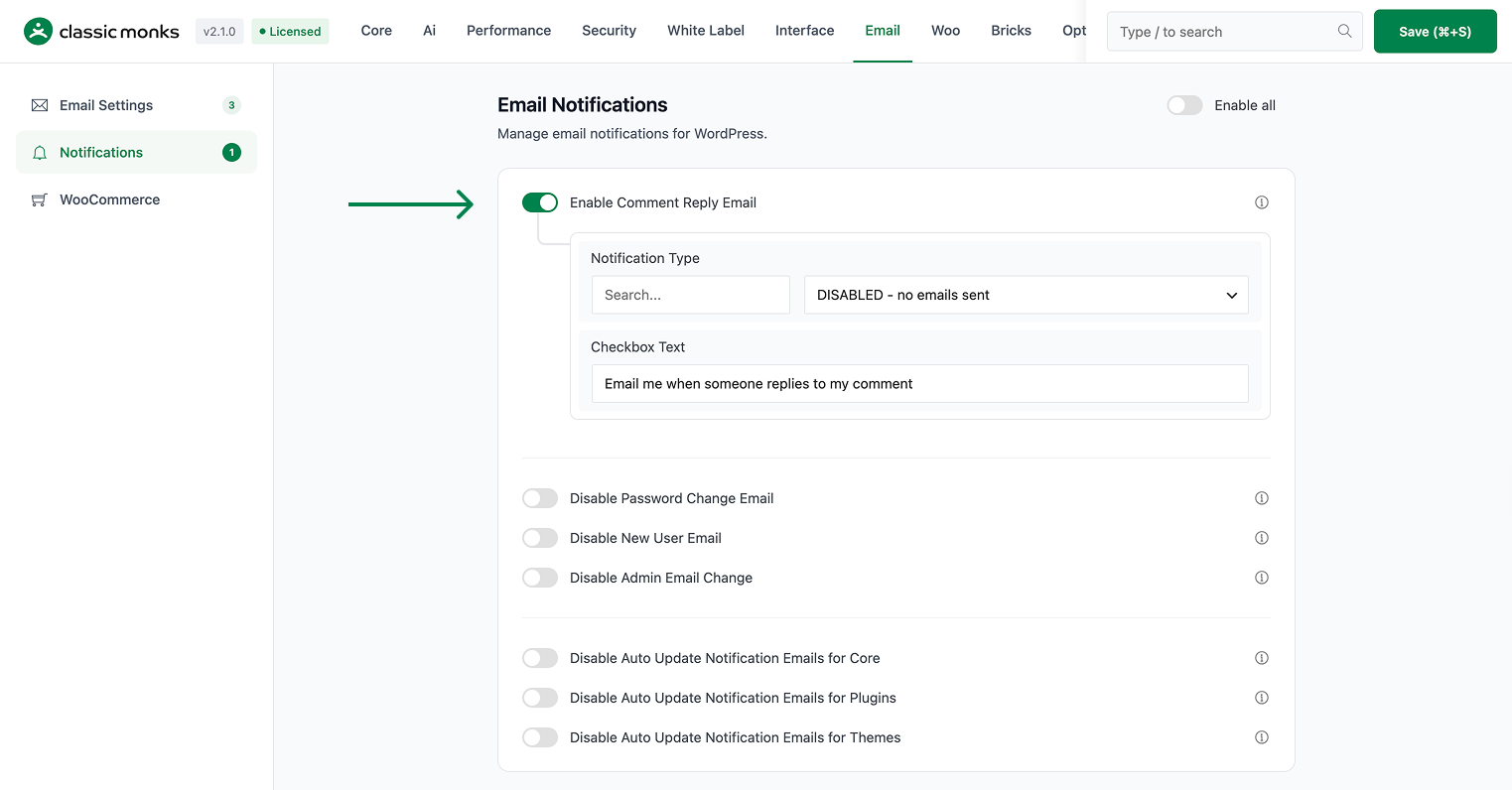
Step 3: Enable Comment Reply Email
Scroll to the Email Notifications section and toggle on Enable Comment Reply Email. Nested options expand below the toggle.
Step 4: Choose a Notification Type
Pick from the Notification Type dropdown:
- DISABLED: No emails sent (use this to temporarily disable without removing the toggle)
- ADMIN: Only for post author or admin replies (subscribers don’t get notified of peer replies, but they do get notified when the post author or an admin replies)
- ALL: If anyone replies to a comment, both commenters get notified
- OPT-IN CHECKED: Adds a checkbox to the comment form, default checked. User must uncheck to opt out
- OPT-IN UNCHECKED: Adds a checkbox to the comment form, default unchecked. User must check to opt in
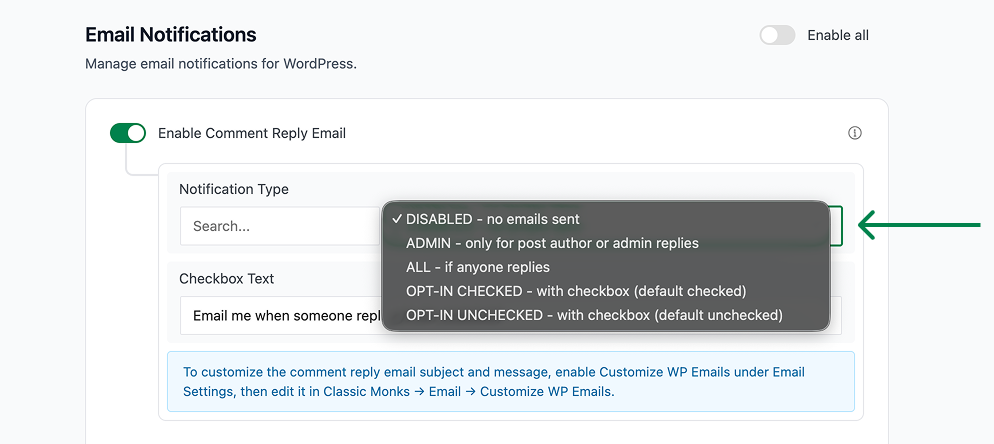
For most sites, OPT-IN CHECKED is the best default. It gives commenters control (they can opt out) but makes opting in the path of least resistance (the checkbox is already checked).
Step 5: Customize the Checkbox Text
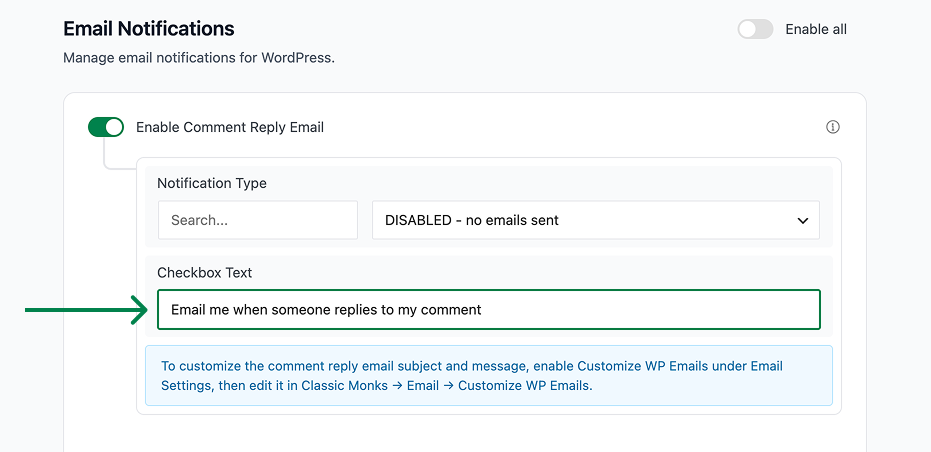
Edit the Checkbox Text field. Default: “Email me when someone replies to my comment”. Use this to match your site’s tone (e.g., “Notify me of replies”, “Send me email replies”, or your community’s preferred phrasing).
Step 6: Save Changes
Click Save Changes.
Step 7: Test
Leave a test comment on any post. Use a real email address you control. Have a second email address reply to the comment. The first commenter should receive an email notification with a link back to the comment thread.
Configuration Options
| Option | Description | Default |
|---|---|---|
| Enable Comment Reply Email | Master toggle. | Off |
| Notification Type | Disabled, Admin, All, Opt-in Checked, Opt-in Unchecked. | Disabled |
| Checkbox Text | Label for the opt-in checkbox. | “Email me when someone replies to my comment” |
No other options.
Notification Type Comparison
| Type | When email is sent | Best for |
|---|---|---|
| DISABLED | Never | Sites that don’t want comment notifications |
| ADMIN | When post author or any admin replies | Authoritative sites (news, official blogs) where the author’s voice matters |
| ALL | When anyone replies to anyone | Active forums, support boards, communities where peer conversation is the norm |
| OPT-IN CHECKED | When commenter checked the box (default: yes) | Most general-purpose sites; balance of reach and consent |
| OPT-IN UNCHECKED | When commenter checked the box (default: no) | Privacy-focused sites; explicit consent required |
What the Notification Email Looks Like
The email contains:
- Subject: “New reply to your comment on [post title]”
- From: The site’s admin email (set in Settings > General)
- To: The original commenter’s email address
- Body: A short excerpt of the new reply, a link to the comment thread, and an unsubscribe link
The email body is plain text by default but can be customized via WordPress’s standard email filters (comment_notification_text, comment_notification_subject).
What Does NOT Get Affected
- Comment moderation emails: WordPress sends a separate email to admins when a comment is held for moderation. The Comment Reply Email feature does not affect moderation emails.
- Subscription plugin emails: If you use a plugin like “Subscribe to Comments Reloaded”, that plugin handles its own notification emails. The Comment Reply Email feature complements but does not replace those.
- Existing comments: The feature only affects new reply events. Existing comments don’t trigger retroactive notifications.
- Comments by the post author: Replies by the post author to their own post’s comments don’t trigger notifications (the original commenter and the reply author are the same person).
Advanced Options (Developers)
This feature registers 3 WordPress hooks in comment-reply-email.php:
Actions:
comment_postcallscm_notify_comment_reply()(Sends email when reply is posted (priority 10))transition_comment_statuscallscm_notify_on_comment_approval()(Sends email when comment is approved (priority 10))
Filters:
comment_form_field_commentcallscm_add_comment_notification_checkbox()(Adds notification opt-in checkbox to comment form)
// Hooked in comment-reply-email.php
add_filter( 'comment_form_field_comment', 'cm_add_comment_notification_checkbox' );
The feature modifies WordPress behavior by registering or removing hooks. Disabling it reverses those changes.

Add your first comment to this post