




What Is SMTP?
SMTP (Simple Mail Transfer Protocol) is the industry standard for sending email. WordPress’s default email function (mail()) uses the server’s local mail transfer agent (MTA), which is often misconfigured, blocked by ISPs, or flagged as spam. SMTP uses authenticated connections to a dedicated email service (Gmail, Outlook, SendGrid, etc.), which dramatically improves deliverability.
The Classic Monks SMTP Settings feature adds a configuration interface for SMTP. Once enabled, every email WordPress sends goes through your configured SMTP server instead of the default mail().
Why You Need It
The default WordPress email function has several problems:
- Spam folder placement: Most modern email providers (Gmail, Outlook, etc.) flag emails from
mail()as spam because the sending server isn’t authenticated - No authentication: Without SPF, DKIM, and DMARC records, the emails look suspicious
- Server limitations: Many shared hosts block outbound SMTP on port 25;
mail()falls back to local delivery which often fails - No retry logic: If an email fails, it’s lost
- No analytics: You can’t see delivery rates, open rates, or bounce rates
Using SMTP through a dedicated email service fixes all of these. Services like SendGrid, Mailgun, and Postmark have dedicated infrastructure for transactional email with high deliverability, authentication, and analytics.
How to Configure SMTP Settings in Classic Monks
Step 1: Navigate to Settings
Click into the Classic Monks plugin settings in your WordPress dashboard.
Step 2: Go to the Email Tab
Click on the Email menu. The Email Settings subtab opens by default.
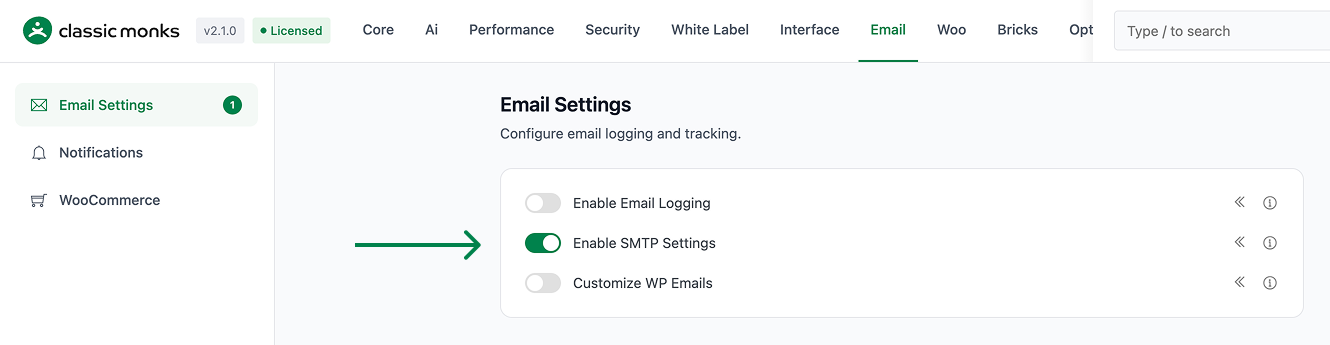
Step 3: Enable SMTP Settings
Toggle on Enable SMTP Settings. A notice appears indicating that the Email submenu will be added and a page reload is required.
Step 4: Save Changes
Click Save Changes.
Step 5: Reload the Admin
Reload the WordPress admin page. The Email submenu now appears under Classic Monks.
Step 6: Navigate to the SMTP Submenu
Click Classic Monks > Email. The SMTP configuration form appears.
Step 7: Choose a Provider Preset (or Custom)
Select your email provider from the Provider dropdown:
- Gmail / Google Workspace: For Gmail or Google Workspace accounts
- Outlook / Office 365: For Microsoft email
- SendGrid: For SendGrid transactional email
- Mailgun: For Mailgun transactional email
- Amazon SES: For AWS Simple Email Service
- Postmark: For Postmark transactional email
- Custom SMTP: For any other SMTP server
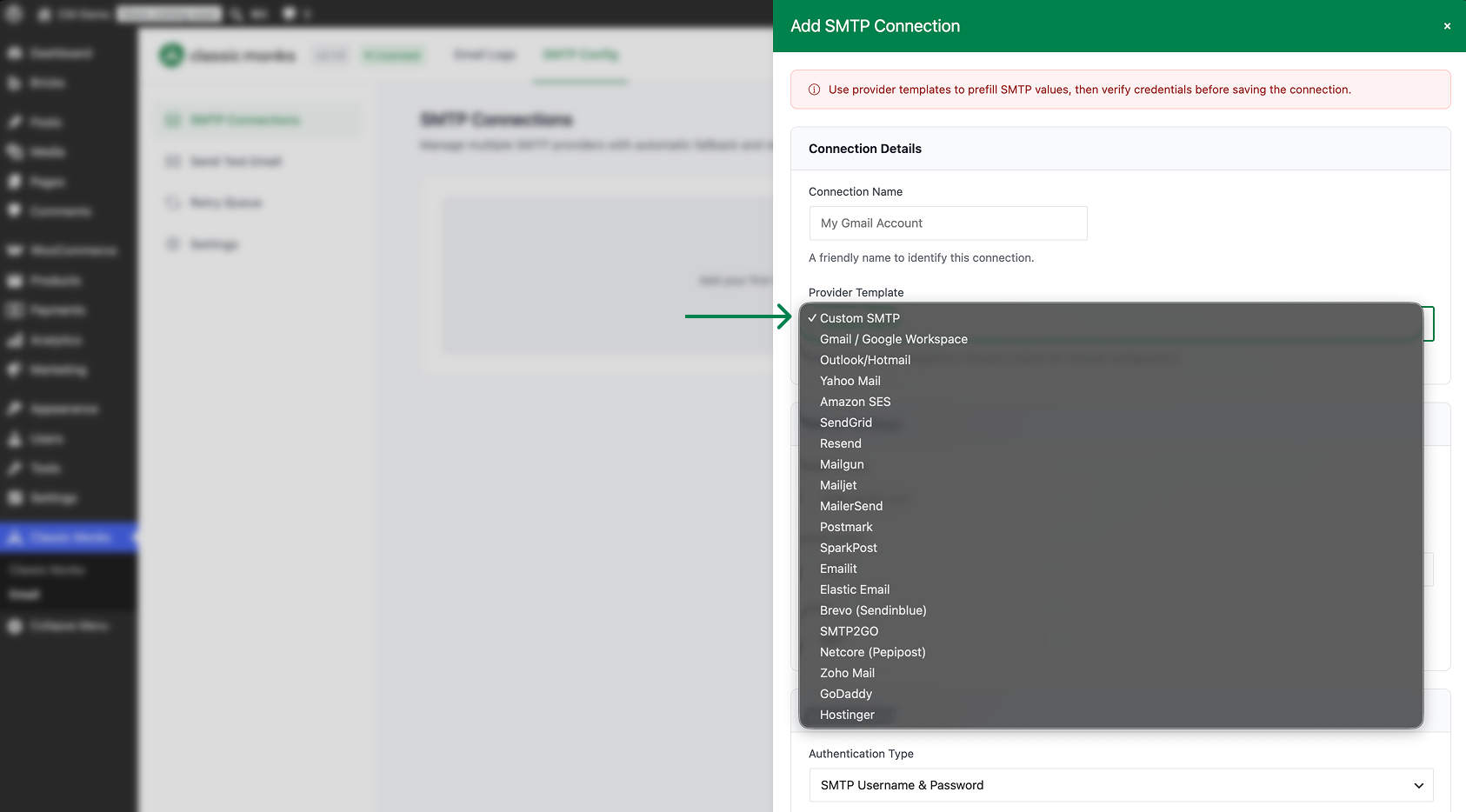
Each preset auto-fills the host, port, and encryption settings. You only need to enter the credentials.
Step 8: Enter SMTP Credentials
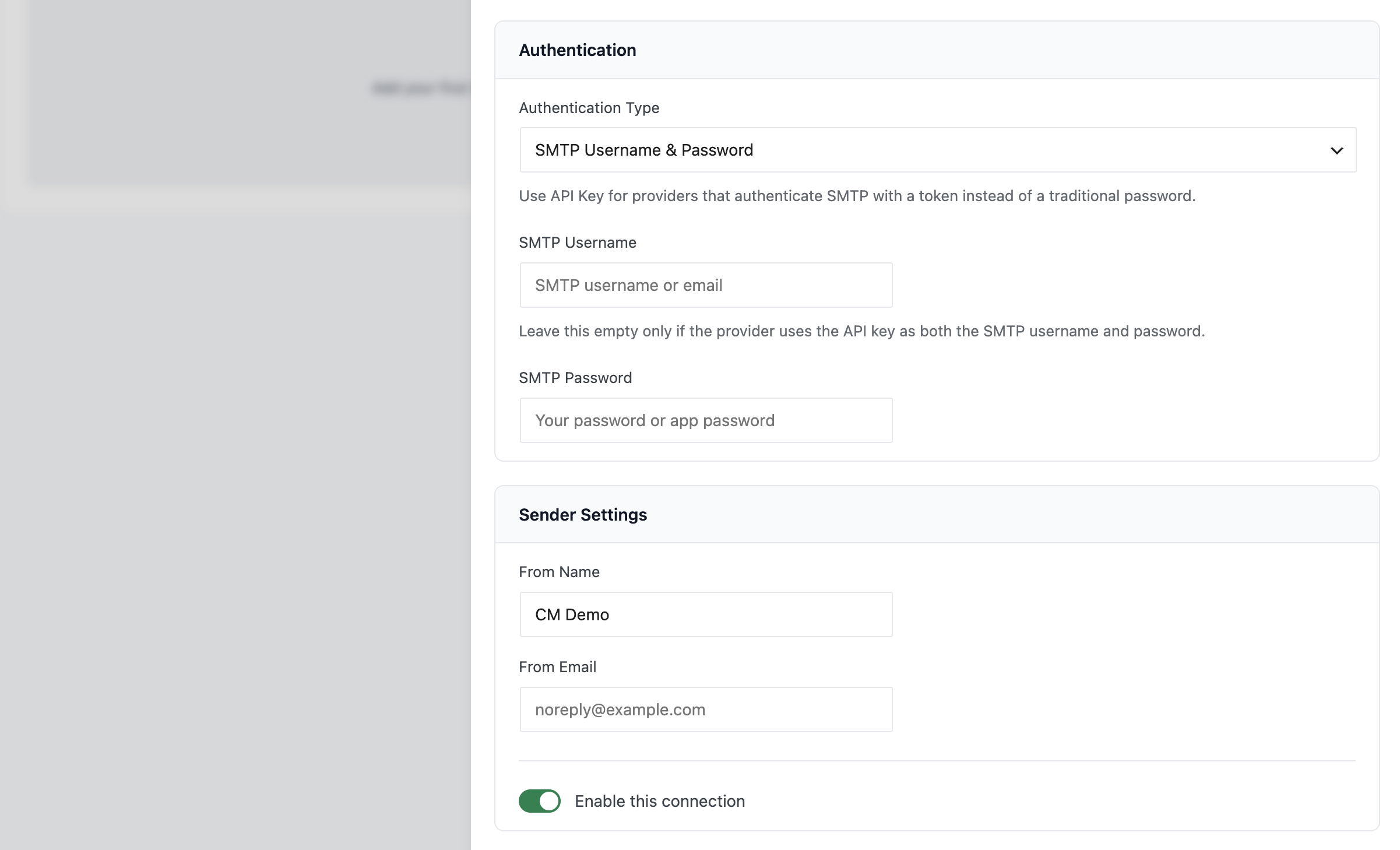
For most providers, you need:
- Username: Your email address or API key
- Password: Your email password or API key (for some providers, you need an “app password” instead of the account password)
- From Email: The email address that will appear as the sender (must be verified with your provider)
- From Name: The display name that will appear as the sender
Step 9: (Optional) Configure Advanced Settings
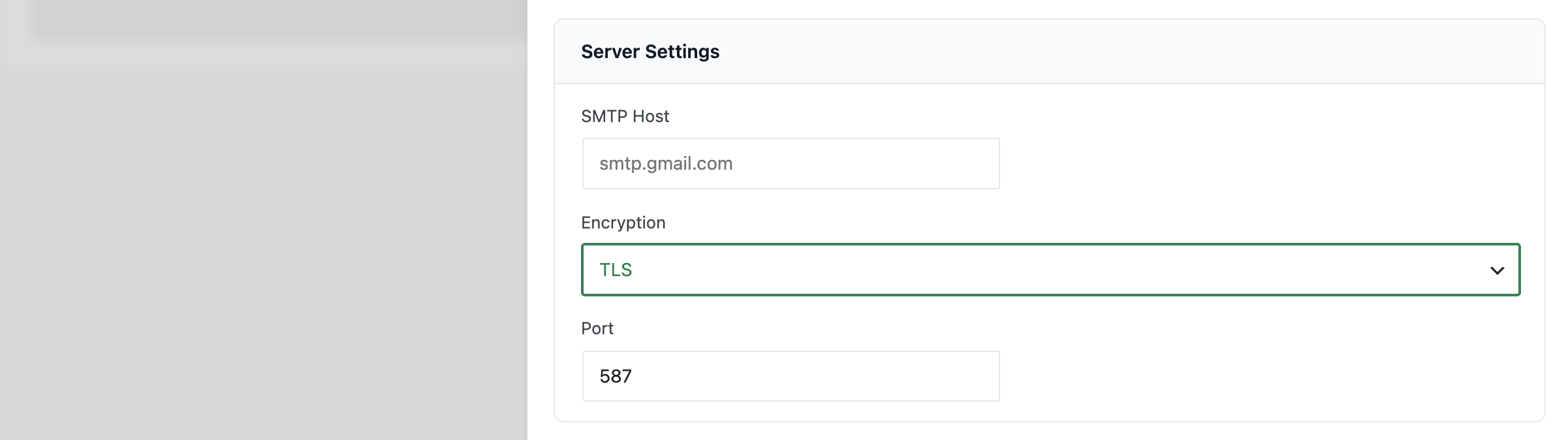
Most users can skip this. Advanced options include:
- Encryption: SSL/TLS (recommended), STARTTLS, or None (insecure)
- Port: SMTP port (usually 587 for TLS, 465 for SSL, 25 for unencrypted)
- Authentication: Whether to require authentication (almost always yes)
Step 10: Save Changes
Click Save Changes.
Step 11: Send a Test Email
From the SMTP configuration page, enter an email address and click Send Test Email. The plugin attempts to send a test message via your configured SMTP server. If the test succeeds, your SMTP is working. If it fails, the error message tells you what went wrong.
Configuration Options
| Option | Description | Default |
|---|---|---|
| Enable SMTP Settings | Master toggle. | Off |
| Provider | Predefined provider preset or “Custom SMTP”. | Custom SMTP |
| SMTP Host | The SMTP server hostname (e.g., smtp.gmail.com). |
Empty |
| SMTP Port | The SMTP port (587 for TLS, 465 for SSL). | 587 |
| Encryption | SSL/TLS, STARTTLS, or None. | TLS |
| Username | SMTP authentication username. | Empty |
| Password | SMTP authentication password (or app password). | Empty |
| From Email | The sender email address. | Empty |
| From Name | The sender display name. | Empty |
Common Provider Configurations
| Provider | Host | Port | Encryption | Notes |
|---|---|---|---|---|
| Gmail / Google Workspace | smtp.gmail.com |
587 | TLS | Requires an “App Password” (not your account password). Enable 2FA on the Google account, then create an App Password in Google Account settings. |
| Outlook / Office 365 | smtp.office365.com |
587 | STARTTLS | Standard account credentials work. For MFA-enabled accounts, an App Password may be required. |
| SendGrid | smtp.sendgrid.net |
587 | TLS | Username is literally apikey; password is your SendGrid API key. |
| Mailgun | smtp.mailgun.org |
587 | TLS | Standard SMTP credentials from your Mailgun domain. |
| Amazon SES | email-smtp.<region>.amazonaws.com |
587 | TLS | Requires SMTP credentials (separate from AWS console credentials). Get them from the SES console under “SMTP Settings”. |
| Postmark | smtp.postmarkapp.com |
587 | TLS | Server token as both username and password. |
What Gets Affected
When SMTP is enabled, ALL emails WordPress sends are routed through your configured SMTP server:
- Password reset emails
- New user registration emails
- Comment notification emails
- WooCommerce transactional emails
- Contact form emails (Contact Form 7, WPForms, etc.)
- Plugin notification emails
- Any email sent via
wp_mail()
The change is global. There is no per-email-type override.
Advanced Options (Developers)
This feature registers 4 WordPress hooks in submenu/smtp-settings.php:
Actions:
phpmailer_initcallscm_smtp_configure_phpmailer_enhanced()(Configures PHPMailer with SMTP settings)
Filters:
cron_schedulescallscm_register_email_cron_schedules()(Registers retry queue cron schedule)cm_email_max_connection_attemptscallsapply_filters()(Customizable filter)cm_email_allow_wp_mail_fallback_after_provider_failurecallsapply_filters()(Customizable filter)
// Hooked in submenu/smtp-settings.php
add_action( 'phpmailer_init', 'cm_smtp_configure_phpmailer_enhanced' );
The feature modifies WordPress behavior by registering or removing hooks. Disabling it reverses those changes.

Add your first comment to this post