




What Is the Email OTP 2FA feature?
Email OTP 2FA uses the user’s email address as the second factor. After entering the password, the user receives a 6-digit code via email and must enter it to complete the login.
This is a fallback for users who don’t want to use an authenticator app, or for sites where email is the most reliable channel.
Why You Need It
TOTP 2FA requires an authenticator app, which has barriers:
- No smartphone: Some users don’t have a smartphone
- App installation friction: Users don’t want to install yet another app
- Lost device: If the user loses their phone, they’re locked out
- Email is universal: Almost everyone has email and can receive codes
Email OTP 2FA is a good middle ground: better than password-only, more accessible than TOTP.
Trade-offs vs TOTP
Email OTP is less secure than TOTP because:
- Email interception: If the user’s email is compromised, the attacker can get the OTP
- Email delays: Email delivery can be slow (1-5 minutes), causing login friction
- Phishing: Sophisticated phishing kits can intercept emails in real-time
For high-security sites, prefer TOTP. For accessibility, use Email OTP.
How to Use Email OTP 2FA in WordPress
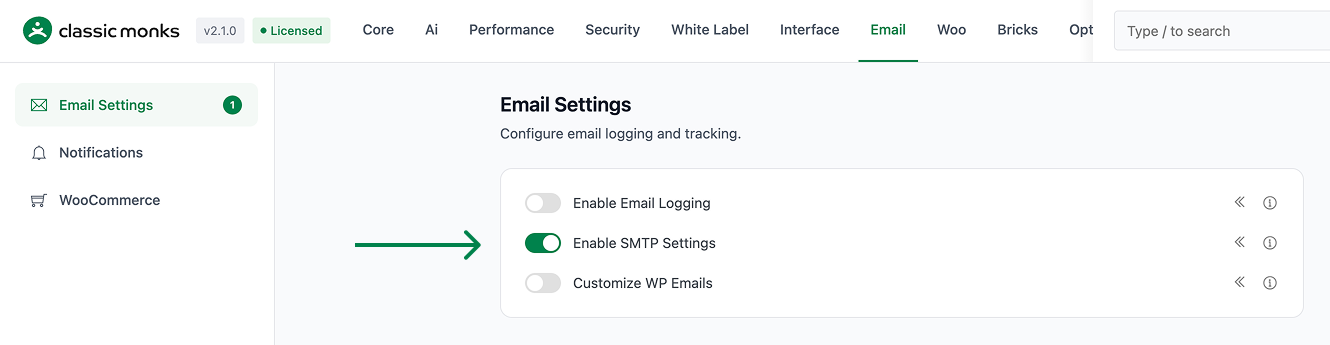
Step 1: Configure SMTP
Before enabling Email OTP 2FA, configure SMTP Settings to ensure reliable email delivery. 2FA codes that don’t arrive lock users out.
Step 2: Navigate to Settings
Click into the Classic Monks plugin settings in your WordPress dashboard.
Step 3: Go to the Security Tab
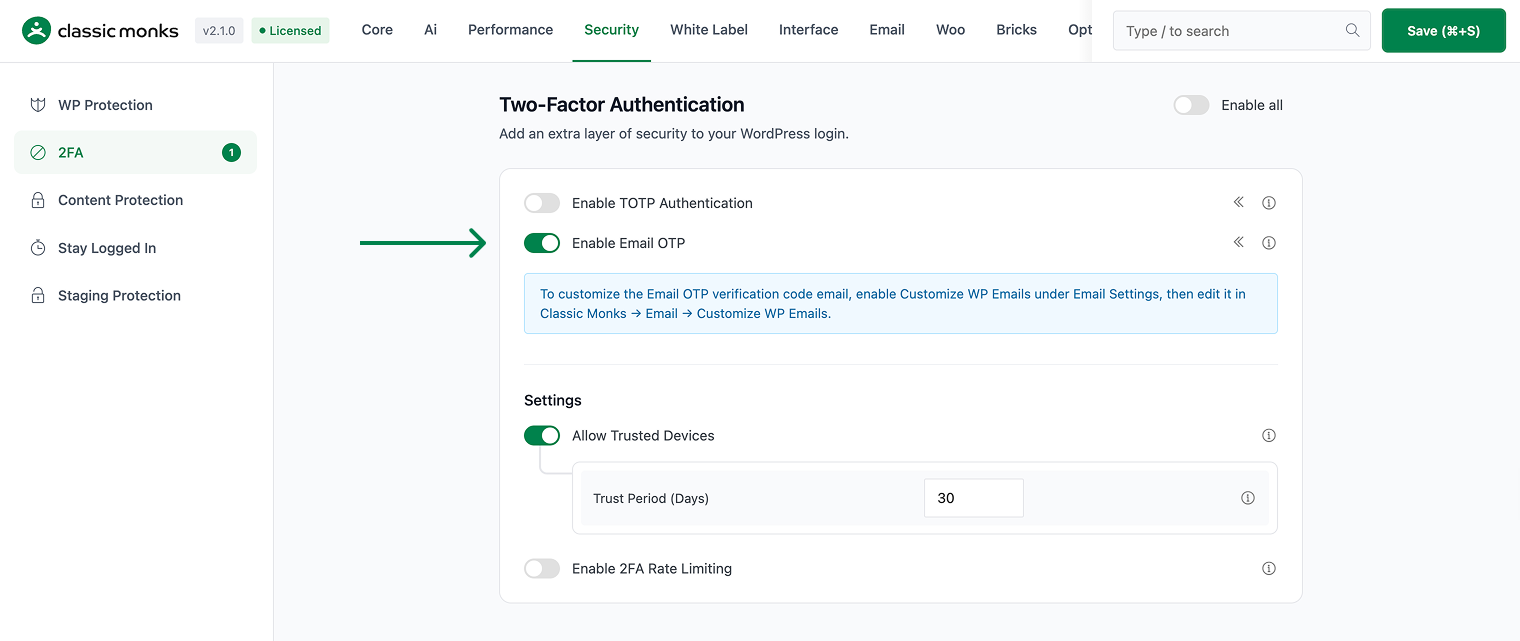
Click on the Security menu, then click the Two-Factor Auth subtab.
Step 4: Enable Email OTP
Scroll to Enable Email OTP and toggle on.
Step 5: Save Changes
Click Save Changes.
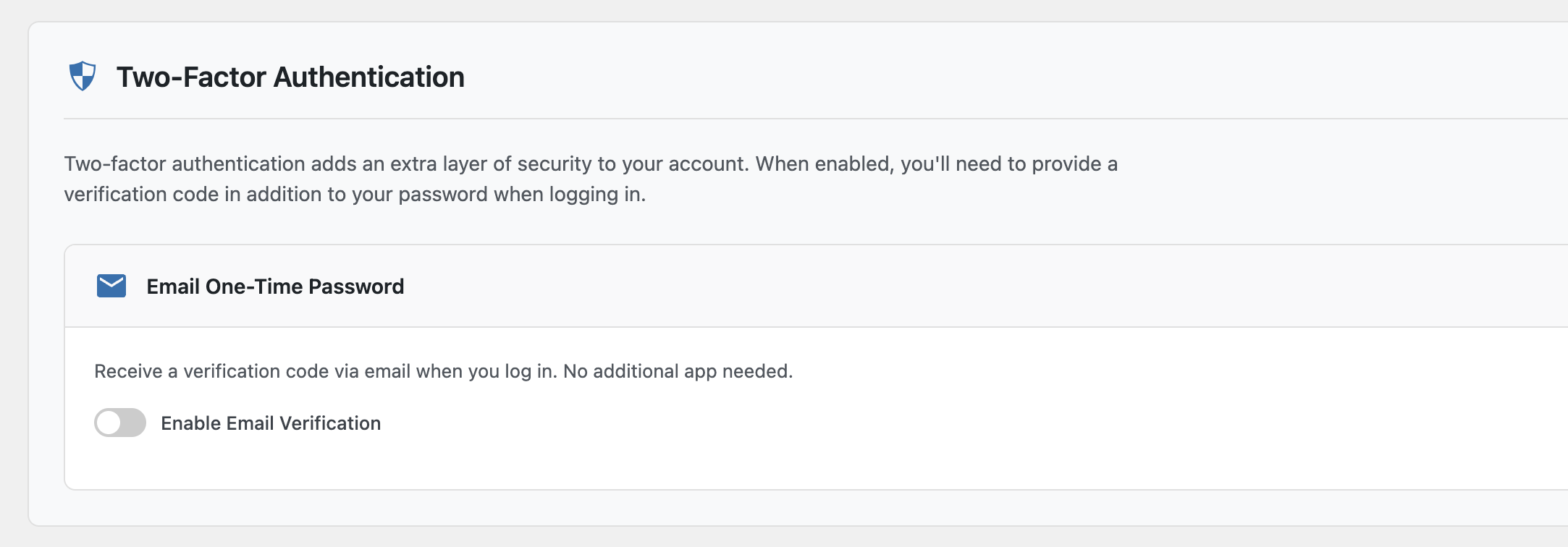
Step 6: Enable Email OTP for Your Account
Go to Users > Profile. In the “Two-Factor Authentication” section, enable Email OTP. Click “Send Test Code” to verify it works.
Step 7: Test
Log out. Log in with your username and password. After the password is verified, a 6-digit code is sent to your email. Enter the code to complete the login.
Configuration Options
| Option | Description | Default |
|---|---|---|
| Enable Email OTP | Master toggle. | Off |
Each user enables Email OTP individually from their profile. Admins can require it for specific roles from the plugin settings under Security > 2FA.
What Gets Affected
- The login flow: after password, a 6-digit code is sent via email
- The user profile: each user can enable Email OTP
- The WordPress admin: requires 2FA for users with Email OTP enabled
- The email deliverability: must be reliable (use SMTP)
What Does NOT Get Affected
- The user experience: only 1 extra click per login (after the code is received)
- The TOTP 2FA: still works independently
- The frontend: not affected
- The application passwords: separate authentication method
Advanced Options (Developers)
This feature registers 3 WordPress hooks in 2fa/two-factor-auth.php:
Actions:
wp_ajax_nopriv_cm_resend_2fa_emailcallscm_resend_2fa_email()(AJAX handler for resending OTP email)
Filters:
authenticatecallsCM_Two_Factor_Auth::authenticate()(Intercepts authentication for email OTP flow (priority 99))cm_2fa_rate_limit_enabledcallsapply_filters()(Customizable filter)
// Hooked in 2fa/two-factor-auth.php
add_filter( 'authenticate', 'CM_Two_Factor_Auth::authenticate' );
The feature modifies WordPress behavior by registering or removing hooks. Disabling it reverses those changes and WordPress returns to its default behavior.

Add your first comment to this post