

Why It Matters
Most WordPress break-ins walk through the plugins folder. A plugin with a known vulnerability is only dangerous while it sits unpatched on a live site, and unpatched is the default state of an abandoned plugin: no author, no fixes, no warnings from WordPress itself. The stock Plugins page shows you version numbers and lets you click View Details one plugin at a time. Nobody audits twenty plugins that way, so the audit never happens.
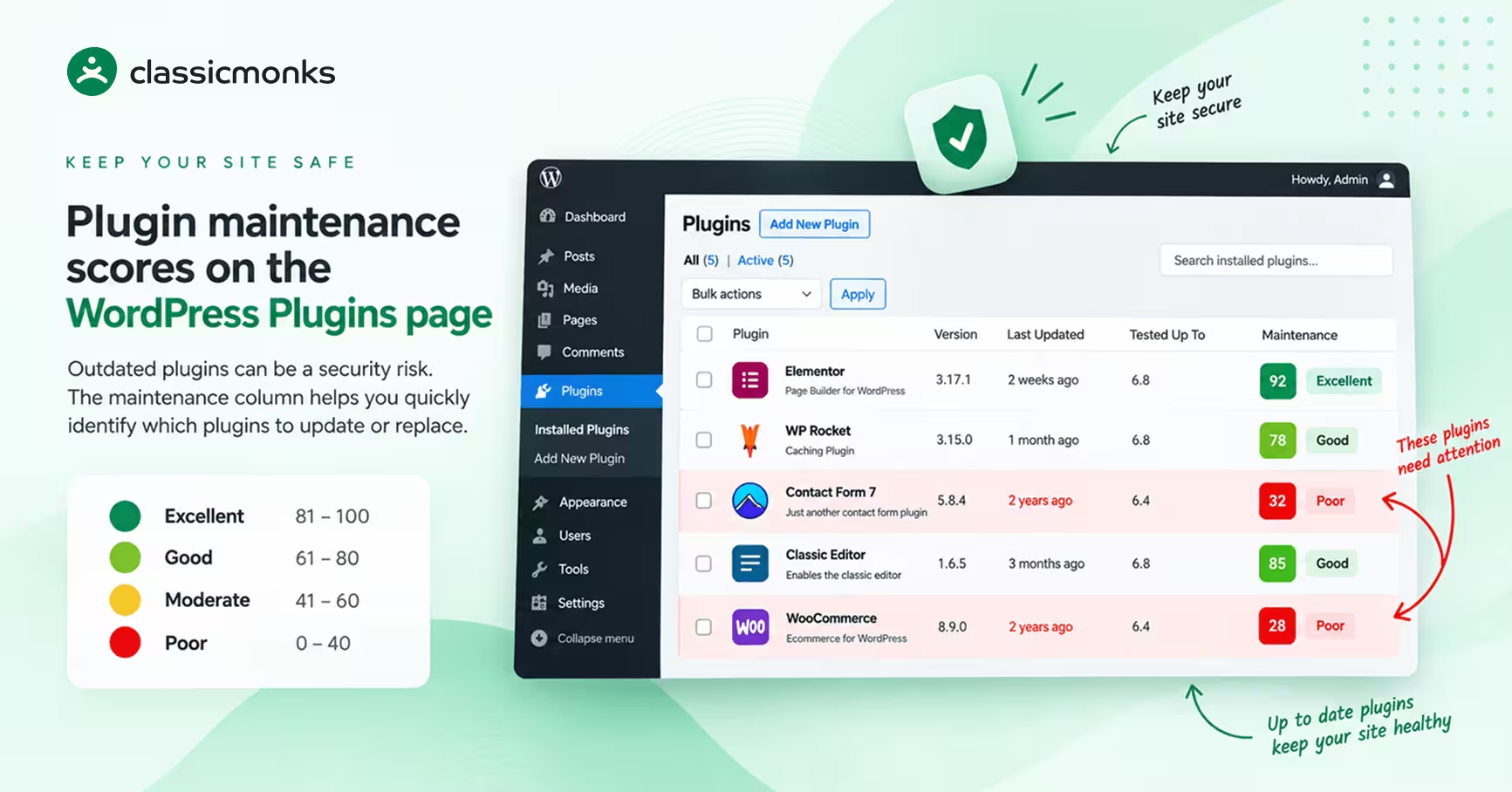
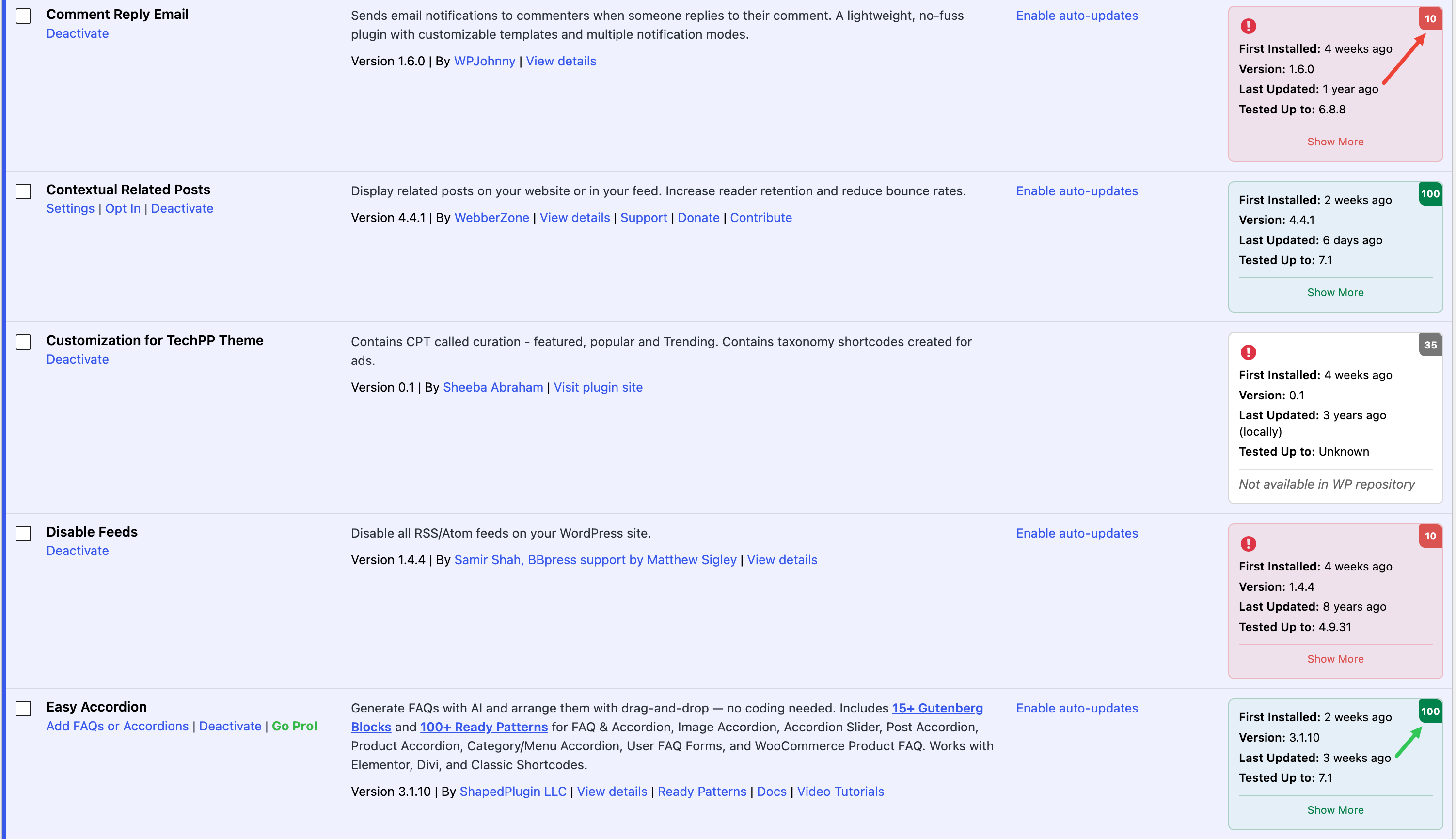
The maintenance status column turns that audit into a glance. Open Plugins, scan the scores, and every plugin that needs a decision is already waving at you.
How the Health Score Works
Each plugin starts at 50. Two signals move the number:
Update recency. A plugin updated in the last month gains 25 points. Within three months gains 20, within six gains 15, within a year gains 5. Past a year without an update, it loses 15.
WordPress compatibility. A plugin tested against your WordPress version gains 25. One version behind (or ahead) gains 20. Two versions behind loses 10. Three or more behind loses 25.
The result is clamped between 0 and 100. A score in the 90s means current code on a current WordPress. A score near the bottom means old code on a new WordPress, which is exactly the combination attackers like.
Compatibility comes from the plugin’s Tested Up to header compared against the latest WordPress release. Recency comes from the last-updated date on WordPress.org. For premium plugins, both signals come from files on your own site instead: the Tested Up to header in the plugin file and the file modification time.
What the Statuses Mean
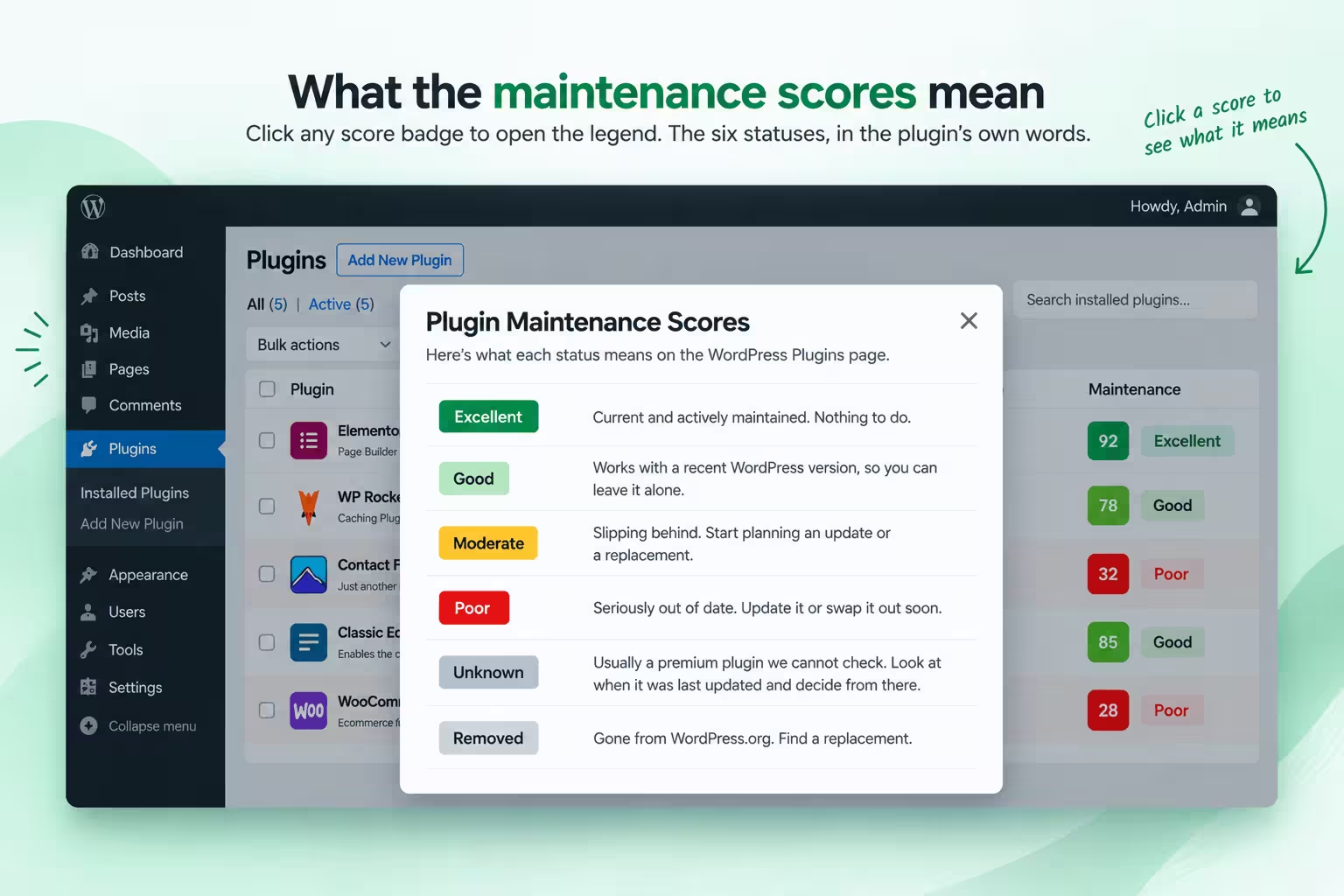
Click any score badge to open the legend. The six statuses, in the plugin’s own words:
| Status | What it means |
|---|---|
| Excellent | Current and actively maintained. Nothing to do. |
| Good | Works with a recent WordPress version, so you can leave it alone. |
| Moderate | Slipping behind. Start planning an update or a replacement. |
| Poor | Seriously out of date. Update it or swap it out soon. |
| Unknown | Usually a premium plugin we cannot check. Look at when it was last updated and decide from there. |
| Removed | Gone from WordPress.org. Find a replacement. |
What Each Row Shows
Beyond the score badge, every row carries four facts:
- First Installed. How long ago the plugin arrived on your site (“3 months ago”). Classic Monks starts tracking this when the plugin is activated.
- Version. The installed version, as reported by WordPress.
- Last Updated. When the author last shipped an update. For premium plugins this is measured locally and marked as such.
- Tested Up to. The WordPress version the author last certified against. This is the raw input behind the compatibility half of the score.
A Show More toggle expands Rating, Active Installs, and Update Frequency for repository plugins. Low installs plus a thin update history is a weak plugin even when the score has not caught up yet. Read the two together.
Premium plugins
Premium plugins (Elementor Pro, WP Rocket, Bricks, and dozens more on the built-in list) never appear in the WordPress.org API, so there is nothing remote to check. Classic Monks scores them from local signals and labels the row “Not available in WP repository” so you know the number is homegrown. Treat these scores as advisory and confirm against the vendor’s own changelog before replacing anything.
Removed plugins
When a plugin disappears from WordPress.org, the row does not just go grey. It becomes a removal card with the closure date and the stated reason. Delisting happens for security problems, guideline violations, and author requests alike, and the reason tells you which one you are dealing with. Either way, a removed plugin will never receive another update through WordPress. Line up its replacement before something else breaks.
How to Enable It
- Step 1
Open the Plugins subtab
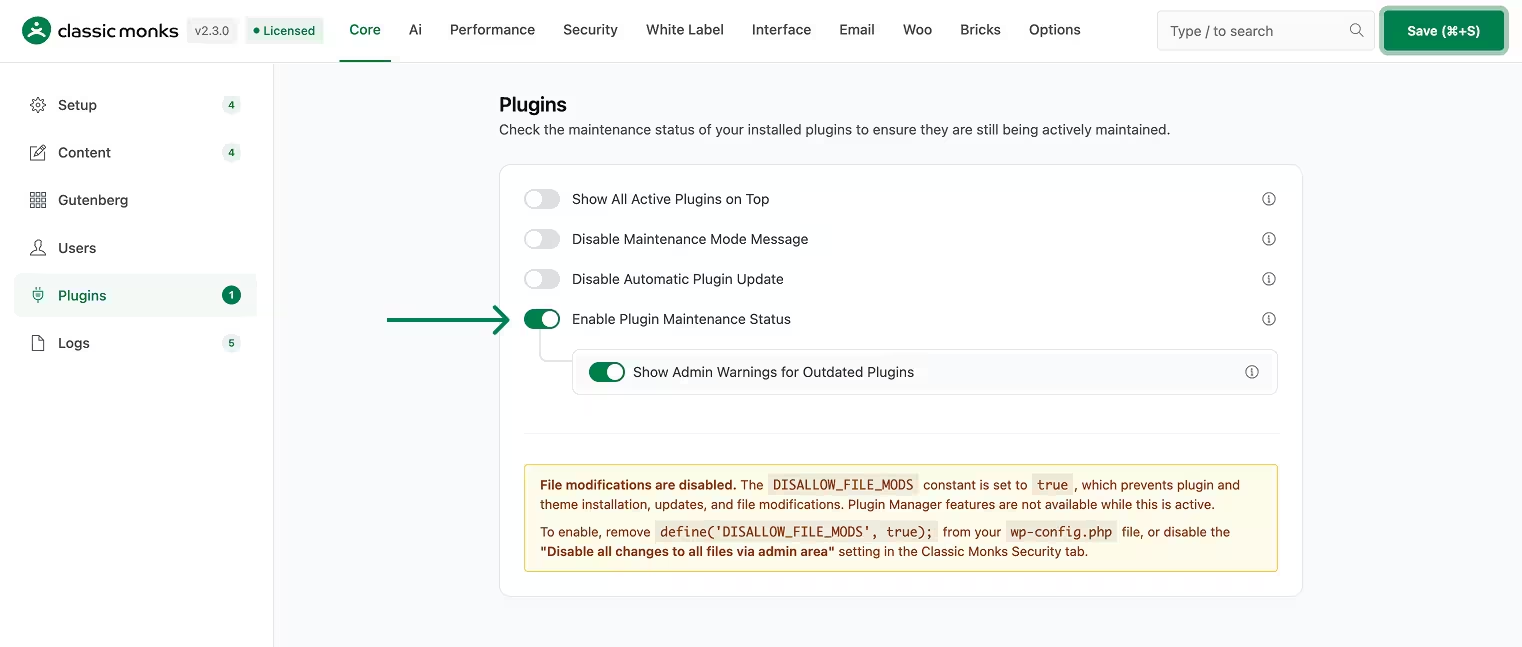
Go to Classic Monks, Core, Plugins. The subtab holds every toggle described in this guide.
- Step 2
Turn on Enable Plugin Maintenance Status
This adds the Maintenance column to the Plugins page. Nested underneath it sits the warning toggle.

- Step 3
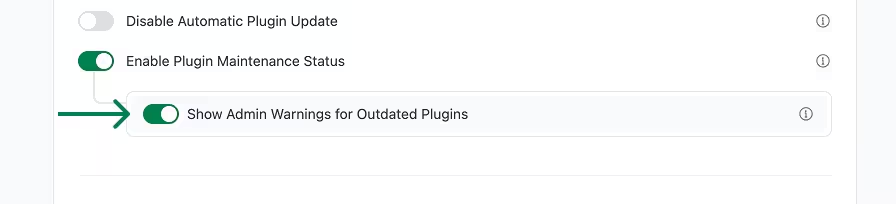
Turn on the warning toggle
The warning adds a warning icon to any plugin row not updated in over a year. You will see the problem rows without opening a single details popup.

- Step 4
Save and open Plugins
Save Changes, then visit Plugins. Scores appear once the repository data arrives. Only users who can activate plugins see the column.

Repository data is cached for three days, so repeat visits stay fast. A refresh button on the Plugins page clears the cache on demand when you need fresh numbers right now, for example right after a plugin ships a long-awaited update.
The Supporting Toggles
The same subtab carries four more controls. They orbit the same job: keeping the plugin stack under control.
Show All Active Plugins on Top. Reorders the Plugins list with active plugins first, inactive after. Visual only; it changes nothing about load order. Useful on sites with thirty plugins where the three you care about drown alphabetically.
Disable Automatic Plugin Update. Stops WordPress from updating plugins in the background. Every update waits for your approval on the Plugins page. Pair this with the health scores: controlled updates plus a staleness radar beats either one alone. Note that some managed hosts force updates at the server level, where no plugin setting can override them.
Disable Maintenance Mode Message. Hides the “Briefly unavailable for scheduled maintenance” notice visitors see during core, plugin, and theme updates.
Enable Advanced Plugin Manager. Adds the Plugin Manager submenu with URL installs, local ZIP upload, Google Drive repository, and WordPress.org author search. It has its own guide. If DISALLOW_FILE_MODS is set in wp-config.php, this stays off: WordPress itself forbids file changes, and Classic Monks respects that.
Frequently asked questions
How do I find abandoned plugins on my site?
Enable the maintenance status column and sort your attention by score. Anything Poor, plus anything Removed, is your shortlist. Confirm each one: check its WordPress.org page for the last-updated date, look for an actively maintained alternative, test the replacement on staging, then delete the abandoned plugin. Do not just deactivate it. Inactive code still ships with its vulnerabilities.
Why does my premium plugin show Unknown?
WordPress.org knows nothing about it, so remote verification is impossible. The local score still works off the plugin’s own headers and file dates. Open the vendor’s changelog for the real update history.
A plugin shows Removed. What now?
Stop updating around it and plan the exit. Check the stated reason on the card. If it was a security delisting, treat every day it stays installed as exposure. Find the replacement, migrate on staging, delete the original.
Does the score slow down my Plugins page?
No. Repository data is cached for three days and shared across page loads. The score is arithmetic on cached data, not a live API call per row.
Will Classic Monks update or delete plugins for me?
No. The column reports; it never acts. Updates and deletions stay manual, which is the point: you decide, with the evidence in front of you.
Troubleshooting
4 problems and how to fix each one.
Scores are not showing
The WordPress.org API may be unreachable from your server, or the cache has not warmed up yet. Test connectivity to api.wordpress.org, then use the refresh button on the Plugins page to clear the status cache.
A brand-new plugin scores near 50
Fifty is the starting point, not a verdict. A plugin with no update history and no compatibility data yet has earned neither bonuses nor penalties. Give it one release cycle.
The warning icon ignores the toggle
The icon needs the master maintenance status toggle on first. The warning toggle is nested under it for a reason.
Auto-updates keep happening
Your host is forcing them. WP Engine, Kinsta, and several others update plugins at the platform level. Change the setting in the hosting dashboard.
Not listed here? Ask on the forum.
Ask on the forum