




What Is Short Links and Tracking?
The Short Links and Tracking feature in Classic Monks creates a custom post type for managing branded short URLs directly in WordPress. Every short link includes built-in analytics, so you can see who clicked, where they came from, and what device they used.
Unlike third-party shorteners like Bitly or TinyURL, your short links live on your own domain. No redirects through third-party servers, no branding from another company, and full control over your link data.
Why You Need It
When you share links on social media, email campaigns, or printed materials, long URLs look unprofessional and break across lines. Third-party shorteners solve this but introduce problems: you depend on their uptime, they add a redirect hop that slows your site, and you lose control of your data.
Classic Monks gives you self-hosted short links that are fast, branded, and fully tracked. Your links stay on your domain, load faster without third-party redirects, and all analytics stay in your WordPress database.
How to Enable Short Links in Classic Monks
Step 1: Navigate to Classic Monks Settings
Click into the Classic Monks plugin settings in your WordPress dashboard.
Step 2: Go to the Core Tab
Click on the Core menu.
Step 3: Open the Content Subtab
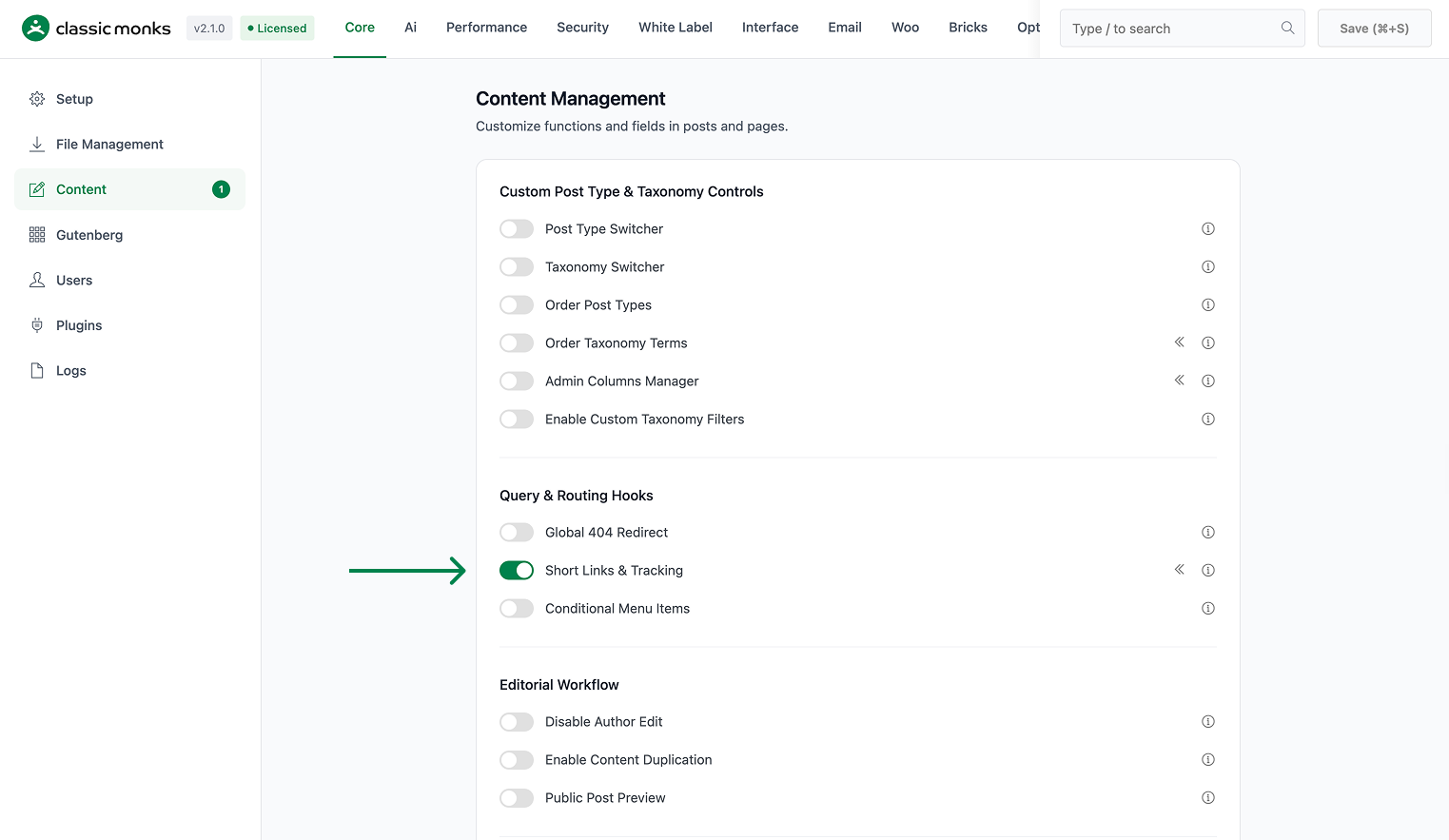
Click the Content subtab in the left sub-navigation. The Content Management section loads.
Step 4: Enable Short Links and Tracking
Scroll to find the Short Links & Tracking toggle. The toggle has a submenu indicator (the « icon) that signals it adds a new submenu to the admin sidebar.
Step 5: Save Changes
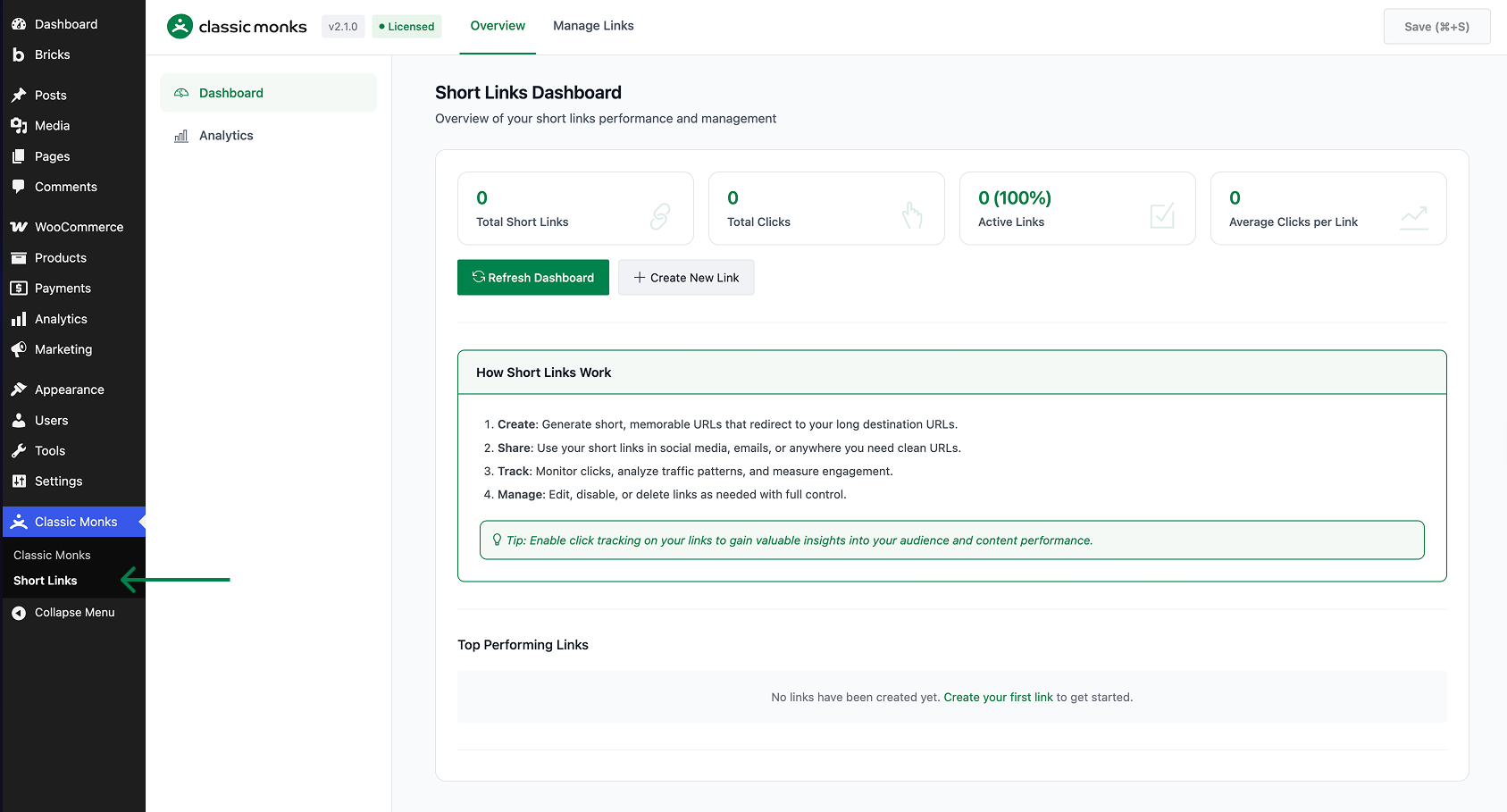
Click Save Changes. A new Short Links submenu appears under Classic Monks in the admin sidebar.
How to Create a Short Link
Step 1: Open Short Links
Click Classic Monks > Short Links in the admin sidebar. The Short Links management page opens with a table of all created links, showing their title, slug, target URL, and click count.
Step 2: Add New
Click the Add New button at the top of the page.
Step 3: Configure Your Link
The Add New Short Link form opens. Fill in the standard WordPress post fields:
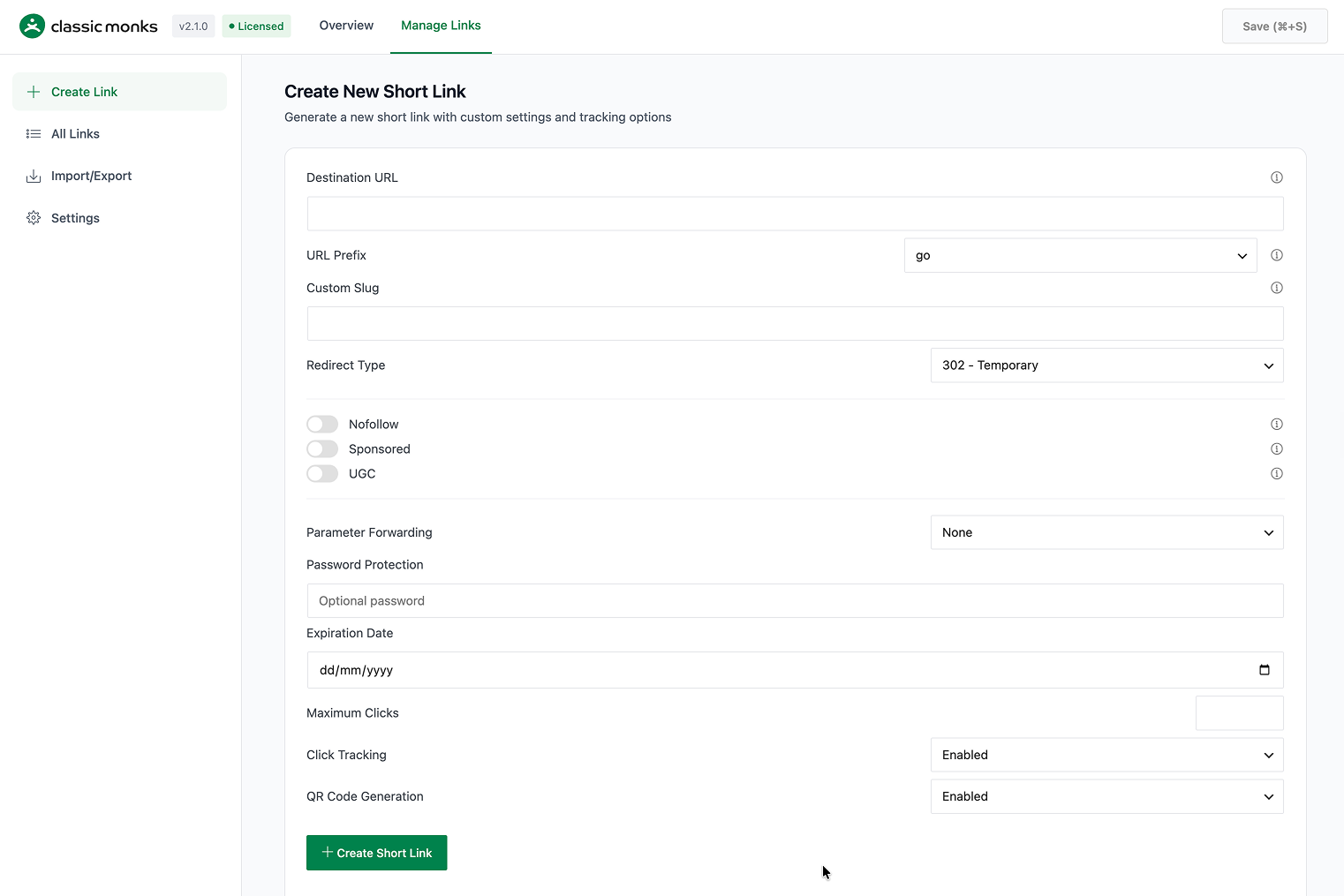
- Title: A descriptive name for your reference (e.g., “Black Friday Campaign”)
- Target URL: The full destination URL where visitors will be redirected (entered in the Custom Fields panel)
- Short Slug: The custom path after your domain (e.g.,
go/offercreatesyoursite.com/go/offer) — entered in the Custom Fields panel
Step 4: Set Optional Restrictions
In the Classic Monks meta box below the editor, set:
- Expiration Date: Set a date after which the link stops working
- Password Protection: Require a password to access the link
Step 5: Publish
Click Publish. Your short link is now active and redirecting visitors to the target URL.
How to View Click Analytics
Step 1: Open Short Links
Click Classic Monks > Short Links in the admin sidebar.
Step 2: Select a Link
Click on any short link to view its analytics dashboard.
Step 3: Review the Data
You’ll see:
- Total Clicks: Aggregate click count over time
- Clicks Over Time: A chart showing click trends (daily, weekly, monthly)
- Geographic Data: Where your clicks are coming from (country, city)
- Device Data: Desktop, mobile, or tablet breakdown
- Referrer Data: Which sites or campaigns are driving clicks
Configuration Options
| Option | Description | Default |
|---|---|---|
| Title | Internal reference name for the link | Required |
| Target URL | Full destination URL | Required |
| Short Slug | Custom path segment | Auto-generated |
| Expiration Date | Date when the link stops redirecting | None |
| Password | Require a password to access the link | None |
| Active/Inactive | Enable or disable the redirect | Active |
Tips for Using Short Links
Campaign Tracking
Create unique short links for each marketing channel to track performance:
yoursite.com/go/fb-offerfor Facebook adsyoursite.com/go/email-newsletterfor email campaignsyoursite.com/go/print-flyerfor print materials
Branded Social Sharing
Use short links in social media posts for cleaner, more professional URLs:
- Instead of:
yoursite.com/2026/06/01/amazing-product-review-best-things-ever/ - Use:
yoursite.com/go/review
Time-Sensitive Promotions
Set expiration dates on links for limited-time offers. When the date passes, the link automatically stops redirecting. No manual cleanup needed.
Password-Protected Content
Use password protection for exclusive content like client previews, affiliate resources, or early access pages.
Advanced Options (Developers)
Programmatic Link Creation
Create short links via the REST API:
// Create a short link programmatically
$link = wp_insert_post([
    'post_type'   => 'cm_short_link',
    'post_status' => 'publish',
    'post_title'  => 'My Campaign',
    'meta_input'  => [
        'cm_short_link_target'     => 'https://yoursite.com/destination',
        'cm_short_link_slug'       => 'go/campaign',
        'cm_short_link_expiry'     => '2026-12-31',
        'cm_short_link_password'   => '',
    ],
]);
Filter Click Data
Access click analytics programmatically:
// Get click count for a specific link
$click_count = get_post_meta($link_id, 'cm_short_link_clicks', true);

// Get geographic data
$geo_data = get_post_meta($link_id, 'cm_short_link_geo_data', true);
Custom Redirect Logic
Add custom logic before the redirect fires:
// Redirect mobile users to a different URL
add_action('cm_short_link_redirect', function($link_id, $target_url) {
    if (wp_is_mobile()) {
        $mobile_url = get_post_meta($link_id, 'cm_short_link_mobile_target', true);
        if ($mobile_url) {
            wp_redirect($mobile_url);
            exit;
        }
    }
}, 10, 2);
Add your first comment to this post