




What Is Auto Featured Image?
Auto Featured Image is a Classic Monks feature that runs on every post save. If the post has no featured image set, the feature scans the post content for the first <img> tag, downloads it (if external) or uses the media library version, and sets it as the featured image. If the post already has a featured image, the feature does nothing.
Why You Need It
Featured images are essential for WordPress sites:
- Social sharing (Open Graph and Twitter Cards use the featured image)
- Archive pages (most themes show featured images in post lists)
- SEO (Google Images search can surface featured images)
- Reader experience (posts with images get more engagement)
But authors forget to set them. Auto Featured Image is the safety net: every post that has an image in its content automatically gets a featured image, even if the author skipped the manual step.
How to Use Auto Featured Image in Classic Monks
Step 1: Navigate to Settings
Click into the Classic Monks plugin settings in your WordPress dashboard.
Step 2: Go to the Content Subtab
Click on the Core menu, then click the Content subtab.
Step 3: Enable Auto Featured Image
Scroll to the Editorial Workflow section and toggle on Auto Featured Image. No nested options are needed.
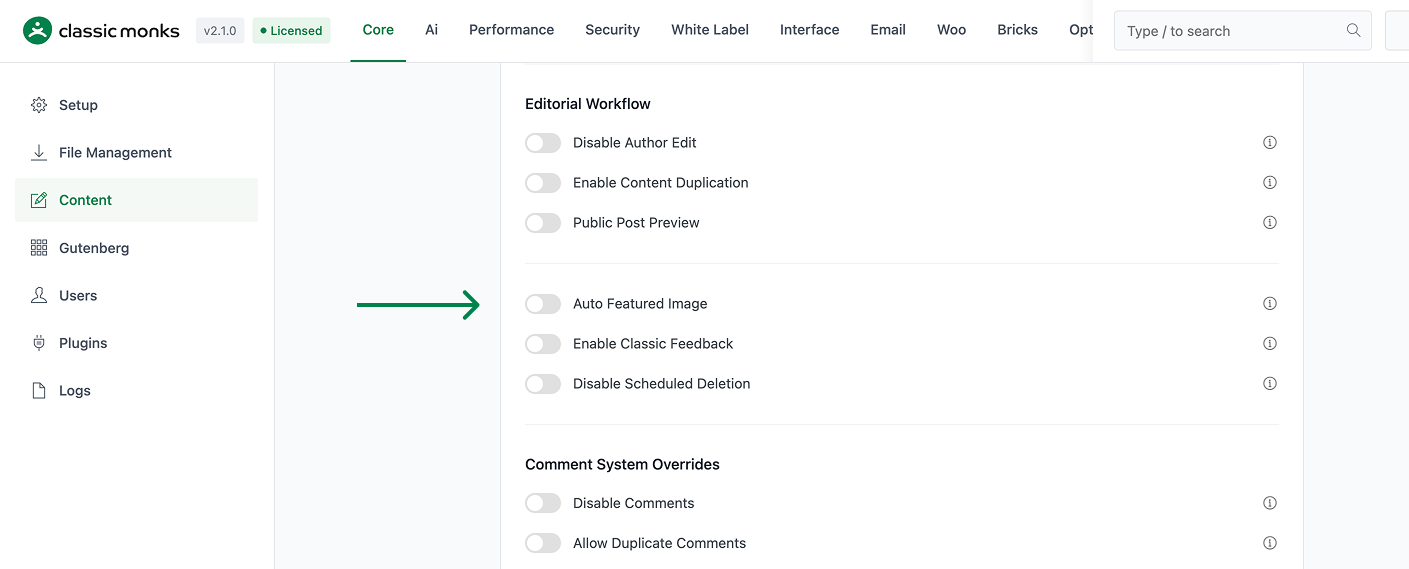
Step 4: Save Changes
Click Save Changes.
Step 5: Test on a New Post
Create a new post (or edit an existing one) and add an image to the content. Save the post. The Featured Image meta box in the right sidebar should now show the first image from your content.
Step 6: Verify on an Existing Post
Open an existing post that has an image in the content but no featured image. Save it. The featured image should now be set.
Configuration Options
| Option | Description | Default |
|---|---|---|
| Auto Featured Image | Master toggle. Enables the auto-set behavior. | Off |
No nested options. The feature runs silently on every post save.
What Image Sources Are Supported
| Image Source | Supported? | Notes |
|---|---|---|
| Image uploaded to Media Library, embedded in content | Yes | Uses the existing media library attachment |
| Image embedded in content via Gutenberg Image block | Yes | The block’s <img> is captured |
| Image embedded in content via classic editor | Yes | Standard <img> tags are captured |
| Image in a Gallery block | Yes | The first gallery image is used |
| Image from an external URL (not in Media Library) | Yes | The image is downloaded and added to the Media Library |
| Featured image set manually | N/A | The existing featured image is preserved (not overwritten) |
| Image in a Cover block (Gutenberg) | Yes | The cover image is used |
| Image as a CSS background | No | Auto Featured Image only reads <img> tags |
| Image rendered by JavaScript (e.g., lazy-load placeholder) | Partial | The initial <img> is captured; JS-replaced images are not |
| Image inside a third-party embed (YouTube, etc.) | No | Embeds don’t have a usable featured image |
Developer Notes
Auto Featured Image sets the first image in post content as the featured image. No developer hooks are currently exposed.
Options used:
| Option | Type | Default |
|---|---|---|
enable_auto_featured_image |
Boolean | false |

Add your first comment to this post