




What Is Local Plugin Upload?
Local Plugin Upload is a sub-feature of the Classic Monks Advanced Plugin Manager. It replaces the default WordPress “Upload Plugin” button with an enhanced version that provides:
- Better progress tracking during upload
- Clearer error messages for common issues
- ZIP structure validation before extraction
- Smoother handling of large plugin files
Why You Need It
The default WordPress plugin uploader works for simple cases but falls short for:
- Large plugins (50MB+) that time out or fail silently
- Plugins with nested directory structures
- Plugins with non-standard file names
- High-volume plugin installations where error messages are unclear
The enhanced uploader gives you visibility and control where the default does not.
How to Upload a Plugin Locally in Classic Monks
Step 1: Enable the Feature
In the Classic Monks Core tab, Plugins subtab, enable:
- Enable Advanced Plugin Manager (master toggle, with the submenu indicator
«icon that signals it adds the Plugin Manager submenu) - Enable Local Plugin Upload (sub-toggle)
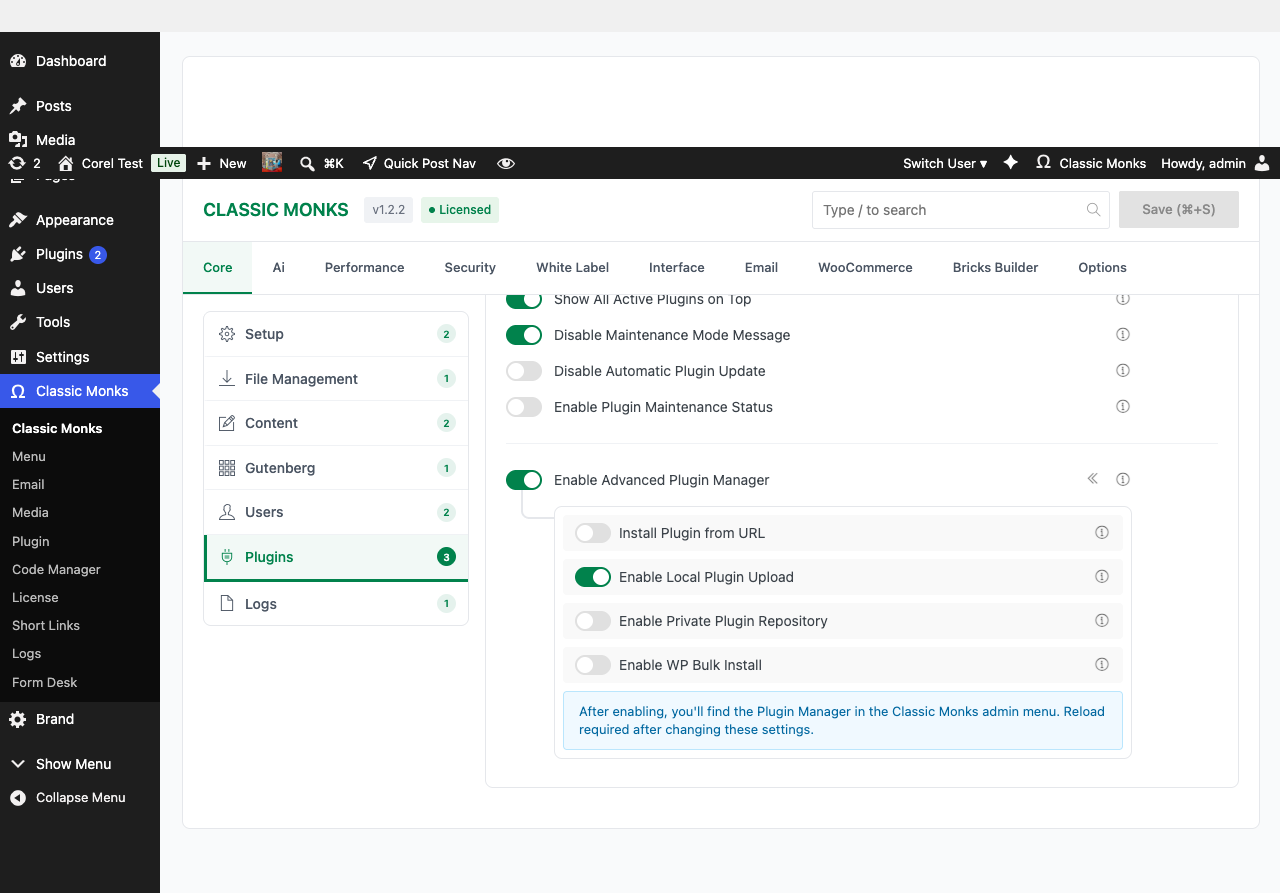
If you see a warning that “File modifications are disabled,” the feature is unavailable. See the troubleshooting section.
Step 2: Reload the Admin
A page reload is required for the Plugin Manager submenu to appear.
Step 3: Navigate to the Plugin Manager
Click Classic Monks > Plugin in the WordPress admin menu. The Plugin Manager opens with multiple tabs: one for each install method (Install from URL, Local Upload, Google Drive, Author Search, etc.).
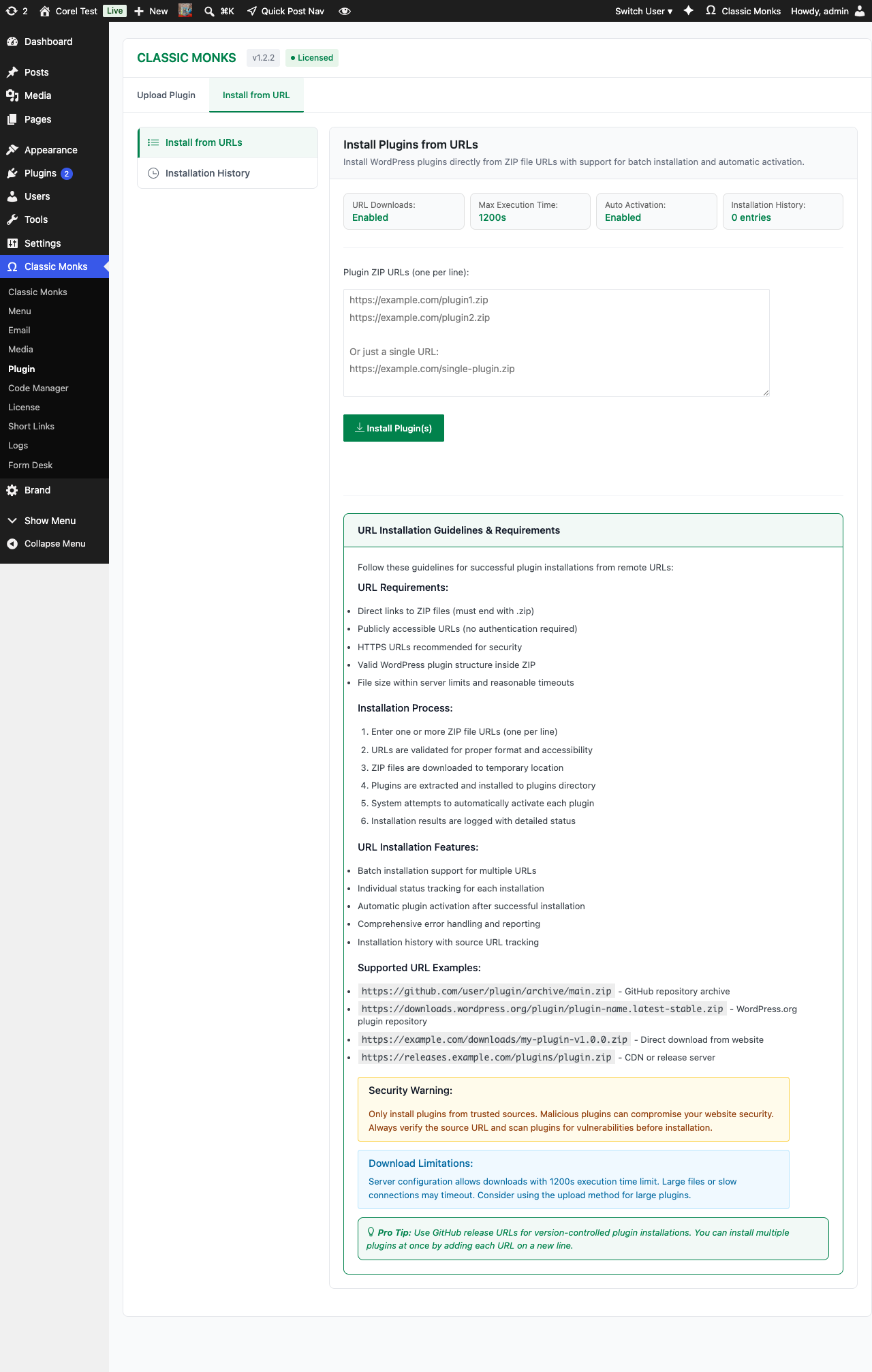
Step 4: Open the Local Upload Tab
Click the Local Upload tab in the Plugin Manager.
Step 5: Choose the Plugin ZIP
Click Choose File (or drag and drop, depending on the UI). Select the plugin ZIP file from your computer.
Step 6: Upload and Install
Click Install Now. The Plugin Manager:
- Uploads the ZIP to your server with progress tracking
- Validates the ZIP structure
- Extracts to the plugins directory
- Shows a success or error message
Step 7: Activate (If Not Auto-Activated)
If the Plugin Manager does not auto-activate, go to the Plugins page and click Activate.
Improvements Over Default WordPress Uploader
| Feature | Default WordPress | Classic Monks Enhanced |
|---|---|---|
| Progress tracking | Basic | Real-time upload progress |
| Error messages | Generic | Specific (file too large, invalid ZIP, etc.) |
| Large file handling | Limited by PHP settings | Better timeout handling |
| ZIP validation | After upload | Before extraction |
| Drag-and-drop | No | Yes (in supported browsers) |
| Bulk upload | No | No (single file) |
Supported File Types
| File Type | Supported | Notes |
|---|---|---|
.zip |
Yes | Standard WordPress plugin ZIPs |
.tar.gz |
No | WordPress does not support tar.gz plugins |
| Password-protected ZIPs | No | No UI for password input |
| Multi-folder ZIPs | Yes | As long as the top level is a valid plugin |
| Plugins with vendored dependencies | Yes | Included in the ZIP |
Configuration Options
| Option | Description | Default |
|---|---|---|
| Enable Advanced Plugin Manager | Master toggle for the entire feature set. | Off |
| Enable Local Plugin Upload | Enables enhanced local upload. | Off |
Common Use Cases
Installing a Custom Plugin You Developed
You built a custom plugin for a client. ZIP the plugin directory, upload through the Plugin Manager.
Installing a Premium Plugin
You purchased a premium plugin from a marketplace. Download the ZIP from your account, upload through the Plugin Manager.
Migrating a Plugin Between Sites
You have a plugin ZIP from a staging site. Upload it to the production site through the Plugin Manager.
Installing a Plugin That Is Not on WordPress.org
Some plugins are not in the WordPress.org repository. Upload them directly through the Plugin Manager.
Developer Notes
Enable Local Plugin Upload adds a file upload field to the plugin installer. No developer hooks are currently exposed.
Options used:
| Option | Type | Default |
|——–|——|———|
| enable_local_plugin_upload | Boolean | false |
Troubleshooting
“File modifications are disabled” Warning
Cause: DISALLOW_FILE_MODS is set to true in wp-config.php, or a Classic Monks Security setting enforces it.
Fix: Remove the constant from wp-config.php or disable the corresponding Security setting. Understand the security implications before disabling.
Upload Fails at 100%
Cause: PHP’s upload_max_filesize or post_max_size is smaller than the plugin file.
Fix: Increase the PHP limits in php.ini or .htaccess. Contact your hosting provider if you do not have access.
“Invalid ZIP File” Error
Cause: The file is not a valid ZIP archive, or it is corrupted.
Fix: Re-download or re-create the ZIP on your local machine. Verify the file opens in a ZIP utility.
“Destination Folder Already Exists” Error
Cause: A plugin with the same slug is already installed.
Fix: Deactivate and delete the existing plugin first, or use Install from URL with a renamed version.
Installation Succeeds But Plugin Does Not Appear
Cause: The plugin’s main file has a non-standard name or is in a non-standard location.
Fix: Extract the ZIP manually to inspect the structure. The main plugin PHP file should be at the root of the plugin directory and have the proper Plugin Header.
Auto-Activation Fails
Cause: The plugin requires a PHP version or extension that is not available.
Fix: Check the plugin’s requirements. Manually activate to see the specific error message.