




What Is the Bricks Status Panel
The Bricks Status panel is a diagnostic view in the Classic Monks Bricks tab. It shows a single status notice that tells you whether the Bricks Builder theme is active on your site. If the theme is active, you see a green success notice. If it is not, you see a red error notice. The panel is read-only and does not change any settings.
Recommendations Before Checking
- Check the status before enabling Bricks features. The Bricks features in Classic Monks expect the Bricks Builder theme to be active, so review the status first.
- Confirm the active theme. The status reflects the theme active in WordPress, so verify it matches the theme you intend to use.
- Refresh after upgrades. If you just installed or updated Bricks, reload the Bricks tab to refresh the status notice.
Check the Bricks Status
Step 1: Open the Bricks Tab
In your WordPress dashboard, go to Classic Monks, then open the Bricks tab.
Step 2: Review the Status
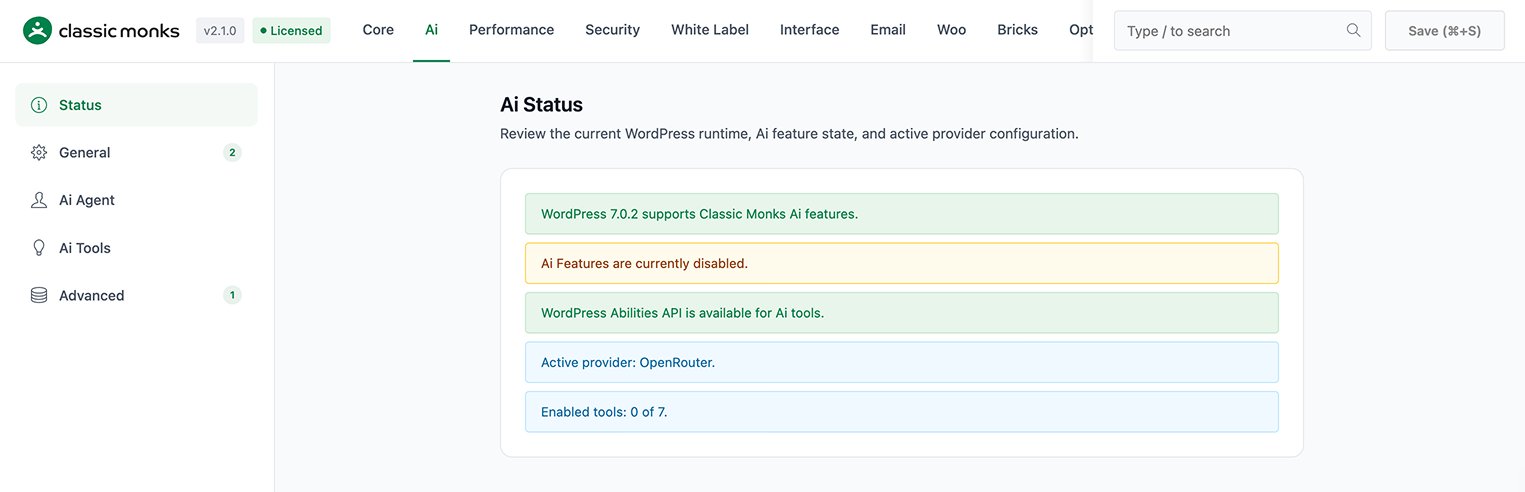
The Bricks Status subtab is the first subtab. It shows one of two notices:
- Bricks Builder theme is active on your site (green), when the theme is active.
- Bricks Builder theme is not active on your site (red), when it is not.
Step 3: Act on the Status
If the notice is green, your Bricks features can run. If it is red, activate the Bricks Builder theme before you enable Bricks features.
Verify the Status Is Correct
To confirm the status matches your site:
- Check your active theme under Appearance in WordPress.
- Compare it with the notice in the Bricks Status panel.
- If you just activated the Bricks theme, reload the Classic Monks Bricks tab to refresh the notice.
Examples
Example 1: Confirm Bricks Before Enabling Features
A user wants to enable the Bricks AI Builder but is not sure the Bricks theme is active. They open the Bricks Status panel, see the green notice, and know it is safe to proceed.
Example 2: Troubleshoot a Non-Working Feature
A Bricks feature is not working. The user opens the Bricks Status panel, sees the red notice, and learns the Bricks theme is not active. Activating the theme fixes the issue.
Example 3: After Installing Bricks
A user just installed Bricks Builder. They open the Bricks Status panel to confirm the theme is now active before configuring the Bricks setup.
Common Use Cases
Confirm Bricks is ready before setup
Before you run the Bricks setup or enable the AI builder, check the Bricks Status panel. A green notice confirms the Bricks theme is active, so you can proceed with confidence.
Diagnose a missing Bricks feature
If a Bricks feature does not work, the status panel is the first place to look. A red notice tells you the Bricks theme is not active, which is often the cause of the problem.
Verify after a theme change
If you switch themes, check the status panel to confirm the Bricks theme is active again. This is useful after a site migration or a theme reinstall.

Add your first comment to this post