




What Is Bricks AI Builder?
Bricks AI Builder is the AI-powered mode inside Classic Monks’ Live HTML to Bricks conversion flow. Instead of pasting HTML and manually mapping it to Bricks elements, you describe what you want in natural language and the AI generates a structured Bricks layout. The output uses Bricks sections, global classes, components, and variables, not raw HTML.
It runs in the same panel as the existing Live Code Sync & Import feature, so the workflow is familiar if you already use that tool.
Why You Need It
Converting HTML mockups to Bricks layouts by hand is slow. You paste HTML, then rebuild every section, class, and component manually. For a typical landing page, that is hours of work even when the markup is clean.
Bricks AI Builder compresses that into minutes:
- Describe the layout: “Hero with logo top-left, headline, subhead, two CTA buttons” gets you a structured Bricks section with global classes ready for styling
- Generate from scratch: “Pricing page with 3 tiers and FAQ section below” produces a full page with proper Bricks structure
- Iterate fast: “Make the hero taller and add a video background” applies the change without manual rebuilding
- Stay on-brand: Set a system prompt with your design system, typography rules, and color palette to keep generated output consistent
How to Enable Bricks AI Builder in Classic Monks
Step 1: Enable Bricks Builder
Bricks AI Builder requires the Bricks Builder theme. Install and activate Bricks from bricksbuilder.io.
Step 2: Enable Live Code Sync & Import
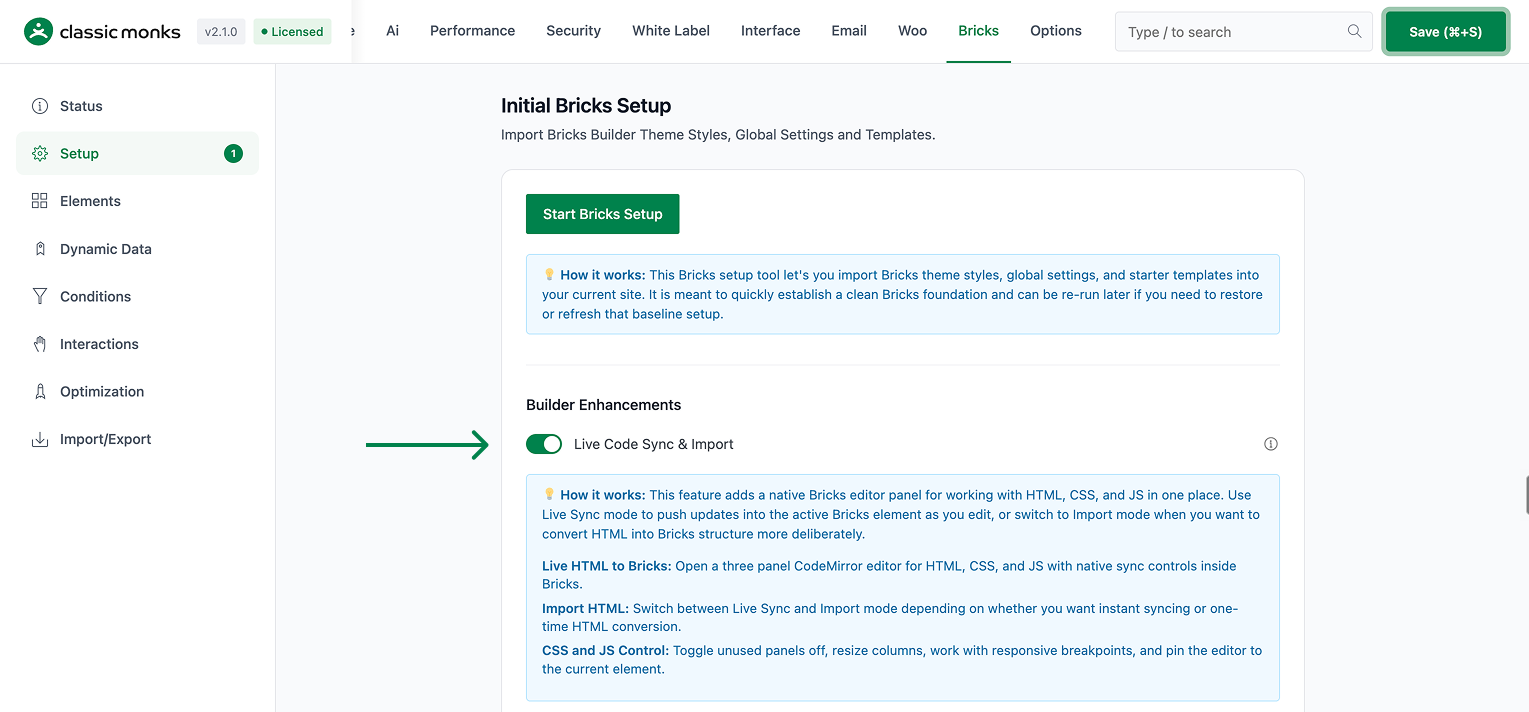
In the Classic Monks settings, open the Bricks Builder tab. Toggle on Live Code Sync & Import. Bricks AI Builder depends on this feature; it will not work without it.
Step 3: Enable AI Features
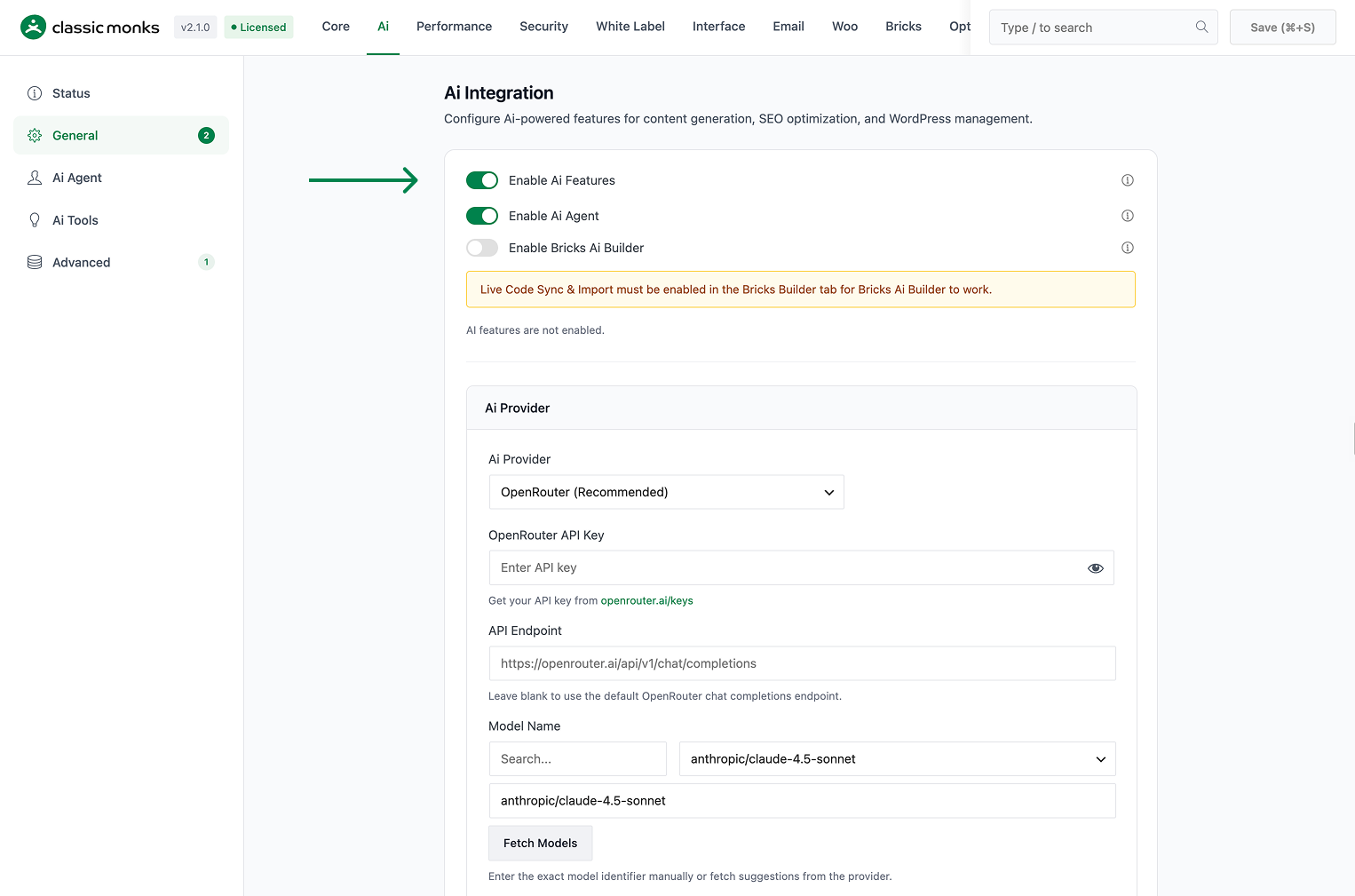
Open the AI tab. In the General subtab, toggle on Enable AI Features. See How to Enable AI Features in Classic Monks.
Step 4: Enable Bricks AI Builder
Still in the General subtab, toggle on Enable Bricks AI Builder. A status message confirms whether the dependency on Live Code Sync is satisfied.
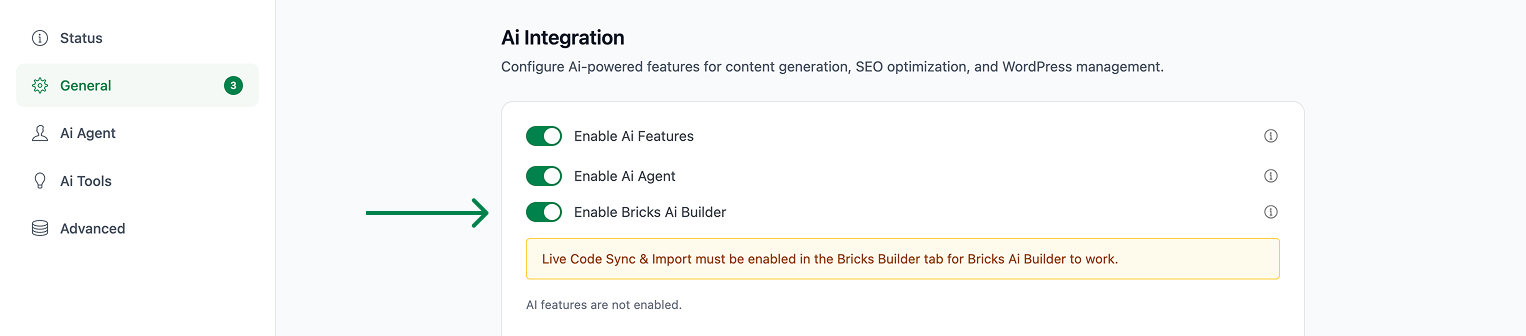
If a yellow warning appears saying “Live Code Sync & Import must be enabled in the Bricks Builder tab for Bricks Ai Builder to work”, go back to Step 2 and enable it.
Step 5: Configure Your AI Provider
Bricks AI Builder uses the main AI Provider. Configure it in the AI Provider section. See How to Configure the AI Provider in Classic Monks.
Step 6: Set a Bricks AI Builder System Prompt (Optional)
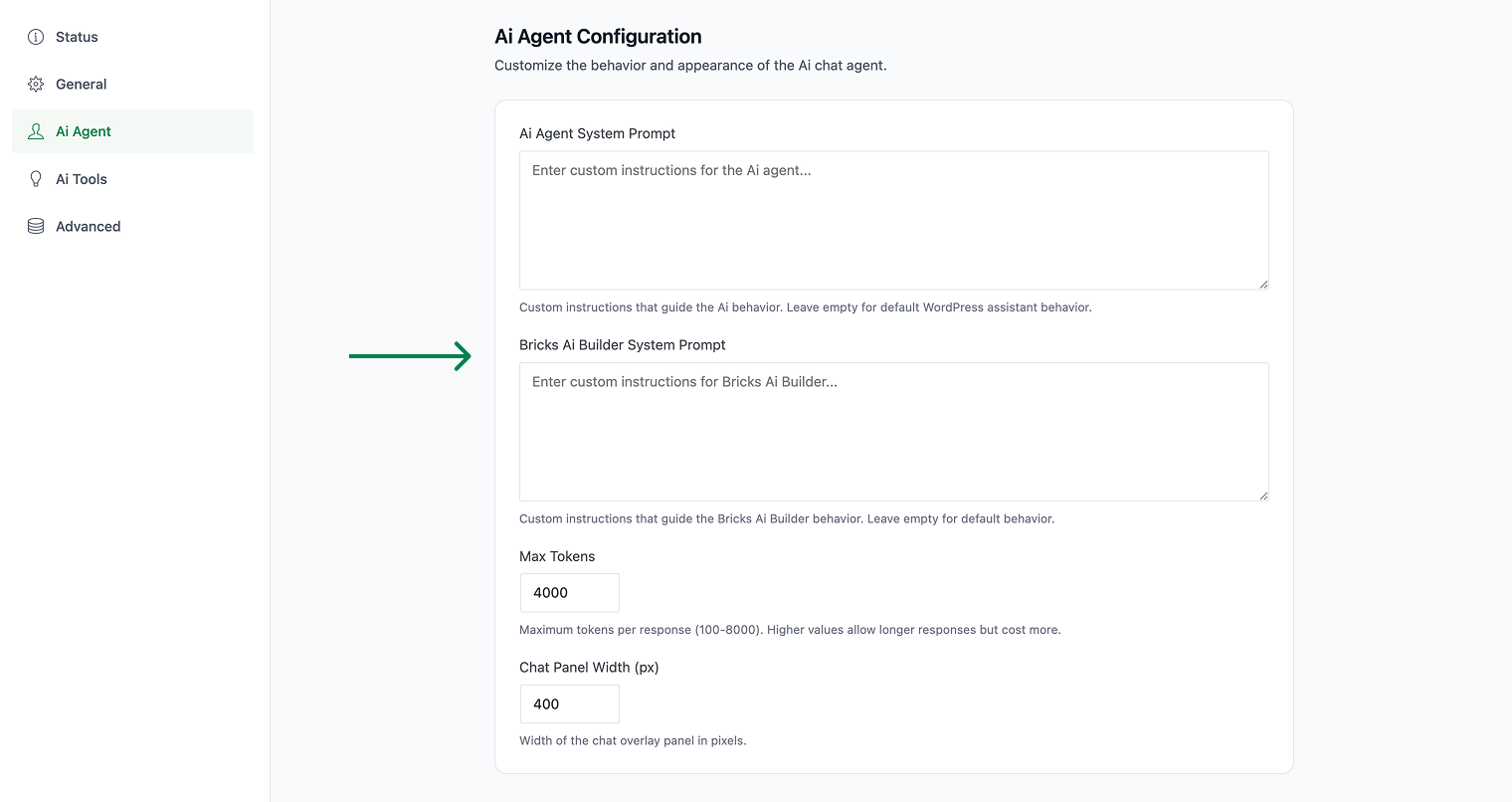
Switch to the Ai Agent subtab and edit the Bricks AI Builder System Prompt field. This prompt guides the conversion behavior, including coding standards, design preferences, and how to handle edge cases.
Step 7: Open the Live HTML to Bricks Panel
In the Bricks Builder editor, open the Live HTML to Bricks panel from the toolbar. Switch to the AI mode.
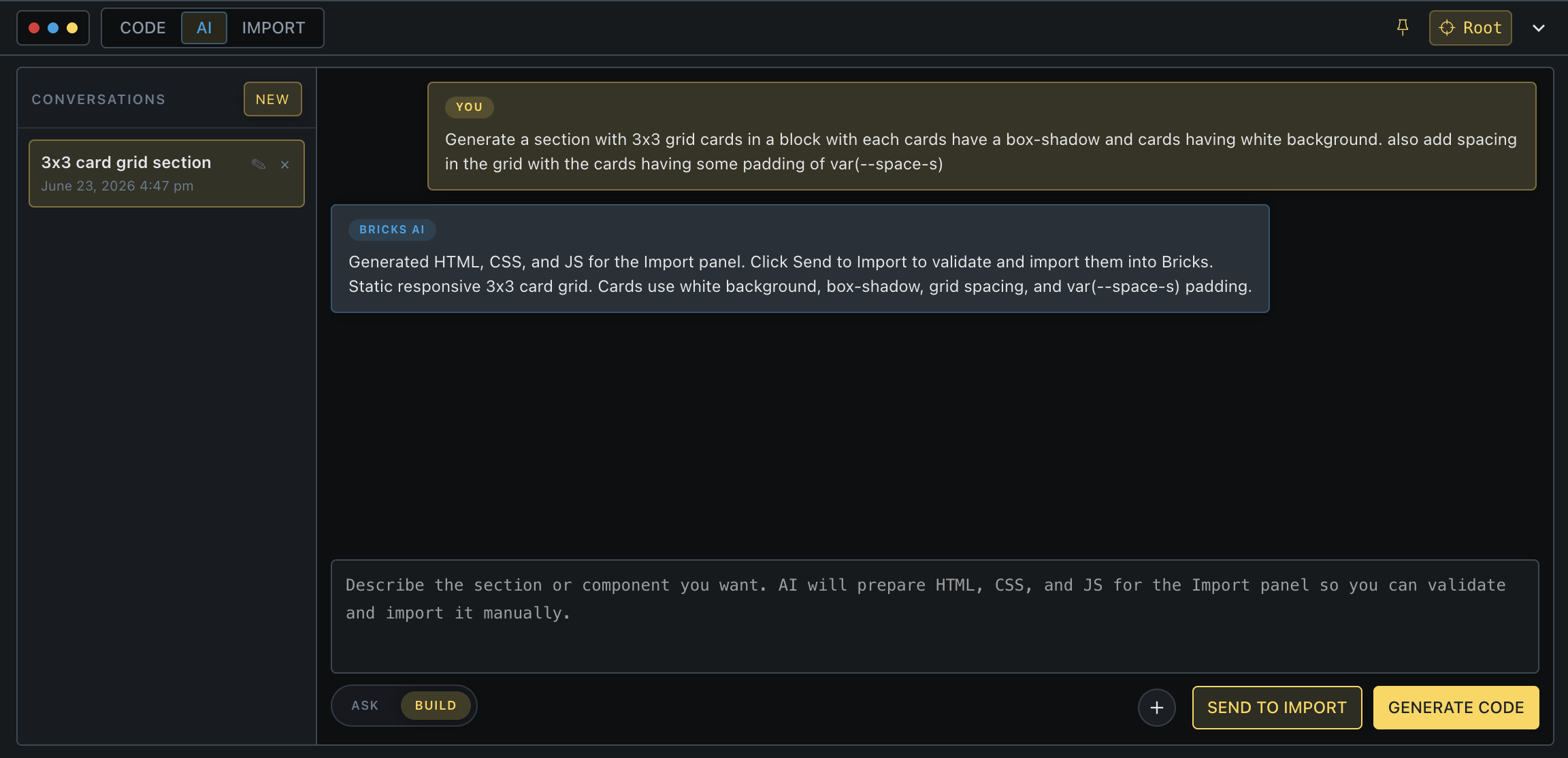
Note: The Live HTML to Bricks panel is part of the Bricks Builder toolbar, accessible only on pages being edited with Bricks. The AI mode toggle appears at the top of the panel.
Step 8: Save Changes
Click Save Changes in the Classic Monks settings to persist the toggle and prompt.
Using Bricks AI Builder
Generating from a Description
- Open the Live HTML to Bricks panel
- Switch to AI mode
- Type a description: “Pricing page with 3 tiers (Starter, Pro, Agency) and a comparison table below”
- Press Enter or click Generate
- Review the generated Bricks structure in the preview
- Click Insert to apply it to the current page or save as a component
Converting Existing HTML
- Open the Live HTML to Bricks panel
- Switch to AI mode
- Paste your HTML in the input
- Add a natural-language instruction: “Convert this HTML into a Bricks section using the brand colors from the global palette”
- Press Enter or click Generate
- Review the conversion and click Insert
Iterating on Generated Output
After the AI generates a layout, you can refine it conversationally:
- “Add a video background to the hero”
- “Make the spacing tighter on the pricing cards”
- “Replace the icons with the Iconify set”
- “Convert this to a reusable component”
Each refinement preserves the Bricks structure (global classes, sections, variables) so styling stays consistent.
Vanilla JavaScript Generation
When a generated component needs interactivity (tabs, accordions, sliders, dropdowns), Bricks AI Builder emits the required vanilla JavaScript along with the Bricks elements. You do not need to write JS by hand. The script uses Bricks’ existing event system where possible and falls back to standard DOM listeners.
Confirmation Prompts
For destructive operations (replacing a section root or the entire page), Bricks AI Builder shows a confirmation prompt before applying the change. The prompt names the elements that will be replaced and asks for explicit approval.
Configuration Options
| Option | Description | Default |
|---|---|---|
| Enable Bricks AI Builder | Activates the AI mode in the Live HTML to Bricks panel. | Off |
| Live Code Sync & Import | Required dependency. Bricks AI Builder refuses to run without it. | Off (must be on) |
| Bricks AI Builder System Prompt | Custom instructions guiding conversion behavior, coding standards, and design preferences. | Default conversion |
| AI Provider | Powers the AI generation. Uses the same provider configured in the AI Provider section. | OpenRouter |
Image Attachments
When you attach an image in the Bricks AI chat (for reference or “match this design”), the attachment is routed to the Vision / Image Provider if configured, or the main AI Provider if it supports images. A status message under the Enable Bricks AI Builder toggle tells you which path is active.
To attach an image:
- Click the attachment icon in the Bricks AI chat
- Pick an image from the Media Library
- Add a text instruction: “Match this design’s color palette and typography”
- Generate
Vision-capable models can analyze the image and produce Bricks output that closely mirrors the reference. For best results, configure a dedicated Vision / Image Provider. See How to Configure the Vision / Image Provider in Classic Monks.
System Prompt Tips
A well-tuned system prompt dramatically improves output quality. Include:
- Design system rules: spacing scale, typography, color palette
- Component preferences: “Use Bricks’ Tabs element for tabbed sections”, “Always wrap feature lists in the Bricks Icon List element”
- Coding standards: “Use BEM-style class names with the
cm-prefix”, “Avoid inline styles” - Edge case handling: “When the HTML uses a carousel, generate a Bricks Accordion instead”
- Branding: “Always reference the global color variables, not raw hex values”
Example system prompt:
You convert HTML into Bricks Builder layouts.

Rules:
- Use Bricks sections for all top-level layout blocks
- Apply global CSS classes from the site palette
- Use Bricks' native elements (Icon List, Accordion, Slider) instead of raw HTML
- Wrap repeating items in Bricks' Loop element
- Use the brand's color variables (var(--color-primary), var(--color-accent))
- Spacing follows the 8px scale: 8, 16, 24, 32, 48, 64
- Typography uses Inter for body, Space Grotesk for headings
- Add JavaScript only when no native Bricks element supports the behavior
Advanced Options (Developers)
The Bricks AI Builder uses standard WordPress hooks for initialization and asset loading.
Hooks used:
wp_enqueue_scriptsenqueues AI builder assets conditionally viacm_bricks_should_enqueue()admin_noticesdisplays notices when dependencies are missing
The AI generation process uses server-side API calls to the configured provider. The prompt and element restrictions are configured through the plugin settings, not via WordPress filters.

Add your first comment to this post