




What Is the Vision / Image Provider?
The Vision / Image Provider is an optional second AI connection in Classic Monks that handles image-aware workflows. When you generate alt text, create an AI image, edit an image with AI, or attach an image to the Bricks AI Builder, the plugin prefers this provider. If the vision provider is not configured, or the selected vision model cannot handle the specific workflow, Classic Monks falls back to the main AI Provider if the main model’s capabilities allow it.
Why You Need It
Image-aware tasks (vision analysis, image generation, image editing) need models that can either see images or produce them. Most text-focused models cannot do both. Configuring a dedicated vision provider:
- Saves cost: Use a cheap, fast vision model for image tasks while reserving expensive reasoning models for text
- Improves quality: Models like Gemini 3.1 Flash are tuned for multimodal tasks and outperform general text models on image analysis
- Enables features: AI Tools like Alt Text Generation, Image Generation, and Image Editing require a vision-capable model; without a vision provider or vision-capable main model, those tools stay disabled
- Separates billing: Keep vision costs on one provider and text costs on another
How to Configure the Vision / Image Provider in Classic Monks
Step 1: Enable AI Features
The Vision / Image Provider is hidden until you turn on Enable AI Features in the General subtab. See How to Enable AI Features in Classic Monks.
Step 2: Open the General Subtab
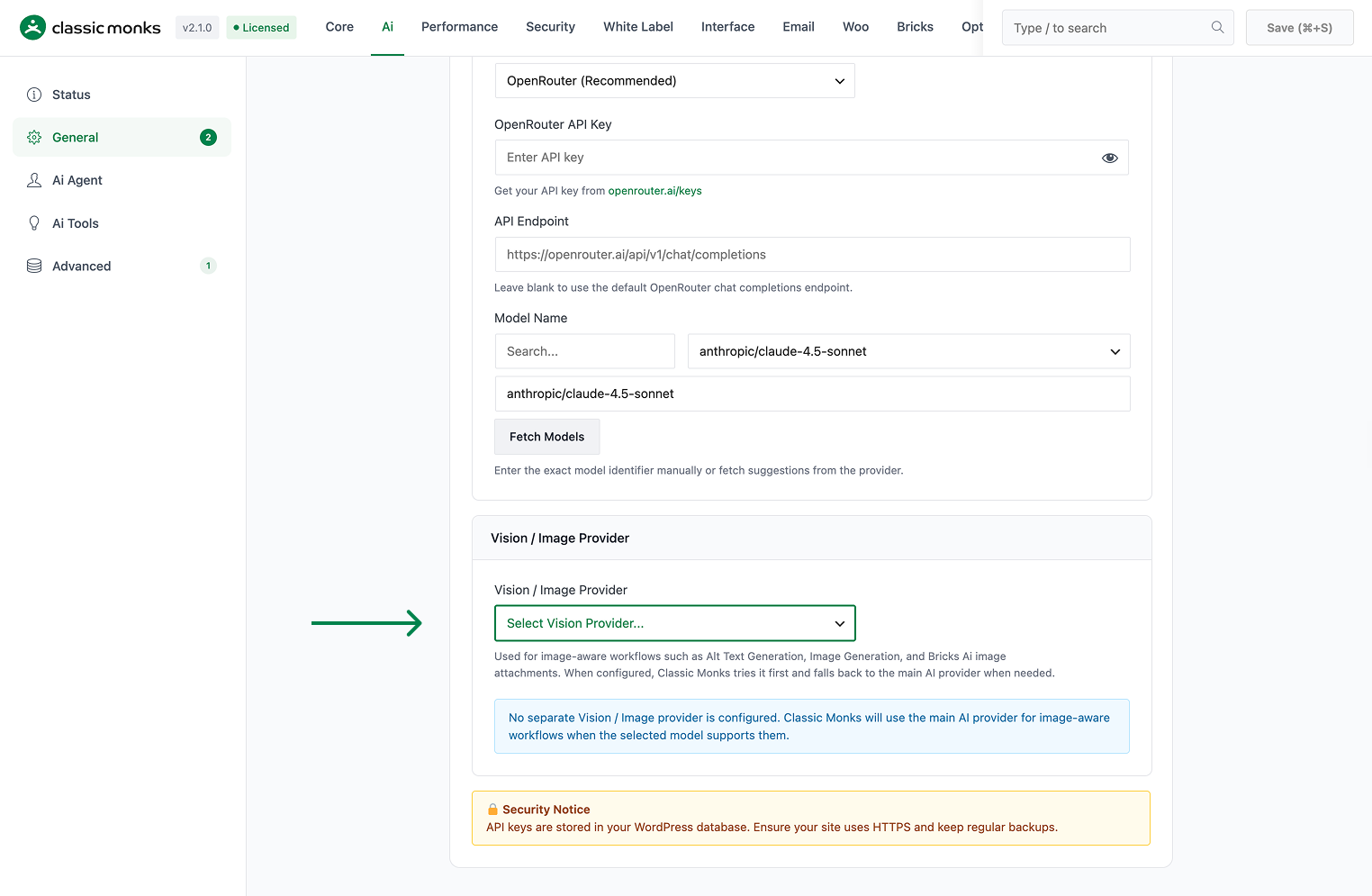
Stay on the General subtab. Scroll past the AI Provider section to Vision / Image Provider.
Step 3: Pick a Vision Provider
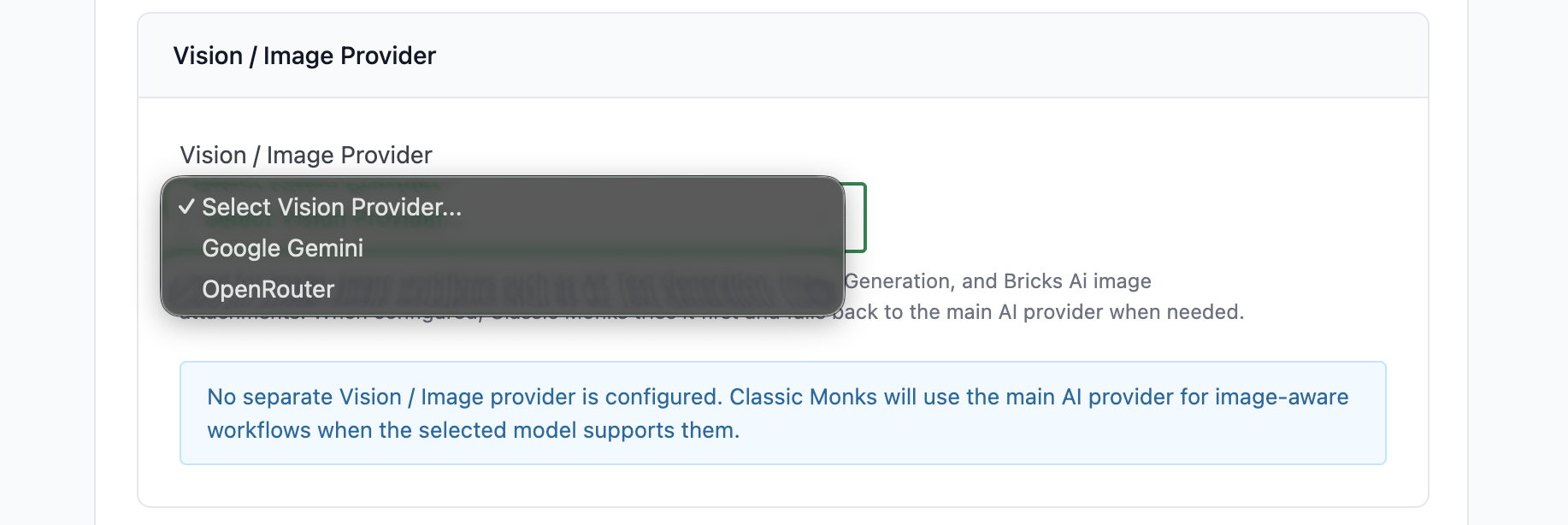
Click the Vision / Image Provider dropdown. You have three effective options:
- Empty (default): No separate vision provider. Classic Monks uses the main AI Provider for image workflows when the main model supports them.
- Google Gemini: Dedicated Gemini vision configuration with a separate API key and image model.
- OpenRouter: Dedicated OpenRouter vision configuration with a separate API key and image-capable model.
A status notice below the dropdown tells you which mode is active. The notice color changes:
- Blue (info): No separate vision provider; main provider will be used if capable
- Yellow (warning): Vision provider is configured but has issues; will fall back to main
- Blue (info, success): Vision provider is configured and working
Step 4: Enter the Vision API Key
For the chosen vision provider, enter its API key in the password field. The field works the same as the main provider: leave blank to keep the saved key, enter a new value to replace it.
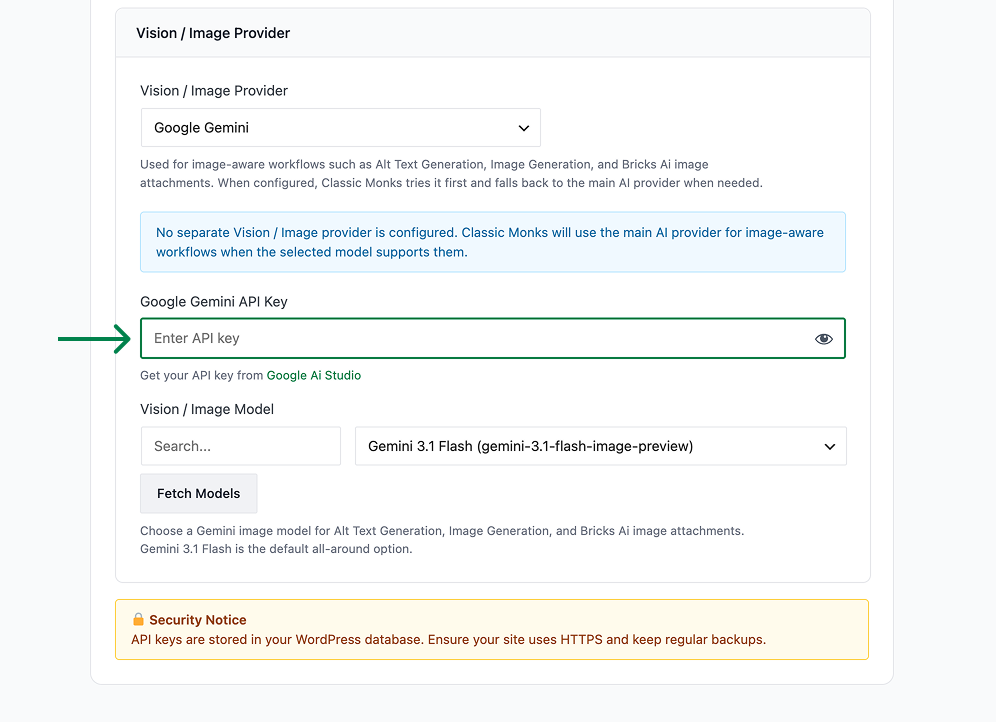
For OpenRouter, you can leave the field blank to reuse the main OpenRouter key. A dedicated key is useful if you want to bill vision calls separately.
Step 5: Pick a Vision / Image Model
The vision provider exposes a model selector. For Gemini, the dropdown is populated with a curated list of Gemini image models. For OpenRouter, the field accepts any image-capable model identifier. The plugin pre-fills the main OpenRouter model as the default.
For image generation, use a model that supports output images (FLUX, GPT-Image, or Gemini image models). For vision analysis, any image-input-capable model works.
Step 6: Save Changes
Click Save Changes. The Status subtab will report whether the vision provider is valid, has runtime errors, or is missing a model.
Supported Vision Providers
| Provider | Default Model | Image Generation | Image Editing | Notes |
|---|---|---|---|---|
| Google Gemini | gemini-3.1-flash |
Yes | Yes | Best balance of cost, speed, and multimodal quality |
| OpenRouter | Main OpenRouter model | Depends on model (FLUX, GPT-Image work) | Depends on model | Maximum flexibility; reuse main key or set a dedicated one |
Configuration Options
| Option | Description | Default |
|---|---|---|
| Vision / Image Provider | Selects which provider handles image-aware workflows. | Empty (use main provider) |
| Vision / Image API Key | Provider-specific key. For OpenRouter, blank reuses the main key. | Empty |
| Vision / Image Model | The model used for alt text, image generation, image editing, and Bricks AI image attachments. | Provider default |
| Fetch Models | For OpenRouter, populates the model dropdown with image-capable models from the account. | Button |
Fallback Behavior
The Vision / Image Provider is preferred but not required. When image workflows run, Classic Monks checks in this order:
- Is the Vision / Image Provider configured and valid?
- Can the vision provider’s model handle this specific workflow (vision analysis, generation, or editing)?
- If yes, route the request to the vision provider.
- If no, fall back to the main AI Provider.
- If the main provider’s model also cannot handle it, the workflow fails with a clear notice.
This means you can leave the vision provider unconfigured and still get image workflows if your main model supports them. Configuring a vision provider just gives you a faster, cheaper, more specialized path for those tasks.
Bricks AI Image Attachments
When Bricks AI Builder is enabled and you attach an image in the Bricks chat, the attachment is routed through the Vision / Image Provider (or the main provider as a fallback). A status notice under the Bricks AI Builder toggle tells you which path is active:
- “Bricks Ai image attachments are enabled through the Vision / Image provider (Gemini)” when the vision provider is configured
- “Bricks Ai image attachments are enabled directly through the active text model” when the main provider handles them
- An error message when neither path is supported
Advanced Options (Developers)
The vision provider is resolved by cm_get_ai_vision_provider(). You can override it via the cm_ai_vision_provider filter:
add_filter( 'cm_ai_vision_provider', function( $provider, $workflow ) {
    // Force OpenRouter for image generation, Gemini for everything else
    if ( $workflow === 'image_generation' ) {
        return 'openrouter';
    }
    return $provider;
}, 10, 2 );
The cm_ai_vision_provider filter receives the current provider slug and the workflow identifier (image_analysis, image_generation, image_editing).

Add your first comment to this post