




What Are AI Advanced Settings?
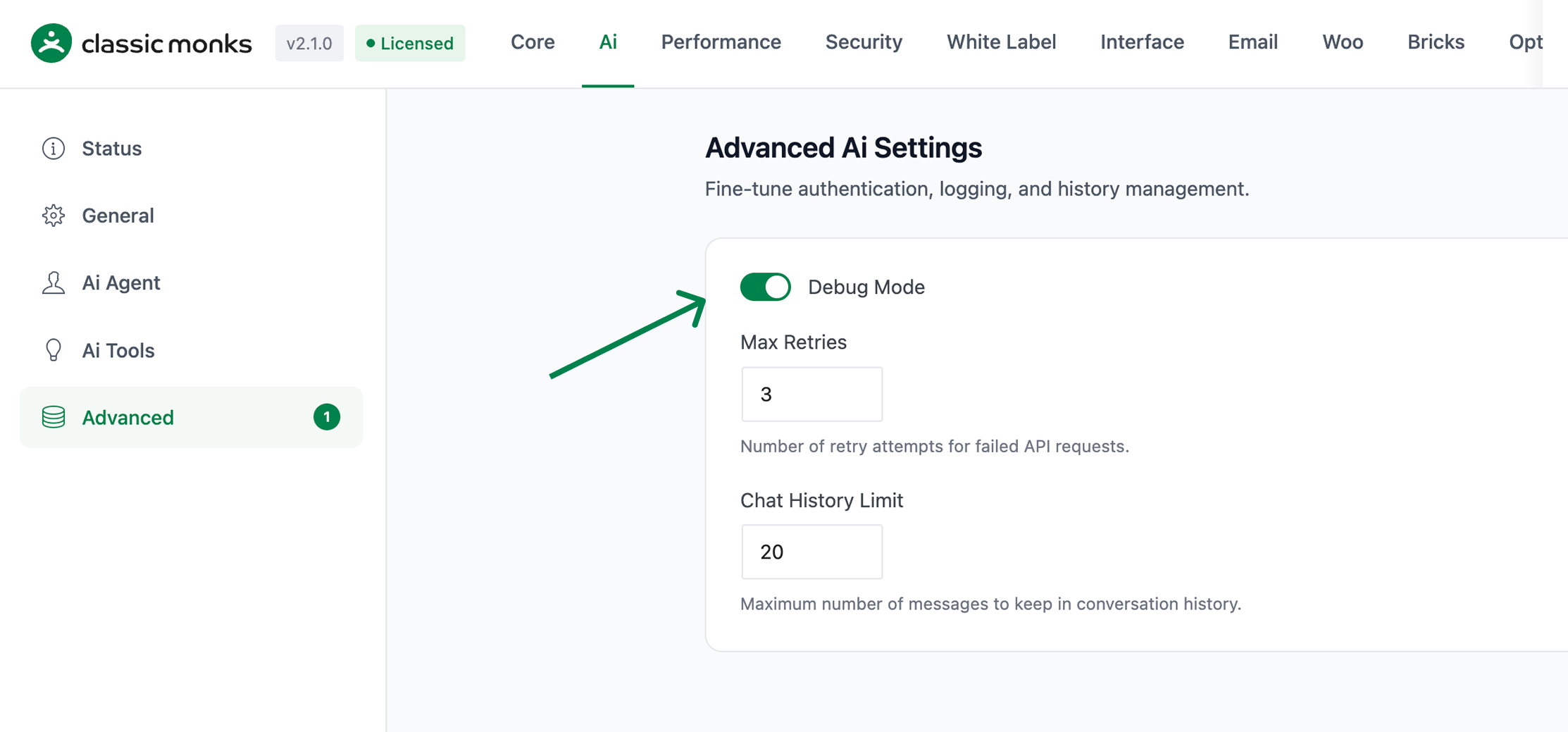
AI Advanced Settings are the three configuration fields on the Advanced subtab of the AI tab. They fine-tune how the AI Provider integration behaves: how much it logs, how aggressively it retries failed calls, and how much conversation history it retains for context.
These settings affect every AI feature in Classic Monks: the AI Agent, AI Tools, and Bricks AI Builder.
Why You Need It
The default values work for most sites, but real-world integrations hit edge cases:
- Transient failures: AI provider APIs occasionally return 429 (rate limit) or 5xx (server error) errors. Max Retries handles these without surfacing an error to the user.
- Troubleshooting: When AI features misbehave, you need to see the full request and response to diagnose. Debug Mode captures everything.
- Cost vs. context: More conversation history means the AI agent has more context, but each request costs more tokens. Chat History Limit lets you tune the tradeoff.
The Advanced subtab also exposes these knobs to developers who need fine-grained control over API behavior.
How to Configure AI Advanced Settings in Classic Monks
Step 1: Navigate to the AI Tab
Click into the Classic Monks plugin settings, then click AI.
Step 2: Switch to the Advanced Subtab
Click the Advanced subtab in the AI tab navigation.
Step 3: Configure Each Setting
Toggle on Debug Mode if you need to log AI traffic. Set Max Retries to the number of retry attempts (0-5). Set Chat History Limit to the maximum number of messages retained in conversation history (5-50).
Step 4: Save Changes
Click Save Changes to persist the settings.
Configuration Options
| Option | Description | Default | Range |
|---|---|---|---|
| Debug Mode | Enables detailed logging of AI API requests and responses. Captures full request/response data including headers, payloads, and error details. | Off | On / Off |
| Max Retries | Number of retry attempts for failed AI API requests. | 3 | 0-5 |
| Chat History Limit | Maximum number of messages to keep in conversation history. | 20 | 5-50 |
Debug Mode in Detail
When Debug Mode is on, Classic Monks logs every AI request and response to the WordPress debug log (when WP_DEBUG_LOG is enabled in wp-config.php). Each log entry includes:
- Timestamp
- Provider slug and model identifier
- Full request payload (messages, parameters, tool definitions)
- HTTP status code and response headers
- Response body (truncated for large responses)
- Error details when a request fails
To enable logging output, add these lines to your wp-config.php:
define( 'WP_DEBUG', true );
define( 'WP_DEBUG_LOG', true );
define( 'WP_DEBUG_DISPLAY', false );
Log entries appear in wp-content/debug.log. Each line is prefixed with the provider slug for easy filtering:
[CM-AI] [openrouter] Request to anthropic/claude-4.5-sonnet: 1234 tokens
[CM-AI] [openrouter] Response: 200 OK in 1243ms
[CM-AI] [openrouter] Error: 429 Rate limit exceeded (retry 1/3)
When to use Debug Mode:
- Diagnosing “API Key Invalid” or “Provider Issue” warnings
- Tracking token usage per request
- Confirming the right model is being called
- Verifying tool definitions are being sent correctly
When to turn Debug Mode off:
- Production sites with high traffic (logs grow fast)
- Sites handling sensitive data (request payloads may contain user input)
- After the integration is verified working
Max Retries in Detail
When an AI API request fails, Classic Monks retries the request up to Max Retries times before surfacing an error. Retries use exponential backoff (1s, 2s, 4s, 8s, 16s) to avoid hammering the provider.
Retries are triggered for:
- HTTP 429 (rate limit)
- HTTP 500, 502, 503, 504 (server errors)
- Network timeouts
- Connection errors
Retries are NOT triggered for:
- HTTP 400 (bad request): indicates a config issue
- HTTP 401, 403 (auth): indicates a key issue
- HTTP 404 (not found): indicates a wrong endpoint or model
For these non-retryable errors, the user sees the error immediately.
Recommended values:
- 0 retries: Only for testing where you want to see failures immediately
- 1-2 retries: For high-volume sites where you want fast feedback
- 3 retries (default): Balanced for most sites
- 4-5 retries: For sites where reliability matters more than latency
Chat History Limit in Detail
The AI Agent maintains a rolling window of the last N messages in each user’s conversation. The default is 20 messages (10 user + 10 assistant). When a new message is sent, the oldest messages drop off.
Tradeoffs:
- More history (closer to 50): The agent has more context. Better for long-running conversations about the same topic. Higher token cost per request.
- Less history (closer to 5): The agent “forgets” faster. Lower token cost. Better for one-off questions where you don’t want old context to bias the answer.
Recommended values:
- 5-10 messages: For sites where the agent handles one-off queries
- 20 messages (default): Balanced for most sites
- 30-50 messages: For sites where the agent is used as a long-running assistant
The history is per-user, stored in the WordPress database, and cleared when the AI Agent toggle is turned off.
Developer Notes
The advanced settings are stored as WordPress options:
| Option | Type | Default | Description |
|---|---|---|---|
cm_ai_debug_mode |
Boolean | false |
Logs API requests/responses to the browser console |
cm_ai_max_retries |
Integer | 3 |
Number of retry attempts on provider failure (0-5) |
cm_ai_max_history |
Integer | 20 |
Maximum conversation messages stored per user (5-50) |
Read them with cm_get_option():
$debug_mode  = (bool) cm_get_option( 'cm_ai_debug_mode', false );
$max_retries = (int) cm_get_option( 'cm_ai_max_retries', 3 );
$max_history = (int) cm_get_option( 'cm_ai_max_history', 20 );
The retry logic is handled internally by cm_ai_should_retry_with_responses_endpoint() in functions/ai/ai-tools.php.

Add your first comment to this post