




What Is the AI Status Panel?
The AI Status panel is the first subtab in the Classic Monks AI tab. It does not configure anything. It reports the current state of the AI integration so you can verify at a glance whether everything is set up correctly.
The panel shows four real-time status checks plus the active provider information and the enabled tools count.
Why You Need It
When something isn’t working with AI features, the first question is always “is my environment even capable of running them?” The Status panel answers that immediately, without you having to check WordPress version, plugin state, and provider config manually.
Common use cases:
- Quick health check before debugging: Is the issue a missing requirement, a wrong config, or a real bug?
- Verifying after a WordPress update: Did the Abilities API survive an upgrade?
- Confirming provider state: Which provider is active, which model is selected, how many tools are enabled?
- Showing clients: “Here’s the AI status of your site right now.”
Status Panel Content
The AI Status subtab displays the following information:
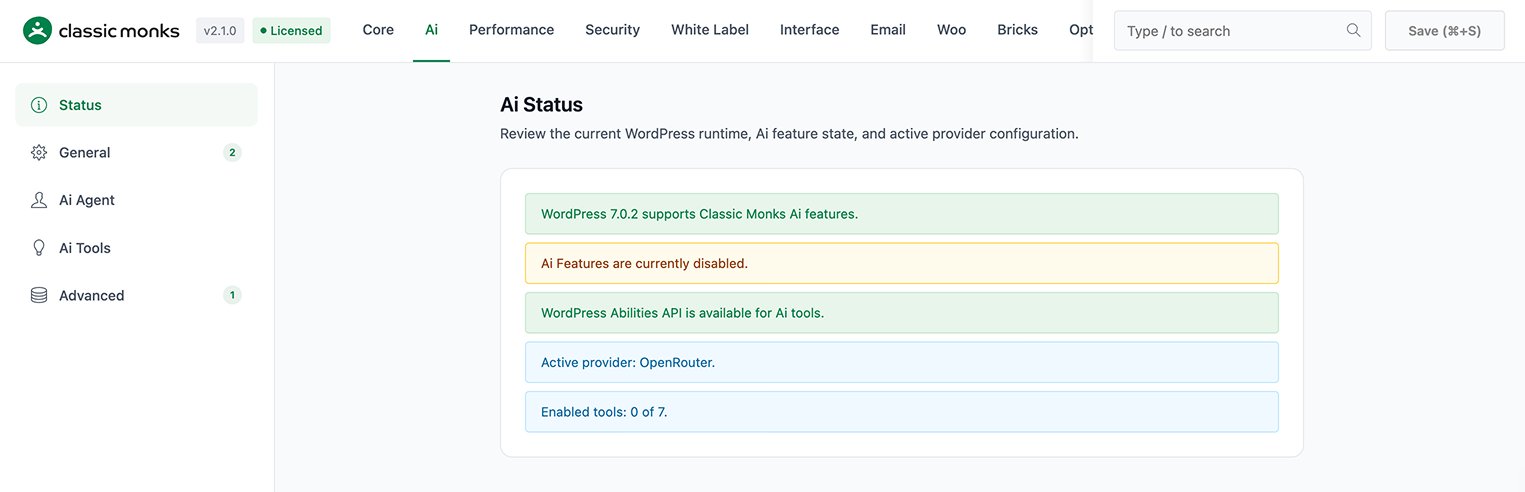
1. WordPress Version Check
A green notice if the site is running WordPress 6.9 or newer:
WordPress 6.9.1 supports Classic Monks Ai features.
A red notice if the site is below 6.9:
Classic Monks Ai features require WordPress 6.9 or newer. This site is running WordPress 6.7.
This is the most common reason AI features are unavailable. Older WordPress versions lack the Abilities API.
2. AI Features Toggle State
A green notice when Enable AI Features is on:
Ai Features are enabled.
A yellow notice when it’s off:
Ai Features are currently disabled.
3. WordPress Abilities API Availability
A green notice when the Abilities API is available (WordPress 6.9+):
WordPress Abilities API is available for Ai tools.
A yellow notice when the Abilities API is missing (WordPress below 6.9 or API not loaded):
WordPress Abilities API is unavailable. Ai tools remain disabled.
The Abilities API is required for AI Tools (Title, Excerpt, Summarization, Review Post, Alt Text, Image Generation, Image Editing). Without it, the tools stay disabled even with the master toggle on.
4. Active Provider
A blue info notice showing the currently selected provider and model:
Active provider: OpenRouter (anthropic/claude-4.5-sonnet).
The provider name comes from the AI Provider dropdown. The model in parentheses is whatever is saved for that provider. If no model is set, only the provider name is shown.
5. Enabled Tools Count
A blue info notice showing how many AI Tools are enabled out of the total available:
Enabled tools: 4 of 7.
The count updates whenever you toggle a tool on or off on the Ai Tools subtab.
Color-Coded Notices
The Status panel uses a four-color notice system:
| Color | Meaning | Examples |
|---|---|---|
| Green (success) | Everything is working as expected. | “WordPress 6.9.1 supports Classic Monks Ai features”, “Ai Features are enabled”, “WordPress Abilities API is available for Ai tools” |
| Yellow (warning) | Something is missing or partially configured. | “Ai Features are currently disabled”, “WordPress Abilities API is unavailable” |
| Red (error) | A hard requirement is not met. | “Classic Monks Ai features require WordPress 6.9 or newer” |
| Blue (info) | Informational only, no action needed. | “Active provider: OpenRouter (…)”, “Enabled tools: 4 of 7” |
A site that is fully ready for AI features shows three green notices and two blue notices. No yellow or red.
How to Read the Status Panel
When troubleshooting, walk through the notices in order:
- Is the WordPress version OK? If red, AI cannot run. Upgrade WordPress.
- Is AI Features enabled? If yellow, flip the master toggle in the General subtab.
- Is the Abilities API available? If yellow, AI Tools will not load. Check for plugin conflicts.
- Which provider is active? Verify this matches what you intended to configure.
- How many tools are enabled? If the count is lower than expected, check the AI Tools subtab.
A typical healthy state:
✅ WordPress 6.9.1 supports Classic Monks Ai features.
✅ Ai Features are enabled.
✅ WordPress Abilities API is available for Ai tools.
ℹ️ Active provider: OpenRouter (anthropic/claude-4.5-sonnet).
ℹ️ Enabled tools: 4 of 7.
A typical problem state (WordPress too old):
❌ Classic Monks Ai features require WordPress 6.9 or newer. This site is running WordPress 6.7.
⚠️ Ai Features are currently disabled.
⚠️ WordPress Abilities API is unavailable. Ai tools remain disabled.
ℹ️ Active provider: OpenRouter (anthropic/claude-4.5-sonnet).
Status Panel vs. the Other Subtabs
The Status panel is purely informational. It does not have toggles, fields, or buttons. To change anything, switch to the relevant subtab:
- Enable AI Features → General subtab
- Change the AI Provider → General subtab
- Enable an AI Tool → Ai Tools subtab
- Change a system prompt → Ai Agent subtab
- Adjust retries, debug, or history → Advanced subtab
The Status panel is a read-only summary that should match the state of those other subtabs. If they disagree (e.g., Status says “Enabled tools: 4 of 7” but you just toggled the 5th on and saved), refresh the page to force a re-read.
Advanced Options (Developers)
The Status panel pulls its data from the same source the rest of the AI system uses. You can call the underlying functions directly:
// WordPress version check
$wp_supported = cm_is_ai_wp_version_supported();

// Abilities API check
$abilities_available = cm_is_wp_abilities_api_available();

// Master toggle check
$ai_enabled = cm_is_ai_enabled();

// Active provider
$provider = cm_get_ai_provider();
$model    = cm_get_ai_provider_model();

// Tool counts
$tools         = cm_get_ai_tool_definitions();
$enabled_count = 0;
foreach ( $tools as $tool_id => $tool ) {
    if ( cm_is_ai_tool_enabled( $tool_id ) ) {
        $enabled_count++;
    }
}
These are the exact same checks the Status panel runs, in the same order. You can use them to build custom health-check pages, status badges, or CI checks that fail when the AI integration is not ready.

Add your first comment to this post