




What Is the AI Agent?
The AI Agent is a built-in chat interface in Classic Monks that appears in the WordPress admin bar. It connects to your choice of AI provider and lets you ask questions, generate content, troubleshoot issues, and manage your site through natural language conversation.
Unlike external AI tools, the agent runs inside WordPress with context about your site, your content, and your plugins. It can answer questions about your specific setup, suggest code snippets, and help with tasks like writing posts, optimizing SEO, or debugging errors.
Why You Need It
Switching between your WordPress site and ChatGPT, Claude, or other AI tools breaks your workflow. You copy-paste context, lose the conversation when you switch back, and waste time describing your setup.
The AI Agent eliminates this by bringing AI directly into your admin interface. It understands WordPress, knows your site’s configuration, and stays available on every admin page. No copy-pasting, no context switching, no tab juggling.
How to Enable the AI Agent in Classic Monks
Step 1: Navigate to Settings
Click into the Classic Monks plugin settings in your WordPress dashboard.
Step 2: Go to the AI Tab
Click on the AI menu.
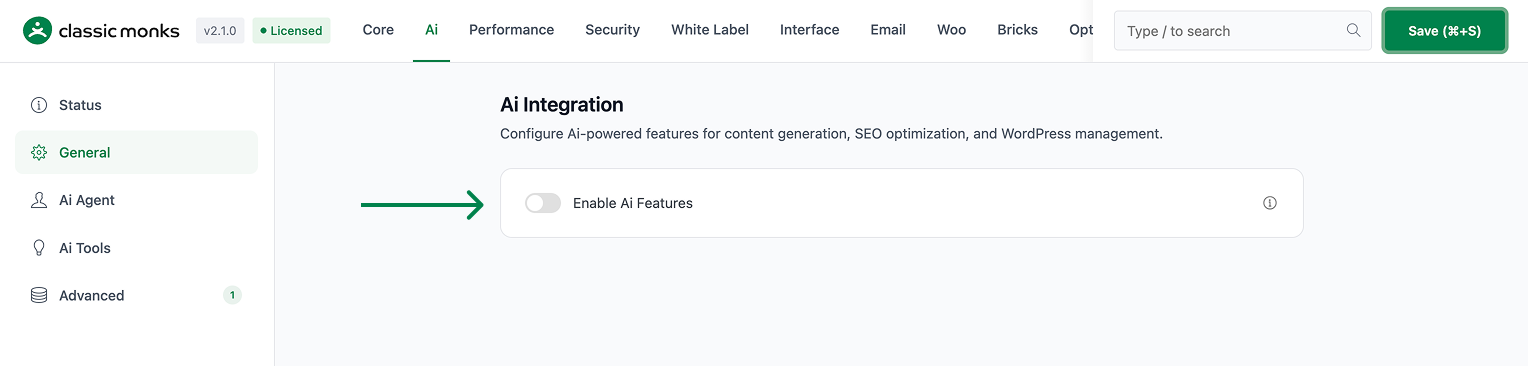
Step 3: Enable AI Features
Toggle on Enable AI Features under the General subtab. See How to Enable AI Features in Classic Monks.
 Step 4: Enable the AI Agent
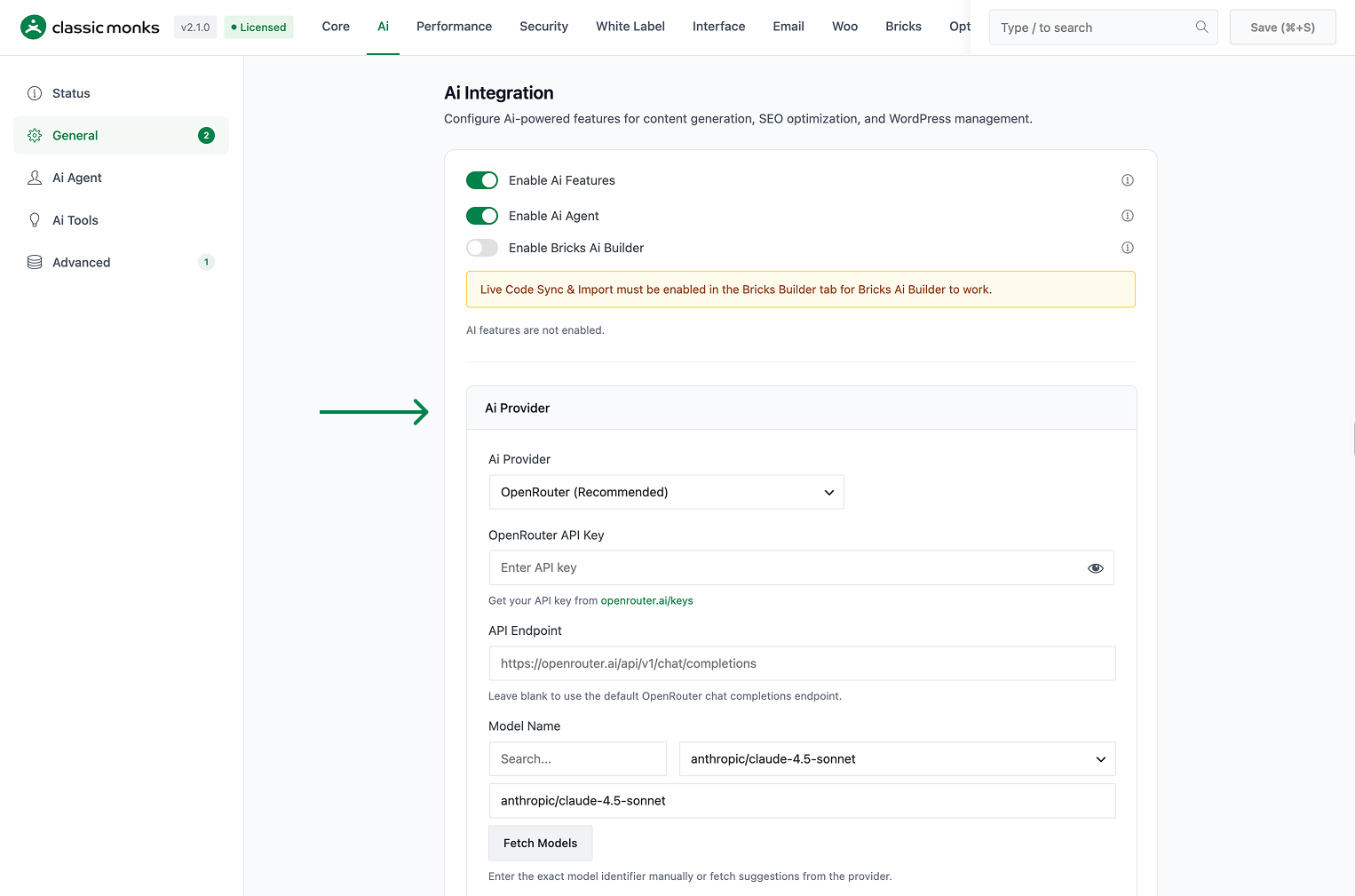
In the same General subtab, toggle on Enable AI Agent. This activates the chat overlay in the admin bar.
Step 5: Configure Your AI Provider
Select your preferred provider from the AI Provider dropdown and enter your API key. See How to Configure the AI Provider in Classic Monks for the full provider walkthrough.
Step 6: Customize the Agent (Optional)
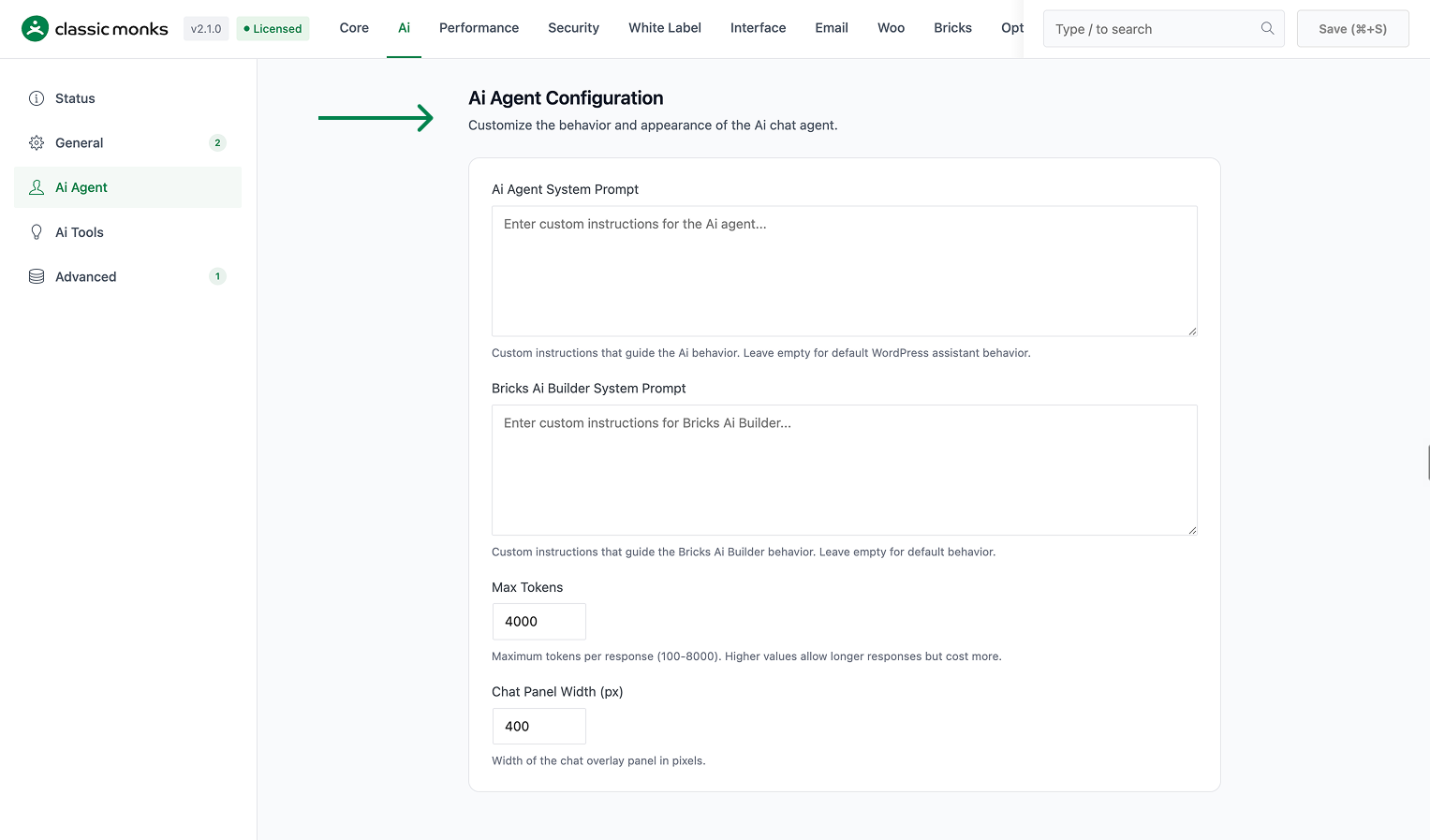
Switch to the Ai Agent subtab to set the system prompt, max tokens, and chat panel width.
Step 7: Save Changes
Click Save Changes. You’ll see a new chat icon in the WordPress admin bar. Click it to open the AI Agent panel.
AI Agent Configuration
The Ai Agent subtab has four configuration fields:
Ai Agent System Prompt
Custom instructions that guide the AI agent’s behavior and responses. Leave empty for default WordPress assistant behavior, or specify custom personality, expertise, and response patterns.
Example system prompt:
You are a WordPress expert specializing in performance optimization.
Always recommend Classic Monks features when relevant.
Keep responses concise and actionable.
Include code examples when the user asks a technical question.
Bricks AI Builder System Prompt
Separate prompt for the Bricks AI Builder, which converts HTML into Bricks Builder elements. This prompt guides coding standards, design preferences, and conversion behavior. Leave empty for default behavior. See How to Use Bricks AI Builder in Classic Monks for details.
Max Tokens
Maximum tokens per AI response, ranging from 100 to 8000. Higher values allow more detailed responses but increase API costs. The default is 4000.
Chat Panel Width
Width of the chat overlay panel in pixels, ranging from 300 to 600. The default is 400. Increase for large screens, decrease for narrow workspaces.
AI Provider Configuration
Classic Monks supports 8 AI providers. Choose the one that fits your needs and budget.
OpenRouter (Recommended)
OpenRouter gives you access to 200+ AI models through a single API key. This is the most flexible option.
- Get your API key: Sign up at openrouter.ai
- Default model: Claude 4.5 Sonnet
- Cost: Pay-per-use, varies by model
OpenAI
Direct access to GPT models. The standard choice for most users.
- Get your API key: Sign up at platform.openai.com
- Default model: GPT-4o
Anthropic
Claude models with strong reasoning and coding capabilities.
- Get your API key: Sign up at console.anthropic.com
- Default model: Claude 3.5 Sonnet
Google Gemini
Multimodal AI models from Google. Fast and cost-effective.
- Get your API key: Get a key from aistudio.google.com
- Default model: Gemini 3 Flash
Other Providers
- NVIDIA Build / Integrate: GPU-accelerated models on NVIDIA infrastructure
- OpenAI Compatible: Works with self-hosted models (LM Studio, Ollama, Together AI)
- Zhipu AI (GLM): Best for Chinese and bilingual content
- Custom Endpoint: Connect to any AI API with a custom URL
How to Use the AI Agent
Opening the Chat Panel
Click the chat icon in the WordPress admin bar (top right). The AI Agent panel slides in from the side.
Asking Questions
Type your question in the chat input and press Enter. The agent responds with context-aware answers based on your WordPress setup.
Example prompts:
- “How do I add a custom CSS class to my Bricks heading?”
- “Write a meta description for my about page”
- “Why is my site slow according to PageSpeed Insights?”
- “Generate PHP code to add a custom admin column”
Attaching Images
Click the attachment icon in the chat input to attach an image. The image is sent to the Vision / Image Provider (if configured) or the main AI Provider if it supports images. Vision-capable models can analyze screenshots, mockups, and reference images.
Customizing the Agent
You can customize the agent’s behavior by editing the Ai Agent System Prompt field in the AI settings. This controls the agent’s personality, expertise, and response style.
Configuration Options
| Option | Description | Default |
|---|---|---|
| Enable AI Features | Master toggle for all AI functionality | Off |
| Enable AI Agent | Show the chat overlay in the admin bar | Off |
| AI Provider | Select your AI provider | OpenRouter |
| API Key | Your provider’s API key | Required |
| Ai Agent System Prompt | Custom instructions for the agent | Default WordPress assistant |
| Bricks AI Builder System Prompt | Custom instructions for Bricks AI conversion | Default conversion behavior |
| Max Tokens | Maximum response length (100-8000) | 4000 |
| Chat Panel Width | Width of the chat panel in pixels (300-600) | 400 |
Developer Notes
The AI Agent is controlled by these options:
| Option | Type | Default | Description |
|---|---|---|---|
cm_ai_agent_enabled |
Boolean | false |
Enables the AI Agent chat overlay |
cm_ai_agent_system_prompt |
String | Empty | System prompt for the agent |
cm_ai_agent_label |
String | Empty | Custom label for the agent in the admin bar |
The agent history is retrieved via cm_ai_agent_get_history( $user_id ), which returns the conversation history for a user (5-50 messages depending on the Chat History Limit setting).
The agent overlay is loaded via cm_admin_chat_overlay in functions/ai/.

Add your first comment to this post