




What Is the Bricks Setup?
The Bricks Setup subtab has two main components:
- Bricks Setup Wizard: A one-time import tool that brings Bricks theme styles, global settings, and starter templates into your current site. Establishes a clean Bricks foundation that can be re-run to restore or refresh the baseline.
- Builder Enhancements: 16 toggleable features that improve the Bricks editor experience. Organized into 4 categories: Builder Enhancements, Elements Panel UI Improvements, Builder UI Improvements, and SEO & Visibility.
Why You Need It
The Bricks Setup Wizard saves hours of manual configuration when:
- Setting up a new site with Bricks Builder
- Migrating from a previous Bricks configuration
- Standardizing Bricks settings across multiple client sites
The Builder Enhancements improve the daily editing experience:
- Faster workflows: Auto-complete CSS variables and calc() expressions
- Better code editing: Live HTML/CSS/JS sync panel for working with code
- Cleaner UI: Compact elements, hidden icons, enhanced highlights
- BEM naming: Auto-generate consistent BEM class names
How to Set Up Bricks Integration
Step 1: Check Bricks Status
Go to Bricks > Bricks Status and verify:
- Bricks Builder theme: Active
- Bricks Builder plugin: Active
- PHP version: 7.4+ (8.0+ recommended)
- WordPress version: 6.0+
- Classic Monks integration: Active
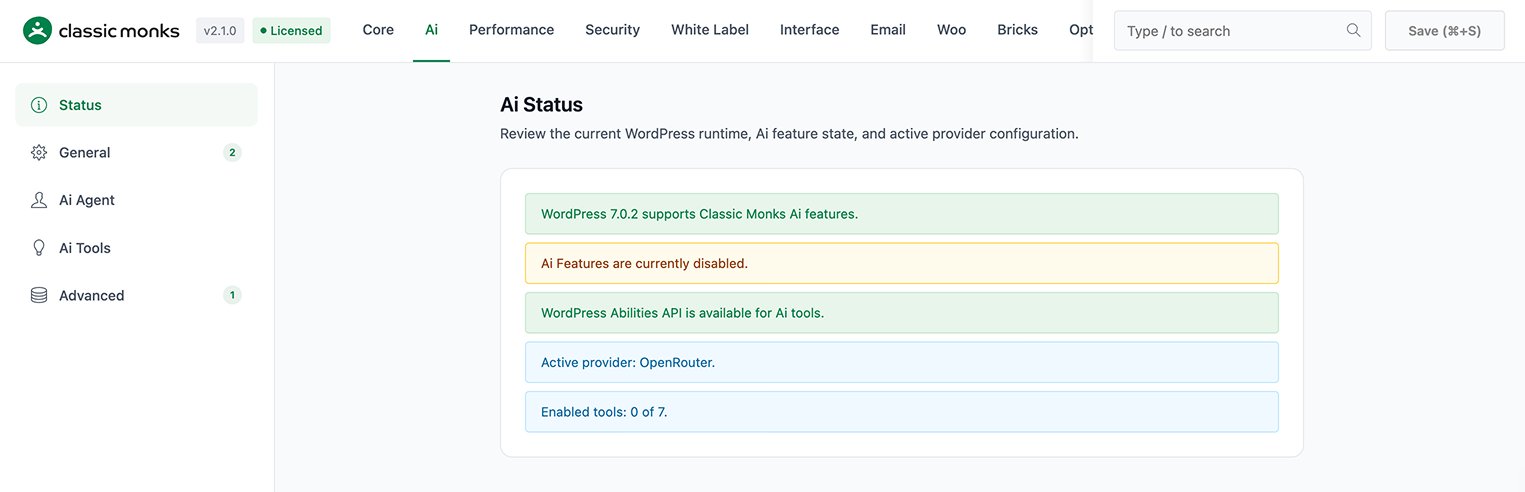
If any status shows “Inactive”, resolve the issue before proceeding.
Step 2: Run the Bricks Setup Wizard
Go to Bricks > Initial Setup. Click the Start Bricks Setup button to open the setup modal.
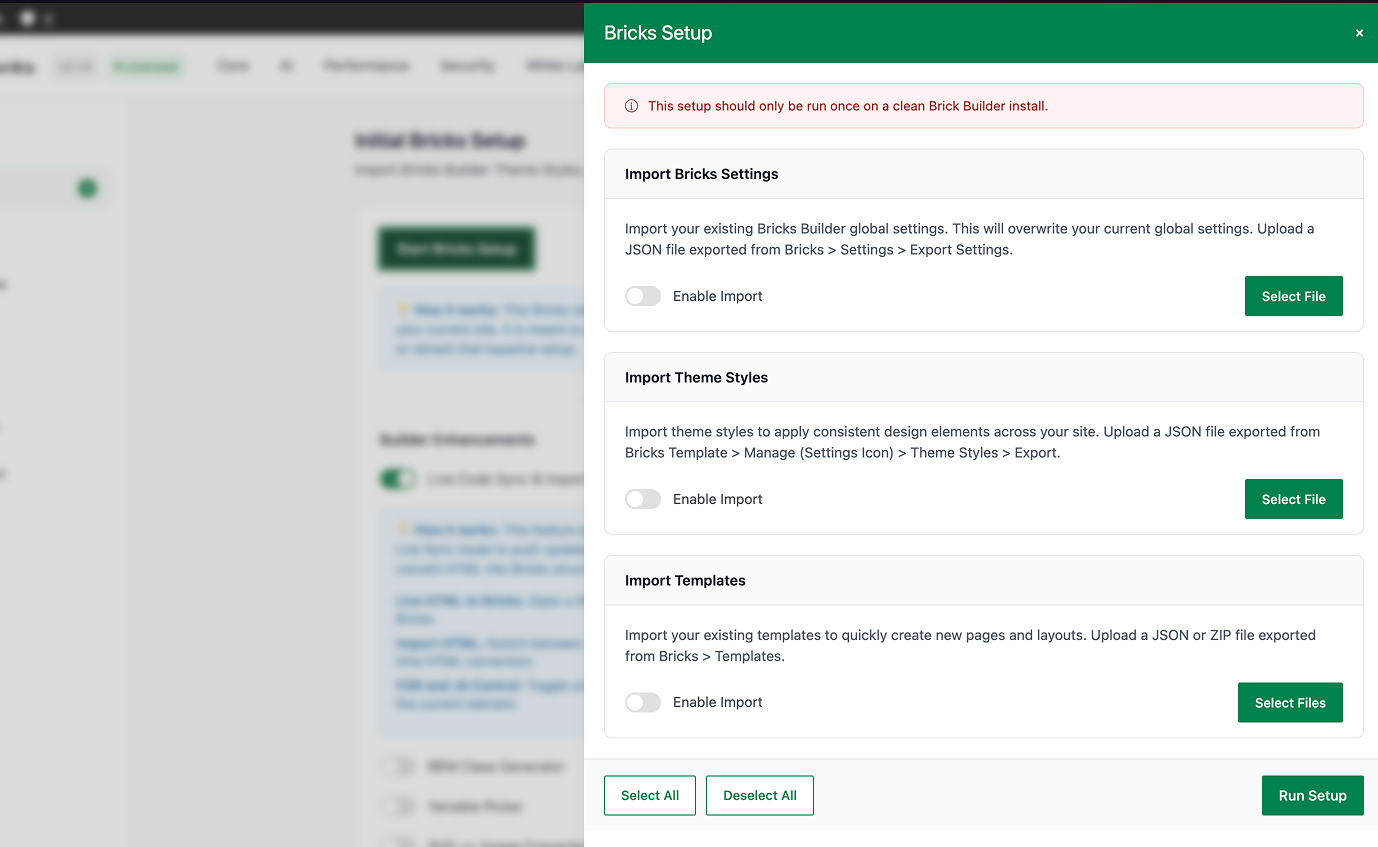
The wizard has 3 steps:
- Import Theme Styles: Choose from the Bricks default theme styles
- Import Global Settings: Import Bricks global settings (colors, typography, spacing, breakpoints)
- Import Templates: Import starter templates for common page layouts
The progress bar shows real-time status as each step completes.
Step 3: Enable Builder Enhancements
After the wizard completes, enable the features you need in the Initial Setup subtab. Features are organized into 4 categories.
Step 4: Test in the Bricks Editor
Open the Bricks editor and verify the features are working. Test each feature individually.
Bricks Setup Wizard
The Setup Wizard is a one-time tool that imports Bricks configuration. The button states:
| Button State | Meaning |
|---|---|
| Start Bricks Setup | First run available |
| Bricks Setup Completed | Setup done, button disabled |
| Re-run Bricks Setup | Re-enable via Options > Environment, then re-run |
| Bricks Setup Disabled | Setup option is disabled in settings |
Re-running the Wizard
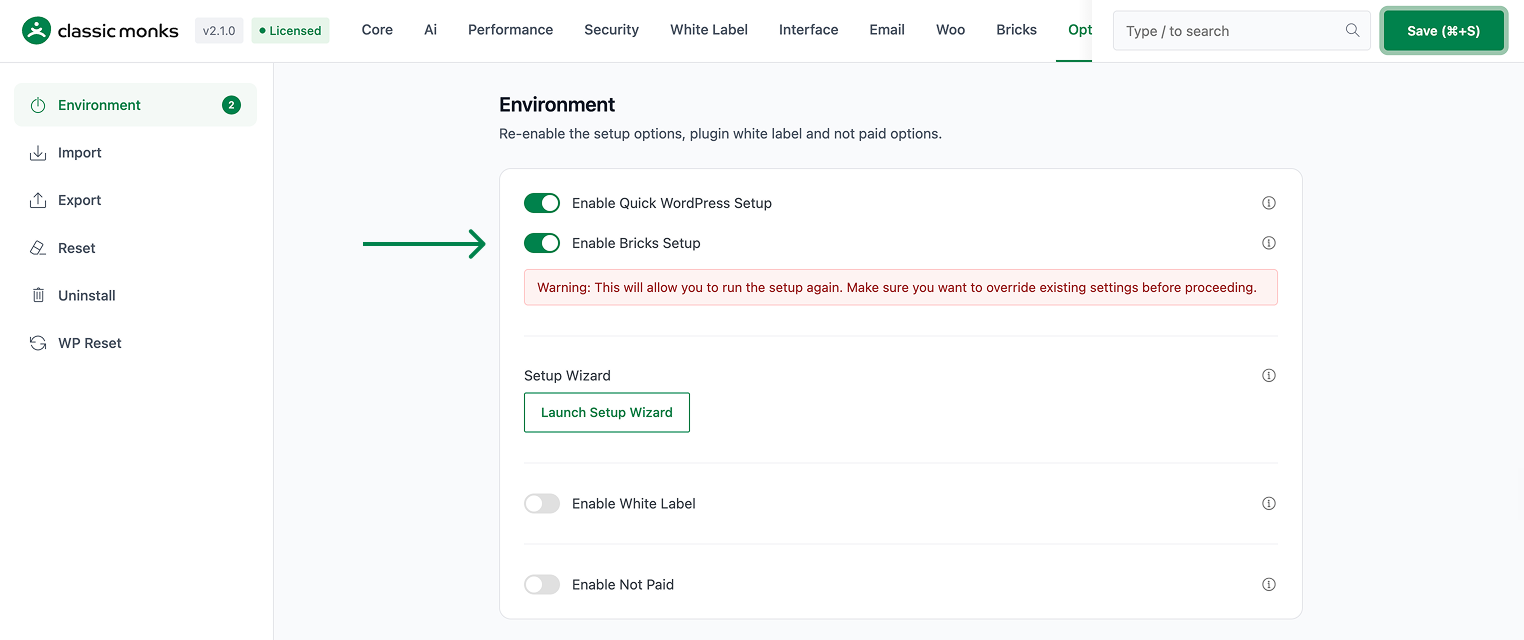
After completion, the wizard is disabled. To re-run:
- Go to Options > Environment in Classic Monks
- Enable the Bricks Setup option
- Reload the page
- Return to Bricks > Initial Setup
- The button changes to “Re-run Bricks Setup”
Re-running is useful when:
- Restoring a clean Bricks baseline after experimentation
- Applying a new theme style configuration
- Migrating settings from another site
Warning: Re-running overwrites your current Bricks theme styles, global settings, and templates. Back up any customizations first.
Builder Enhancements (7 Features)
The Builder Enhancements category adds productivity tools to the Bricks editor.
Live Code Sync & Import
Adds a native HTML, CSS, and JS sync panel inside the Bricks builder for live bi-directional editing and HTML to Bricks import workflows.
This feature adds a three-panel CodeMirror editor inside the Bricks builder with two modes:
- Live Sync mode: Push changes directly into the active Bricks element as you edit HTML, CSS, or JS
- Import mode: Convert HTML into Bricks structure for one-time import
Features include:
- CSS and JS panel toggles (show/hide unused panels)
- Column resizing
- Responsive breakpoint support
- Pin editor to current element
Use case: When you have a custom HTML layout from a client or a design tool, use Import mode to convert it to Bricks structure. When tweaking styles, use Live Sync for instant feedback.
BEM Class Generator
Adds a BEM Generator to the Bricks builder right-click context menu. Generates Block__Element class names and applies them to child elements with re-entry modes, skip toggles, and label sync.
The BEM generator creates Block__Element class names based on the element hierarchy. Features include:
- Re-entry modes: Generate classes for nested elements
- Skip toggles: Skip elements that shouldn’t be part of the BEM chain
- Label sync: Keep class names synchronized with element labels
Use case: When building a component with multiple nested elements, right-click and generate BEM classes for the entire tree.
Variable Picker
Right-click any Bricks element control to open a popover listing compatible CSS variables.
The Variable Picker adds a right-click context menu option to any Bricks control. When triggered, it shows a list of CSS custom properties (--my-var) that can be applied to the control.
Use case: When setting a color, font, or spacing value, right-click and pick from your theme’s CSS variables instead of typing them manually.
SVG Image Converter
Adds a context menu action to convert SVG elements to Image elements and Image elements back to SVG when the source is an SVG file. Also supports converting Icon (SVG library) elements to Image elements.
This feature adds a right-click option to:
- SVG to Image: Convert an SVG element to an Image element (useful for lazy loading and caching)
- Image to SVG: Convert an Image element back to SVG (useful for inline SVG styling)
- Icon to Image: Convert a Bricks Icon element to an Image element
Use case: When you need an SVG image to be lazy-loaded (which Bricks doesn’t do for inline SVGs), convert it to an Image element.
Auto-select First Class
When an element with a CSS class is selected in the editor, automatically activates the first unlocked class in the classes panel.
When you select an element that has CSS classes, this feature automatically activates the first unlocked class, so you can start editing styles immediately without clicking into the classes panel.
Auto Complete var()
Automatically wraps CSS custom properties (e.g.
--my-var) invar()when pressing Enter or semicolon in Bricks input fields and the Custom CSS editor.
When you type a CSS custom property name (e.g., --my-color) and press Enter or semicolon, the feature automatically wraps it in var():
- Type:
--my-color - Press Enter
- Result:
var(--my-color)
This works in all Bricks input fields and the Custom CSS editor.
Auto Complete calc()
Automatically wraps arithmetic expressions (e.g.
100% - 20px) incalc()when pressing Enter or semicolon. Combines with var() for nested expressions.
When you type an arithmetic expression (e.g., 100% - 20px) and press Enter or semicolon, the feature automatically wraps it in calc():
- Type:
100% - 20px - Press Enter
- Result:
calc(100% - 20px)
This combines with the var() autocomplete for nested expressions.
Move Bricks Toolbar to Bottom
Moves the Bricks Builder toolbar from top to bottom of the screen for improved accessibility and visibility.
The Bricks toolbar (containing responsive breakpoints, save button, and device previews) is moved from the top to the bottom of the screen.
Benefits:
- Better accessibility (toolbar is closer to the content area)
- Less visual obstruction of the page being edited
- More screen real estate for the canvas
Elements Panel UI Improvements (3 Features)
These features customize the Bricks elements panel layout.
Hide Elements Icons
Hides icons next to elements in the Bricks Builder interface for a cleaner look.
Removes the small icon displayed next to each element name in the elements panel. Results in a cleaner, text-only list.
Compact Elements With Icons
Makes elements more compact in the Bricks Builder interface while retaining their icons.
Reduces the padding and spacing between elements in the elements panel while keeping the icons visible. Useful when you want a dense panel without hiding icons entirely.
Wide Elements Panel
Makes elements wider in the Bricks Builder interface for better readability and easier selection.
Increases the width of the elements panel, giving more room for element names and making them easier to click on.
Builder UI Improvements (5 Features)
These features enhance the Bricks editor’s visual interface.
Improve Builder UI Basics
Optimizes padding, spacing, and basic elements of the Bricks Builder interface.
Applies CSS optimizations to the Bricks editor’s basic layout, including:
- Tighter padding between elements
- Better spacing in control groups
- Improved color contrast for readability
- More consistent visual hierarchy
Enhanced Active Element Highlighting
Makes active elements more prominent with better color contrast and visibility.
Adds a more visible border or outline to the currently selected element on the canvas. The default Bricks highlighting can be hard to see on complex layouts.
Enhance Style Panel Visibility
Improves the visibility of open style panels with better background contrast.
When a style panel (Typography, Background, Border, etc.) is open, this feature adds a subtle background change to make it more visually distinct from closed panels.
Enhance Control Separators
Makes control separators more visually distinct for better UI organization.
Improves the visual separators between control groups in the style panel. Makes it easier to scan and find specific controls.
Improve Setting Indicators
Enhances the visibility of indicators for settings that have been modified.
Adds visual indicators (colored dots or icons) to controls that have non-default values set. Helps identify which controls have been customized.
SEO & Visibility (1 Feature)
Exclude Bricks Builder from Sitemap
Disables Bricks Builder Sitemap from Default WordPress Sitemap, Rank Math Sitemap & XML Sitemap Generator for Google plugins.
When enabled, this feature removes Bricks Builder pages from the sitemap. This is useful when:
- You use Bricks for landing pages that shouldn’t be indexed
- You have a dedicated sitemap configuration that handles Bricks pages separately
- You want to reduce the sitemap size
Compatible with:
- WordPress core sitemap
- Rank Math sitemap
- XML Sitemap Generator for Google
Configuration Options
| Category | Option | Description | Default |
|---|---|---|---|
| Setup | Start Bricks Setup | One-time import wizard button. Re-runnable via Options > Environment. | Available until first run |
| Builder | Live Code Sync & Import | HTML/CSS/JS sync panel in Bricks editor. | Off |
| Builder | BEM Class Generator | Auto-generate BEM class names via right-click. | Off |
| Builder | Variable Picker | Right-click to pick CSS variables. | Off |
| Builder | SVG Image Converter | Convert between SVG and Image elements. | Off |
| Builder | Auto-select First Class | Auto-select first class when element is selected. | Off |
| Builder | Auto Complete var() | Auto-wrap CSS vars in var(). | Off |
| Builder | Auto Complete calc() | Auto-wrap expressions in calc(). | Off |
| Builder | Move Toolbar to Bottom | Move Bricks toolbar to bottom. | Off |
| Elements | Hide Elements Icons | Remove icons from elements panel. | Off |
| Elements | Compact Elements With Icons | Compact layout with icons. | Off |
| Elements | Wide Elements Panel | Wider elements panel. | Off |
| UI | Improve Builder UI Basics | Basic UI optimizations. | Off |
| UI | Enhanced Active Element Highlighting | Better active element visibility. | Off |
| UI | Enhance Style Panel Visibility | Better style panel contrast. | Off |
| UI | Enhance Control Separators | Better visual separators. | Off |
| UI | Improve Setting Indicators | Better modified-setting indicators. | Off |
| SEO | Exclude from Sitemap | Remove Bricks from sitemaps. | Off |
Developer Integration
The Bricks setup system uses core WordPress utility functions.
Utility functions:
cm_is_bricks_theme()checks if the Bricks theme is activecm_bricks_should_enqueue()checks if Bricks assets should load (true in Bricks editor or frontend)cm_get_option()retrieves plugin settingscm_is_feature_enabled()checks if a feature is toggled on
Hooks used:
wp_ajax_cm_run_bricks_setupruns the automated setupwp_ajax_cm_check_bricks_setup_statuschecks setup progresspre_cm_update_option_enable_bricks_setuptoggle function for live enable/disable

Add your first comment to this post