




What Are Bricks Interactions
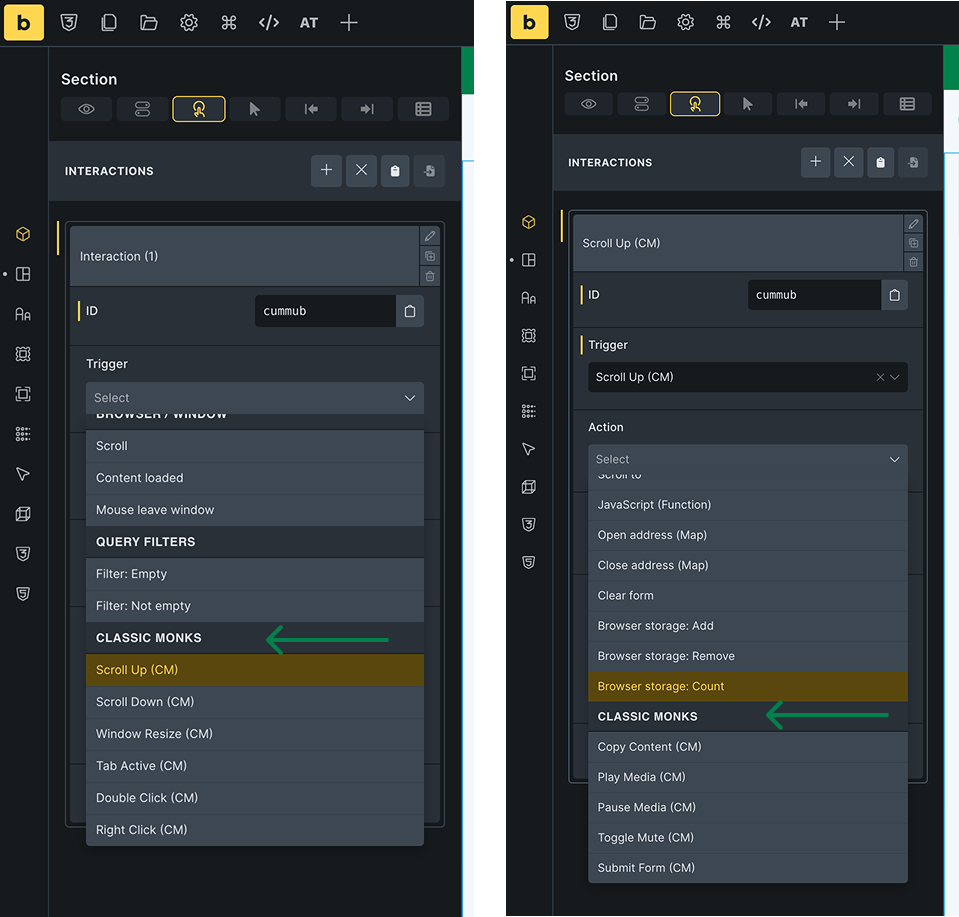
Bricks Interactions in Classic Monks are the triggers and actions that the Bricks Builder uses to create dynamic behavior. A trigger is the event that starts an interaction, such as scrolling or a key press. An action is what happens, such as playing media or toggling a class. Classic Monks organizes these in the Interactions subtab. Once enabled, they appear in the Bricks editor’s interaction panel, where you pair a trigger with an action.
Recommendations Before Enabling
- Enable the interactions you use. Each trigger and action is independent, so enable only the ones your designs need.
- Test on a live page. After building an interaction, check the frontend to confirm it fires as expected.
- Keep interactions simple. Too many interactions can make a page feel busy, so use them where they add value.
Enable Bricks Interactions
Step 1: Open the Bricks Tab
In your WordPress dashboard, go to Classic Monks, then open the Bricks tab.
Step 2: Open the Interactions Subtab
Click the Interactions subtab.
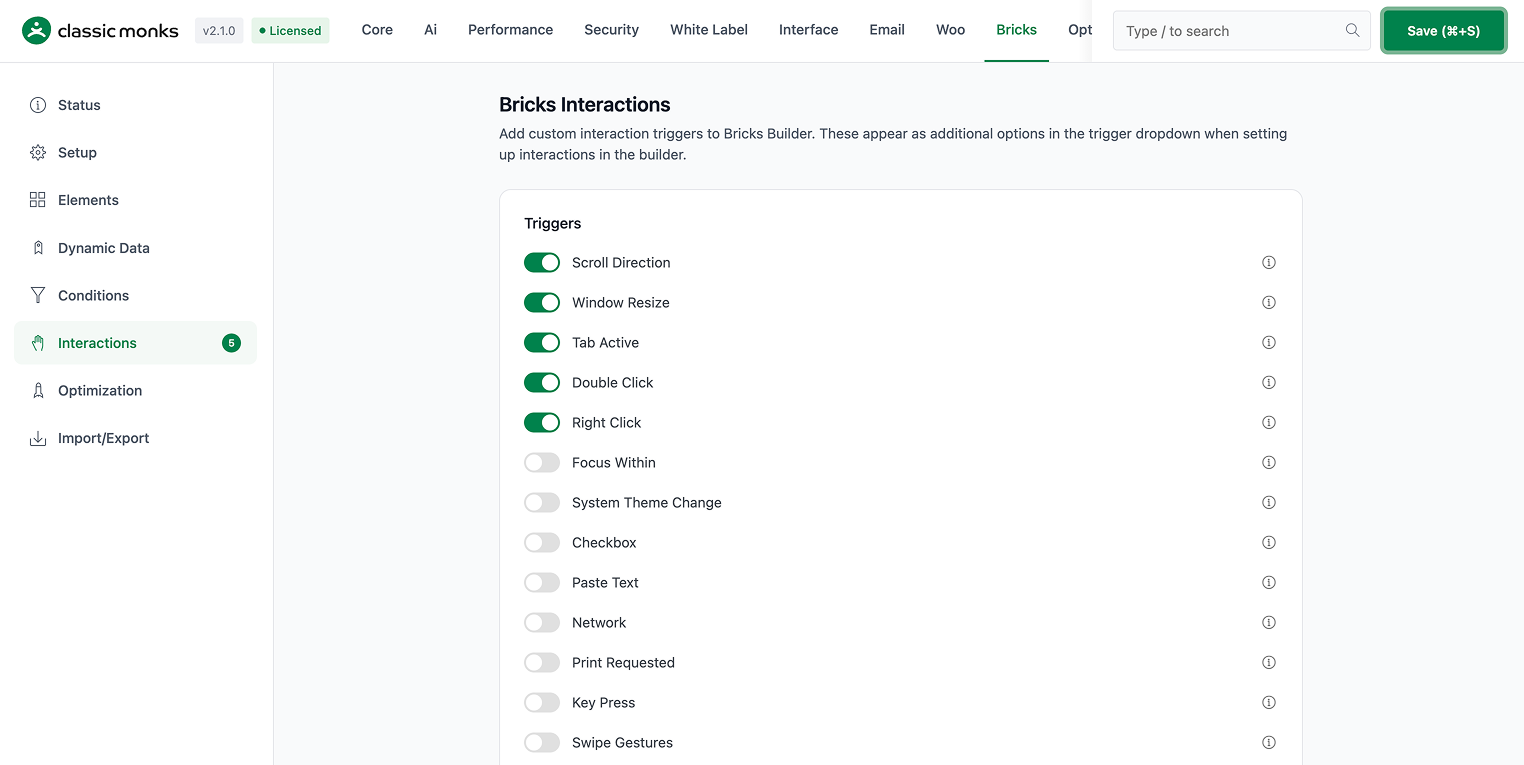
Step 3: Enable the Triggers You Need
Toggle on the triggers, which are the events that start an interaction. Triggers include scroll direction, window resize, double click, right click, key press, swipe, long press, user idle, scroll progress, copy or cut, and more.
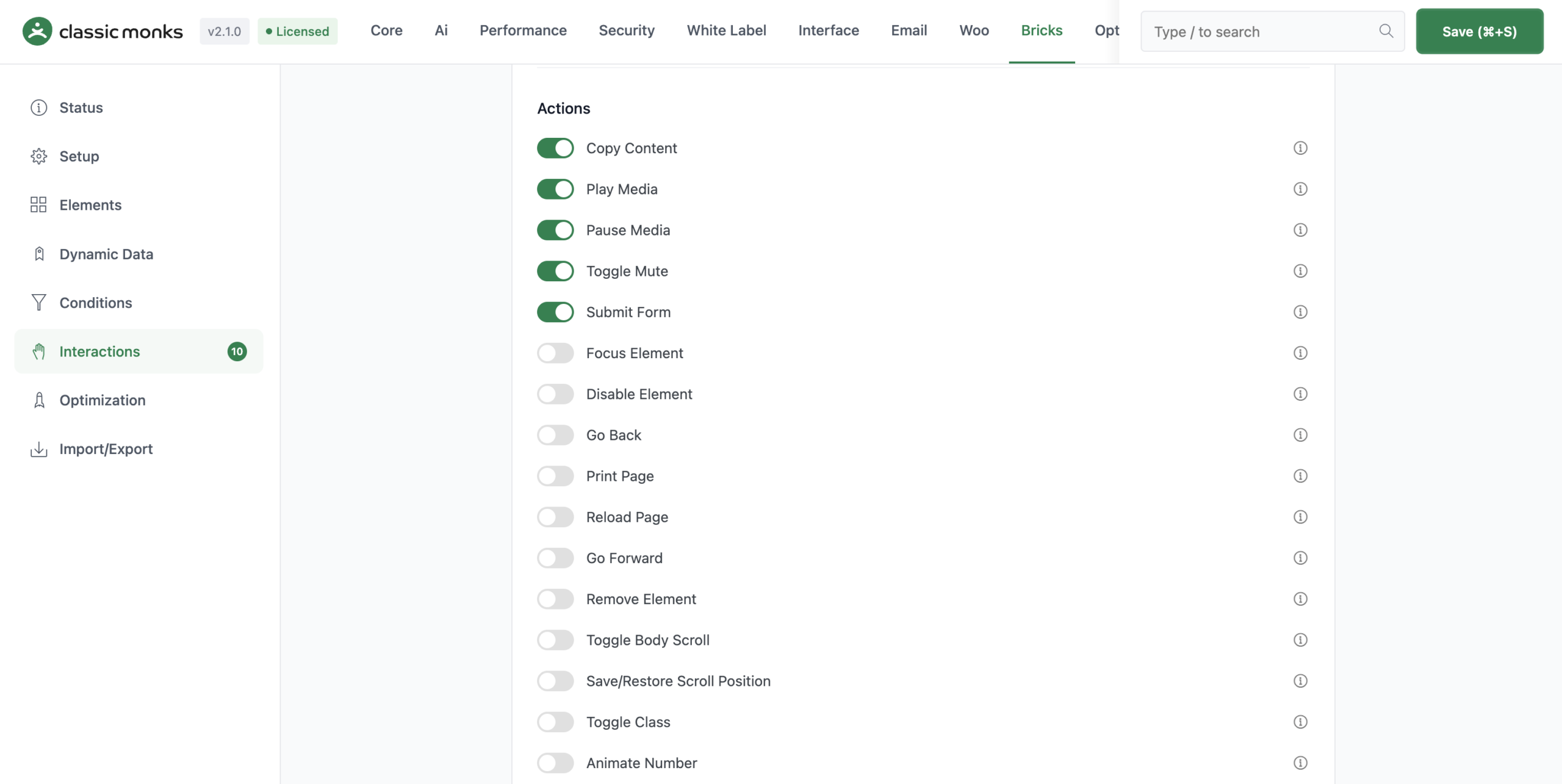
Step 4: Enable the Actions You Need
Toggle on the actions, which are what an interaction does. Actions include copy content, play or pause media, toggle mute, submit a form, go back, reload the page, toggle a class, download a file, and more.
Step 5: Save
Click Save (⌘+S).
Step 6: Build an Interaction
Open a page in the Bricks editor, select an element, and add an interaction. Choose a trigger (when) and an action (then), and set any options.
Verify It Works
After enabling and building an interaction, verify it:
- Open the page in the Bricks editor and set up the interaction.
- View the page on the frontend and trigger the event, such as scrolling or clicking.
- Confirm the action fires as expected.
If a trigger or action does not appear, confirm its toggle is on and the editor was refreshed.
Common Use Cases
Play a video when it scrolls into view
Use the Scroll Progress trigger and the Play Media action to start a video when the visitor scrolls to it. The video plays automatically as it comes into view.
Copy a link on click
Use the Double Click or Click trigger and the Copy Link to Clipboard action so a visitor can copy a link by interacting with an element.
Toggle a class on scroll
Use the Scroll Direction trigger and the Toggle Class action to change an element’s style based on scroll direction. For example, shrink a header when the visitor scrolls down.
Show a password field toggle
Use the Click trigger and the Toggle Password Visibility action so a visitor can show or hide a password field.

Add your first comment to this post