




What Is WP Bulk Install and Author Search?
WP Bulk Install and Author Search is a sub-feature of the Classic Monks Advanced Plugin Manager. It adds two capabilities to the Plugin Manager:
- Author Search: Find all plugins published by a specific WordPress.org author
- Bulk Install: Select multiple plugins and install them in a single batch operation
The two features work together: you can search by author, review the result list, select the plugins you want, and install them all at once.
Why You Need It
WordPress’s default plugin installer is one-at-a-time. For agencies and developers setting up multiple sites with a standard plugin stack, this is slow:
- Search for plugin 1
- Install plugin 1
- Search for plugin 2
- Install plugin 2
- Repeat for every plugin in the stack
WP Bulk Install collapses this into a single batch operation. Combined with Author Search, you can also discover all plugins by a trusted developer, which is useful for:
- Building a stack of plugins from one vendor
- Replacing abandoned plugins with the author’s maintained alternatives
- Auditing what an agency partner has published
How to Use WP Bulk Install and Author Search in Classic Monks
Step 1: Enable the Feature
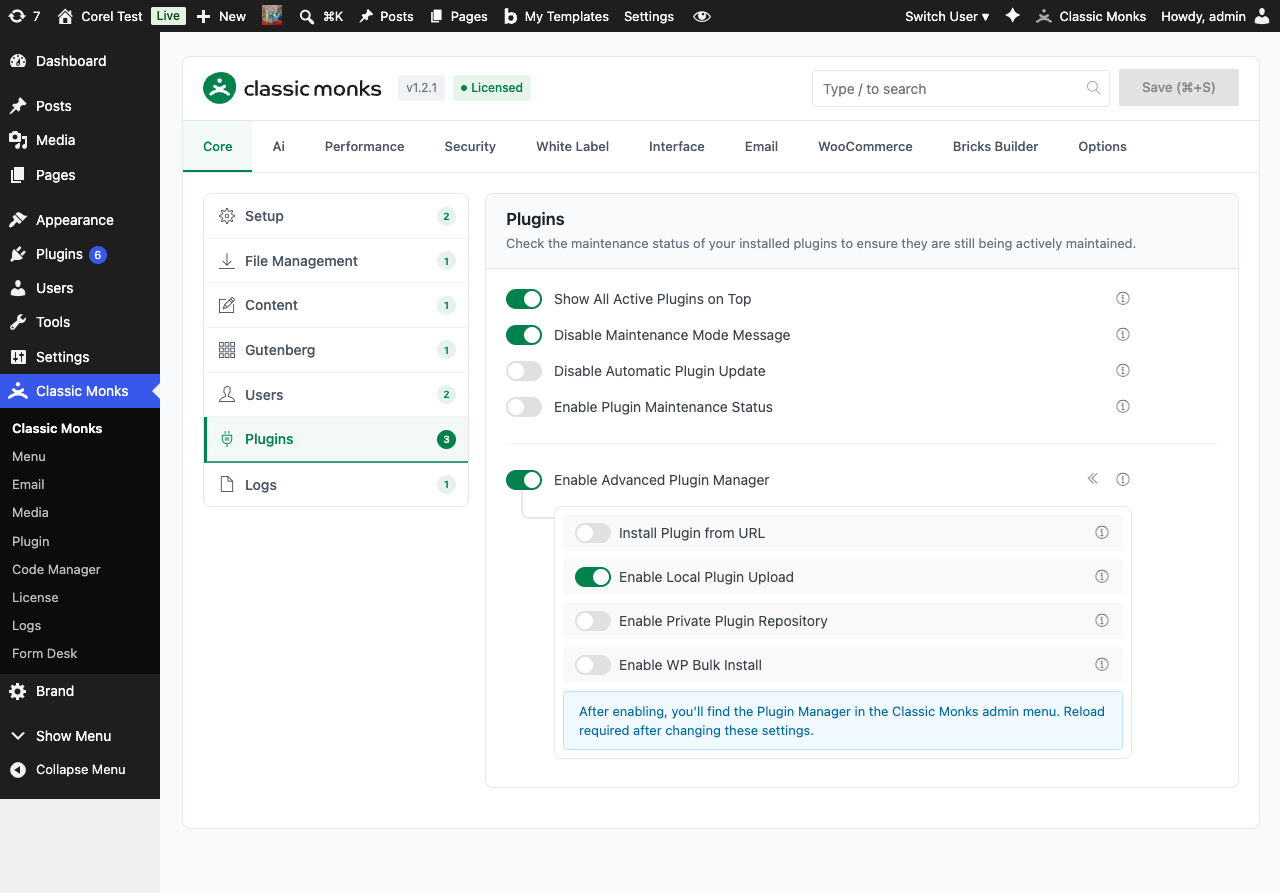
In the Classic Monks Core tab, Plugins subtab, enable:
- Enable Advanced Plugin Manager (master toggle, with the submenu indicator « icon that signals it adds the Plugin Manager submenu)
- Enable WP Bulk Install (sub-toggle)
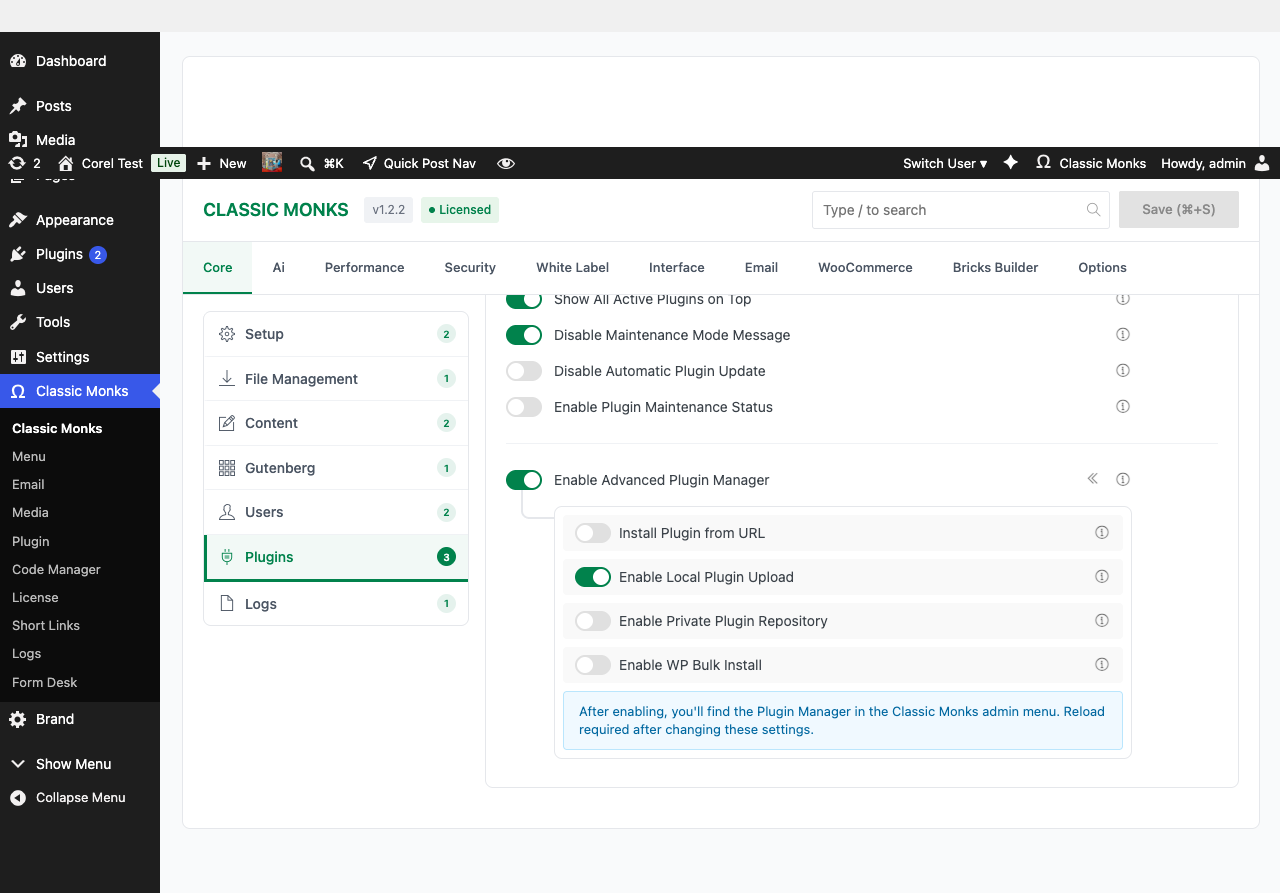
If you see a warning that “File modifications are disabled,” the feature is unavailable. See the troubleshooting section.
Step 2: Reload the Admin
A page reload is required for the Plugin Manager submenu to appear.
Step 3: Navigate to the Plugin Manager
Click Classic Monks > Plugin in the WordPress admin menu. The Plugin Manager opens with multiple tabs: one for each install method (Install from URL, Local Upload, Google Drive, Author Search, etc.).
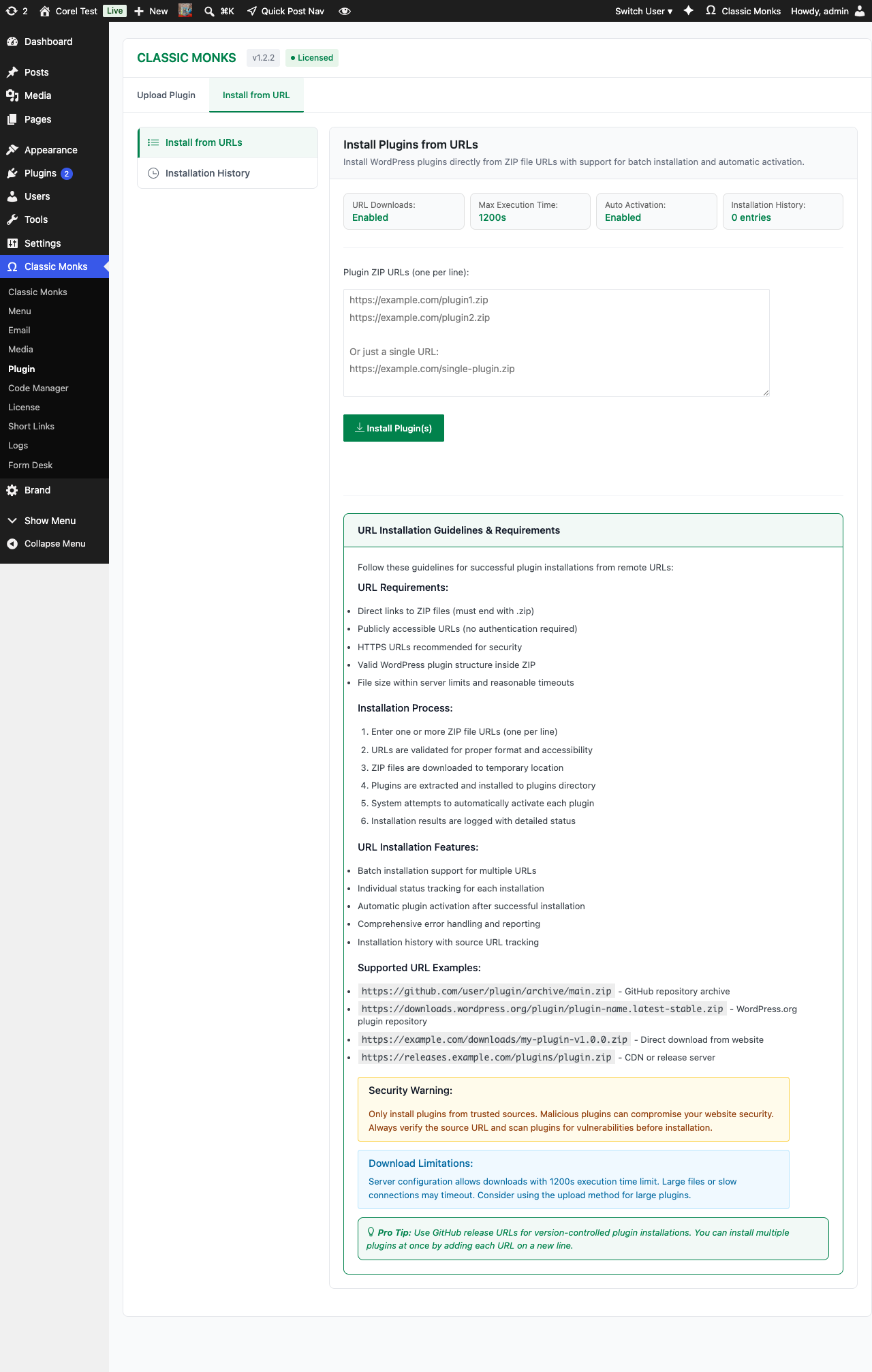
Step 4: Open the Author Search Tab
Click the Author Search tab in the Plugin Manager.
Step 5: Enter an Author Slug
Type the WordPress.org author slug and click Search. The Plugin Manager queries the WordPress.org API and returns all plugins published by that author.
Finding the author slug: The author slug is the part of the WordPress.org profile URL after /plugins/. For example, if the profile is at https://wordpress.org/plugins/author/yourname/, the slug is yourname.
Step 6: Review the Results
The Plugin Manager displays a list of plugins with:
- Plugin name and description
- Active installations count
- Star rating
- Last updated date
- Compatibility status with your WordPress version
Step 7: Select Plugins
Check the boxes next to the plugins you want to install. You can select all, none, or any combination.
Step 8: Bulk Install
Click Install Selected. The Plugin Manager:
- Downloads all selected plugin ZIPs
- Validates each ZIP
- Installs each plugin to the plugins directory
- Reports success or failure for each
- Optionally activates each plugin (depending on the Plugin Manager’s auto-activate setting)
Step 9: Verify
After the batch completes, check the Plugins page to confirm all selected plugins are installed and active.
Author Search vs Keyword Search
The Author Search is a separate mode from keyword search. It returns only plugins by the specified author, with no relevance ranking. For keyword-based plugin discovery, use the standard WordPress plugin search.
Bulk Install Limits
The Plugin Manager installs all selected plugins in a single batch. Practical limits:
- HTTP timeout: If the batch takes too long, the browser may time out. Stay under 20 plugins per batch on shared hosting.
- Disk space: Each plugin ZIP extracts to a directory. Ensure adequate disk space.
- PHP memory: Large batches consume memory. Increase memory_limit in wp-config.php if needed.
For very large batches (50+ plugins), split into multiple smaller batches.
Configuration Options
| Option | Description | Default |
|---|---|---|
| Enable Advanced Plugin Manager | Master toggle for the entire feature set. | Off |
| Enable WP Bulk Install | Enables author search and bulk install. | Off |
| Auto-activate after install | Whether to activate plugins immediately after install. | Off |
The auto-activate setting in the Plugin Manager applies to both single installs and bulk installs.
Common Use Cases
Setting Up a Standard Plugin Stack
Your agency has a standard set of 10 plugins for client sites. Use Author Search to find them by their respective authors, bulk install on each new site.
Migrating from Abandoned Plugins
A trusted author has a maintained alternative to a plugin you currently use. Search by the author, find the alternative, bulk install alongside the old one for testing.
Auditing a Vendor’s Plugin Portfolio
Before committing to a vendor, search for all their plugins. Review quality, maintenance status, and security posture before installing.
Building a Custom Plugin Stack for a Niche
You need SEO + caching + security + forms plugins. Search by authors you trust, pick one of each, bulk install.
Developer Notes
Enable WP Bulk Install allows searching and installing plugins by WordPress.org author. No developer hooks are currently exposed.
Options used:
| Option | Type | Default |
|---|---|---|
enable_wp_bulk_install |
Boolean | false |
Troubleshooting
“File modifications are disabled” Warning
Cause: DISALLOW_FILE_MODS is set to true in wp-config.php. Fix: Remove the constant from wp-config.php, or disable the corresponding Classic Monks Security setting.
Author Search Returns No Results
Cause: The author slug is wrong, or the author has no published plugins. Fix: Verify the slug by visiting the author’s profile page directly. Confirm the author has at least one published plugin.
Bulk Install Times Out
Cause: Too many plugins in the batch, or hosting limits are too strict. Fix: Reduce the batch size using the cm_bulk_install_batch_size filter. Increase PHP’s max_execution_time.
“API Rate Limit Exceeded” Error
Cause: Too many WordPress.org API calls in a short period. Fix: Wait a few minutes and retry. WordPress.org’s API has rate limits to prevent abuse.
Plugin Installs But Shows Compatibility Warning
Cause: The plugin has not been tested with your WordPress version, or the plugin author has not updated the tested-up-to header. Fix: This is informational, not a blocker. Test the plugin manually. If it works, the warning is just a “not tested yet” notice.
Some Plugins in Batch Fail to Install
Cause: Individual plugin issues (invalid ZIP, PHP requirements, etc.). Fix: Check the Plugin Manager’s per-plugin result report. Install failed plugins individually to see the specific error.