




What Is Install Plugin from URL?
Install Plugin from URL is a sub-feature of the Classic Monks Advanced Plugin Manager. It adds a new installation method to the Plugin Manager that accepts a ZIP file URL and installs the plugin on the server without any local file handling.
Why You Need It
WordPress’s default plugin installer only accepts local ZIP uploads. For remote URLs (your own S3 bucket, a private mirror, a client’s CDN), you would need to:
- Download the ZIP locally
- Upload to your server via FTP or the WordPress uploader
- Run the installation
Install Plugin from URL collapses this to one step. Paste the URL, click install, and the Plugin Manager handles the rest.
How to Install a Plugin from URL in Classic Monks
Step 1: Enable the Feature
In the Classic Monks Core tab, Plugins subtab, enable:
- Enable Advanced Plugin Manager (master toggle, with the submenu indicator « icon that signals it adds the Plugin Manager submenu)
- Install Plugin from URL (sub-toggle)
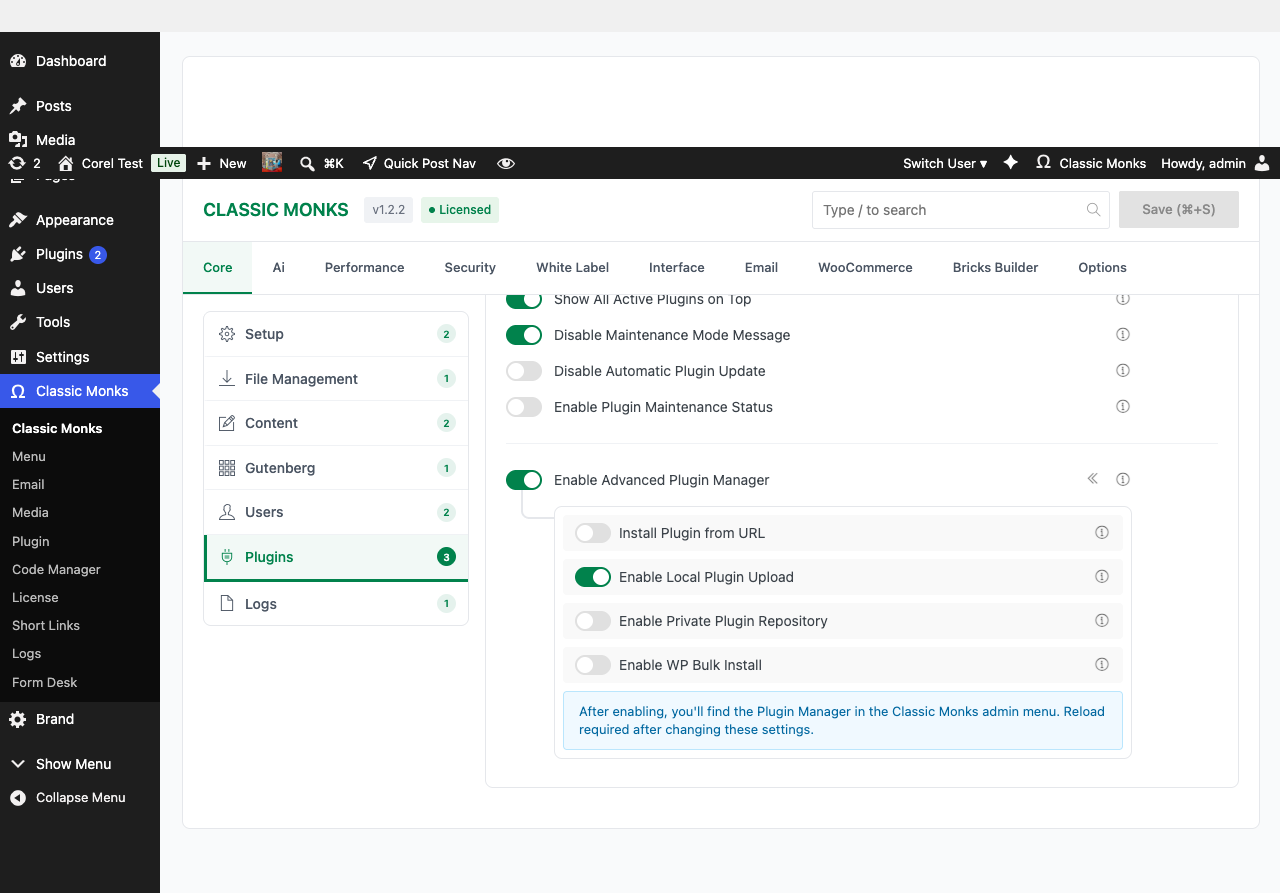
If you see a warning that “File modifications are disabled,” the feature is unavailable. See the troubleshooting section.
Step 2: Reload the Admin
A page reload is required for the Plugin Manager submenu to appear.
Step 3: Navigate to the Plugin Manager
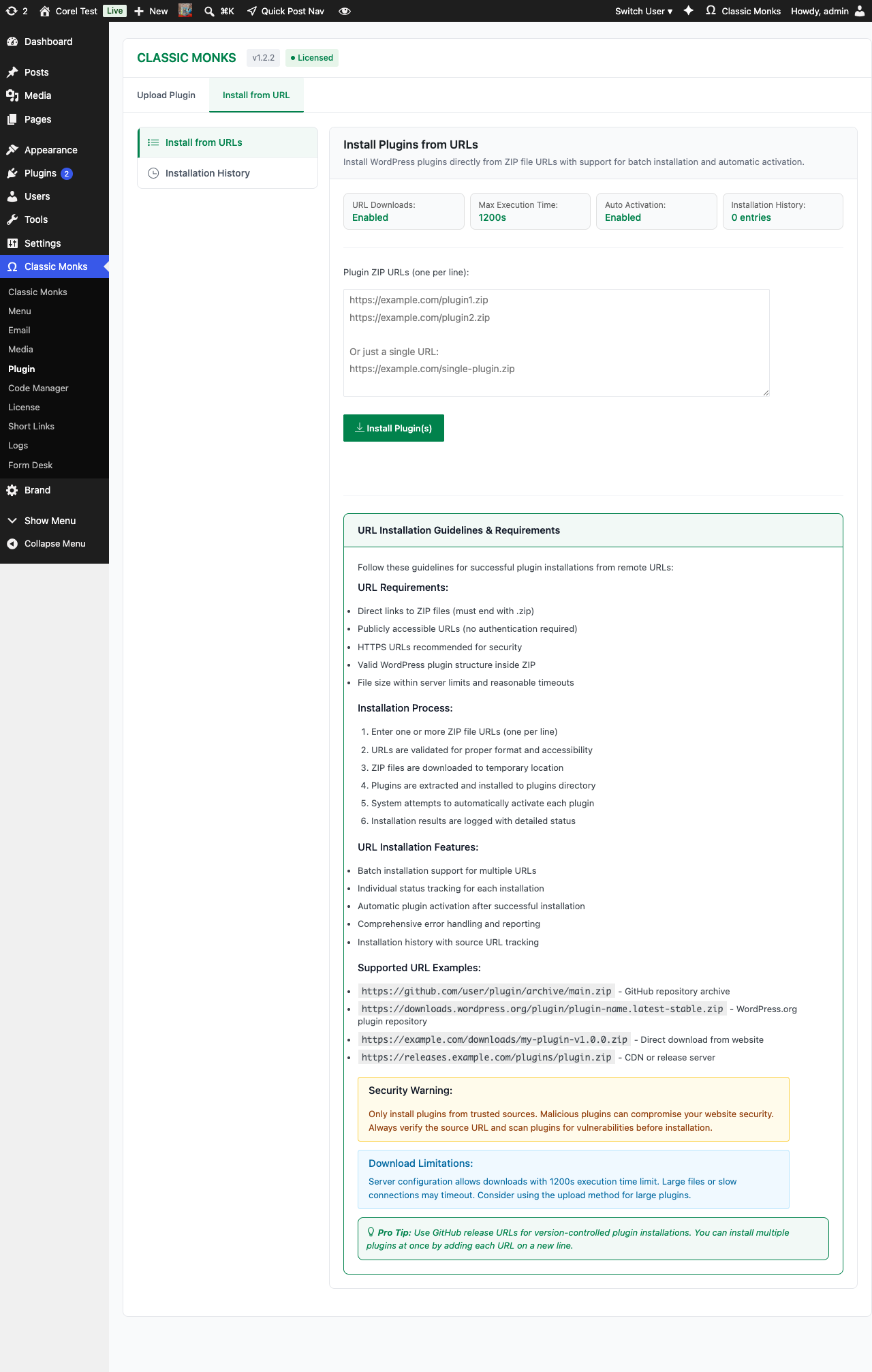
Click Classic Monks > Plugin in the WordPress admin menu. The Plugin Manager opens with multiple tabs: one for each install method (Install from URL, Local Upload, Google Drive, Author Search, etc.).
Step 4: Open the URL Install Tab
Click the Install from URL tab in the Plugin Manager.
Step 5: Enter the ZIP URL
Paste the full URL to the plugin ZIP file. The URL must be:
- Publicly accessible (or accessible to your server’s IP)
- A direct link to a ZIP file (not a landing page or HTML wrapper)
- Served over HTTPS for security (HTTP works but is not recommended)
Step 6: Install
Click Install. The Plugin Manager:
- Downloads the ZIP from the URL
- Verifies the ZIP structure (validates it is a WordPress plugin)
- Extracts to the plugins directory
- Optionally activates the plugin
- Shows a success or error message
Step 7: Activate (If Not Auto-Activated)
If the Plugin Manager does not auto-activate, go to the Plugins page and click Activate for the newly installed plugin.
Supported URL Types
| URL Type | Supported | Notes |
|---|---|---|
| WordPress.org plugin ZIPs | Yes | Direct link to a plugin’s ZIP from WordPress.org |
| GitHub release ZIPs | Yes | Use the direct download link from a release |
| S3 / GCS / Azure Blob URLs | Yes | Public bucket URLs work; signed URLs work if your server can reach them |
| Private CDN with auth headers | No | The Plugin Manager uses anonymous HTTP; auth header support is not built in |
| Landing pages or HTML pages | No | Must be a direct link to a ZIP file |
| password-protected URLs | No | No UI for password input |
Security Considerations
- The Plugin Manager validates the ZIP structure before extraction, but cannot verify the contents are safe
- Install only from trusted sources; a malicious ZIP could execute arbitrary code
- The download happens server-to-server; your server’s IP may be logged by the URL host
- HTTPS is recommended to prevent MITM tampering with the ZIP during download
Configuration Options
| Option | Description | Default |
|---|---|---|
| Enable Advanced Plugin Manager | Master toggle for the entire feature set. | Off |
| Install Plugin from URL | Enables URL-based installation. | Off |
The Install from URL tab in the Plugin Manager has these runtime options:
- ZIP URL: The full URL to the plugin ZIP
- Activate after install: Auto-activate the plugin after successful installation
Common Use Cases
Installing a Plugin from a Private Mirror
You maintain a private S3 bucket with your custom plugins. Generate a signed URL, paste it in the Plugin Manager, install.
Installing from a Client’s CDN
The client provides a URL to a custom plugin hosted on their CDN. Install directly without downloading.
Installing Pre-Releases from GitHub
The plugin author publishes pre-release ZIPs on GitHub. Use the GitHub release’s direct download URL.
Migrating Between Environments
A staging environment has a plugin you want on production. Download the ZIP from staging (or pull from a shared bucket), install on production.
Developer Notes
Install Plugin from URL adds a URL input field to the plugin installer. No developer hooks are currently exposed.
Options used:
| Option | Type | Default |
|---|---|---|
enable_plugin_install_from_url |
Boolean | false |
Troubleshooting
“File modifications are disabled” Warning
Cause: DISALLOW_FILE_MODS is set to true in wp-config.php, or a Classic Monks Security setting enforces it. Fix: Remove define(‘DISALLOW_FILE_MODS’, true); from wp-config.php, or disable the corresponding Security setting. This is a security feature; do not disable it on production sites without understanding the implications.
Download Fails with cURL Error
Cause: The URL host blocks your server’s IP, the file is too large, or the connection times out. Fix: Verify the URL in a browser. Increase PHP’s max_execution_time and memory_limit. Try downloading the URL from the server command line to see the actual error.
“Invalid ZIP File” Error
Cause: The URL does not point to a valid WordPress plugin ZIP. Could be an HTML page, a corrupted file, or a non-plugin archive. Fix: Verify the URL in a browser; it should download a ZIP. Check that the ZIP contains a valid plugin directory structure (top-level folder with the plugin slug, containing the main plugin PHP file).
Installation Succeeds But Plugin Is Not Listed
Cause: The plugin directory has a non-standard structure, or the plugin’s main file is named incorrectly. Fix: Extract the ZIP manually to inspect the structure. Ensure the plugin’s main PHP file has the proper Plugin Header.
Auto-Activation Fails
Cause: The plugin has activation requirements (PHP version, extensions, dependencies) that are not met. Fix: Manually activate the plugin and check for error messages. Resolve the missing requirements, or install an alternative plugin.
“Destination Folder Already Exists” Error
Cause: A plugin with the same slug is already installed. Fix: Deactivate and delete the existing plugin first, or rename the new plugin’s directory before installation.