




What Are Logs in Classic Monks?
Logs in Classic Monks are five independent tracking features in the Core tab, Logs subtab. Each one captures a specific type of event on your WordPress site and presents it in a dedicated tab under Classic Monks > Logs.
Why You Need It
WordPress’s default logging is minimal. By default:
- 404 errors are not tracked
- Broken links are silent
- Redirects happen invisibly
- Search queries are discarded
- WordPress errors require FTP access to debug.log
Classic Monks adds visibility to each of these without requiring separate plugins or external monitoring services.
How to Enable Logs in Classic Monks
Step 1: Navigate to Settings
Click into the Classic Monks plugin settings in your WordPress dashboard.
Step 2: Go to the Logs Subtab
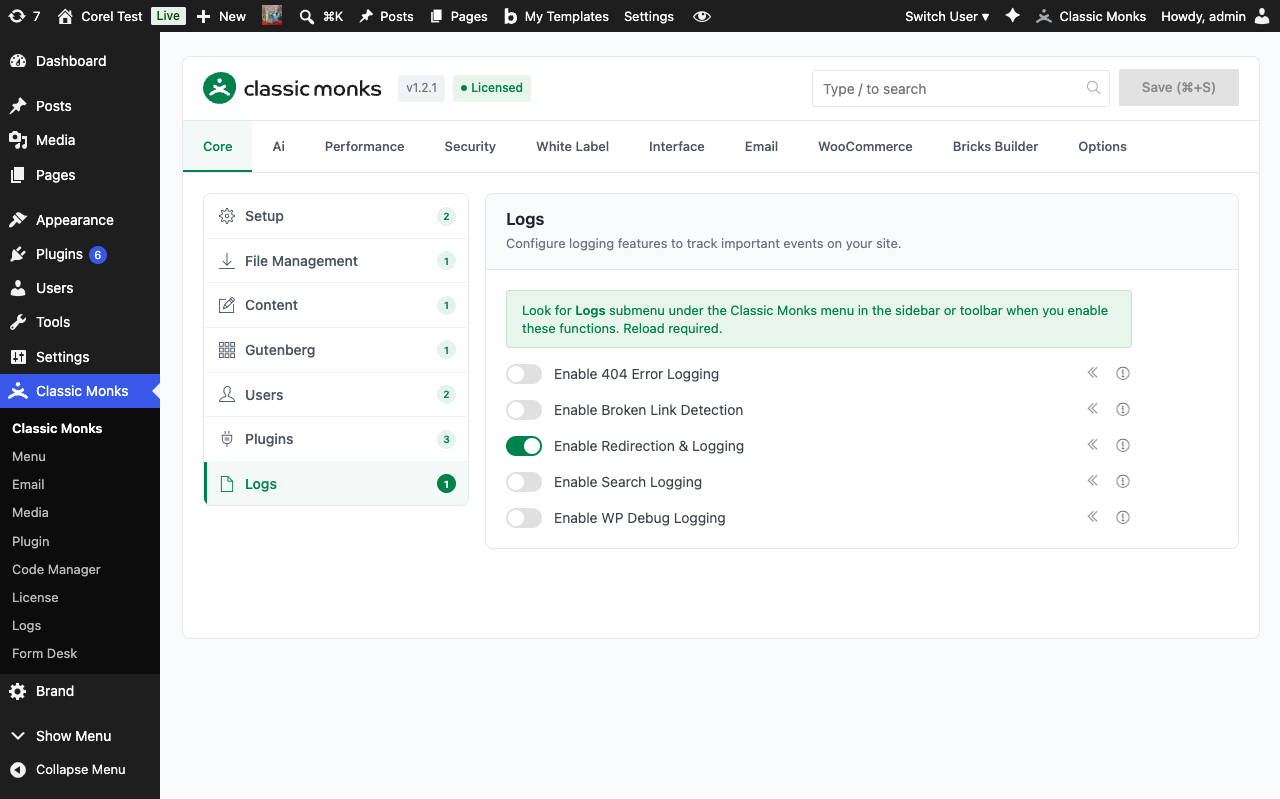
Click on the Core menu, then click the Logs subtab.
Step 3: Enable the Log Types You Want
Toggle on the log types you need. Each adds a corresponding tab to the Classic Monks > Logs submenu. A page reload is required after enabling.
Step 4: Save Changes
Click Save Changes and reload the admin.
Step 5: Access the Logs
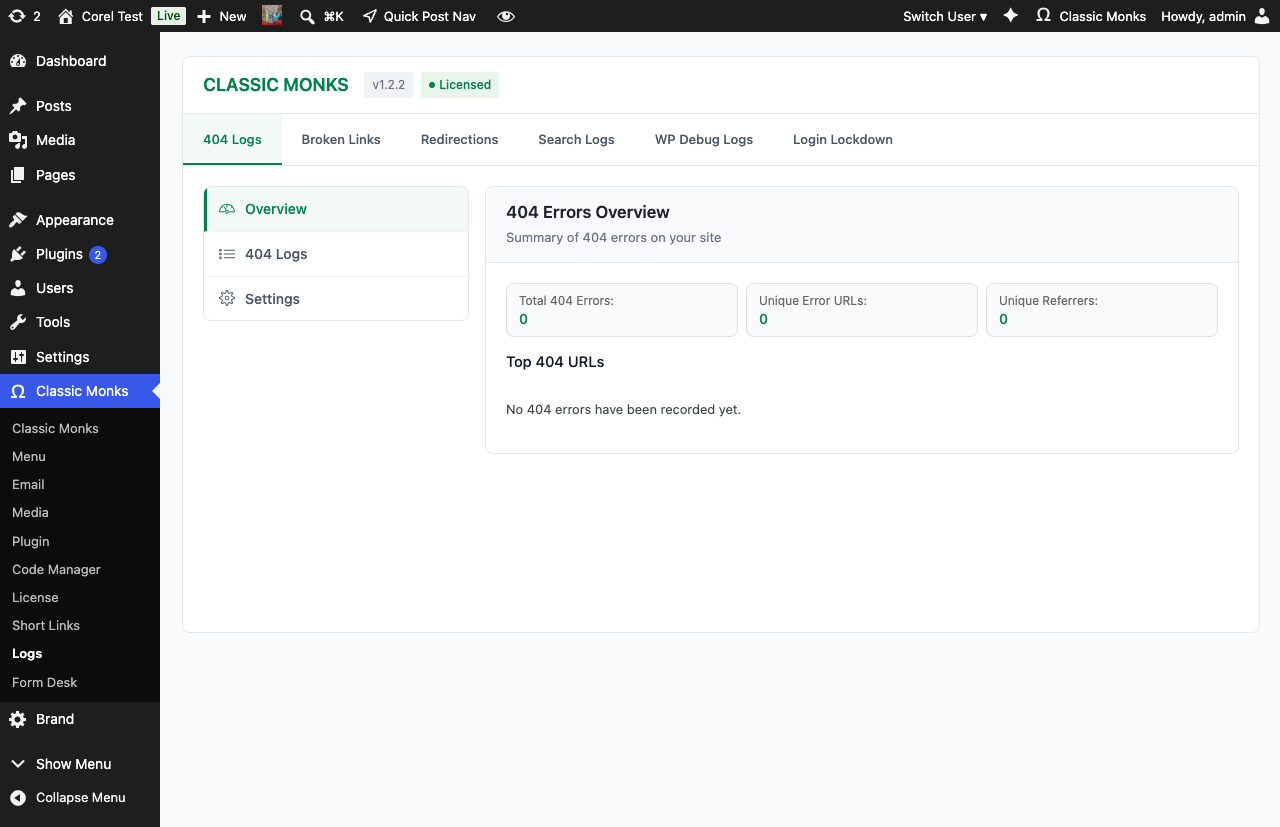
Click Classic Monks > Logs in the admin menu. The Logs page opens with tabs for each enabled log type.
The Five Log Types
404 Error Logging
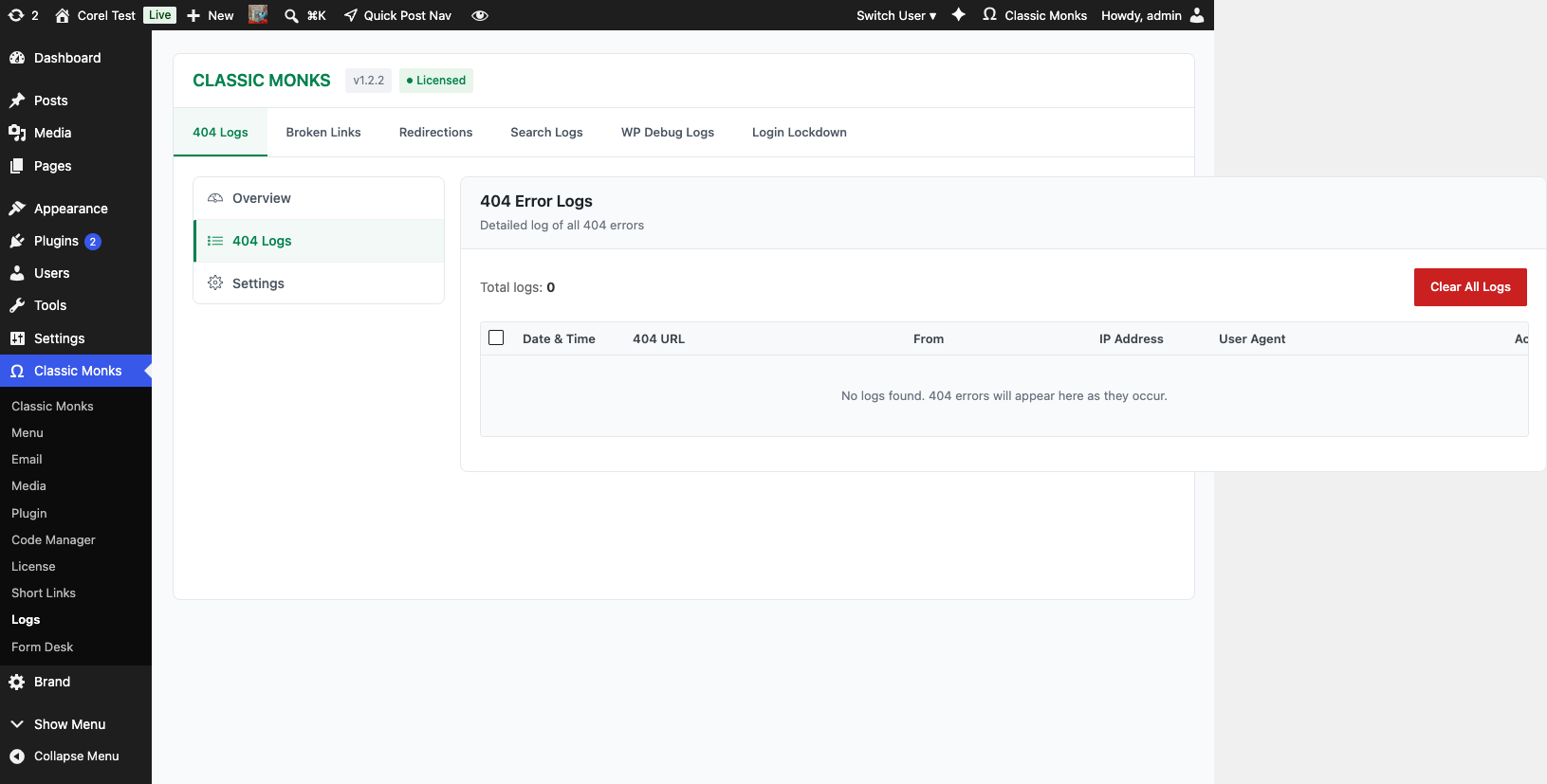
Captures every 404 error with:
- URL requested: The path that returned 404
- Referrer: The page that linked to the missing URL
- User agent: Browser and OS
- IP address: Visitor IP (subject to privacy regulations)
- Timestamp: When the error occurred
Best for: Identifying broken internal links, finding missing content to restore, planning redirects, SEO cleanup.
In the Logs page: The 404 tab shows a table of every captured 404 with the request URL, referrer, user agent, IP, and timestamp. Use the action icons to delete individual entries or bulk-clear.
Broken Link Detection
Automatically scans content for broken internal and external links, checking link availability and reporting dead links with repair suggestions.
Best for: Maintaining site quality, preventing dead link clicks, SEO maintenance, link rot prevention.
How it works: Runs a scheduled scan (configurable) that checks each link in your content for HTTP status. Dead links are flagged for review.
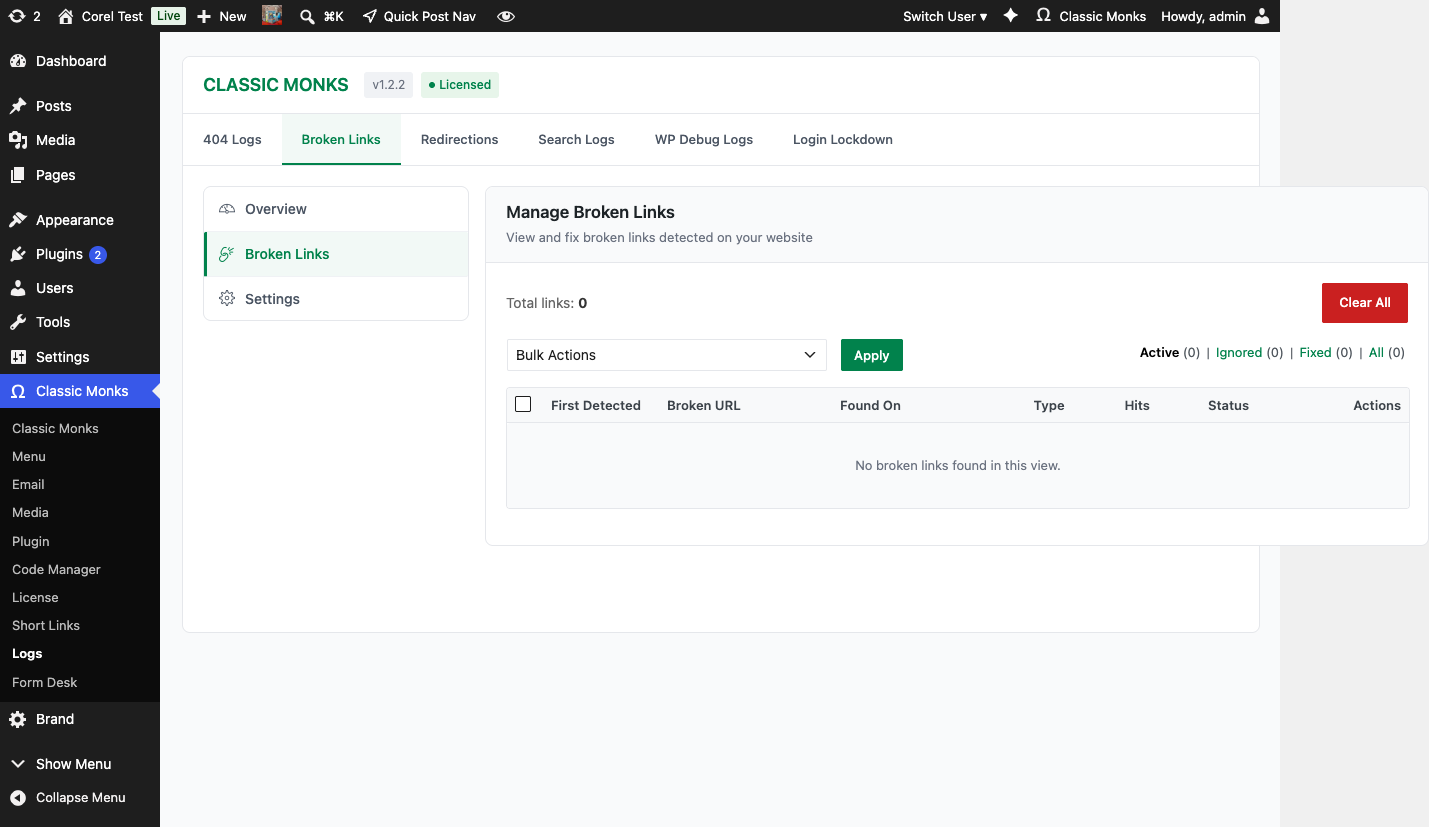
In the Logs page: The Broken Links tab shows the scan status, a list of detected dead links with their source URL and last-checked status, and a button to trigger a manual scan.
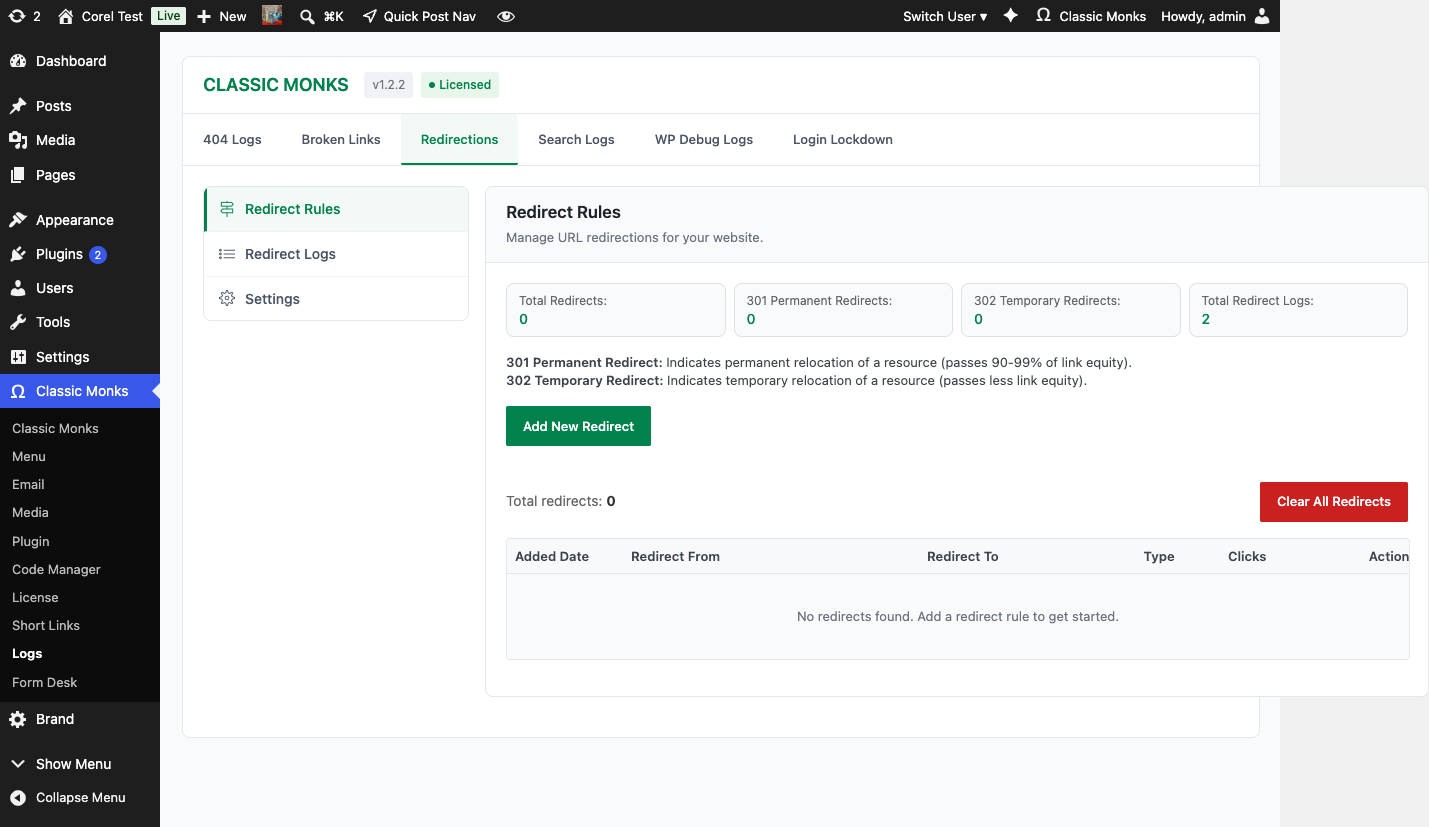
Redirection and Logging
Tracks all HTTP redirects on your site, including:
- Redirect status codes (301, 302, 307, 308)
- Source and destination URLs
- Redirect chain length
- Redirect triggers (manual rules, automatic patterns)
Best for: Monitoring redirect chain performance, identifying redirect loops, understanding URL structure changes and their impact.
In the Logs page: The Redirection tab combines redirect rule management with the redirect activity log. Add or edit rules in one panel and review captured redirects in the other.
Search Logging
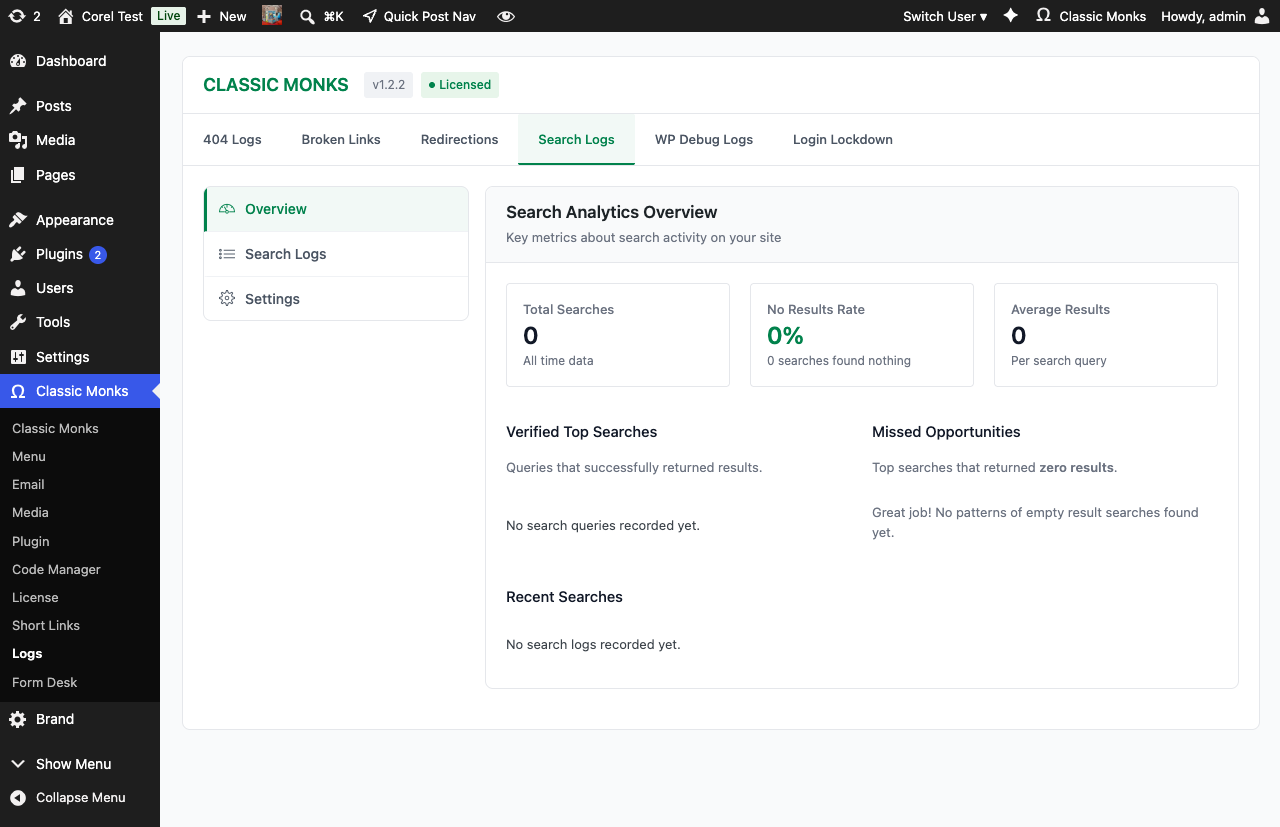
Records all search queries performed on your site, including:
- Search terms
- Result count
- User information (logged-in users only, by default)
- Timestamp
- Click-through on results (if enabled)
Best for: Understanding user intent, identifying content gaps, improving site search functionality, guiding content strategy.
In the Logs page: The Search tab shows every captured search query with the term, result count, user (if logged in), and timestamp. Filter by date range and export the list for analysis.
WP Debug Logging
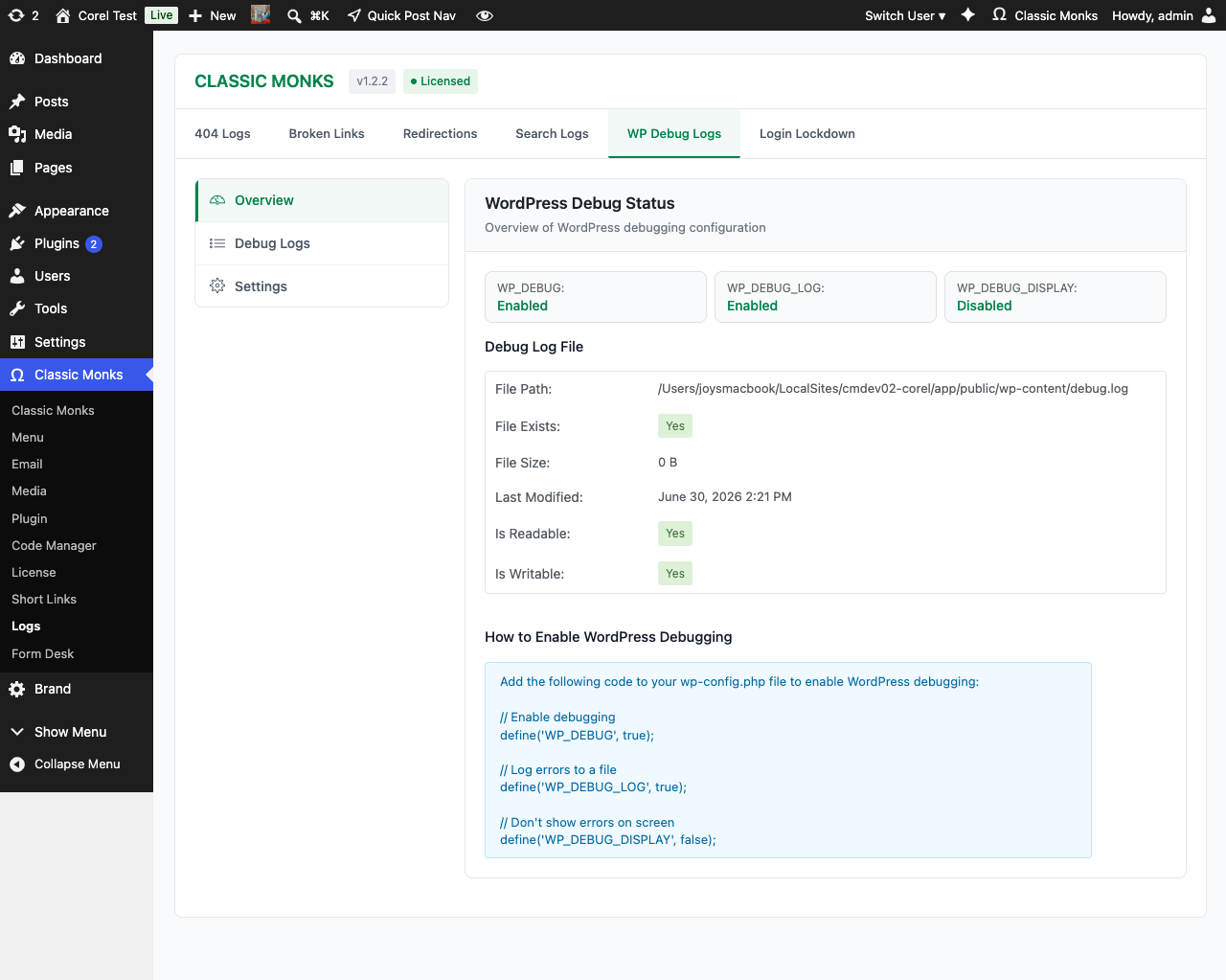
Provides an admin interface to view, filter, and manage the WordPress debug.log file without FTP access or filesystem navigation.
Requires: WP_DEBUG and WP_DEBUG_LOG must be enabled in wp-config.php:
define( 'WP_DEBUG', true );
define( 'WP_DEBUG_LOG', true );
define( 'WP_DEBUG_DISPLAY', false ); // Don't show errors on frontend
The Logs page shows the debug.log contents in a readable format with severity indicators.
Best for: Quick error identification during development, client debugging without exposing server access.
In the Logs page: The Debug tab reads the wp-content/debug.log file and shows entries with severity, file, line number, and the full message. Use the level filter to hide notices and warnings.
Configuration Options
| Option | Description | Default |
|---|---|---|
| Enable 404 Error Logging | Track 404 errors. Adds 404 tab to Logs. Page reload required. | Off |
| Enable Broken Link Detection | Scan for broken links. Adds Broken Links tab to Logs. Page reload required. | Off |
| Enable Redirection and Logging | Track redirects. Adds Redirection tab to Logs. Page reload required. | Off |
| Enable Search Logging | Record search queries. Adds Search tab to Logs. Page reload required. | Off |
| Enable WP Debug Logging | View debug.log in admin. Adds Debug tab to Logs. Page reload required. | Off |
Data Retention
Each log type has different retention characteristics:
| Log Type | Storage | Retention | Cleanup |
|---|---|---|---|
| 404 Errors | Custom database table | Configurable | Manual or scheduled |
| Broken Links | Custom database table | Until link is fixed | Auto-removed when fixed |
| Redirects | Custom database table | Configurable | Manual or scheduled |
| Search Queries | Custom database table | Configurable | Manual or scheduled |
| Debug Log | WordPress debug.log file | Until file is cleared | Manual file truncation |
The Logs page includes cleanup tools for each log type (delete individual entries, bulk delete, truncate table).
Performance Considerations
| Log Type | Performance Impact | Notes |
|---|---|---|
| 404 Error Logging | Low | Single INSERT on 404 response |
| Broken Link Detection | Medium-High | Scheduled scans hit external URLs |
| Redirection and Logging | Low | Single INSERT on redirect |
| Search Logging | Low | Single INSERT per search |
| WP Debug Logging | None (read-only) | Reading the log file |
For high-traffic sites, the log tables can grow quickly. Configure aggressive cleanup schedules for 404 and search logs to prevent table bloat.
Privacy and Compliance
Each log type captures different data. Compliance considerations:
- 404 Errors: Captures visitor IP addresses. Subject to GDPR, CCPA, and similar regulations.
- Search Queries: Captures user behavior. May be considered personal data.
- Broken Links: Does not capture visitor data; only checks link availability.
- Redirects: Does not capture visitor data; only logs redirect events.
- Debug Log: Captures server-side errors; may include sensitive data in error messages.
For production sites subject to privacy regulations, add a disclosure in your privacy policy and configure log retention to align with your data handling practices.
Common Use Cases
SEO Audit and Cleanup
Enable 404 Error Logging and Broken Link Detection. After a week, review the captured URLs, identify patterns, and set up redirects for moved content.
Content Gap Analysis
Enable Search Logging. After a month, review the queries with zero results. These represent content gaps; create posts targeting those queries.
Redirect Chain Optimization
Enable Redirection and Logging. Audit your existing redirects for chains (A → B → C). Consolidate multi-hop chains into single redirects to improve page load speed.
Production Error Monitoring
Enable WP Debug Logging in production (with WP_DEBUG_DISPLAY = false). Catch errors that would otherwise be invisible to site owners.
Migration Verification
After migrating a site, enable 404 Error Logging for a week. Any unexpected 404s indicate broken internal links from the migration.
Developer Notes
The Logs system provides 404 tracking, broken link scanning, search logging, and debug log viewing. No developer hooks are currently exposed.
Options used:
| Option | Type | Default |
|---|---|---|
enable_404_logging |
Boolean | false |
enable_broken_link_scanner |
Boolean | false |
enable_search_logging |
Boolean | false |
enable_debug_log_viewer |
Boolean | false |
Troubleshooting
Logs Page Tab Does Not Appear After Enabling
Cause: Page reload not performed, or the toggle was not actually enabled.
Fix: Reload the admin page. Verify the toggle is on in Core > Logs.
404 Log Is Empty Despite 404s
Cause: A caching layer is serving a cached 404 response without hitting WordPress.
Fix: Configure caching to not cache 404 responses, or check the cache plugin’s documentation.
Broken Link Scan Times Out
Cause: Too many links to check, or external sites are slow to respond.
Fix: Reduce the scan batch size using the cm_broken_link_scan_batch_size filter. Increase PHP’s max_execution_time.
Debug Log Tab Is Empty
Cause: WP_DEBUG_LOG is not enabled, or the log file does not exist yet (no errors to log).
Fix: Add define('WP_DEBUG_LOG', true); to wp-config.php. Trigger a known error to verify logging works.
Log Tables Are Too Large
Cause: High-traffic site without log cleanup.
Fix: Use the cleanup tools in the Logs page. Schedule regular cleanup via cron or a maintenance plugin.
Search Logging Captures Too Many Queries
Cause: Bots and spam searches are inflating the log.
Fix: Exclude known bot user agents. Add a minimum query length filter. Limit logging to logged-in users.