




What Is Global 404 Redirect?
Global 404 Redirect is a Classic Monks feature that intercepts every 404 (HTTP Not Found) response on your WordPress site and redirects it to a destination URL. Instead of showing visitors the default WordPress 404 page (a generic “page not found” template), you can send them to:
- The Home Page (the most common choice)
- The Shop Page (when WooCommerce is active, useful for e-commerce)
- A specific Page you create (e.g., a custom “Not Found” landing page with search)
- A custom URL anywhere (e.g., a marketing landing page)
Why You Need It
The default WordPress 404 page is a dead end. Visitors who hit it have three options: leave, hit back, or try the search bar. Most leave. A global 404 redirect recovers those visitors by sending them somewhere useful.
Common use cases:
- Content sites: Send 404s to the home page so visitors see current content instead of an error
- E-commerce: Send 404s to the shop page so visitors browse products instead of bouncing
- Lead generation: Send 404s to a custom landing page with an email signup form
- Large sites: Catch typos in URLs and route them somewhere useful instead of an error
How to Set Up Global 404 Redirect in Classic Monks
Step 1: Navigate to Settings
Click into the Classic Monks plugin settings in your WordPress dashboard.
Step 2: Go to the Content Subtab
Click on the Core menu, then click the Content subtab.
Step 3: Enable Global 404 Redirect
Toggle on Global 404 Redirect. Nested options expand below the toggle.
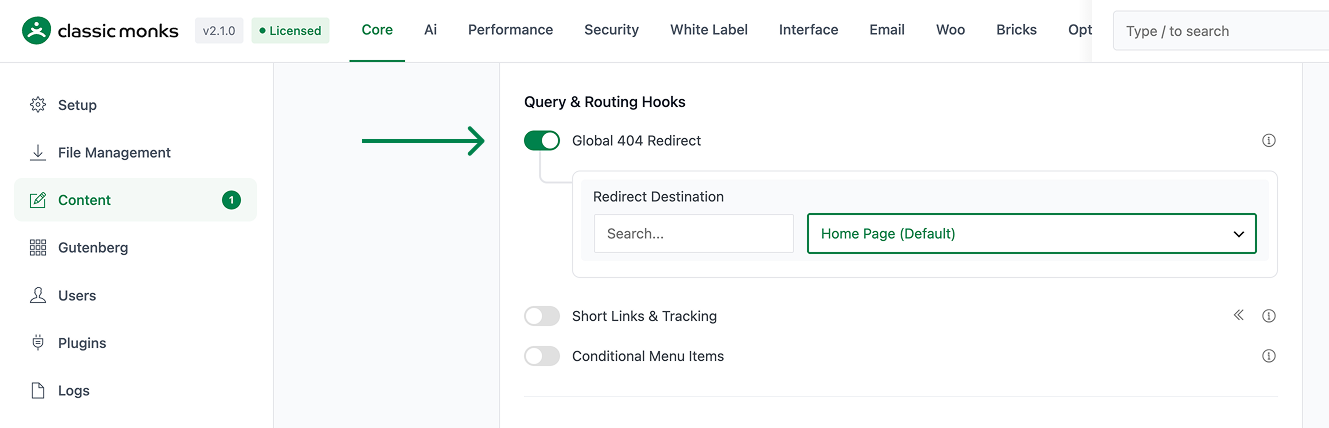
Step 4: Choose a Destination
Pick the Redirect Destination from the dropdown:
- Home Page (default): Redirects all 404s to your site’s home page
- Shop Page: Available when WooCommerce is active. Redirects to the WooCommerce shop page.
- Specific Page: A dropdown of all your WordPress pages. Pick the page you want 404s to redirect to.
- Custom URL: A text field for any URL on or off your site
Step 5: (If Custom URL) Enter the URL
If you picked “Custom URL” in Step 4, enter the full URL in the Custom Redirect URL field. Include https:// for off-site URLs. For on-site URLs, a relative path like /not-found/ also works.
Step 6: Save Changes
Click Save Changes.
Step 7: Test the Redirect
Open a private/incognito browser and visit a URL on your site that does not exist (e.g., https://yoursite.com/this-page-does-not-exist). The browser should redirect to the destination you configured, with the URL bar updating.
Configuration Options
| Option | Description | Default |
|---|---|---|
| Global 404 Redirect | Master toggle. Enables the redirect. | Off |
| Redirect Destination | Home, Shop, specific page, or custom URL. | Home |
| Custom Redirect URL | The full URL or relative path for the “Custom URL” option. | Empty |
SEO Considerations
A 404 response has a specific meaning to search engines: the URL does not exist. A redirect to a real page returns a 200 (or 301) status code. This is generally beneficial:
- Visitors land on a useful page instead of an error
- Search engines see the redirect as a signal that the destination page is the canonical answer for any URL pattern
However, there is a subtle SEO consideration: if you have many old URLs pointing to deleted content, the 404 redirect sends all of them to the same destination. Search engines may interpret this as soft 404s (the page exists but is not what the URL asked for). For high-stakes SEO, configure specific 301 redirects for important old URLs (using a redirect plugin) and use the global 404 redirect as a fallback for the rest.
Developer Notes
The Global 404 Redirect hooks into WordPress’s template_redirect to catch 404 errors and redirect. No developer hooks are currently exposed.
Options used:
| Option | Type | Default |
|---|---|---|
enable_global_404_redirect |
Boolean | false |
global_404_redirect_url |
String | home_url('/') |
The redirect is handled in functions/core/content/404-redirect.php.

Add your first comment to this post