

Why You Need It
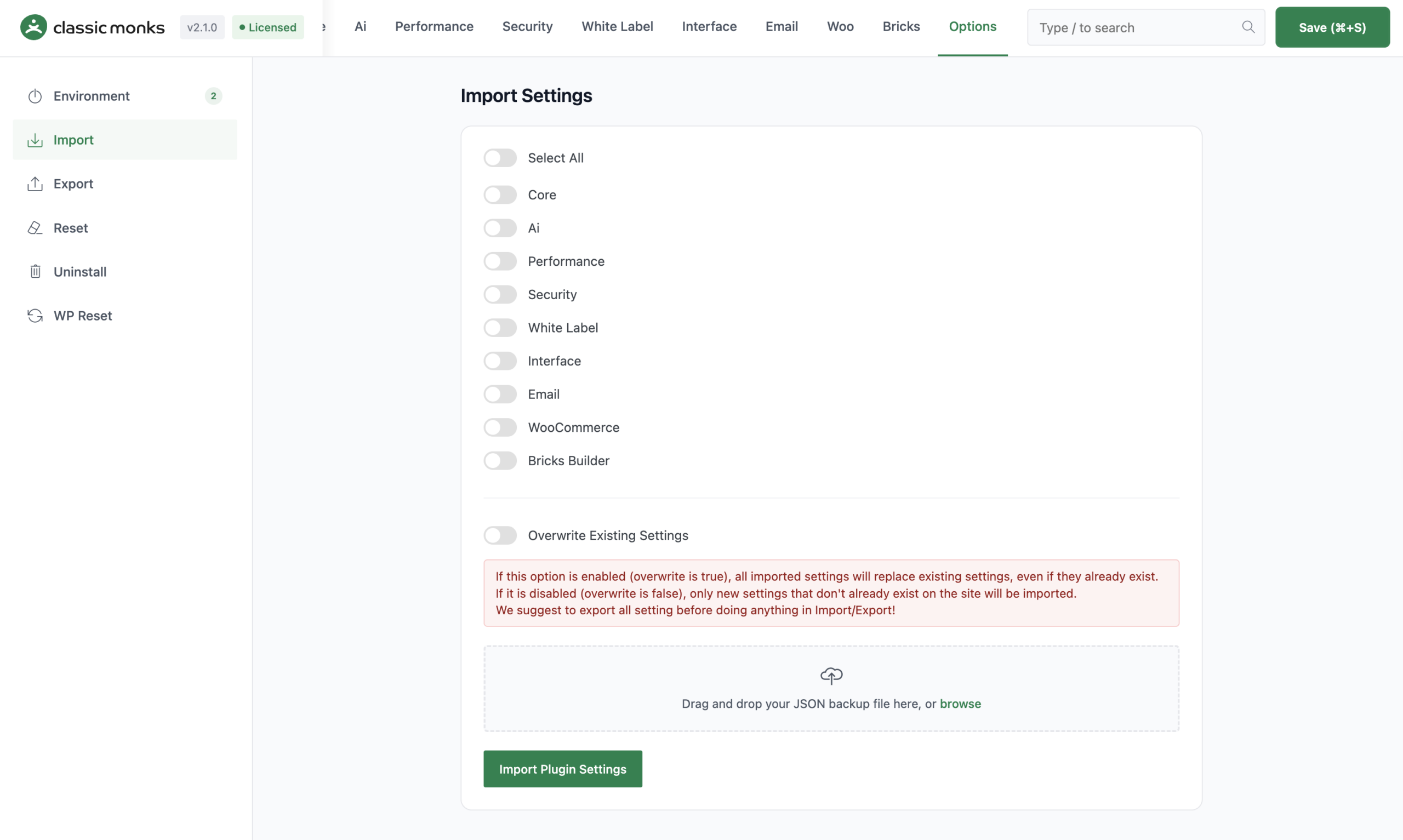
Setting up Classic Monks on a new site from scratch is time-consuming. Importing settings from an existing site saves hours of configuration.
How to Use This Feature
- Step 1
Navigate to Settings
Click into the Classic Monks plugin settings, then the Options tab.
- Step 2
Select the Feature
Click the relevant subtab and follow the on-screen instructions.
Common Use Cases
Site migration
When migrating a Classic Monks configuration to a new site, use Export on the old site and Import on the new site.
Clean start
If the configuration is broken, use Reset to restore defaults. For a completely clean slate, use Uninstall.
License management
Keep your license key active for updates and support. Deactivate before migrating to a new domain.
Developer integration
The Options tab provides programmatic access to settings via core functions.
Settings functions:
cm_get_option( $key, $default )retrieves a setting value from thecm_optionstablecm_update_option( $key, $value )saves a setting valuecm_import_settings( $settings_array )imports settings from an array
WP Reset hooks:
wp_ajax_cm_reset_databasehandles database reset requestswp_ajax_cm_delete_contenthandles content deletionwp_ajax_cm_empty_wp_contenthandles emptying wp-contentwp_ajax_cm_delete_pluginshandles plugin deletionwp_ajax_cm_delete_themeshandles theme deletionwp_ajax_cm_complete_resethandles complete reset
White Label hooks:
all_pluginsfilter modifies plugin data displayplugin_row_metafilter modifies plugin row metadata
Troubleshooting
3 problems and how to fix each one.
Import is not working
Cause: The import file may be corrupted or from an incompatible version.
Fix: Verify the file is a valid JSON export from Classic Monks. Check the PHP error log for import errors.
Reset didn’t work
Cause: The reset may require a page refresh or database flush.
Fix: Clear all caching. Check the WordPress error log. If the reset didn’t complete, try again after clearing the cache.
Uninstall is not removing all data
Cause: Some data may be stored in options that the uninstall doesn’t clean.
Fix: After uninstalling, manually check the wp_options table for cm_* prefixed options and remove them.
