




What Is Selective Media Preload?
Selective Media Preload outputs <link rel="preload"> tags for media you select on individual posts and pages. It is designed for cases where you know the exact asset that should load early, such as a hero image, featured image, logo, or critical video.
This is different from:
- Lazy Loading, which defers non-critical resources until they approach the viewport
- Critical Image Preload, which detects common above-the-fold patterns
- Intelligent Preloading, which predicts likely next pages and preloads links
Selective Media Preload is explicit and page-specific. You choose the assets yourself.
How to Enable Selective Media Preload
Step 1: Open the Performance settings
In WordPress admin, open Classic Monks > Performance and select the Preloading subtab.
Step 2: Enable the feature
Enable Enable Selective Media Preload.
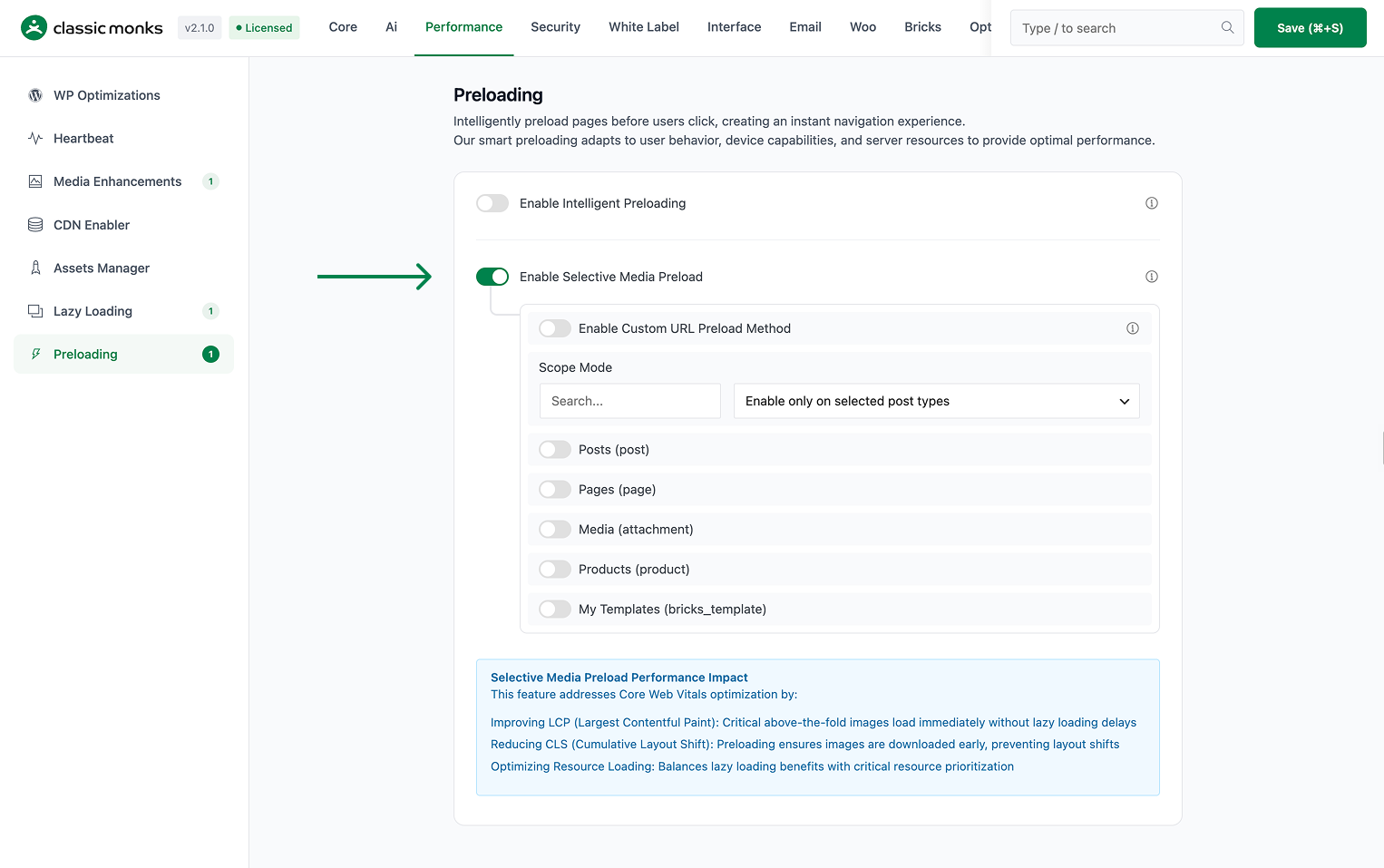
Step 3: Choose the scope mode
Configure Scope Mode and choose which post types receive the metabox:
- Only on selected post types
- Except on selected post types
- On all post types
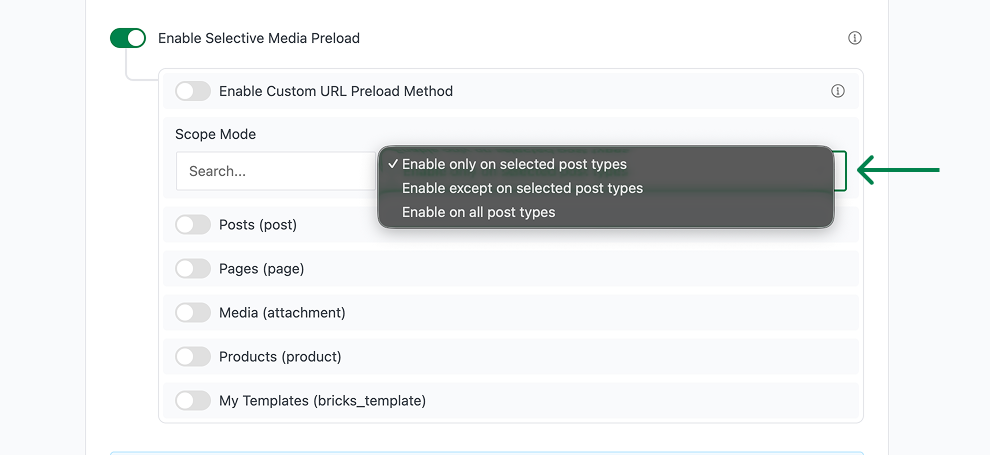
Select the post types that match your content workflow.
Step 4: Enable custom URLs if needed
Enable Enable Custom URL Preload Method if you need to preload an asset that is not in the WordPress Media Library.
Use this for a CDN-hosted image, video, font, or other resource that is safe and appropriate to preload.
Step 5: Save the settings
Click Save Changes.
Step 6: Open a supported post or page
Edit a post or page whose post type matches your scope settings. Look for the Media Preload Settings metabox.
Step 7: Add critical media
Click Add Media and select the files that must load early. Add the largest or most important above-the-fold images first. Use Clear All to remove the current selection and rebuild the list.
Step 8: Add custom URLs (optional)
If custom URL support is enabled, click Add URL and enter a complete valid URL. Select the correct resource type through the URL extension and verify that the URL is publicly accessible.
Step 9: Save the post
Update or publish the post. Classic Monks stores the selected media IDs and URLs as post metadata and outputs preload tags on the frontend.
How to Choose What to Preload
Prioritize assets that affect the first viewport and LCP:
- Hero image
- Featured image visible immediately on the page
- Site logo when it is the LCP element
- Critical above-the-fold video poster or video
- A small number of other assets required for the first render
Do not preload every image. The implementation limits the total to 10 items, and the UI recommends keeping the list to approximately 3–5 critical files or URLs.
Configuration Options
| Option | Description | Default |
|---|---|---|
| Enable Selective Media Preload | Enables the post-editor metabox and frontend preload output. | Off |
| Enable Custom URL Preload Method | Allows custom URLs in addition to Media Library attachments. | Off |
| Scope Mode | Controls which post types receive the metabox. | Only on |
| Selected Post Types | Post types included or excluded by the scope mode. | Empty |
| Maximum total items | Maximum combined media files and custom URLs per post. | 10 |
Verify the Generated Preloads
Browser test
- Open the published post in a logged-out private window.
- View the page source or inspect the document head.
- Search for
Classic Monks Selective Media Preload. - Confirm each selected asset has a corresponding
<link rel="preload">tag. - Open DevTools > Network and reload the page.
- Confirm the selected asset starts loading early.
- Confirm non-selected below-the-fold assets are not accidentally preloaded.
LCP test
Run the page through Lighthouse or PageSpeed Insights before and after adding the preload. Record:
- LCP element
- LCP request start time
- LCP resource priority
- Total transfer size
- Any preload warnings
Only keep the preload if it improves the actual critical rendering path. An unnecessary preload competes with CSS, fonts, or other critical resources.
Developer Notes
Implementation: functions/performance/selective-media-preload.php.
Relevant options and metadata:
enable_selective_media_preloadenable_selective_media_preload_urlsselective_media_preload_modeselective_media_preload_post_types_cm_preload_media_cm_preload_urls
The feature registers add_meta_boxes, save_post, wp_head, wp_img_tag_add_loading_attr, wp_preload_resources, and admin_enqueue_scripts hooks/filters. It limits the combined media and URL selection to 10 items per post.

Add your first comment to this post