




What Is this feature?
Disable WP Responsive Images in Classic Monks prevents WordPress from generating and loading multiple responsive image sizes, reducing database queries and page weight. This is one of many WordPress optimization features available in the Performance tab.
Why You Need It
WordPress generates multiple image sizes for responsive display. For sites that handle responsive images differently (CDN, manual), this adds unnecessary database queries and page weight.
How to Enable this Feature in WordPress
Step 1: Navigate to Settings
Click into the Classic Monks plugin settings in your WordPress dashboard.
Step 2: Go to the Performance Tab
Click on the Performance menu, then click the WP Optimizations subtab.
Step 3: Enable the Feature
Toggle on the feature.
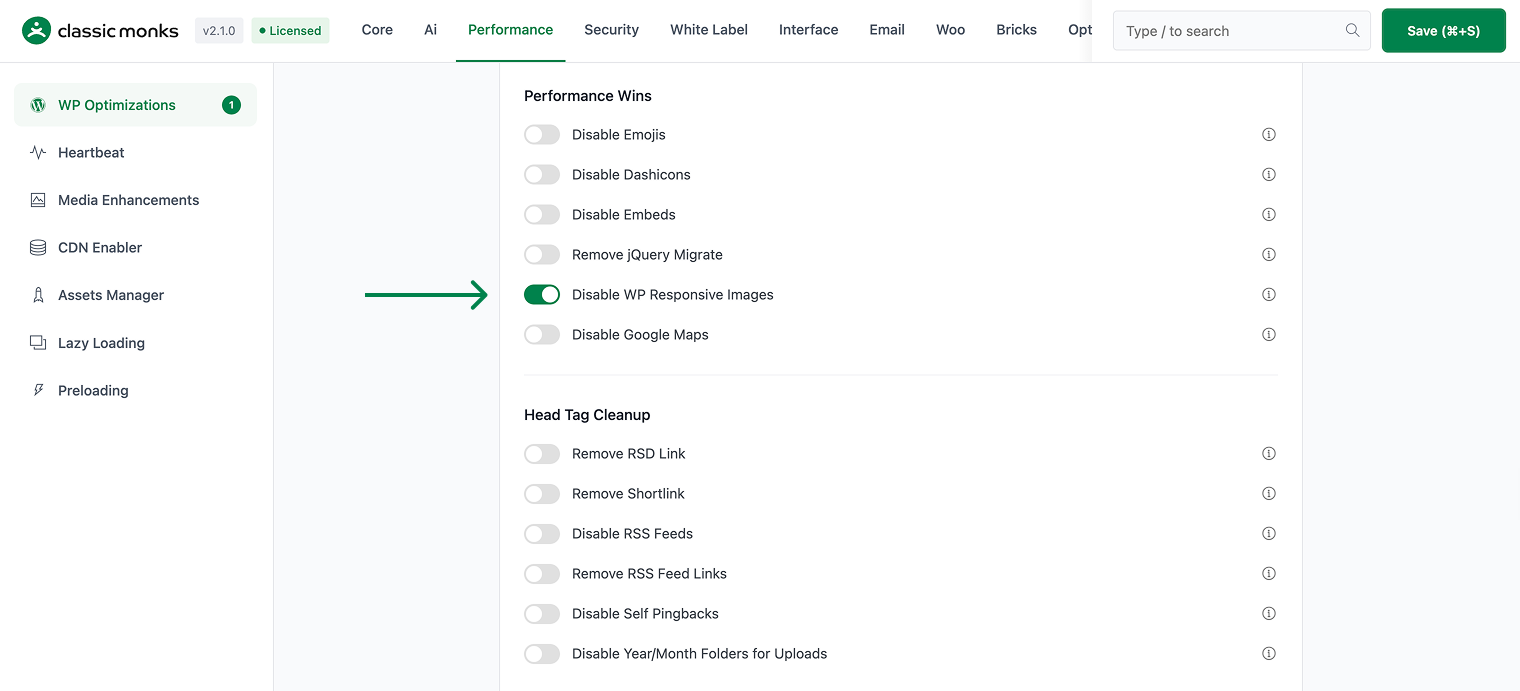
Step 4: Save Changes
Click Save Changes.
Step 5: Test
Clear your browser cache and visit the frontend. Verify the feature is working as expected.
Configuration Options
| Option | Description | Default |
|---|---|---|
| This feature | Master toggle. | Off |
No nested options.
What Gets Affected
- The feature behavior: enabled as configured
- The site performance: improved as described
What Does NOT Get Affected
- The WordPress admin: unchanged
- The site content: unchanged
- The plugin functionality: unchanged
Common Use Cases
Sites using a CDN for images
If you’re using a CDN that handles responsive images (e.g., Cloudflare Image Resizing), WordPress’s built-in responsive images are redundant.
Sites with many image sizes
If you have 10+ registered image sizes, WordPress generates and loads many variants. Disabling responsive images reduces this overhead.
Developer integration
This feature registers 1 WordPress hook in media-functions.php:
Filters:
max_srcset_image_widthcallscm_disable_wp_responsive_images()(Returns 1 to disable srcset generation)
// Hooked in media-functions.php
add_filter( 'max_srcset_image_width', 'cm_disable_wp_responsive_images' );
The feature modifies WordPress behavior by registering or removing hooks. Disabling it reverses those changes and WordPress returns to its default behavior.
Before you enable this feature
- Test on staging first to verify no conflicts with your theme or other plugins
- Check dependent plugins that may rely on the functionality being modified
- Monitor after enabling for any unexpected behavior on the frontend
How it works under the feature
This feature runs during the WordPress initialization phase. When enabled, its PHP code registers hooks that modify specific WordPress behaviors. The changes are non-destructive and reversible.
No database schema changes are made. The feature state is stored as a boolean value in the wp_options table and can be toggled at any time from the admin settings.

Add your first comment to this post