




What Is the Login Lockdown feature?
By default, WordPress allows unlimited failed login attempts. An attacker can try thousands of passwords without being locked out. The Login Lockdown feature locks out a user or IP after a configurable number of failed attempts, then unlocks after a configurable duration.
This is a critical security feature for any public-facing WordPress site.
Why You Need It
Brute force attacks are a constant threat:
- Automated bots can try hundreds of passwords per second
- A successful attack compromises a user account (potentially admin)
- Even unsuccessful attacks consume server resources
- The damage from a single admin account compromise is severe
Login Lockdown eliminates this attack vector by making brute force impractical.
How to Enable Login Lockdown in WordPress
Step 1: Navigate to Settings
Click into the Classic Monks plugin settings in your WordPress dashboard.
Step 2: Go to the Security Tab
Click on the Security menu, then click the WP Protection subtab.
Step 3: Enable Login Lockdown
Scroll to Enable Login Lockdown and toggle on. Nested options expand.
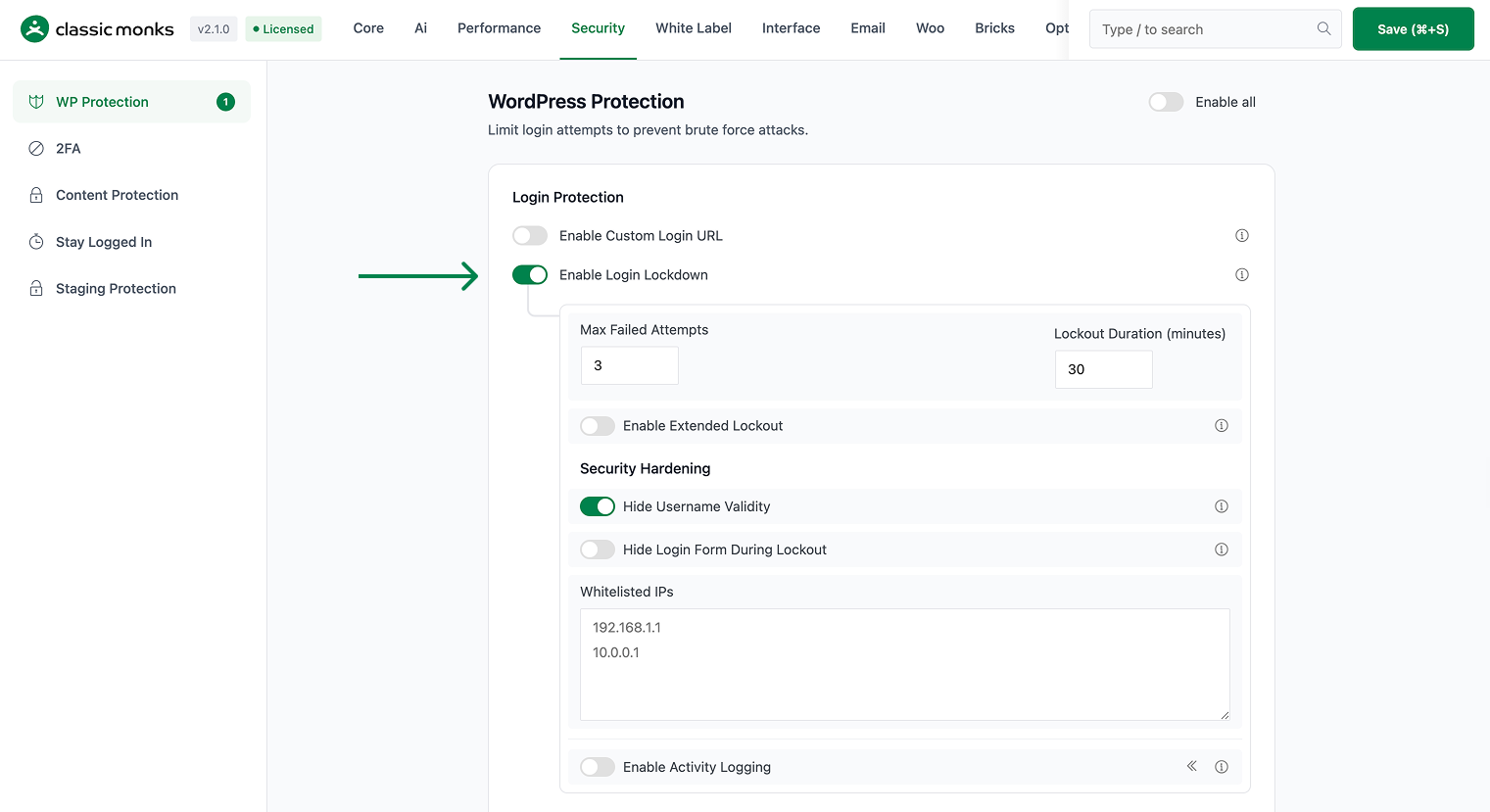
Step 4: Configure Lockout Settings
Set the lockout parameters:
- Max Failed Attempts: The number of failed attempts before lockout (e.g., 5)
- Lockout Duration: How long the lockout lasts in minutes (e.g., 30)
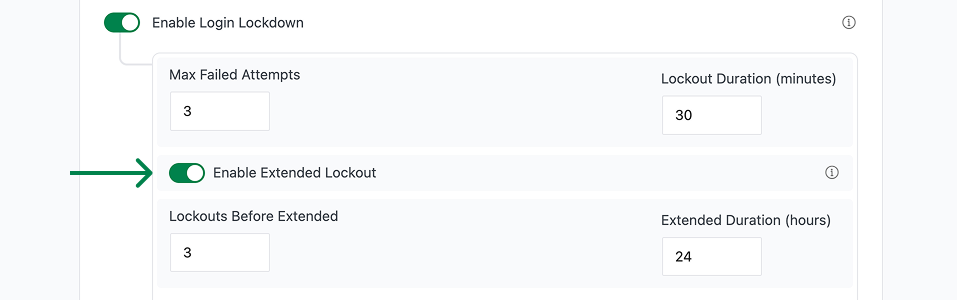
Step 5: Configure Extended Lockout (Optional)
Toggle on Enable Extended Lockout if you want to lock out repeat offenders for longer:
- Lockouts Before Extended: Number of lockouts before extended lockout kicks in (e.g., 3)
- Extended Lockout Hours: How long the extended lockout lasts in hours (e.g., 24)
Step 6: Configure Hiding Options
Toggle on Hide Username Validity to prevent the “Invalid username” vs “Invalid password” distinction (which leaks whether a username exists).
Toggle on Hide Login Form During Lockout to fully hide the login form when the user is locked out (instead of showing a “you are locked out” message).

Step 7: Enable Activity Logging (Optional)
Toggle on Enable Activity Logging to record all login attempts (successful and failed) in the database for audit.
Step 8: Configure IP Whitelist (Optional)
Add trusted IPs to the Whitelisted IPs field (one per line). These IPs will never be locked out:
- Office IP addresses
- VPN exit IPs
- Your home IP (for development)

Step 9: Save Changes
Click Save Changes.
Step 10: Test
Try logging in with the wrong password 5 times. The 6th attempt should be locked out.
Configuration Options
| Option | Description | Default |
|---|---|---|
| Enable Login Lockdown | Master toggle. | Off |
| Max Failed Attempts | Number of failed attempts before lockout. | 3 |
| Lockout Duration | Lockout duration in minutes. | 30 |
| Enable Extended Lockout | Enable longer lockouts for repeat offenders. | Off |
| Lockouts Before Extended | Number of lockouts before extended. | 3 |
| Extended Lockout Hours | Extended lockout duration in hours. | 24 |
| Hide Username Validity | Don’t reveal if a username exists. | On |
| Hide Login Form During Lockout | Show blank page during lockout. | Off |
| Enable Activity Logging | Log all login attempts. | Off |
| Whitelisted IPs | IPs that never get locked out. | (empty) |
What Gets Affected
- Failed login attempts: tracked and counted
- Users or IPs: locked out after the threshold
- The login form: shows error or is hidden during lockout
- The username validity check: hidden when configured
- The activity log: entries created for all login attempts (if enabled)
What Does NOT Get Affected
- Successful logins: not affected
- The wp-admin: not affected (after successful login)
- The password reset flow: not affected (typically has its own rate limiting)
- The REST API: not affected (this is a frontend login lockdown)
- The user’s saved sessions: not affected
Advanced Options (Developers)
This feature registers 5 WordPress hooks in login-lockdown.php:
Actions:
wp_login_failedcallscm_log_failed_login()(Logs failed login attempts (priority 10))wp_logincallscm_reset_login_attempts()(Resets attempt counter on successful login (priority 10))login_headcallscm_maybe_hide_login_form()(Hides login form during lockout)
Filters:
authenticatecallscm_check_login_lockout()(Checks lockout status during authentication (priority 5))cm_trust_proxy_headerscallsapply_filters()(Customizable filter)
// Hooked in login-lockdown.php
add_filter( 'authenticate', 'cm_check_login_lockout' );
The feature modifies WordPress behavior by registering or removing hooks. Disabling it reverses those changes and WordPress returns to its default behavior.

Add your first comment to this post