




What Is Content Duplication?
Content Duplication is a Classic Monks feature that adds a Duplicate link to every post row in the WordPress admin and to the post edit screen’s Publish meta box. Clicking the link creates an exact copy of the post: same title (with “- Duplicate” suffix), same content, same metadata, same custom fields, same taxonomies, same featured image. The copy is created as a draft so you can review and edit before publishing.
Why You Need It
WordPress’s core admin has no native way to duplicate a post. The standard workaround is:
- Copy the post content manually (with all shortcodes, HTML, and formatting intact)
- Open a new post, paste the content
- Manually copy all custom fields (post meta)
- Manually re-apply all taxonomies (categories, tags, custom taxonomies)
- Manually re-set the featured image
- Manually re-set any post-specific settings (page template, menu order, etc.)
For complex posts (with many custom fields, complex layouts, or many taxonomies), this is error-prone and slow. Content Duplication automates the entire copy, producing an exact duplicate in one click.
How to Use Content Duplication in Classic Monks
Step 1: Navigate to Settings
Click into the Classic Monks plugin settings in your WordPress dashboard.
Step 2: Go to the Content Subtab
Click on the Core menu, then click the Content subtab.
Step 3: Enable Content Duplication
Scroll to the Editorial Workflow section and toggle on Enable Content Duplication. Nested options expand below the toggle.
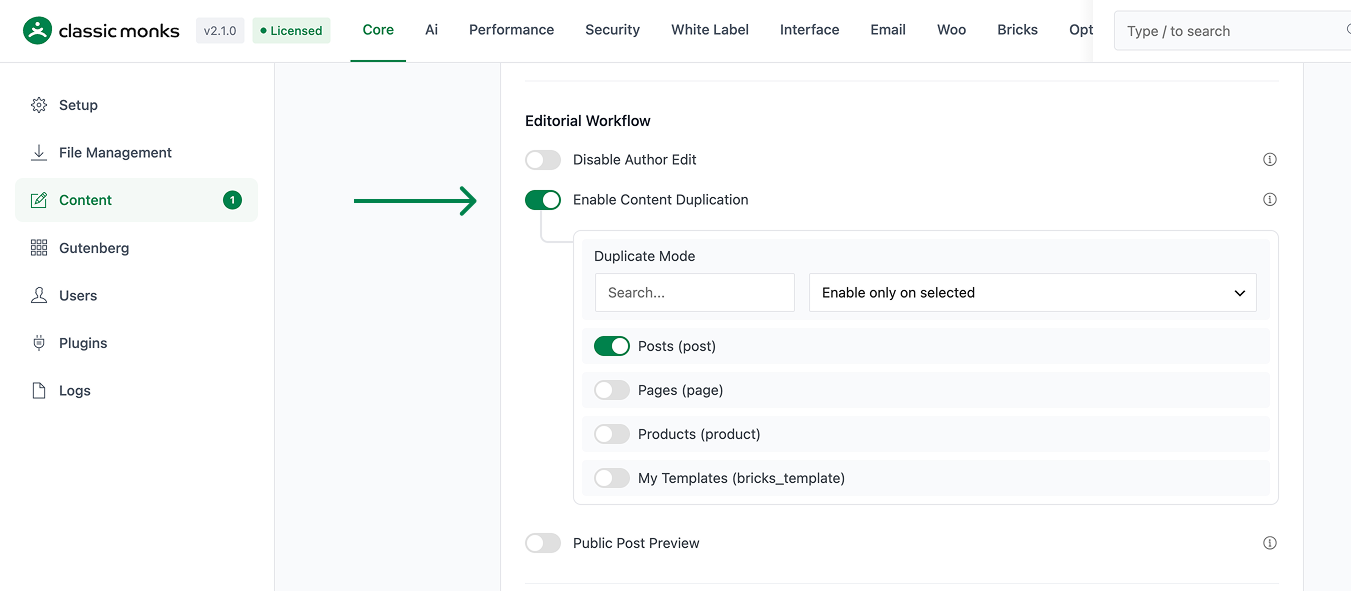
Step 4: Choose a Mode
Pick the Duplicate Mode from the dropdown:
- Enable only on selected: The Duplicate link appears only on checked post types
- Enable except on selected: The Duplicate link appears on all post types except checked ones
- Enable on all post types: The Duplicate link appears on every public post type
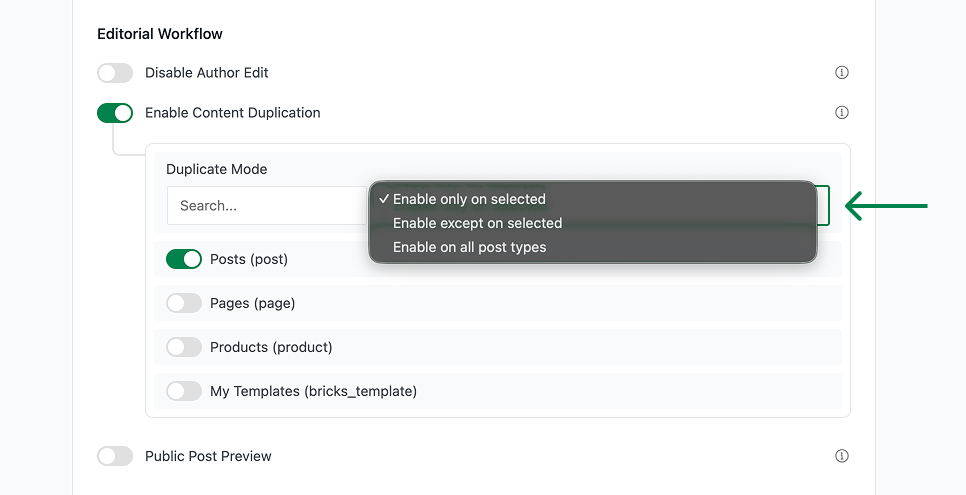
For most sites, “Enable on all post types” is the simplest choice. Use “Enable only on selected” if you want to prevent duplication of certain post types (e.g., orders, attachments, custom post types that should not be copied).
Step 5: Select the Post Types
A list of every public post type appears. Check the ones you want to enable duplication for. Uncheck the ones you want to leave alone.
Step 6: Save Changes
Click Save Changes.
Step 7: Duplicate a Post
Go to any post list table (e.g., Posts > All Posts). Hover over a post row. You’ll see a new Duplicate link in the row actions. Click it.
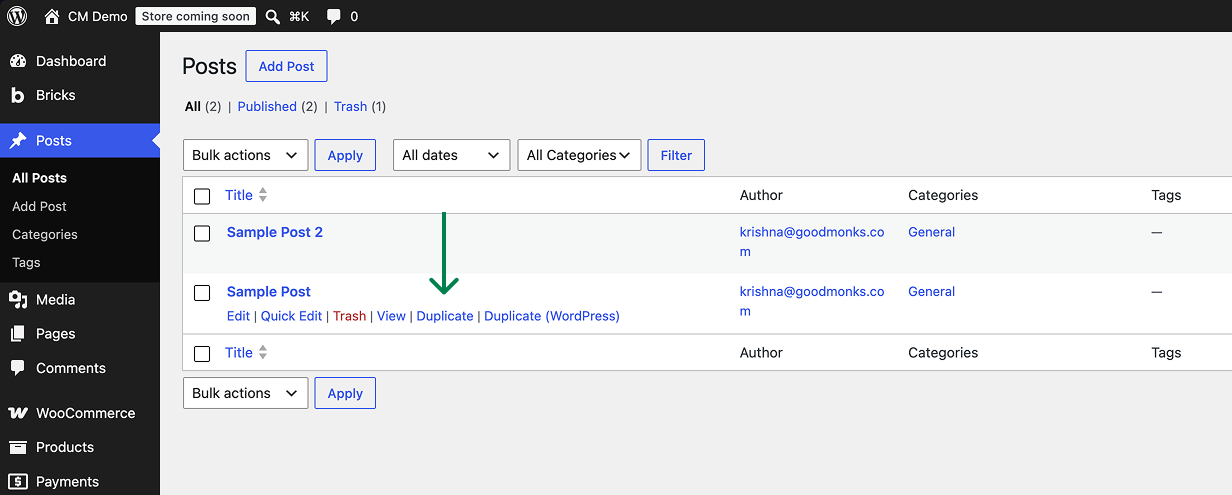
A new draft post is created. WordPress redirects you to the post list with a “Post duplicated” notice. The duplicate has the same content as the original, with “- Duplicate” appended to the title.
Step 8: Edit and Publish the Duplicate
Click the duplicate’s title to open the edit screen. Adjust the title (remove “- Duplicate”), make any other edits, and click Publish.
Configuration Options
| Option | Description | Default |
|---|---|---|
| Enable Content Duplication | Master toggle. Adds the Duplicate link. | Off |
| Duplicate Mode | only-on, except-on, or all-post-types. |
only-on |
| Post Type Checkboxes | Per-post-type control (when Mode is only-on or except-on). |
None checked |
What Gets Preserved vs. Dropped
| Data Type | Preserved? | Notes |
|---|---|---|
| Post title | Yes | With “- Duplicate” suffix added |
| Post content | Yes | Including shortcodes, HTML, embeds |
| Excerpt | Yes | |
| Featured image | Yes | Copied to media library if needed |
| Custom fields (post meta) | Yes | All of them, including ACF fields |
| Taxonomies (categories, tags, custom) | Yes | All term associations |
| Post author | Set to current user | The duplicator becomes the author of the copy |
| Post date | Reset to current time | The duplicate is a new post, so it gets the new creation time |
| Post slug | Auto-generated | WordPress generates a unique slug for the duplicate |
| Comments | Dropped | Comments are tied to the original post, not duplicated |
Post views / metadata (e.g., _post_views_count) |
Yes | All post meta is copied, including view counters |
| Page attributes (template, menu order) | Yes | Copied to the new page |
| Post status | Reset to draft | The duplicate is always a draft, never published |
Bulk Duplication
To duplicate multiple posts at once:
- Go to any post list table
- Check the boxes next to the posts you want to duplicate
- From the Bulk Actions dropdown, select Duplicate
- Click Apply
All selected posts are duplicated. The new drafts are listed in the post list with the same title plus “- Duplicate”.
Developer Notes
Content Duplication adds a “Duplicate” link to each post/page in the list table. No developer hooks are currently exposed.
Options used:
| Option | Type | Default |
|---|---|---|
enable_content_duplication |
Boolean | false |
The duplication logic is in functions/core/content/content-duplication.php.

Add your first comment to this post