

Are you running twenty separate WordPress plugins and wondering why your site is slow, your admin is cluttered, and your renewal invoices keep climbing? If you are reading this, there is a good chance you already know the feeling. Every single job on your site has its own plugin, each with its own developer, its own update schedule, and its own quiet way of eventually breaking something.
All-in-one WordPress plugins exist to end that cycle. In this guide you’ll learn what an all-in-one plugin actually is, why it matters for site speed, security, and your sanity, and what happens behind the scenes when you consolidate your stack. We also compare the top all-in-one plugins available in 2026 so you can choose the one that fits your workload. I’m Joy, the founder of Classic Monks, so I’ll be honest from the start: my plugin is part of this comparison, and I’ll rank it where it belongs, with its limits clearly stated.
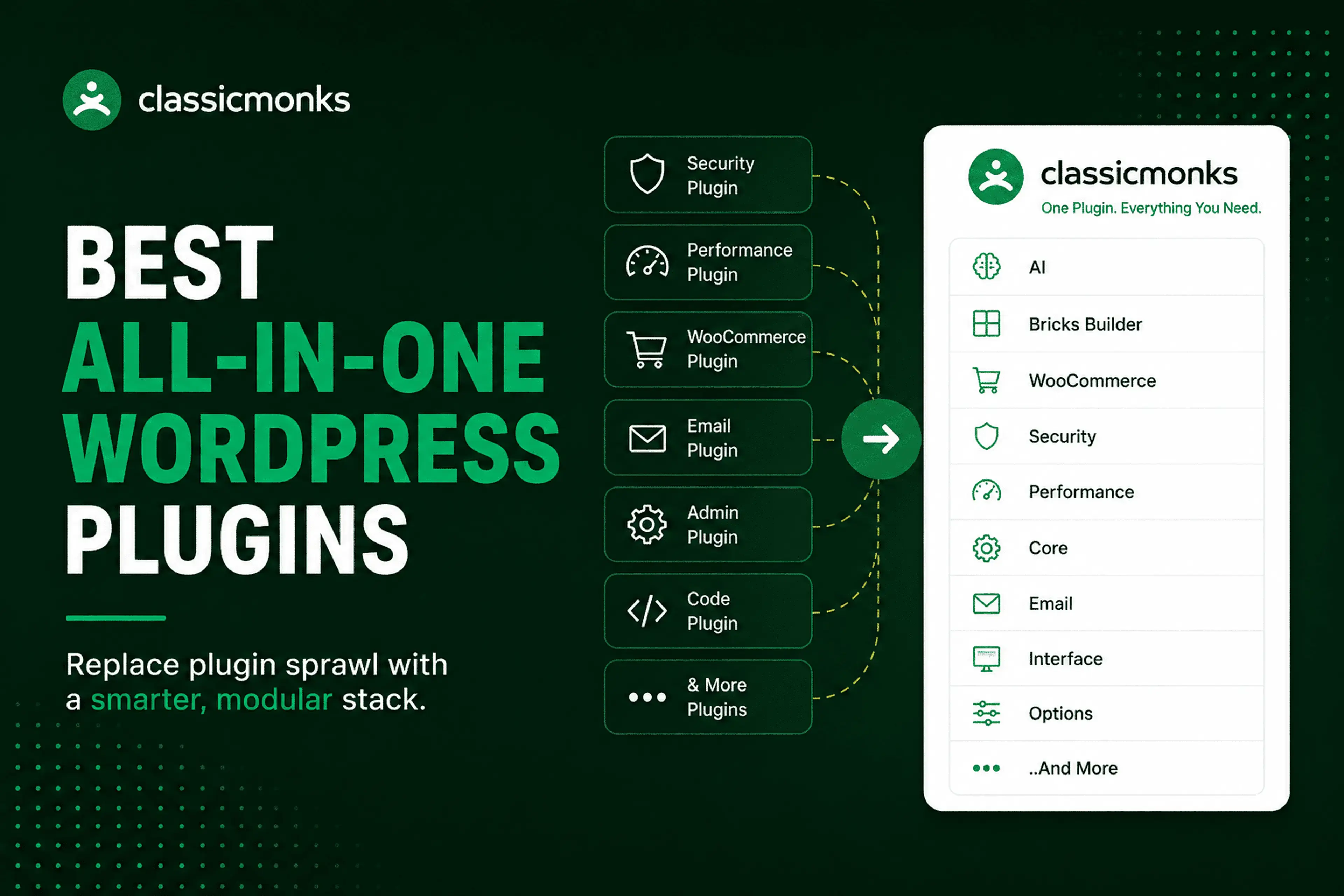
What an All-in-One WordPress Plugin Is and How It Works
An all-in-one WordPress plugin is a collection of modular tools delivered as a single install. You enable only the features you need and leave the rest switched off. That is the defining trait. It is not a plugin that does a little bit of everything all at once. It is a shared codebase full of individual tools you can turn on and off, so the plugin stays lean even when the library is large.
What “all-in-one” actually means and what happens when you enable it
A single-purpose plugin does one job. An all-in-one plugin is closer to a toolkit. One plugin may contain a security suite, an asset manager, a media converter, WooCommerce utilities, and an admin cleanup module. When you activate it, nothing changes until you enable the features you plan to use. The rest stay dormant and add no overhead.
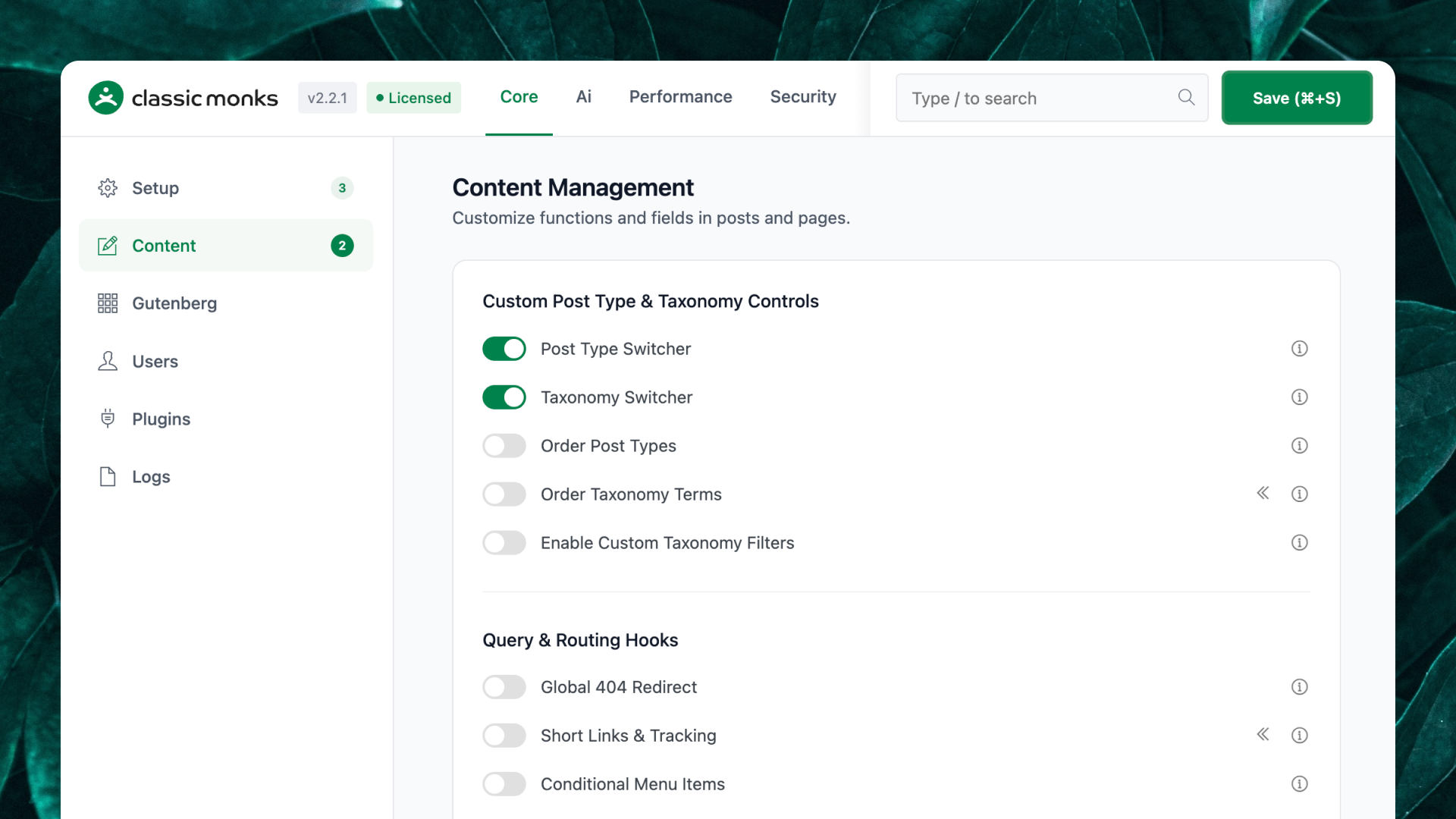
That granular control matters. The classic objection to all-in-one plugins is that they are heavy. A true modular plugin answers that by only loading what you activate. The result is a large feature library with the footprint of a small one, because unused modules are not running.
What an all-in-one plugin does with your existing stack
When you install one, it does not immediately tear out your other plugins. On the first run it introduces its own tabs, and you choose which jobs to move over. The realistic path is migration, not demolition: pick the recurring tasks, enable the matching features, confirm they work, then remove the plugins they replaced.
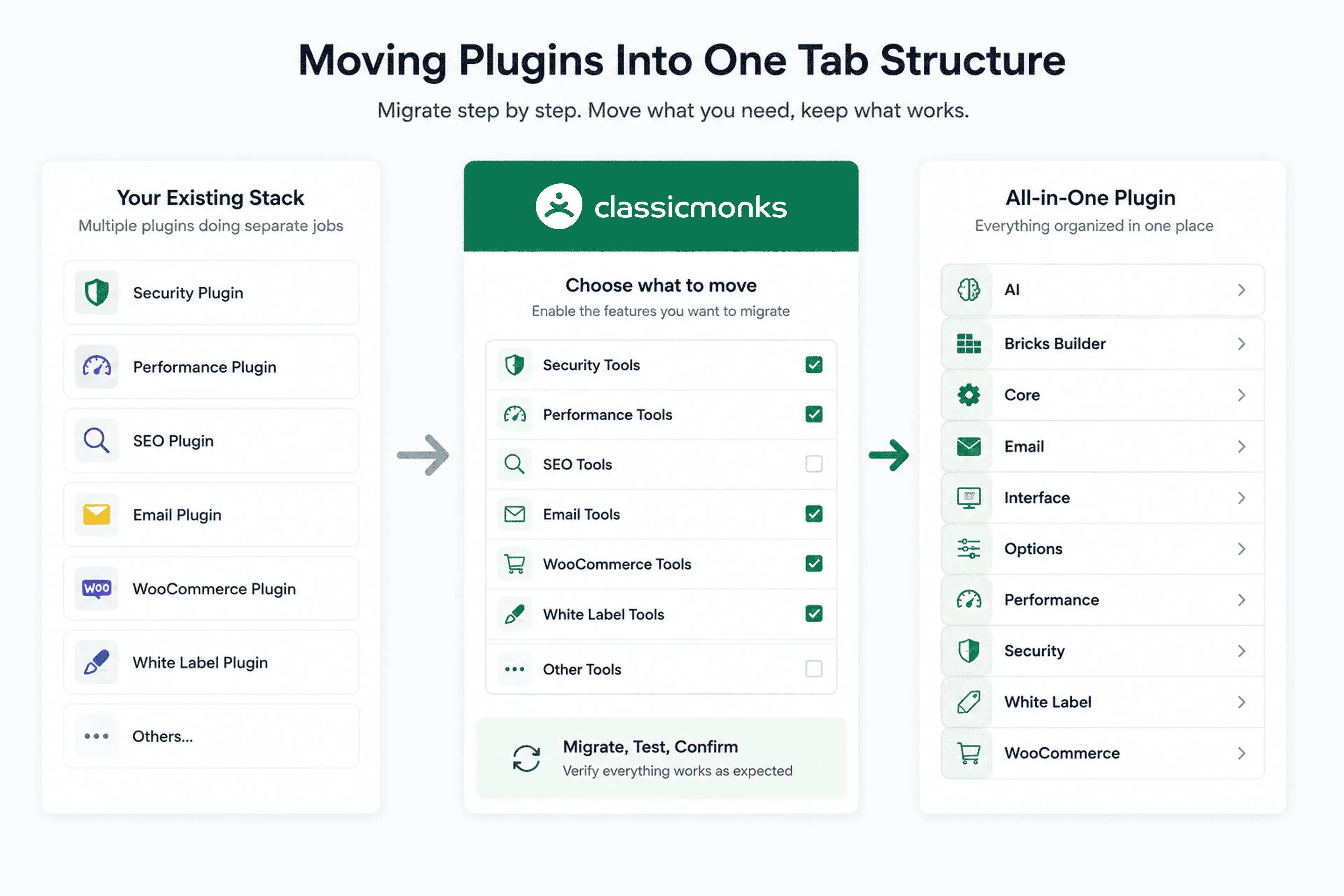
Each feature group lives under its own tab. On Classic Monks those tabs are AI, Bricks Builder, Core, Email, Interface, Options, Performance, Security, White Label, and WooCommerce, which gives you a single map of what the plugin covers before you enable anything.
What happens when you update or change content
Because everything shares one update cycle, one changelog, and one support contact, updating an all-in-one plugin is a single action rather than a checklist. When you change a setting, it applies immediately and lives in one place. When a WordPress release lands, you test one update instead of fifteen.
Pro tip: if you are planning to consolidate a stack, do it on staging first, enable features one at a time, and keep a list of which plugins you removed so you can roll back cleanly if a workflow does not transfer.
Why You Need an All-in-One Plugin
A collection of third-party code, each with its own authors and its own update cadence, is the most fragile part of a WordPress install. All-in-one plugins reduce that fragility. Here is why that matters in practice.
Benefit 1: Fewer plugins means fewer conflicts and a faster site
Every active plugin adds hooks, queued scripts, styles, and database queries. Even well-written plugins add weight at the admin and the front end. When you swap several plugins for one modular tool, you remove the overlapping functionality and the redundant scripts that often cause the same asset to load twice.
This is the same logic performance guides push: fewer assets, smarter loading, lower response overhead. An all-in-one plugin is not a replacement for caching, but it removes the bloat that optimization tools then have to clean up.
Benefit 2: One interface to learn and one place to configure
Your team stops opening a different plugin for every task. Everything lives under one tab structure. Onboarding a new developer or handing a site to a client becomes simpler because the configuration sits in one place.
Did you know? On Classic Monks, Quick WordPress Setup provisions a fresh WordPress site in around ten minutes, so a new client project starts from a configured baseline instead of hours of repeated setup.
Benefit 3: The support and update load drops
You update one plugin instead of fifteen. When a change breaks something, there is one changelog to read and one team to contact instead of scattered forums. For an agency managing dozens of client sites, this compounds: every consolidated client site is a portfolio with less daily maintenance.
That is not to say an all-in-one plugin is a universal answer. Caching is served better by a dedicated caching layer, backups deserve a tool that snapshots independently, and SEO has specialists that go deeper. The all-in-one plugin eliminates the sprawl around those core services; it does not replace them.
All-in-One Plugins vs a Stack of Single-Purpose Plugins
A stack of single-purpose plugins has one genuine advantage: you can assemble a best-in-class tool for every job. The cost is complexity. Every plugin is a separate subscription, a separate update, a separate support queue, and a separate place your configuration lives.
An all-in-one plugin trades a little raw depth per narrow job for consolidation. In return you get a single workflow, one license, one update, and fewer integration headaches. The two approaches are not mutually exclusive. The strong move is to keep a small number of dedicated tools for the jobs that genuinely need depth, and let the all-in-one plugin own the broad recurring baseline.
What’s Important When Choosing an All-in-One Plugin
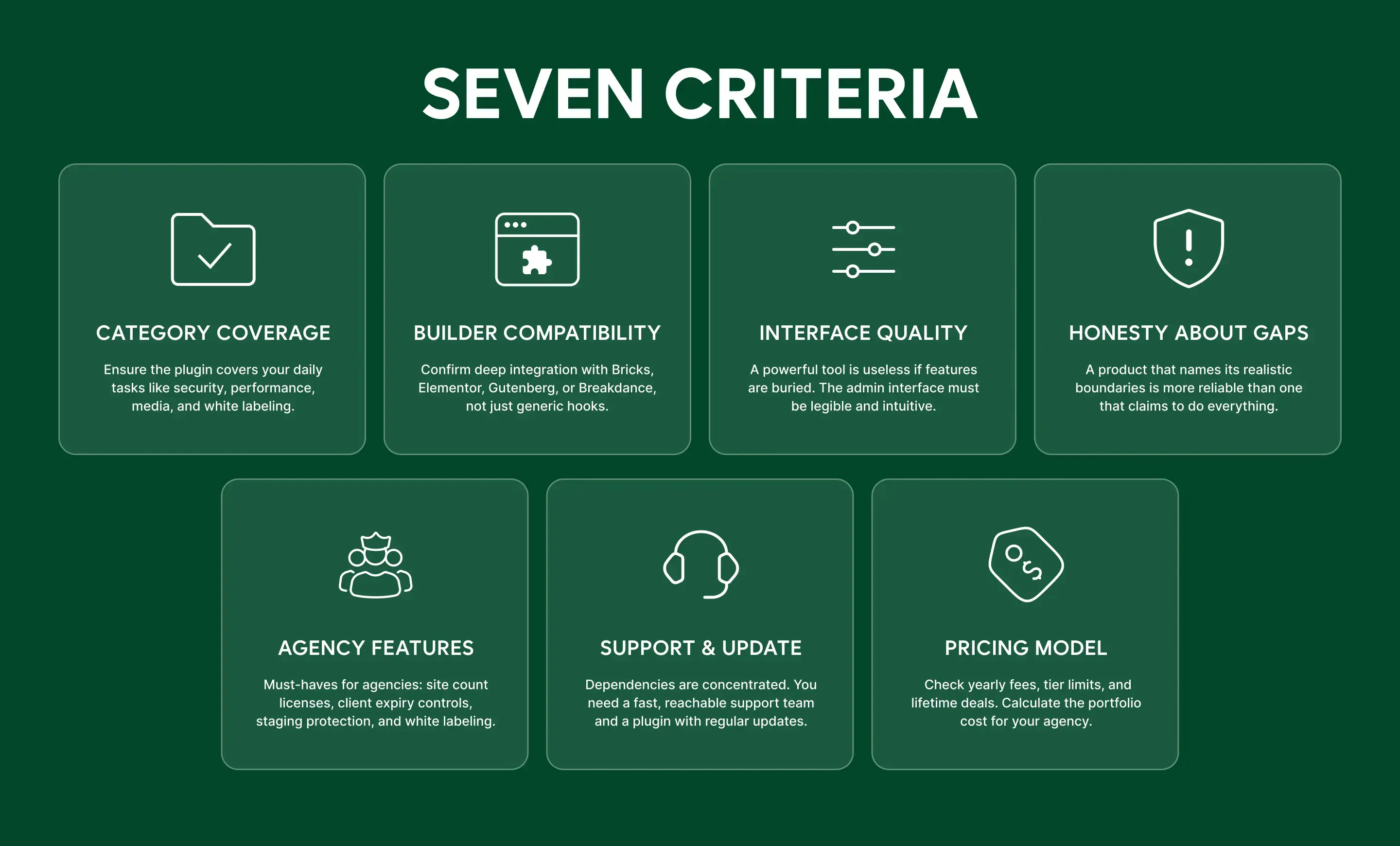
When you compare all-in-one plugins, these are the criteria that separate a useful toolkit from a feature-count headline. There are seven worth weighing.
- Category coverage. List the jobs you do daily and match the plugin to that list, not to a marketing tagline.
- Builder compatibility. If you build with Bricks, Elementor, Gutenberg, or Breakdance, confirm native support, not generic hooks.
- Interface quality. Can you find a setting in ten seconds? A dense feature list is worthless if the admin buries every option.
- Honesty about gaps. Read what the plugin explicitly does not do. A product that names its limits is more trustworthy.
- Agency features. License per site counts, client expiry controls, staging protection, and white label matter when you manage other people’s sites.
- Support and update cadence. An all-in-one plugin concentrates your dependencies, so you want a fast, reachable maintainer.
- Pricing model. Check the yearly price, the site count per tier, and whether a lifetime deal exists. For agencies, cost per site over a portfolio is the number that matters.
Best Free and Paid All-in-One Plugins for WordPress
With those criteria in mind, here is our ranking of the best all-in-one WordPress plugins in 2026. Number one is my own plugin, Classic Monks, and I’ll tell you exactly what it does and what it does not do.
[bricks_template id=”9494″]
All-in-One WordPress Plugins Compared at a Glance
| Plugin | Best For | Setup | Main Strength | Notable Gap |
|---|---|---|---|---|
| Classic Monks | Agencies managing several client sites | Easy | One modular plugin replacing 20-30 tools | No caching, backups, or SEO |
| WP Extended | Consolidating small admin and utility plugins | Easy | Clean modular interface with a strong free tier | Light on Bricks, WooCommerce, AI, and white label |
| ASE | Admin cleanup, free | Easy | Focused free admin toolkit | No security depth, WooCommerce, or Bricks |
| Jetpack | Cloud-managed security and backups | Easy | Automattic-backed security and backups | Less granular asset and builder control |
| WPMU DEV | Suite of plugins under one license | Moderate | Many tools, one subscription | Separate plugins, not one codebase |
| Perfmatters | Pure performance and script control | Moderate | Granular asset and script management | Performance only |
How to Test an All-in-One Plugin Without Risk
Testing any WordPress plugin on a staging site is the safe path, and all-in-one plugins are no exception. Because they activate selectively, you can enable one feature, confirm it works, then move to the next.
- Create a staging copy of a real site. Use your host’s staging tool or a local environment. This is where you check conflicts and asset load before anything touches production.
- Enable features one at a time. Verify each area before adding the next, and keep a note of which plugins you expect to remove.
- For Classic Monks, use the zero-install demo. The demo has Bricks and Classic Monks pre-installed with full admin access. You can open the whole interface and confirm whether the workflow fits before you touch a live site. On a fresh site you can also run Quick WordPress Setup.
Wrapping Up
An all-in-one WordPress plugin helps you close the gap between a bloated stack and a lean, manageable setup. Choose one that matches your real workload, verify its honest boundaries, and test it on staging or in a demo before you commit. For most agencies and WordPress professionals, a single modular plugin is the difference between an afternoon of upkeep and five minutes.
If you run an agency or maintain client sites, Classic Monks is built for exactly that. Try it with zero risk: the demo is free, and the 15-day money-back guarantee covers the plans. You decide if it owns the job, not us.