




What Is the TOTP 2FA feature?
TOTP (Time-based One-Time Password) is an industry-standard 2FA method. The user:
- Enters username and password (first factor)
- Scans a QR code with an authenticator app (sets up the 2FA)
- Enters the 6-digit code from the app on each login (second factor)
The code changes every 30 seconds, so even if an attacker captures the code, they can only use it within a short window.
Why You Need It
Passwords alone are no longer sufficient:
- Password reuse: 65% of people reuse passwords across sites
- Phishing: Phishing kits can capture passwords in real-time
- Data breaches: Massive password dumps are sold on the dark web
- Brute force: Automated attacks can test thousands of passwords
2FA adds a second factor that the attacker doesn’t have (the user’s authenticator app), making stolen passwords useless.
How to Use TOTP 2FA in WordPress
Step 1: Navigate to Settings
Click into the Classic Monks plugin settings in your WordPress dashboard.
Step 2: Go to the Security Tab
Click on the Security menu, then click the Two-Factor Auth subtab.
Step 3: Enable TOTP Authentication
Scroll to Enable TOTP Authentication and toggle on.
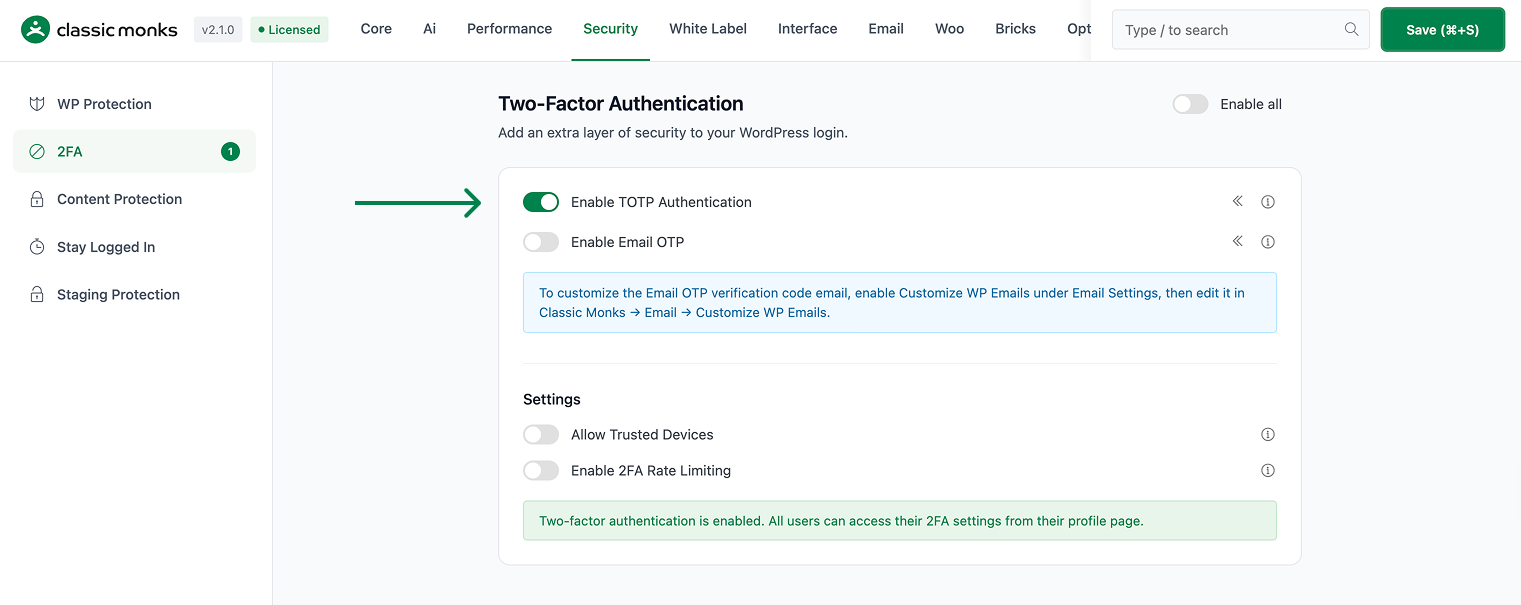
Step 4: Save Changes
Click Save Changes.
Step 5: Set Up TOTP for Your Account
Log out. Log in with your username and password. After the password is verified, you’ll be prompted to set up TOTP:
- Scan the QR code with your authenticator app (Google Authenticator, Authy, 1Password, etc.)
- Enter the 6-digit code shown in the app
- Save the recovery codes shown after setup (in case you lose access to the app)
Step 6: Test
Log out. Log in. You’ll be prompted for the 6-digit code from your authenticator app after entering your password.
Configuration Options
| Option | Description | Default |
|---|---|---|
| Enable TOTP Authentication | Master toggle. | Off |
The TOTP app is configured by each user individually. Admins can require 2FA for specific roles from the plugin settings under Security > 2FA.
What Gets Affected
- The login flow: after password, users are prompted for a 6-digit code
- The user profile: each user has a TOTP setup and recovery codes
- The WordPress admin: requires 2FA for users with TOTP enabled
- The REST API: 2FA can be required for API access via the
cm_2fa_required_for_apifilter
What Does NOT Get Affected
- The user experience (after setup): only 1 extra click per login
- The frontend: not affected (only admin/editor logins are typically 2FA-protected)
- The password reset flow: separate flow, not affected
- The application passwords: separate authentication method
Advanced Options (Developers)
This feature registers 6 WordPress hooks in 2fa/two-factor-auth.php:
Actions:
wp_logincallsCM_Two_Factor_Auth::wp_login()(Triggers 2FA after successful password auth (priority 10))show_user_profilecallsCM_Two_Factor_Auth::user_profile_fields()(Adds 2FA fields to user profile)personal_options_updatecallsCM_Two_Factor_Auth::user_profile_update()(Saves 2FA settings on profile update)login_enqueue_scriptscallsCM_Two_Factor_Auth::enqueue_scripts()(Enqueues 2FA verification page scripts)
Filters:
authenticatecallsCM_Two_Factor_Auth::authenticate()(Intercepts authentication for 2FA flow (priority 99))cm_2fa_rate_limit_enabledcallsapply_filters()(Customizable filter)
// Hooked in 2fa/two-factor-auth.php
add_filter( 'authenticate', 'CM_Two_Factor_Auth::authenticate' );
The feature modifies WordPress behavior by registering or removing hooks. Disabling it reverses those changes and WordPress returns to its default behavior.

Add your first comment to this post