




What Is the Admin Bar Greeting
The admin bar greeting is the “Howdy” text that appears at the top right of the WordPress admin bar, next to your user name. Classic Monks lets you replace it with your own text, such as “Welcome,” or a brand name, or remove it entirely. It is a white-label option in the White Label tab.
Customize the Admin Bar Greeting
Step 1: Open the Branding Settings
In your WordPress dashboard, go to Classic Monks, open the White Label tab, then the Branding subtab.
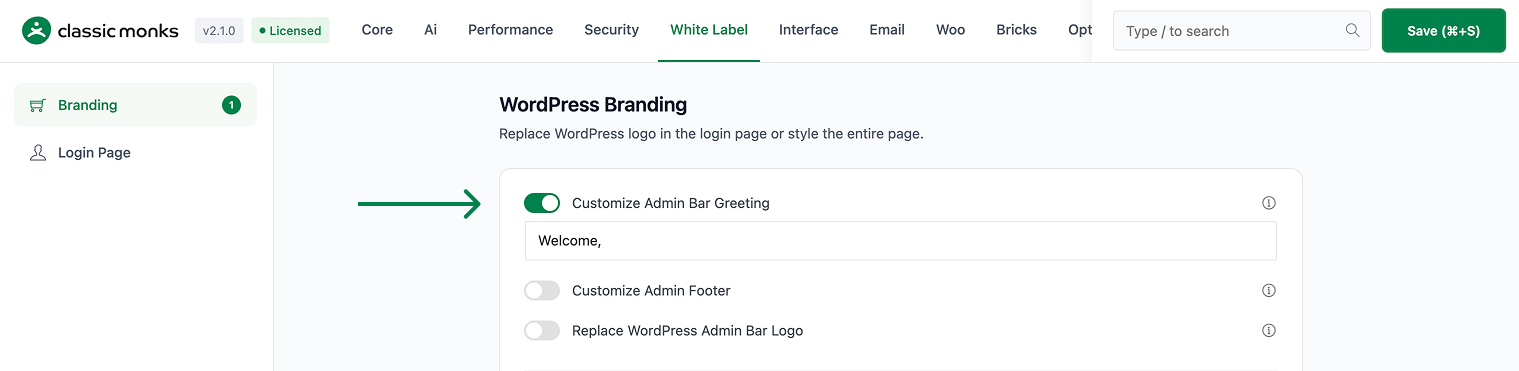
Step 2: Turn On Customize Admin Bar Greeting
In the Branding subtab, toggle on Customize Admin Bar Greeting.
Step 3: Set the Greeting Text
In the Custom Greeting field, enter the text you want to show in place of “Howdy”. The default is Welcome,. Leave the field empty to remove the greeting text entirely.
Step 4: Save and Test
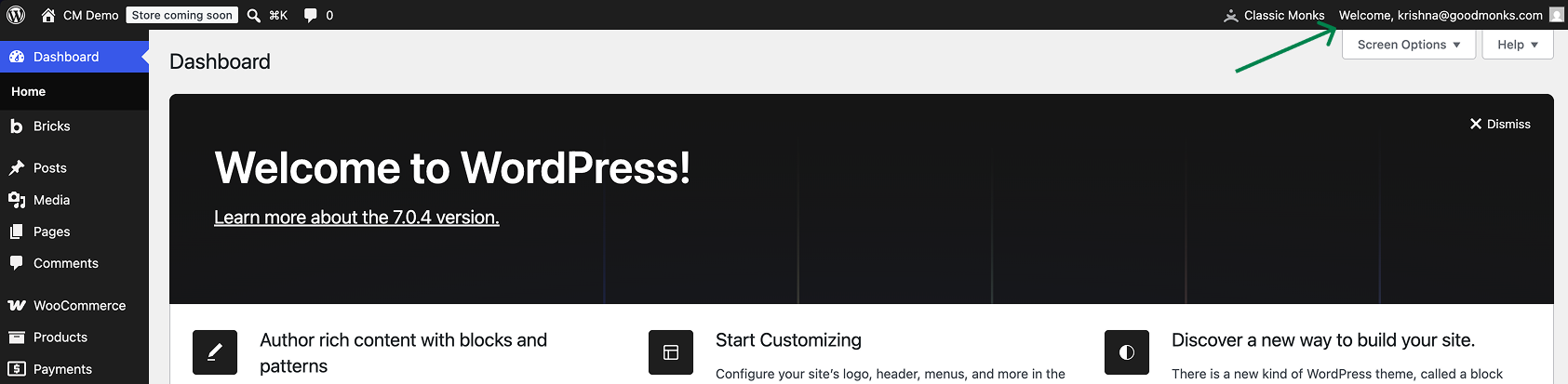
Click Save (⌘+S). Check the admin bar at the top of any admin page to confirm the new greeting appears.
Verify It Works
After saving, open any admin page and confirm:
- The admin bar shows your custom greeting instead of “Howdy”.
- The greeting is followed by your user name.
- If the field is empty, the greeting text is removed entirely.
If the greeting does not change, confirm the toggle is on, the text is entered, and the changes were saved.
Examples
Example 1: Use a Branded Greeting
A client wants a branded admin. Set the greeting to Welcome, (the default) so the admin bar reads “Welcome, [Client Name]”. The admin feels more personal and less WordPress-branded.
Example 2: Remove the Greeting
A site wants a minimal admin bar. Toggle on Customize Admin Bar Greeting and leave the field empty. The “Howdy” text disappears, leaving only the user name.
Example 3: Use a Friendly Greeting
A team wants a friendly tone. Set the greeting to Hi there, so the admin bar reads “Hi there, [Name]”. The change applies to everyone who uses the admin.
A consistent greeting across the team
For a team that wants a consistent, professional admin, a set greeting such as “Welcome,” gives every user the same experience. It removes the random-feeling default and makes the admin feel intentional.
Recommendations Before Enabling
- Pick a neutral or brand greeting. The greeting appears for every user, so choose text that fits the whole team, not just you.
- Test the empty state. If you leave the greeting empty, confirm the user name still shows correctly in the admin bar.
- Keep it short. A long greeting takes space in the admin bar. Use one or two words.
Common Use Cases
White-label the admin for a client
When you build a site for a client, the default “Howdy, [Name]” greeting reveals the WordPress admin. Replacing it with a branded or neutral greeting, such as “Welcome,” makes the admin feel like part of the client’s product rather than a generic WordPress screen.
Remove the greeting for a minimal admin
Some teams prefer a clean admin bar with no greeting text. Leaving the greeting field empty removes the “Howdy” text entirely, leaving only the user name. This suits a minimal, uncluttered admin for power users.
Use a friendly greeting for a team
For an internal team, a friendly greeting such as “Hi there,” sets a welcoming tone. The change applies to every user who logs in, giving the whole admin a consistent, human feel.

Add your first comment to this post