




What Is a Blank Favicon
A favicon is the small icon shown in the browser tab next to your site’s title. If your site does not set a favicon, browsers still request a favicon.ico file, which returns a 404. Add Blank Favicon is a white-label option in the Classic Monks White Label tab that adds a blank favicon to your site, so browsers stop requesting the missing file and your server logs stay clean.
Add a Blank Favicon
Step 1: Open the Branding Settings
In your WordPress dashboard, go to Classic Monks, open the White Label tab, then the Branding subtab.
Step 2: Turn On Add Blank Favicon
In the Branding subtab, toggle on Add Blank Favicon.
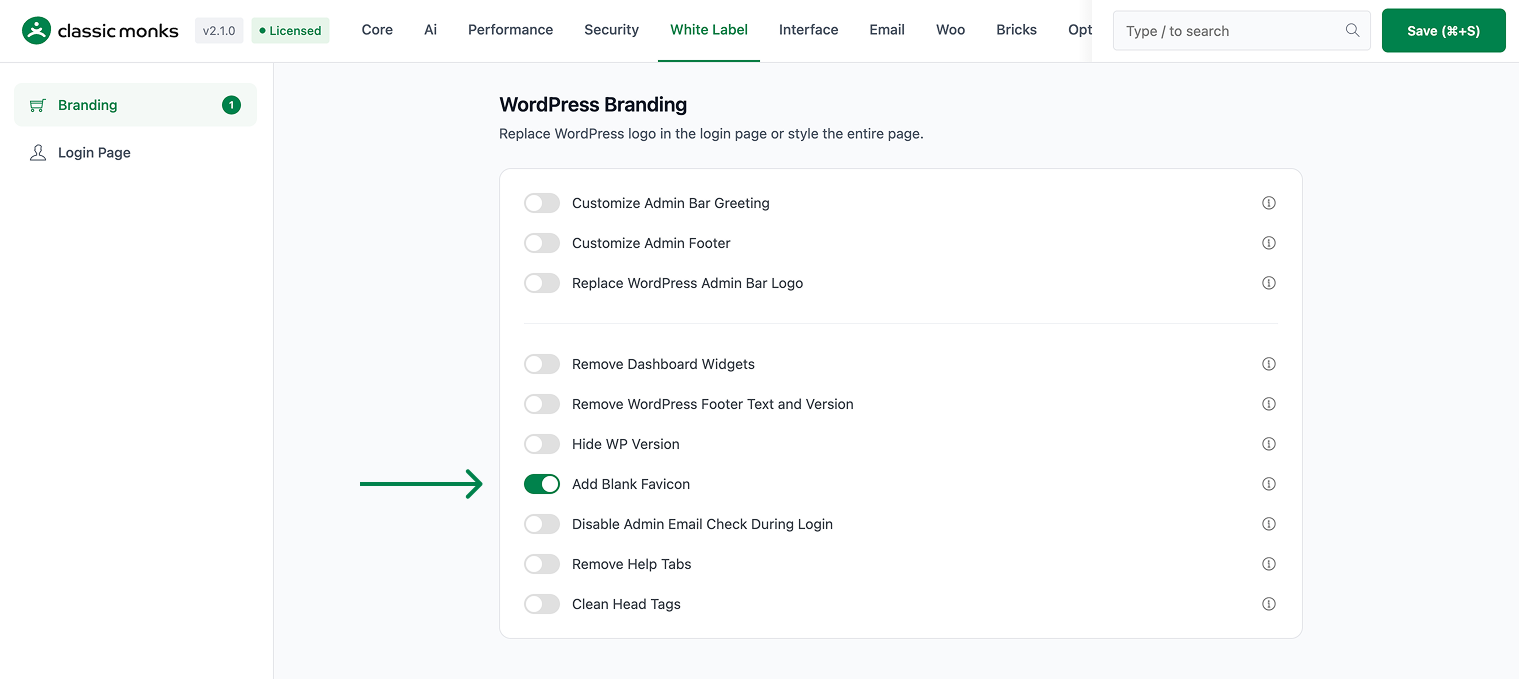
Step 3: Save and Test
Click Save (⌘+S). Load your site frontend and check the browser tab for the blank favicon, or check your server logs for fewer favicon.ico 404s.
Verify It Works
After saving, verify the blank favicon:
- The site no longer requests a missing
favicon.icofile. - Your server logs show fewer favicon 404 errors.
- The browser tab shows a blank icon.
If the favicon requests continue, confirm the toggle is on and the changes were saved. Clear any page cache.
Examples
Example 1: Clean Up Server Logs
A site with no custom favicon sees many favicon.ico 404s in its logs. Toggle on Add Blank Favicon. The site stops requesting the missing file, and the logs are cleaner.
Example 2: Avoid a Broken Tab Icon
A new site has no favicon yet. Toggle on Add Blank Favicon so the browser tab shows a blank icon instead of a broken one while the site is in development.
Example 3: Combine With a Custom Favicon Later
A site plans to add a favicon later. Toggle on Add Blank Favicon now. When you add a real favicon, it takes precedence over the blank one.
A neutral tab for a fresh install
A brand-new WordPress install has no favicon, so the browser tab can show a broken or generic icon. A blank favicon gives the tab a clean, neutral look until the site is fully branded.
Fewer broken requests on a shared host
On a shared host, a missing favicon can generate repeated 404 requests that add to your logs and server load. A blank favicon stops the requests, keeping the site quieter and the logs cleaner.
Recommendations Before Enabling
- Use it only when you have no favicon. If you have a custom favicon, you do not need the blank one.
- Check your browser tab. After enabling, reload the site and confirm the tab icon is clean.
- Ready for a real favicon later. The blank favicon is a placeholder; a real favicon takes precedence when you add one.
Common Use Cases
Clean up server logs
Sites without a favicon get frequent favicon.ico 404 requests. Adding a blank favicon stops those requests, keeping server logs clean and reducing noise.
Avoid a broken tab icon
A site in development without a favicon can show a broken icon in the browser tab. A blank favicon gives a clean, neutral icon until a real favicon is added.
Prepare for a custom favicon later
If you plan to add a favicon later, a blank favicon fills the gap now. When you add a real favicon, it takes precedence over the blank one.

Add your first comment to this post