




What Is Remove Footer Text and Version
Remove Footer Text and Version is a white-label option in the Classic Monks White Label tab that hides the default WordPress admin footer content. It removes the “Thank you for creating with WordPress” message and the version number from the bottom of the admin screens.
It is different from Customize Admin Footer, which replaces the footer text with your own message. This option hides the footer content entirely.
Remove the Footer Text and Version
Step 1: Open the Branding Settings
In your WordPress dashboard, go to Classic Monks, open the White Label tab, then the Branding subtab.
Step 2: Turn On Remove WordPress Footer Text and Version
In the Branding subtab, toggle on Remove WordPress Footer Text and Version.
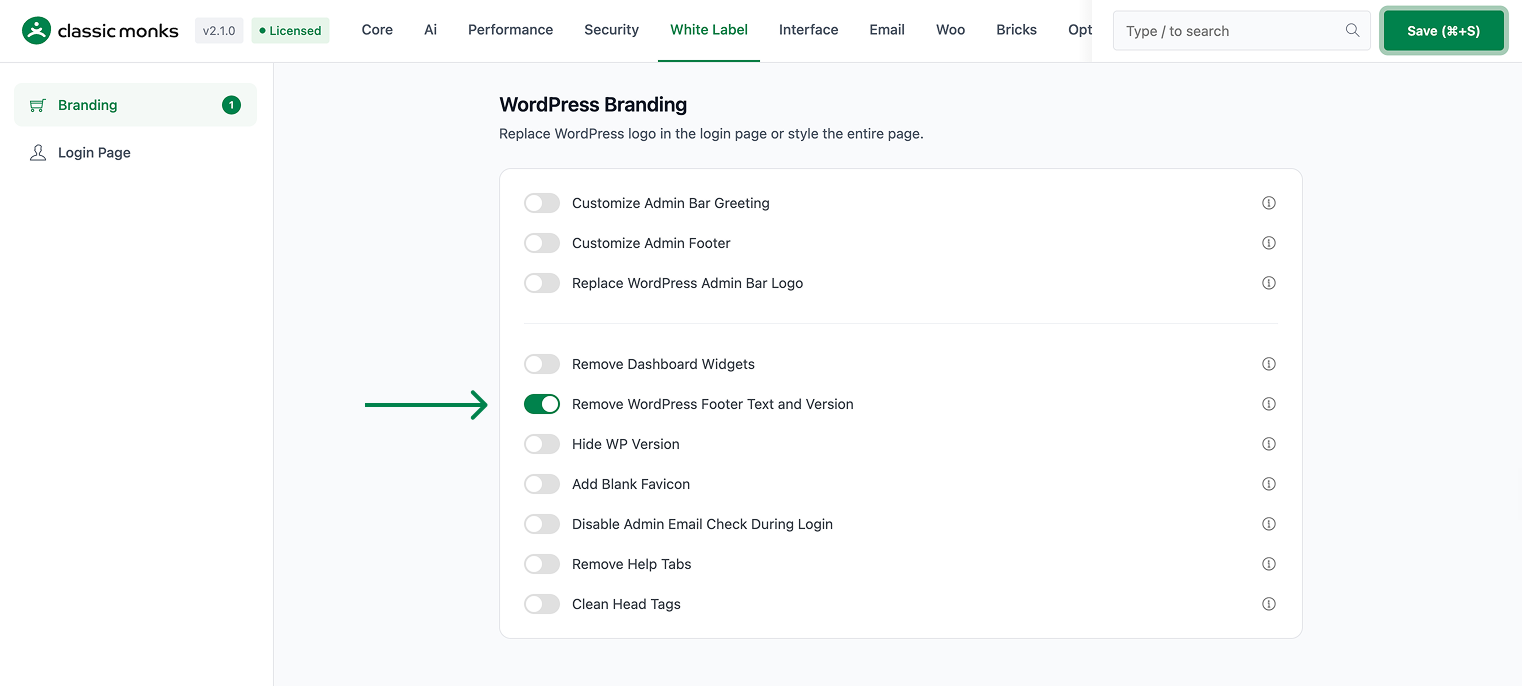
Step 3: Save and Test
Click Save (⌘+S). Check the bottom of any admin page to confirm the footer text and version are gone.
Verify It Works
After saving, open any admin page and confirm:
- The “Thank you for creating with WordPress” text is gone.
- The version number is no longer shown in the footer.
- The footer area is clean and empty.
If the footer content still shows, confirm the toggle is on and the changes were saved.
Examples
Example 1: A Clean Footer for a Client
An agency wants a clean admin footer for a client. Toggle on Remove WordPress Footer Text and Version. The footer content disappears, leaving a clean, uncluttered footer.
Example 2: Remove the Version Number
A site wants to hide its WordPress version from the admin. Toggle on Remove WordPress Footer Text and Version. The version number is removed from the footer.
Example 3: Combine With a Custom Footer
A site wants a custom footer message. Toggle on Remove WordPress Footer Text and Version to clear the default content, then use Customize Admin Footer to add your own message.
A clean footer for a support portal
A support portal wants a clean admin footer with no version or platform text. Toggle on Remove Footer Text and Version, then add a support link with the Customize Admin Footer option. The footer is clean and useful.
A branded footer for an agency
An agency that builds sites for clients can clear the default WordPress footer content on each client site. Combined with a custom footer message, the admin footer looks like part of the client’s product rather than a stock WordPress screen.
Recommendations Before Enabling
- Decide between hide and customize. Use Remove Footer Text and Version to clear the default content, or Customize Admin Footer to replace it with your own message.
- Check the version need. The footer version is rarely needed by users, but removing it is a visible change.
- Test on a staging site. Confirm the footer looks clean after the change.
Common Use Cases
White-label the admin footer
The default admin footer shows a WordPress message and version. Removing it clears the footer for a branded, white-label admin experience.
Hide the version for a cleaner look
The version number in the footer is not useful to most users. Removing it makes the footer cleaner and less technical.
Combine with a custom footer
You can remove the default footer content and then add your own message with the Customize Admin Footer option. This gives you full control over the footer text.

Add your first comment to this post