




What Is Navigation Links Styling
Navigation Links Styling is a white-label option in the Classic Monks White Label tab that controls the links below the login form. It is an independent option: it works on its own, without the Login Page Customization master toggle. It changes the color of the “Back to Site” link, its hover color, or hides the link entirely.
It is separate from the Login Form Styling and Login Page Customization options. This guide covers the navigation links below the login form.
Recommendations Before Enabling
- Use a readable link color. The link sits below the login form, often on a colored background. Ensure the color contrasts with that background.
- Keep the hover color distinct. Choose a hover color that is clearly different from the base link color so users notice the interaction.
- Only hide the link when it makes sense. The “Back to Site” link helps users return to your site. Hide it only when a better navigation path exists on the login page.
Style the Navigation Links
Step 1: Open the Login Page Settings
In your WordPress dashboard, go to Classic Monks, open the White Label tab, then the Login Page subtab.
Step 2: Turn On Navigation Links Styling
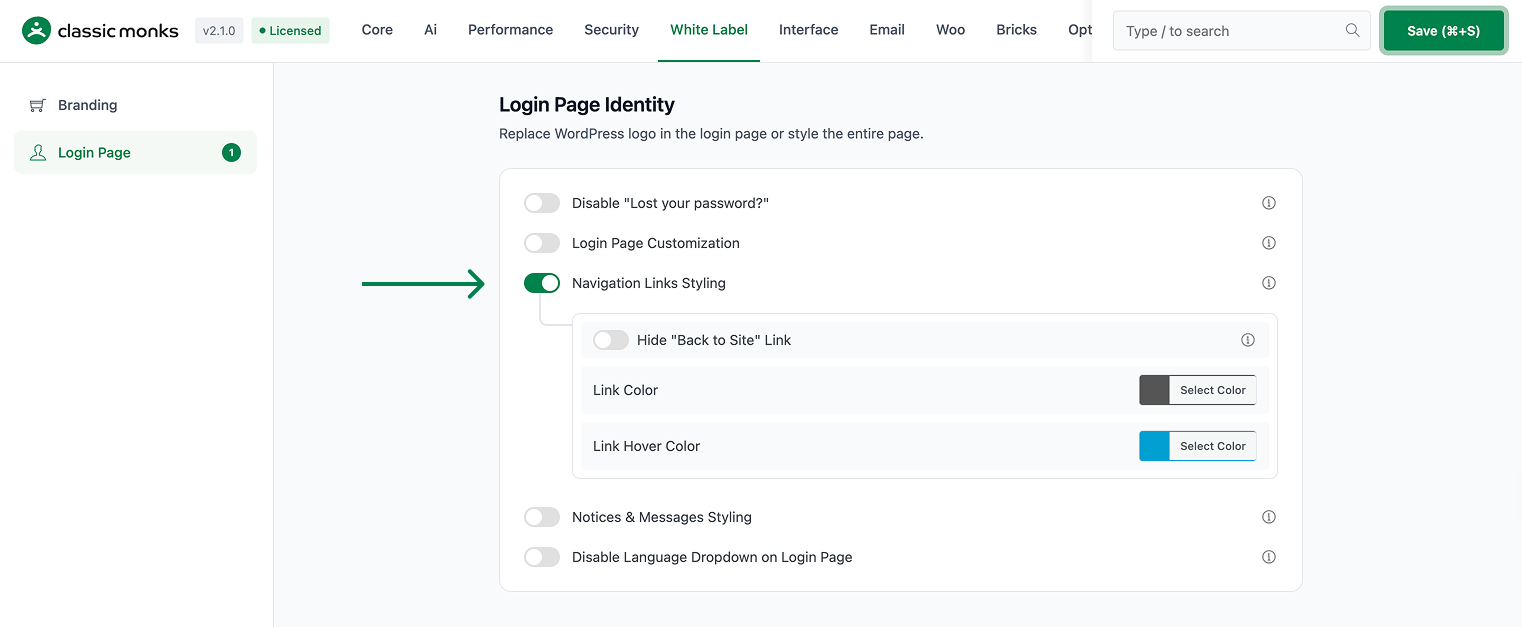
In the Navigation Links Styling section, toggle on Navigation Links Styling. This option works on its own; you do not need the Login Page Customization master toggle.
Step 3: Set the Link Colors
Use the color pickers to set:
- Link Color: the color of the “Back to Site” link, default
#555555. - Link Hover Color: the color when the user hovers over the link, default
#00a0d2.
Step 4: Hide the Link (Optional)
Toggle on Hide “Back to Site” Link to hide the link below the login form.
Step 5: Save and Test
Click Save (⌘+S). Open the login page in a private browser window to confirm the link styling and visibility.
Verify It Works
After saving, open the login page and confirm:
- The “Back to Site” link uses the color you set.
- The link changes to the hover color when you hover over it.
- The link is hidden when Hide “Back to Site” Link is on.
If the link styling does not apply, confirm Navigation Links Styling is on and the changes were saved.
Examples
Example 1: Match the Link to Your Brand
A site wants the “Back to Site” link to match its brand colors. Set Link Color to the brand’s primary color and Link Hover Color to a darker shade. The link now blends with the brand.
Example 2: Hide the Link for a Clean Login
An agency wants a minimal login page for a client. Toggle on Hide “Back to Site” Link. The link disappears, leaving a cleaner login form.
Example 3: A Subtle Hover Effect
A site wants a subtle interaction. Set the Link Color to a muted gray and Link Hover Color to a bright accent color. The link is subtle until the user hovers, then it stands out.