

What Is Remove Dashboard Widgets
Remove Dashboard Widgets is a white-label option in the Classic Monks White Label tab that clears all widgets from the WordPress dashboard. When enabled, the dashboard no longer shows default widgets like At a Glance, Quick Draft, Activity, and Site Health, and the welcome panel is removed. This keeps the admin focused and reduces clutter for clients.
Remove the Dashboard Widgets
- Step 1
Open the Branding Settings
In your WordPress dashboard, go to Classic Monks, open the White Label tab, then the Branding subtab.
- Step 2
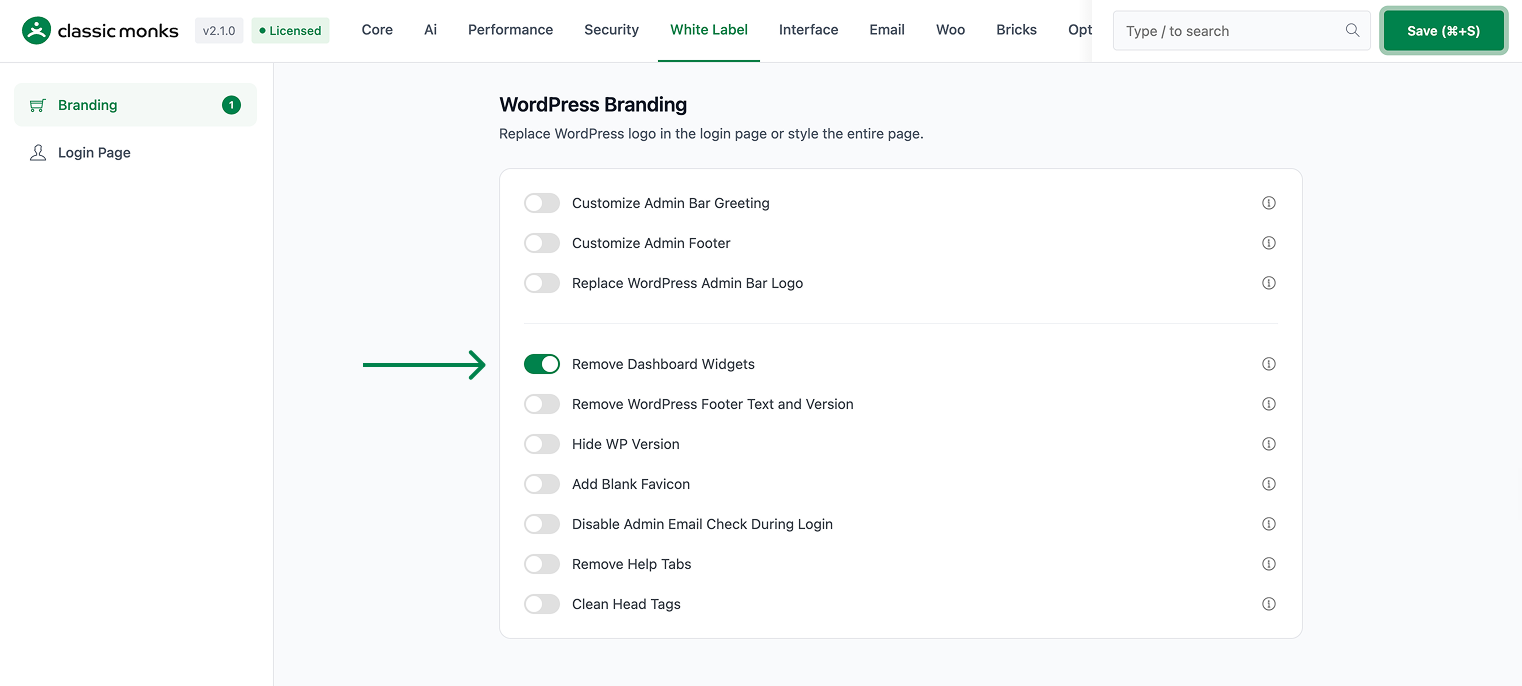
Turn On Remove Dashboard Widgets
In the Branding subtab, toggle on Remove Dashboard Widgets.
- Step 3
Save and Test
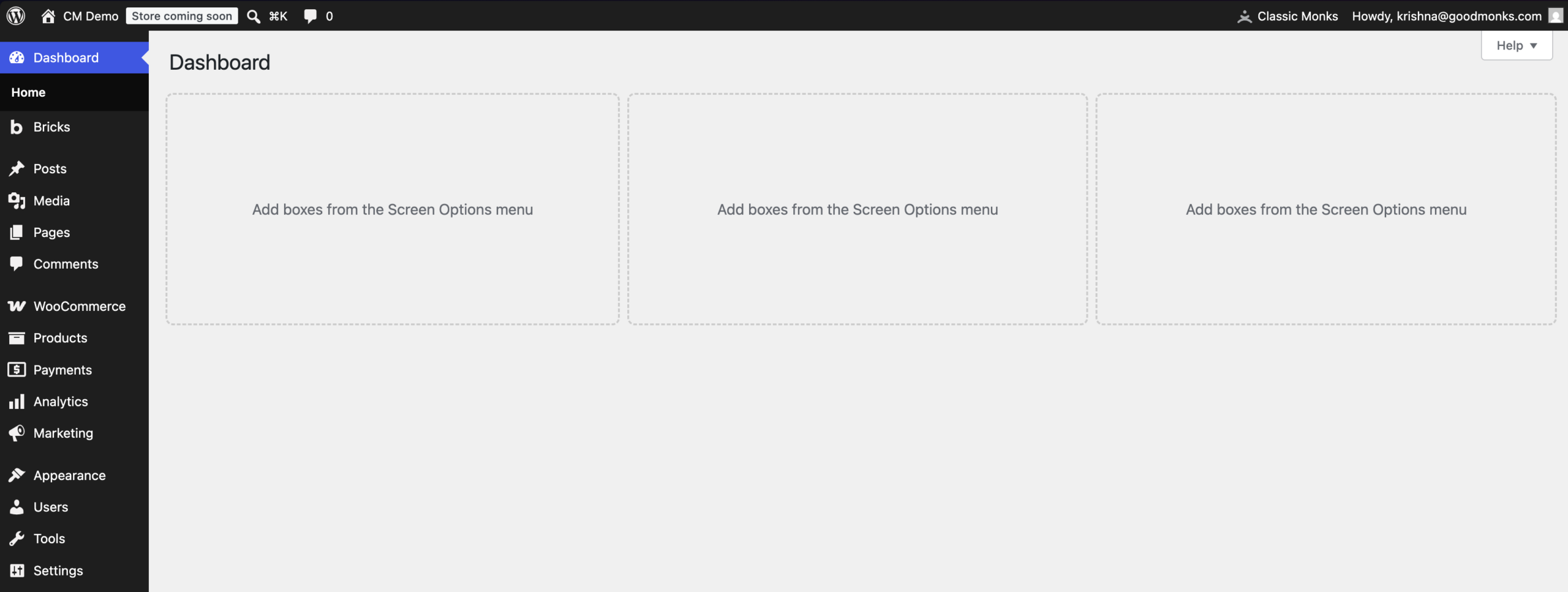
Click Save (⌘+S). Open the WordPress dashboard and confirm the widgets are gone.
Verify It Works
After saving, open the WordPress dashboard and confirm:
- The default widgets like At a Glance and Quick Draft are gone.
- The welcome panel is hidden.
- Any custom widgets added by other plugins may still appear.
If the widgets still show, confirm the toggle is on and the changes were saved. Some plugins add widgets that may need a separate cleanup.
Examples
Example 1: Clean the Dashboard for a Client
An agency hands a site to a client who only needs to write content. Toggle on Remove Dashboard Widgets. The client’s dashboard is clean, with only the content tools they need.
Example 2: A Minimal Admin
A team wants a minimal admin with no distractions. Toggle on Remove Dashboard Widgets to remove the default widgets and welcome panel. The dashboard becomes a clean landing area.
Example 3: Reduce Dashboard Load
A site with many users wants a faster dashboard. Toggle on Remove Dashboard Widgets to remove the default widgets that make queries. The dashboard loads faster with fewer widgets.
A focused dashboard for a support team
A support team that only tracks tickets and content can clear the default widgets. The dashboard shows only what the team uses, reducing clutter and helping them focus on support tasks.
Recommendations Before Enabling
- Confirm your team does not use the default widgets. Remove Dashboard Widgets clears all of them, so check that no one relies on At a Glance or Site Health.
- Keep custom widgets in mind. This option clears only the default widgets; plugins that add their own widgets still show them.
- Test on a staging site. The dashboard is the first thing a user sees, so verify the result on a test environment first.
Common Use Cases
Give clients a clean dashboard
When you hand a site to a client who only writes content, clearing the default dashboard widgets removes distractions. The client lands on a clean dashboard focused on their work.
Reduce admin clutter for a team
A team that does not use the default dashboard widgets can remove them for a cleaner, more focused admin. This reduces clutter and helps users find what they need.
Speed up the dashboard
The default dashboard widgets make queries. Removing them reduces the work the dashboard does on load, which can make the dashboard feel faster on busy sites.
Troubleshooting
2 problems and how to fix each one.
Widgets still show after enabling
Cause: Another plugin adds its own dashboard widgets, or the change was not saved.
Fix: Confirm the toggle is on and click Save (⌘+S). Check if a plugin adds custom widgets that need their own settings.
The dashboard is empty and that is unexpected
Cause: All widgets were removed as configured.
Fix: Turn off Remove Dashboard Widgets to restore the default widgets if you need them.
