




What Is the 2FA Rate Limiting feature?
2FA codes (TOTP or Email OTP) are 6 digits, which means 1 million possible values. An attacker who knows a username can try 1 million codes to find the right one. At 100 attempts per second, that’s ~3 hours to brute force.
The 2FA Rate Limiting feature prevents this by locking out the user (or IP) after a configurable number of failed attempts.
Why You Need It
2FA without rate limiting is a weak 2FA:
- Brute force feasible: 1M codes is large but not infinite
- Real-time phishing: Attackers can phish a code in real-time
- Code reuse: If the same code is captured, the attacker has 30 seconds to use it
- Knowledge of username: Combined with username enumeration, the attack is targeted
Rate limiting eliminates the brute force vector.
How to Enable 2FA Rate Limiting in WordPress
Step 1: Navigate to Settings
Click into the Classic Monks plugin settings in your WordPress dashboard.
Step 2: Go to the Security Tab
Click on the Security menu, then click the Two-Factor Auth subtab.
Step 3: Enable 2FA Rate Limiting
Scroll to Enable 2FA Rate Limiting and toggle on. Nested options expand.
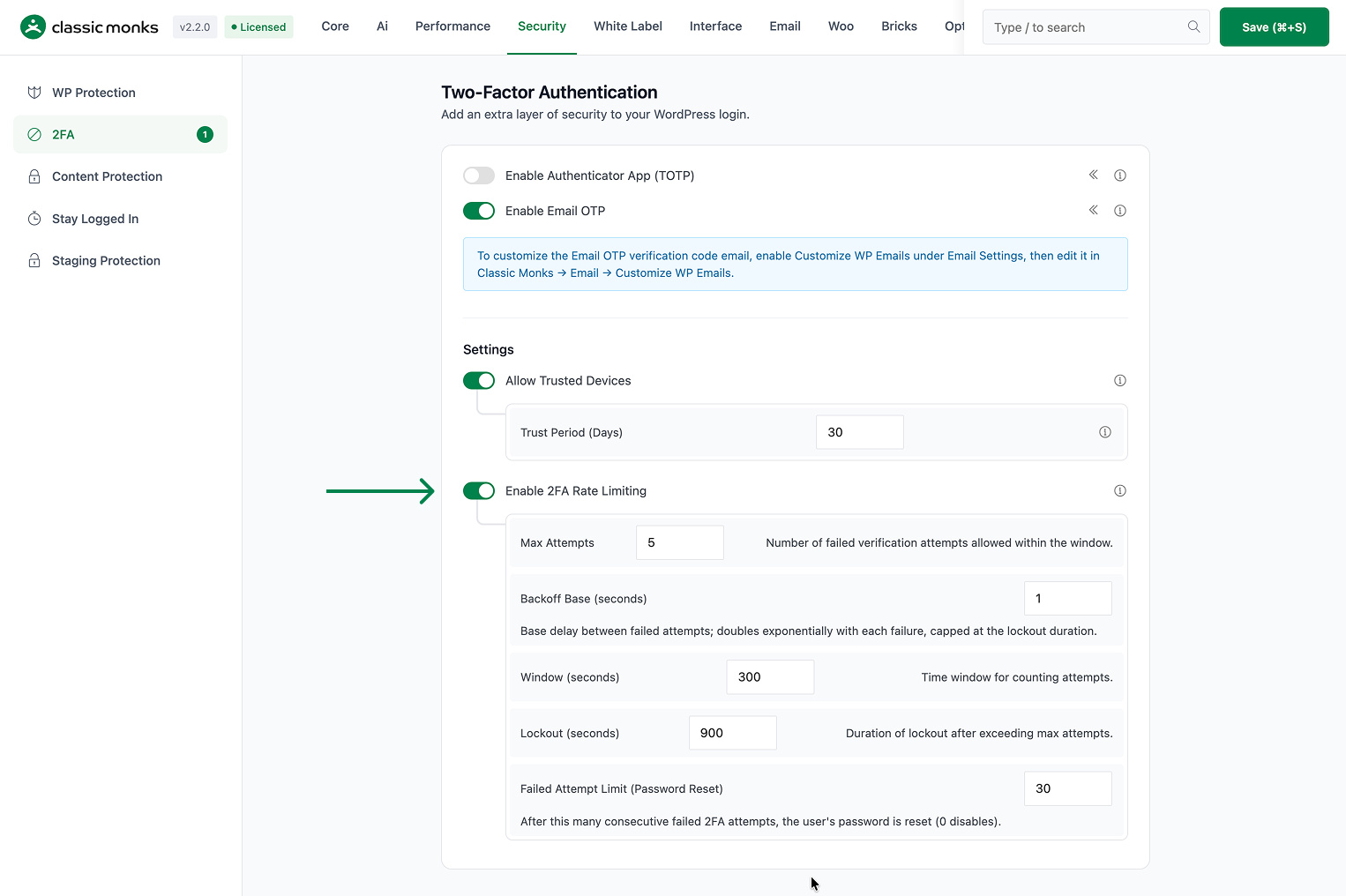
Step 4: Configure the Threshold
Set the Max Attempts. Common values:
- 3: Aggressive (locks out quickly, may lock out legitimate users who mistype)
- 5: Default, good balance
- 10: Permissive (only locks out persistent attackers)

Step 5: Configure the Window
Set the Time Window in minutes. The counter resets after this window with no failed attempts. Common values:
- 5 minutes: Aggressive
- 15 minutes: Default
- 30 minutes: Permissive
Step 6: Configure the Lockout
Set the Lockout Duration in minutes. How long the user is locked out after exceeding the threshold:
- 5 minutes: Quick recovery
- 30 minutes: Default
- 60 minutes: Stronger protection

Step 7: Save Changes
Click Save Changes.
Step 8: Test
Log in with a username and password. Enter wrong 2FA codes 3 times. The 4th attempt should be locked out.
Configuration Options
| Option | Description | Default |
|---|---|---|
| Enable 2FA Rate Limiting | Master toggle. | Off |
| Max Attempts | Number of failed attempts before lockout. | 3 |
| Time Window | Reset window in minutes. | 15 |
| Lockout Duration | Lockout duration in minutes. | 30 |
What Gets Affected
- The 2FA verification: tracks failed attempts
- The user: locked out after the threshold
- The login flow: returns 403 or error after lockout
- The auth cookie: not affected (only 2FA is rate-limited)
What Does NOT Get Affected
- The password login: not rate-limited (use Login Lockdown for that)
- The REST API: not affected
- The TOTP 2FA: still works (just rate-limited)
- The Email OTP 2FA: still works (just rate-limited)
- The recovery codes: still work (but also rate-limited)
Advanced Options (Developers)
This feature registers 2 WordPress hooks in 2fa/two-factor-auth.php:
Filters:
authenticatecallsCM_Two_Factor_Auth::authenticate()(Checks rate limit during 2FA verification)cm_2fa_rate_limit_enabledcallsapply_filters()(Customizable filter)
// Hooked in 2fa/two-factor-auth.php
add_filter( 'authenticate', 'CM_Two_Factor_Auth::authenticate' );
The feature modifies WordPress behavior by registering or removing hooks. Disabling it reverses those changes and WordPress returns to its default behavior.

Add your first comment to this post