




What Is the Currency Converter?
The Currency Converter is a Classic Monks shortcode-based feature that displays a dropdown of currencies on your site. When a visitor selects a currency, every <span class="cm-price" data-price="X"> element on the page updates to show the equivalent value in the selected currency, using live exchange rates from a configurable API.
The system has three components:
- The shortcode
[cm_currency_converter]displays the currency selector. Place it in a sidebar, header, or wherever you want the dropdown - The markup pattern
<span class="cm-price" data-price="49.99">$49.99</span>marks prices for conversion. The data-price attribute holds the base-currency value - The conversion logic fetches exchange rates, caches them, and updates the displayed prices when the visitor selects a new currency
Why You Need It
WordPress sites selling internationally have several options for multi-currency:
- WooCommerce multi-currency plugins (WPML, Aelia): full-featured but expensive and complex
- Static currency switchers: require manual price updates when exchange rates change
- JavaScript-based converters (e.g., free Open Exchange Rates widget): work but require API setup and are not customizable
- Classic Monks Currency Converter: lightweight, no API key required (with default endpoint), customizable base/target currencies, and uses standard WordPress caching
For sites that display prices but don’t run WooCommerce (e.g., service pages, portfolio pricing, donation forms), the Currency Converter is the simplest multi-currency option.
How to Use the Currency Converter in Classic Monks
Step 1: Enable the Shortcode
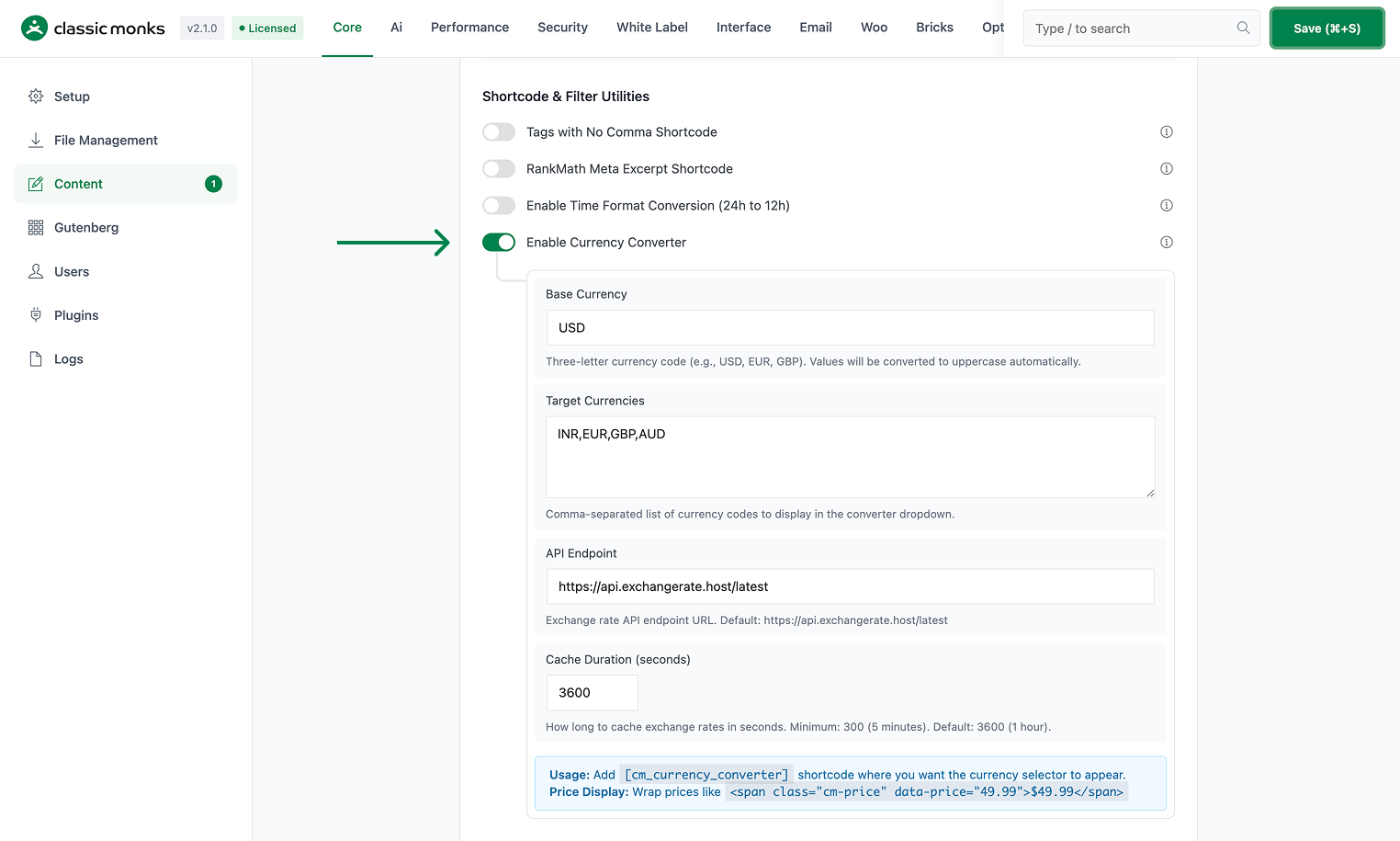
In the Classic Monks settings, go to the Core tab, Content subtab. Scroll to the Shortcode and Filter Utilities section and toggle on Enable Currency Converter.
Step 2: Configure the Base Currency
Enter your store’s base currency code in the Base Currency field. Default: USD. Use the three-letter ISO 4217 code (USD, EUR, GBP, JPY, etc.).
Step 3: Configure the Target Currencies
Enter the list of currencies you want visitors to be able to switch to in the Target Currencies field. Default: INR,EUR,GBP,AUD. Format: comma-separated three-letter codes.
Step 4: (Optional) Change the API Endpoint
The default endpoint is https://api.exchangerate.host/latest, a free public API that doesn’t require authentication. To use a different provider, enter the API URL in the API Endpoint field. The endpoint must return a JSON response in the format:
{
  "base": "USD",
  "rates": {
    "EUR": 0.85,
    "GBP": 0.75,
    "JPY": 110.50
  }
}
Step 5: (Optional) Adjust the Cache Duration
The cache duration (in seconds) controls how often the API is called. Default: 3600 (1 hour). Minimum: 300 (5 minutes). For sites with low traffic, longer cache reduces API calls. For sites where exchange rate accuracy matters, shorter cache keeps rates fresher.
Step 6: Save Changes
Click Save Changes.
Step 7: Mark Prices for Conversion
In your post content, wrap each price in the cm-price span:
Subscription: <span class="cm-price" data-price="49.99">$49.99</span>
Annual: <span class="cm-price" data-price="499.99">$499.99</span>
The data-price attribute is the base-currency value. The text inside the span is what visitors see by default (e.g., “$49.99”). When the visitor selects a different currency, the text updates to show the converted value (e.g., “€42.50” for EUR).
Step 8: Add the Currency Selector
Place the shortcode where you want the selector to appear:
[cm_currency_converter]Common placements: sidebar widget, header, footer, or a dedicated “Choose your currency” page.
Step 9: Test
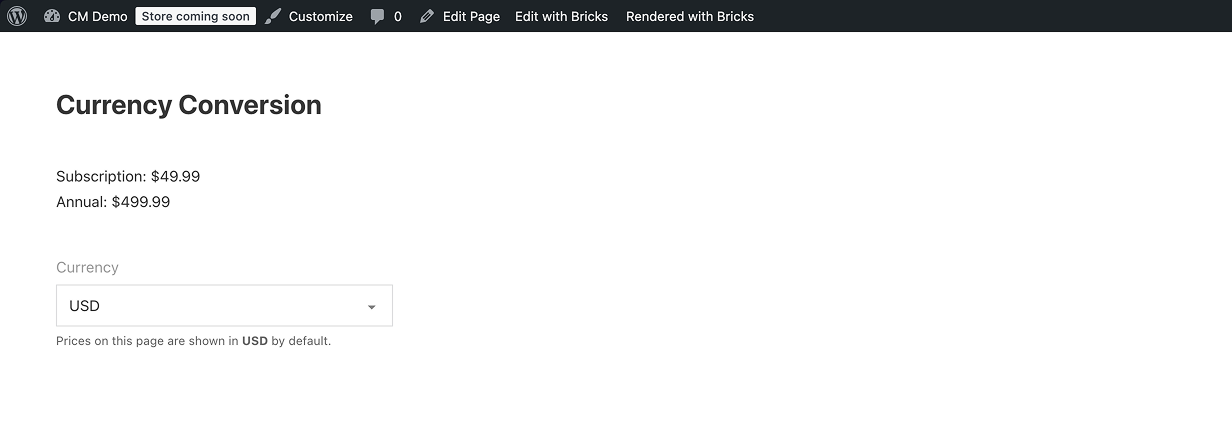
Visit a page with both the shortcode and a cm-price span. Select a different currency. The price should update to the converted value, and the URL should update to remember the choice (e.g., ?currency=EUR).
Configuration Options
| Option | Description | Default |
|---|---|---|
| Enable Currency Converter | Master toggle. | Off |
| Base Currency | Three-letter ISO 4217 code. | USD |
| Target Currencies | Comma-separated list of three-letter codes. | INR,EUR,GBP,AUD |
| API Endpoint | URL returning JSON rates. | https://api.exchangerate.host/latest |
| Cache Duration | Seconds to cache exchange rates. Min 300, default 3600. | 3600 |
Usage Examples
# Currency selector in a sidebar widget:
[cm_currency_converter]

# Mark a price for conversion:
Subscription: <span class="cm-price" data-price="49.99">$49.99</span>

# Multiple prices on a page:
<p>Starter: <span class="cm-price" data-price="9.99">$9.99</span></p>
<p>Pro: <span class="cm-price" data-price="49.99">$49.99</span></p>
<p>Enterprise: <span class="cm-price" data-price="499.99">$499.99</span></p>

# In a template (PHP):
<?php echo do_shortcode('[cm_currency_converter]'); ?>

# With a custom wrapper class for styling:
<div class="currency-selector">
  [cm_currency_converter]
</div>
Developer Notes
This feature is a single toggle with no developer hooks currently exposed. The feature-specific logic is loaded conditionally when the toggle is enabled.
Options used:
| Option | Type | Default |
|---|---|---|
| Feature toggle | Boolean | false |

Add your first comment to this post