

What Is the Disable Author Edit feature?
Disable Author Edit is a single Classic Monks toggle that locks the Author field on the post edit screen for all non-admin users. Without this feature, any user with the edit_others_posts capability (typically editors and above) can change a post’s author via the Author meta box dropdown. With it enabled, the dropdown becomes read-only for everyone except administrators.
Why You Need It
On multi-author sites, allowing editors to reassign authorship can be a problem:
- An editor might accidentally reassign their own post to a more senior author to take credit
- An editor might reassign a problematic post to an intern to avoid blame
- Authorship metadata becomes unreliable, which affects post listings, bylines, and the public author archives
Disable Author Edit enforces authorship integrity. Authors can edit their own posts (the default WordPress behavior), but they cannot change who is listed as the author.
How to Use Disable Author Edit in Classic Monks
- Step 1
Navigate to Settings
Click into the Classic Monks plugin settings in your WordPress dashboard.
- Step 2
Go to the Content Subtab
Click on the Core menu, then click the Content subtab.
- Step 3
Enable Disable Author Edit
Scroll to the Editorial Workflow section and toggle on Disable Author Edit.
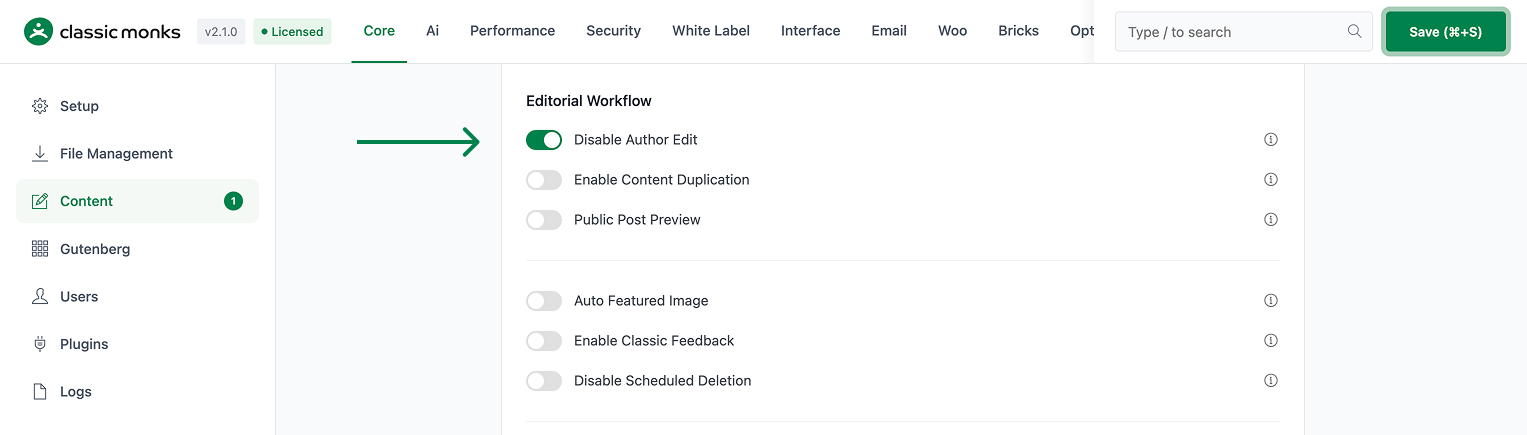
- Step 4
Save Changes
Click Save Changes.
- Step 5
Verify the Lock
Log in as a non-admin user (e.g., an editor) and open any post edit screen. The Author meta box should now show the author as a read-only label or disabled dropdown. Try changing the author; the change should not save.
Administrators can still change authors. The lock only applies to non-admin roles.
Configuration Options
| Option | Description | Default |
|---|---|---|
| Disable Author Edit | Master toggle. Locks the author field for non-admin users. | Off |
No nested options. The toggle is global.
Developer Notes
Disable Author Edit hides the author dropdown in the post edit screen for non-admin users. No developer hooks are currently exposed.
Options used:
| Option | Type | Default |
|---|---|---|
disable_author_edit |
Boolean | false |
Troubleshooting
4 problems and how to fix each one.
The Author dropdown is still editable
Cause: The toggle is off, or the current user is an administrator (admins are never locked).
Fix: Verify the toggle is on. Verify you’re logged in as a non-admin user when testing.
Authors can still change the author via Quick Edit
Cause: The Quick Edit panel in the post list table also has an Author dropdown, and the toggle may not apply to it.
Fix: This is a known limitation. The Classic Monks toggle locks the edit screen; Quick Edit is a separate UI. To fully lock authorship, use a small custom plugin that filters the wp_posts update query to block author changes from non-admin roles.
The lock affects admins too
Cause: A custom role has been granted administrator-level capabilities but is not classified as “administrator” by WordPress.
Fix: Verify the user’s role via wp_get_current_user()->roles. The lock is based on the role name administrator, not on capabilities. If the role name is different, the lock may not apply correctly.
The post author appears changed in the database but not in the UI
Cause: A custom plugin is bypassing the lock by writing directly to the database.
Fix: The lock is a UI lock, not a database lock. Direct database writes are not blocked. To enforce at the database level, use a pre_update_post filter that blocks author changes for non-admin users.
