




What Is the Gallery Shortcode feature?
The Gallery Shortcode feature adds a [cm_gallery] shortcode that displays all images from a specific media folder as a responsive gallery. The gallery updates dynamically when the folder contents change.
This is useful for:
- Portfolio galleries: Create a gallery from a “portfolio” folder
- Product images: Display all images from a “product-images” folder
- Event galleries: Show all photos from an event folder
- Documentation: Display all screenshots from a “docs” folder
Why You Need It
The default WordPress gallery shortcode requires manually selecting individual images:
- Manual selection: You must choose each image individually
- No dynamic updates: When new images are added, the gallery doesn’t update
- No folder support: The default gallery uses the post’s attached media, not a folder
The [cm_gallery] shortcode solves this by using folders instead of manual selection.
How to Use the Gallery Shortcode in WordPress
Step 1: Navigate to Settings
Click into the Classic Monks plugin settings in your WordPress dashboard.
Step 2: Go to the Interface Tab
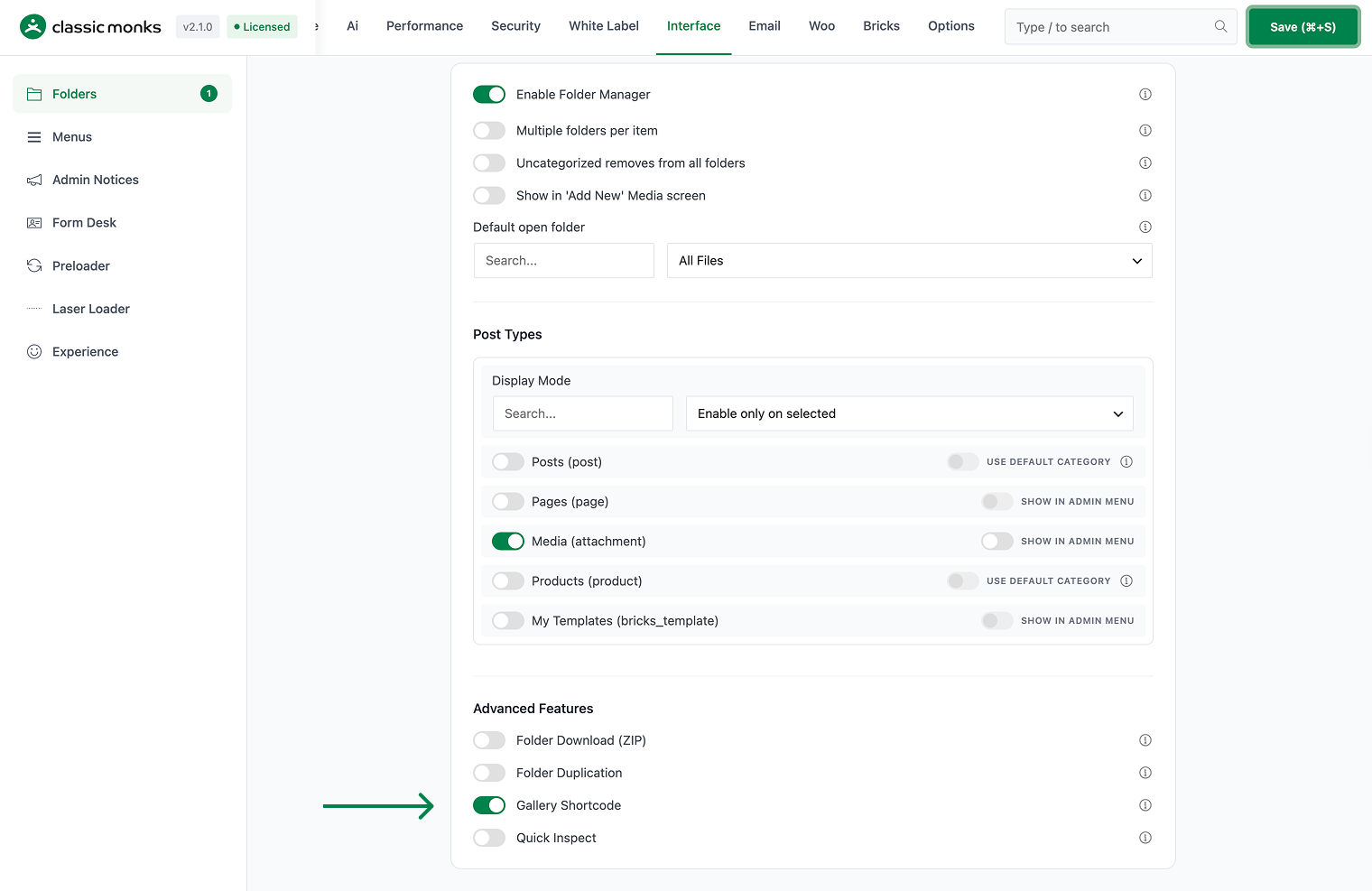
Click on the Interface menu, then click the Folders subtab.
Step 3: Enable Gallery Shortcode
Scroll to Gallery Shortcode and toggle on.
Step 4: Save Changes
Click Save Changes.
Step 5: Create a Folder and Add Images
Go to the Media Library, create a folder (e.g., “portfolio”), and drag images into it.
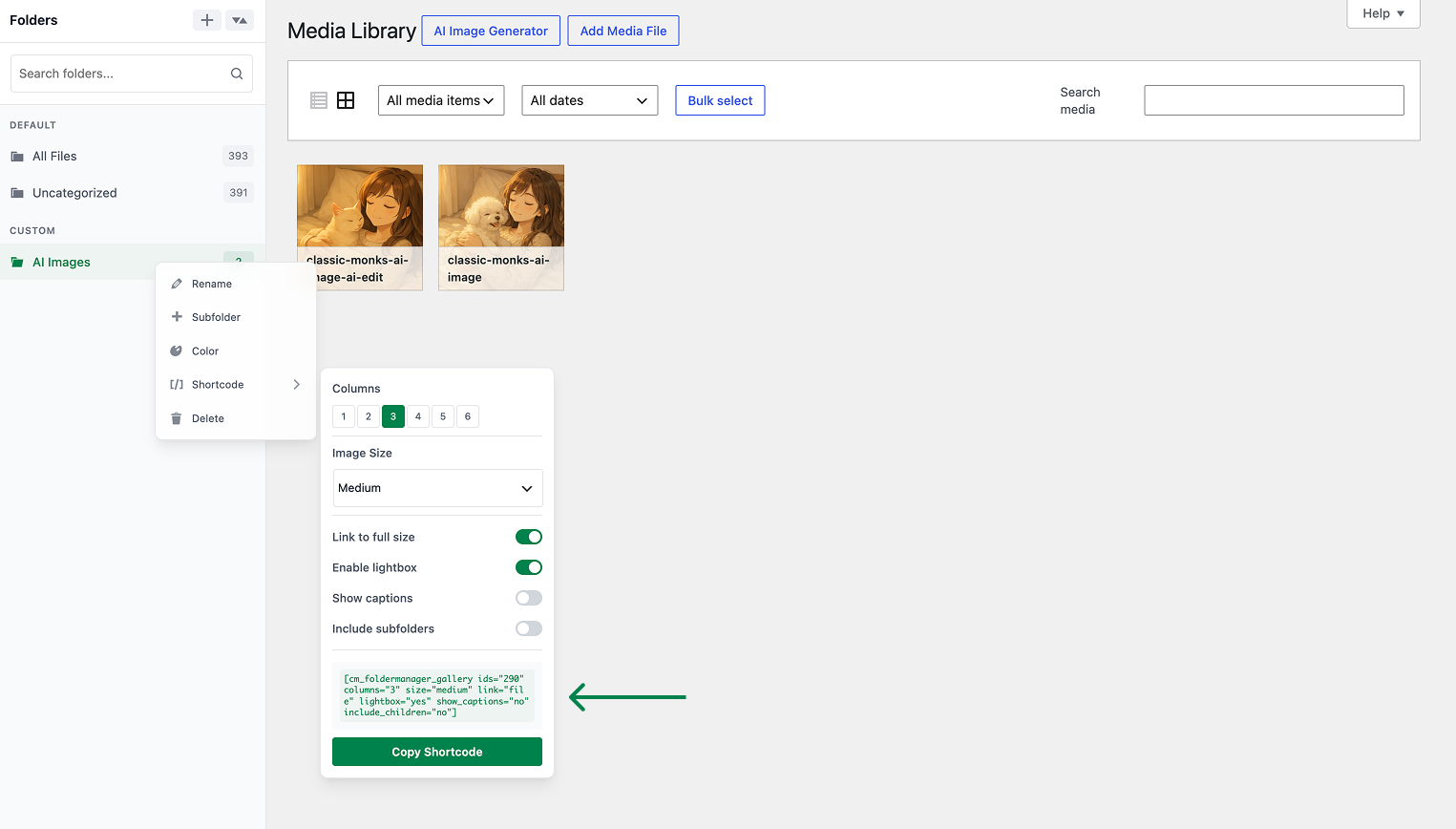
Step 6: Use the Shortcode
Add the shortcode to any post, page, or widget:
[cm_gallery id="123"]Replace 123 with the folder ID. To find the folder ID, hover over the folder name in the sidebar and look at the URL or tooltip.
Step 7: Test
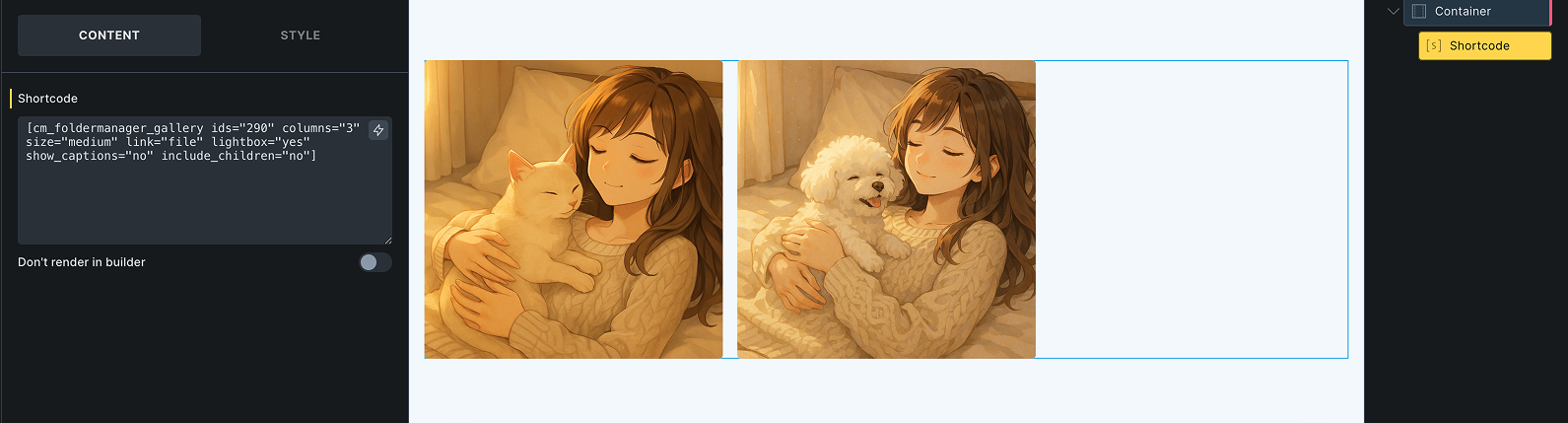
Visit the page on the frontend. The gallery should display all images from the folder in a responsive grid.
Configuration Options
| Option | Description | Default |
|---|---|---|
| Gallery Shortcode | Master toggle. | Off |
The shortcode accepts these attributes:
id: The folder ID (required)columns: Number of columns (default: 3)size: Image size (default: “medium”, options: “thumbnail”, “medium”, “large”, “full”)link: Link behavior (default: “file”, options: “file”, “none”)orderby: Sort order (default: “menu_order”, options: “date”, “title”, “rand”)
Example:
[cm_gallery id="123" columns="4" size="thumbnail" orderby="date"]What Gets Affected
- The page content: the
[cm_gallery]shortcode is rendered as a responsive gallery - The folder contents: the gallery updates when files are added or removed
- The page load: additional CSS/JS may be loaded for the lightbox
What Does NOT Get Affected
- The folder: the gallery is read-only (doesn’t modify the folder)
- The original images: not affected
- The Media Library: not affected
- The page performance: minimal impact (the gallery is lazy-loaded)

Add your first comment to this post