




What Is the Admin Notices Manager feature?
WordPress admin notices are the yellow, green, red, and blue boxes that appear at the top of the admin pages. They’re used for:
- Error messages
- Success messages
- Warnings
- Informational messages
Every plugin and theme adds its own notices, which accumulate over time. After installing 10-15 plugins, the admin page can have 5+ notices stacked at the top, creating visual clutter.
The Admin Notices Manager feature adds dismiss functionality to these notices. Once dismissed, they don’t reappear (until the next event triggers them).
Why You Need It
Admin notices are a common pain point:
- Visual clutter: Multiple notices stacked at the top of every admin page
- Per-plugin notices: Each plugin adds its own, and they accumulate
- No built-in dismiss: WordPress’s built-in notices are not dismissible
- Distraction: Notices compete for attention, reducing admin efficiency
- Stale notices: Some notices (e.g., “update available”) are permanent
The Admin Notices Manager provides a simple solution: make notices dismissible and hide them once dismissed.
How to Use the Admin Notices Manager in WordPress
Step 1: Navigate to Settings
Click into the Classic Monks plugin settings in your WordPress dashboard.
Step 2: Go to the Interface Tab
Click on the Interface menu, then click the Admin Notices subtab.
Step 3: Enable Admin Notices Manager
Scroll to Enable Admin Notices Manager and toggle on.
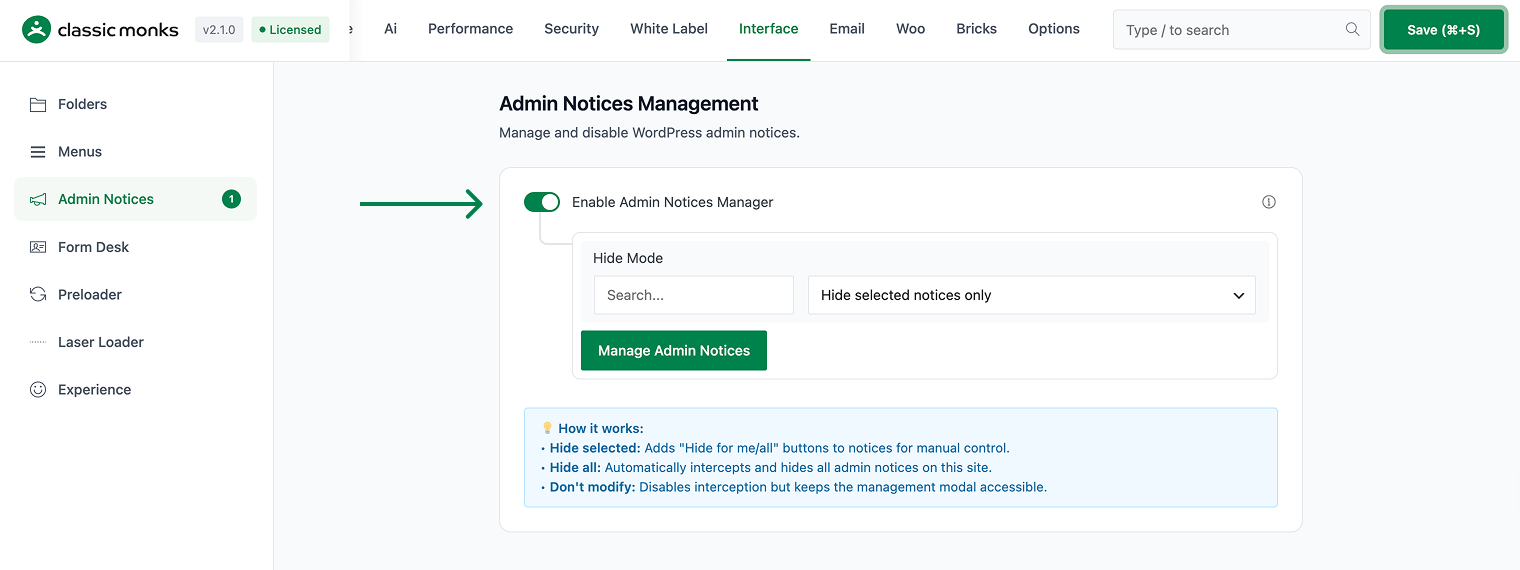
Step 4: Save Changes
Click Save Changes.
Step 5: Test
Visit any admin page. Notice the dismiss button (X) on admin notices. Click the X. The notice should disappear and not reappear on page load.
Configuration Options
| Option | Description | Default |
|---|---|---|
| Enable Admin Notices Manager | Master toggle. | Off |
No nested options.
What Gets Affected
- Admin notices: now have a dismiss button (X)
- Dismissed notices: hidden on subsequent page loads
- The admin experience: less visual clutter
- Each admin: dismissals are per-user (stored in user meta)
What Does NOT Get Affected
- The notices themselves: still generated by plugins
- The notice content: unchanged (only the dismiss button is added)
- The notice functionality: unchanged (the button just hides the DOM element)
- The plugin behavior: unchanged
Developer integration
This feature registers 5 WordPress hooks in admin-notices-functions.php:
Actions:
admin_print_scriptscallscm_catch_admin_notices()(Intercepts admin notices for modification (priority 999))admin_initcallscm_init_admin_notices()(Initializes admin notices manager)wp_ajax_cm_dismiss_admin_noticecallscm_dismiss_admin_notice()(AJAX handler for dismissing notices)wp_ajax_cm_reset_noticescallscm_reset_notices()(AJAX handler for resetting hidden notices)
Filters:
cm_admin_notices_excluded_classescallsapply_filters()(Customizable filter)
// Hooked in admin-notices-functions.php
add_action( 'admin_print_scripts', 'cm_catch_admin_notices' );
The feature modifies WordPress behavior by registering or removing hooks. Disabling it reverses those changes.

Add your first comment to this post