




What Is this feature?
This feature is part of the Experience system in Classic Monks. It modifies how your WordPress site behaves or appears to visitors. Each feature is independently configurable.
Why You Need It
Customizing the site experience allows you to:
- Match the behavior to your site’s design and purpose
- Improve user experience for specific contexts (mobile, admin, accessibility)
- Create a more professional or modern impression
How to Configure this Feature
Step 1: Navigate to Settings
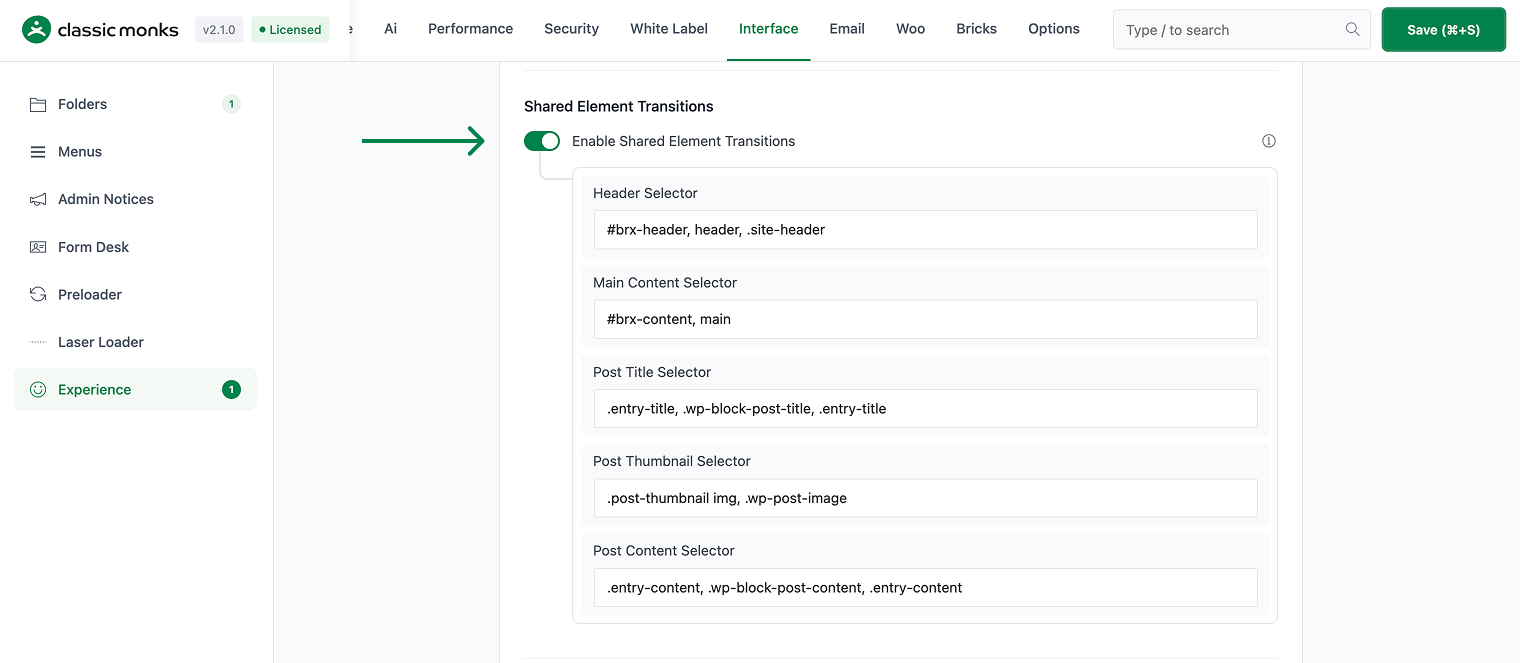
Click into the Classic Monks plugin settings, then the Interface tab, Experience subtab.
Step 2: Enable the Feature
Toggle on this feature.
Step 3: Save Changes
Click Save Changes.
Step 4: Test
Visit the frontend (or admin, depending on the feature) and verify the behavior matches your configuration.
Configuration Options
| Option | Description | Default |
|---|---|---|
| This feature | Master toggle. | Off |
What Gets Affected
- The site behavior: modified per this feature
- The user experience: enhanced or modified for the configured context
- The admin experience: (if admin-related feature) modified for the admin
What Does NOT Get Affected
- The actual page load time: unchanged
- The page content: unchanged
- The search engine indexing: unchanged
Common Use Cases
Image galleries
When navigating from a gallery page to an individual image, the image transitions from the thumbnail to the full-size position, creating a smooth zoom effect.
Product pages
When navigating from a product listing to a product detail, the product image transitions from the grid position to the detail page position.
Content-heavy sites
For sites where the same elements appear on multiple pages (headers, footers, featured images), shared element transitions create a cohesive experience.
Photo galleries and portfolios
For photography portfolios and image galleries, shared element transitions create a smooth zoom effect when navigating from a thumbnail to a full-size image. The image appears to grow from its grid position, creating a natural, intuitive transition.
Product catalogs
For e-commerce product catalogs, shared element transitions between product listings and product details create a sense of continuity. The product image, price, and title animate between their listing and detail positions.
Magazine and editorial sites
For magazine and editorial sites, shared element transitions between article listings and full articles create a seamless reading experience. Featured images, headlines, and author bylines animate between positions.
Event listing sites
For event listing sites, shared element transitions between the event listing and event detail page create a smooth browsing experience. The event image, date, and venue animate between positions, creating a sense of continuity.
Developer integration
This feature registers 1 WordPress hook in page-transitions.php:
Actions:
wp_enqueue_scriptscallscm_add_page_transitions()(Enqueues shared element transition support)
// Hooked in page-transitions.php
add_action( 'wp_enqueue_scripts', 'cm_add_page_transitions' );
The feature modifies WordPress behavior by registering or removing hooks. Disabling it reverses those changes.

Add your first comment to this post