




What Is the Folder Duplication feature?
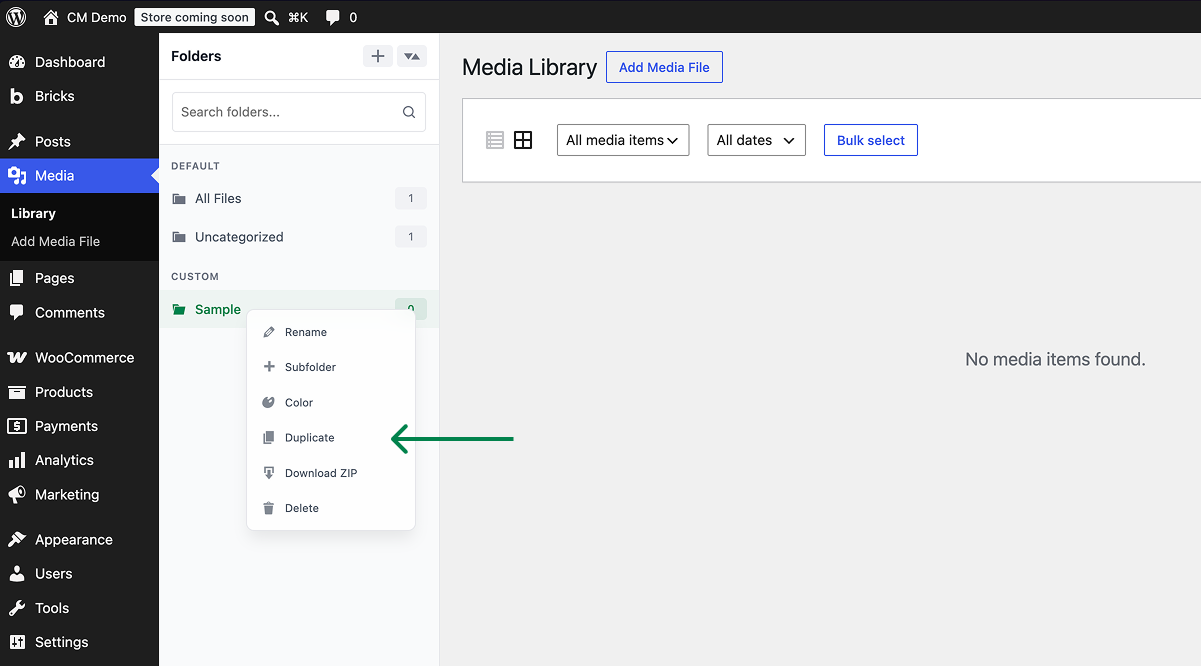
The Folder Duplication feature adds a “Duplicate” option to the folder context menu in the Media Library. When you duplicate a folder, the system copies:
- The folder structure (including nested sub-folders)
- All file assignments (files in the original folder are also assigned to the duplicated folder)
- The folder hierarchy
The files themselves are NOT duplicated. This means:
- The duplicated folder references the same files as the original
- If you delete a file from the duplicated folder, it is also removed from the original
- The duplication is lightweight and fast
Why You Need It
For sites with complex folder structures, duplicating a folder is useful for:
- Project templates: Duplicate a standard project folder structure for a new project
- Client work: Duplicate a client’s folder for a new client
- Seasonal content: Duplicate last year’s seasonal folder for this year
- A/B testing: Create a copy of a folder to experiment with
Since files aren’t physically duplicated, the disk space usage doesn’t change.
How to Use Folder Duplication in WordPress
Step 1: Navigate to Settings
Click into the Classic Monks plugin settings in your WordPress dashboard.
Step 2: Go to the Interface Tab
Click on the Interface menu, then click the Folders subtab.
Step 3: Enable Folder Duplication
Scroll to Folder Duplication and toggle on.
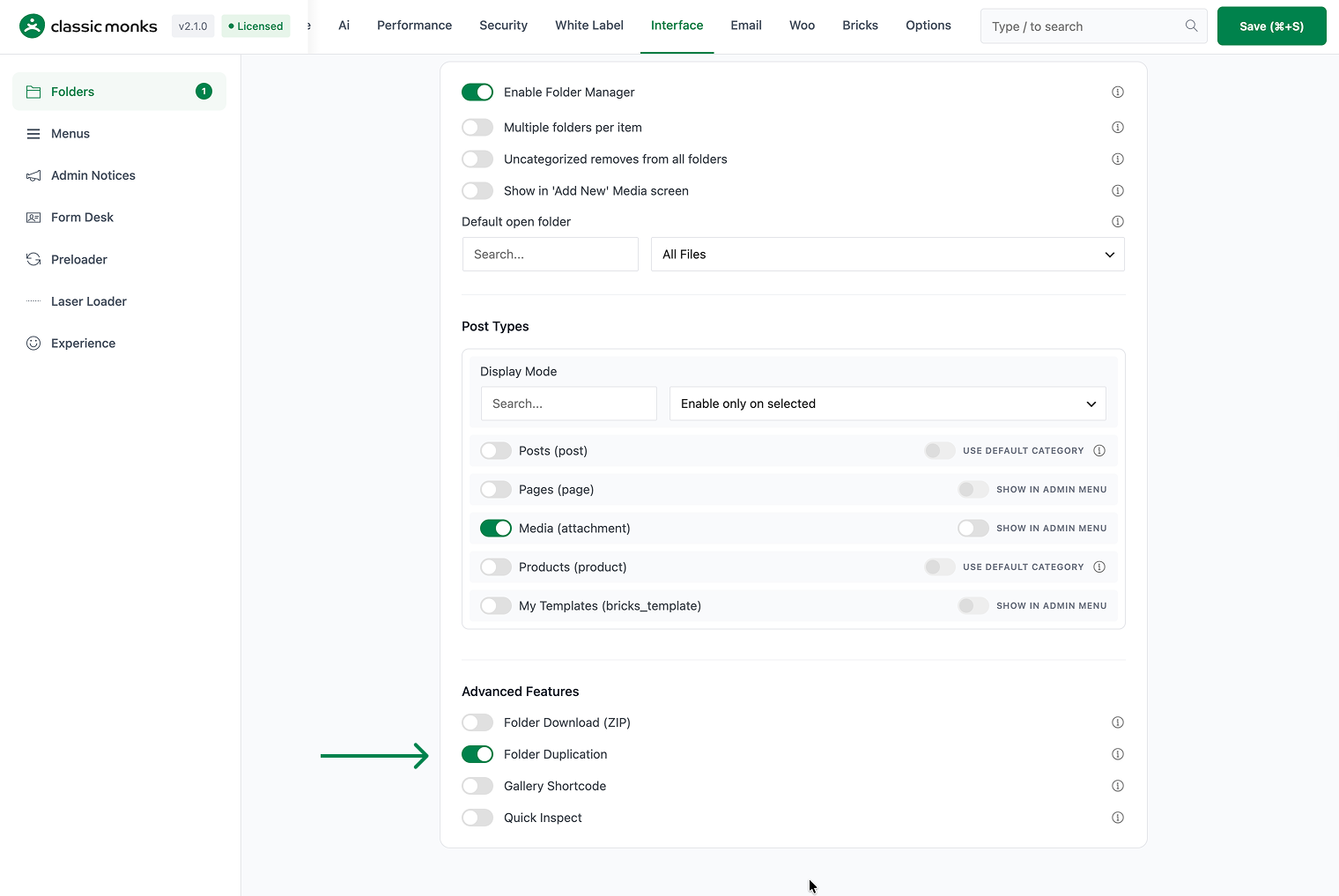
Step 4: Save Changes
Click Save Changes.
Step 5: Test
Go to the Media Library. Right-click a folder in the sidebar. Select “Duplicate” from the context menu. A new folder with the same name (and “(Copy)” suffix) should appear.
Configuration Options
| Option | Description | Default |
|---|---|---|
| Folder Duplication | Master toggle. | Off |
No nested options.
What Gets Affected
- The Media Library: a “Duplicate” option appears in the folder context menu
- The folder structure: the duplicated folder references the same files
- The folder hierarchy: nested folders are also duplicated
What Does NOT Get Affected
- The files themselves: not duplicated (only references are copied)
- The disk space: unchanged
- The file URLs: unchanged
- The original folder: unchanged (the copy is a new folder)

Add your first comment to this post