




What Is the Folder Download feature?
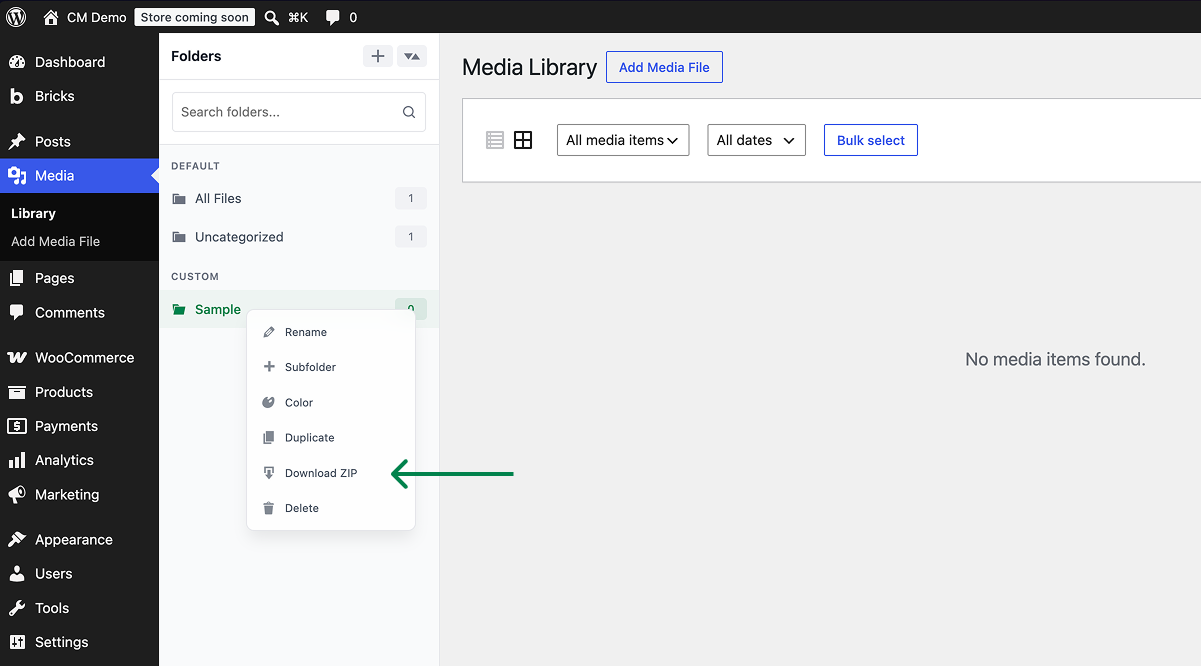
The Folder Download feature adds a download button to each folder in the Media Library. When you click the download button, all files in the folder are packaged into a ZIP archive and downloaded to your computer.
This is useful for:
- Downloading all assets from a specific project folder
- Backing up the contents of a specific folder
- Sharing a folder’s contents with clients or team members
- Downloading a set of images for social media
Why You Need It
The WordPress Media Library doesn’t have a built-in way to download multiple files at once:
- No batch download: You’d need to download files one at a time
- No folder download: There’s no “download this folder” option
- External tools: Using FTP or SSH to download a folder is too complex for most users
Folder Download solves this by packaging all files in a folder into a ZIP.
How to Use Folder Download in WordPress
Step 1: Navigate to Settings
Click into the Classic Monks plugin settings in your WordPress dashboard.
Step 2: Go to the Interface Tab
Click on the Interface menu, then click the Folders subtab.
Step 3: Enable Folder Download
Scroll to Folder Download (ZIP) and toggle on.
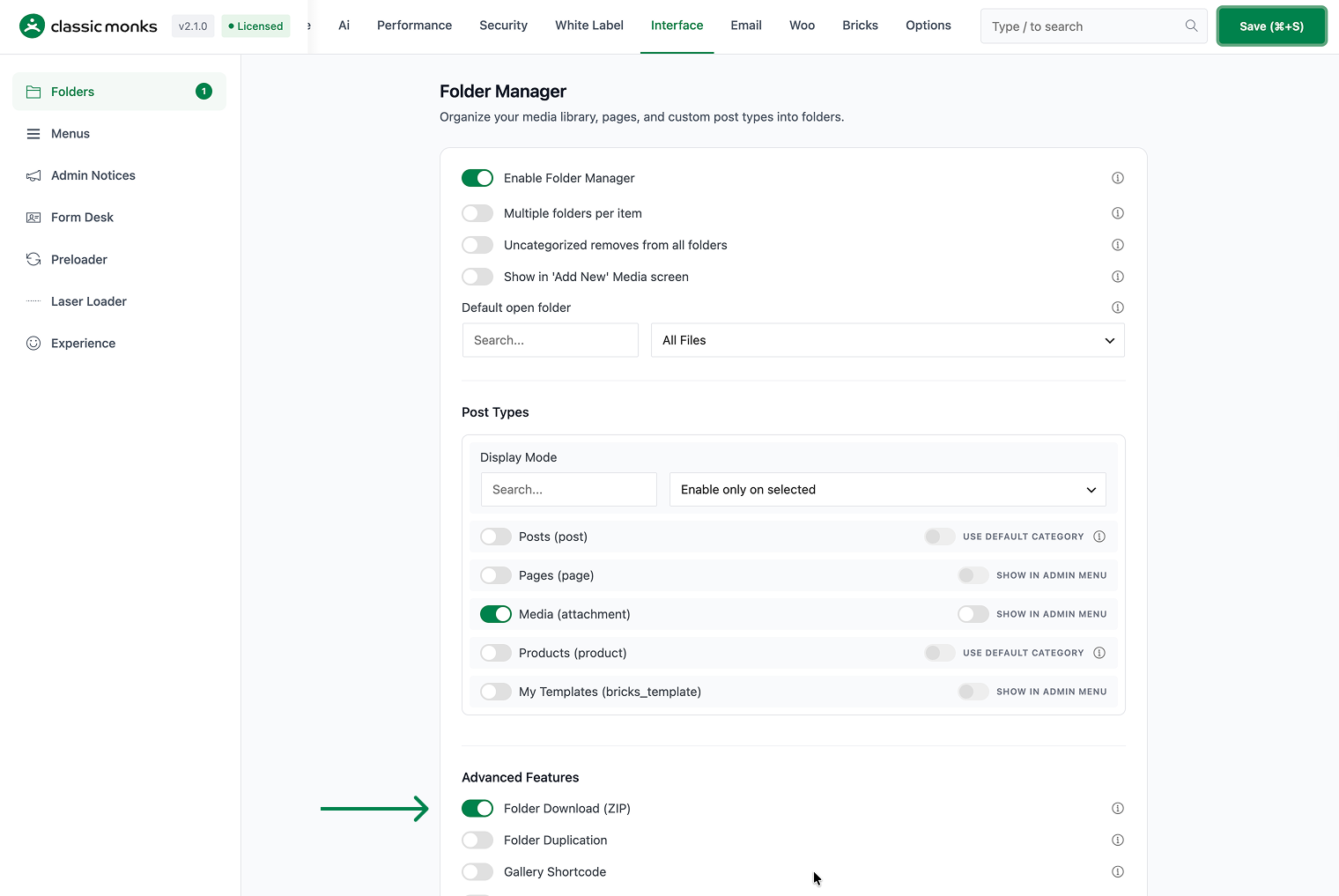
Step 4: Save Changes
Click Save Changes.
Step 5: Test
Go to the Media Library. Click the folder name in the sidebar. Click the download button (or use the folder context menu). The folder contents should be downloaded as a ZIP file.
Configuration Options
| Option | Description | Default |
|---|---|---|
| Folder Download (ZIP) | Master toggle. | Off |
No nested options.
What Gets Affected
- The Media Library: a download button appears for each folder
- The download flow: clicking the button downloads a ZIP of the folder’s contents
- The ZIP file: contains all files in the folder, preserving the folder name as the archive name
What Does NOT Get Affected
- The files themselves: not modified, moved, or deleted
- The folder structure: not changed
- The Media Library display: unchanged
- The file URLs: unchanged

Add your first comment to this post