




What Is the Back to Site Link
The “Back to Site” link appears below the WordPress login form and returns users to your site. Classic Monks lets you hide it. The option is part of Navigation Links Styling in the White Label tab. Hiding the link creates a cleaner login page, useful when you want to keep users focused on logging in.
Hide the Back to Site Link
Step 1: Open the Login Page Settings
In your WordPress dashboard, go to Classic Monks, open the White Label tab, then the Login Page subtab.
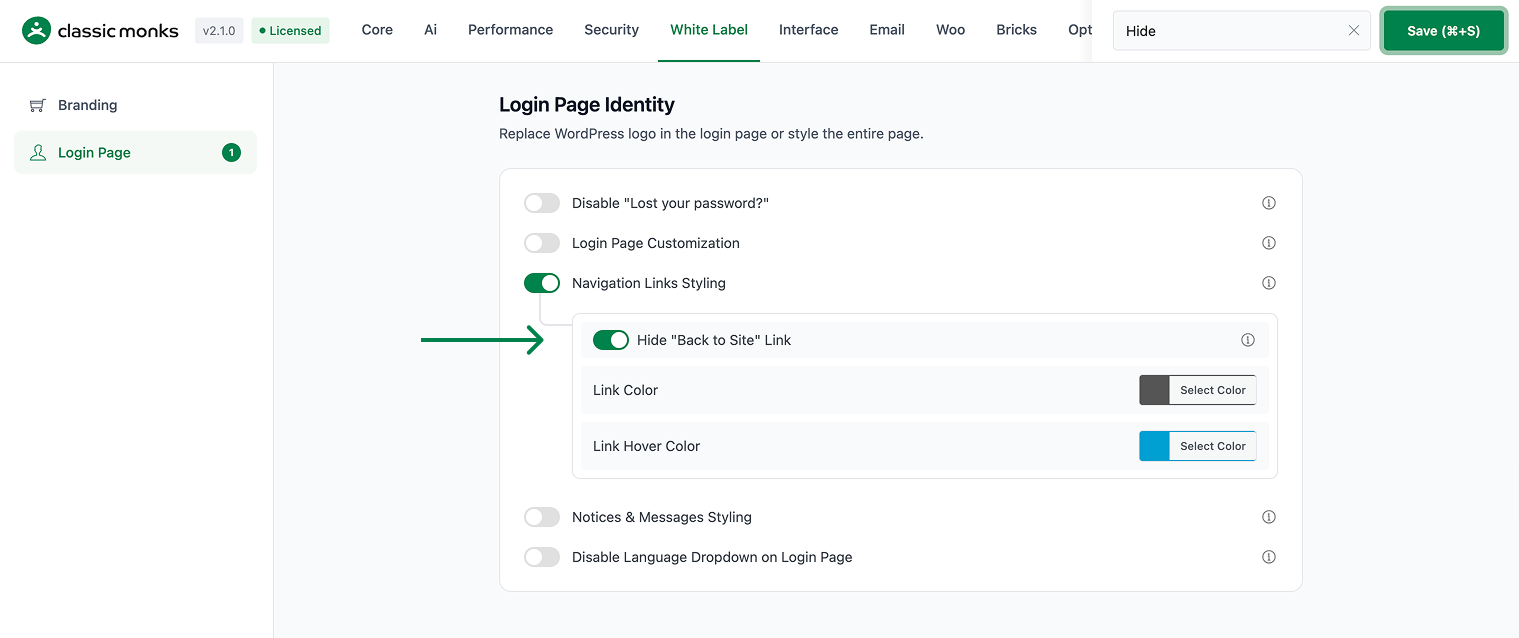
Step 2: Turn On Navigation Links Styling
In the Login Page subtab, toggle on Navigation Links Styling.
Step 3: Hide the Back to Site Link
In the Navigation Links Styling options, toggle on Hide “Back to Site” Link.
Step 4: Save and Test
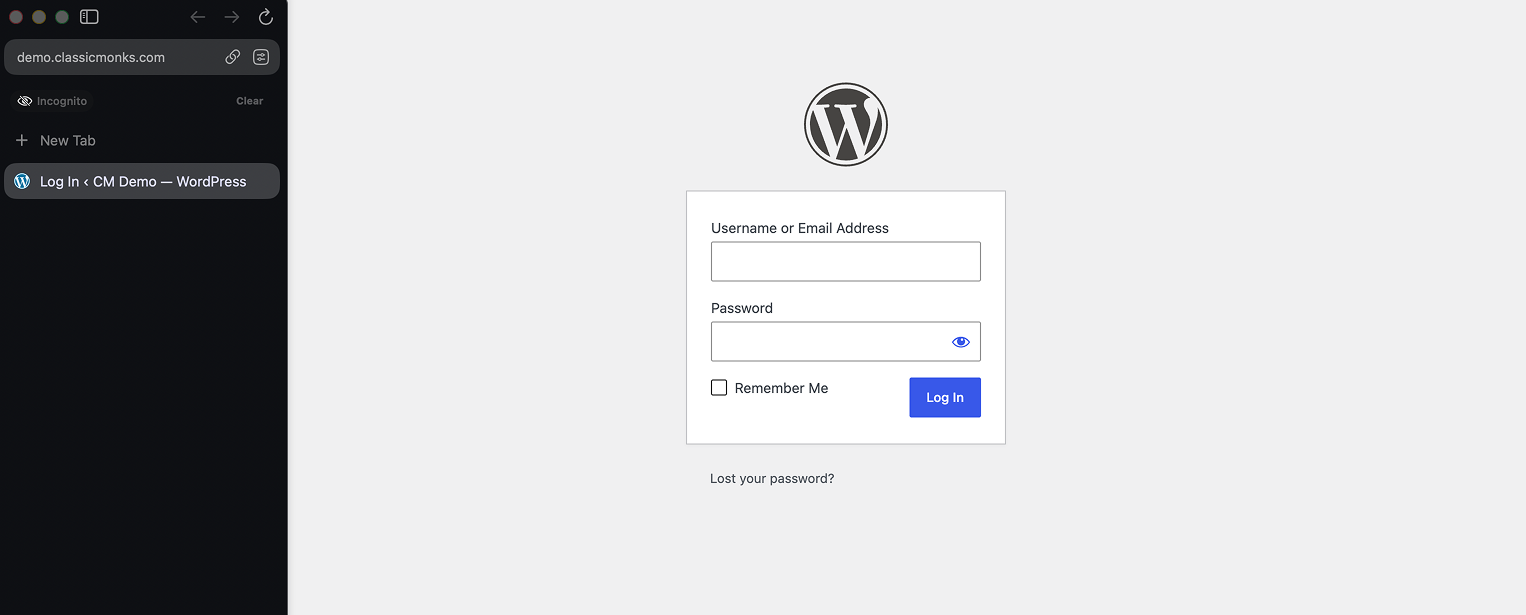
Click Save (⌘+S). Open the login page in a private browser window to confirm the link is gone.
Verify It Works
After saving, open the login page and confirm:
- The “Back to Site” link no longer appears below the login form.
- The login page looks cleaner.
If the link still shows, confirm Navigation Links Styling and Hide “Back to Site” Link are both on, and the changes were saved.
Examples
Example 1: A Clean, Focused Login Page
An agency wants clients to focus on logging in. Toggle on Navigation Links Styling and Hide “Back to Site” Link. The link disappears, leaving a cleaner login page.
Example 2: A Branded Login Page
A site wants a minimal branded login page. Toggle on Hide “Back to Site” Link to remove the link back to the site. The login page is cleaner and more on-brand.
A focused login for a client
When a client only needs to log in, hiding the Back to Site link keeps them focused on the login form. The login page is cleaner and the client is less likely to be distracted.
A branded login for a single-purpose site
A site built for a single purpose, such as a client portal, can hide the Back to Site link. The login page is focused on the portal and does not direct users back to the main site.
Recommendations Before Enabling
- Decide if users need the back link. The Back to Site link returns users to your site. Hide it only when you want to keep users focused on logging in.
- Combine with Navigation Links Styling. The option is under Navigation Links Styling, so that toggle needs to be on.
- Test on the login page. Open the login page in a private window to confirm the link is gone.
Common Use Cases
A clean, focused login page
The Back to Site link can draw users away from logging in. Hiding it keeps the login page focused on the login action.
White-label the login page
An agency that white-labels the login page for a client can remove the Back to Site link. This gives a cleaner, more branded login page.
A minimal login experience
For a site that wants a minimal login page, hiding the Back to Site link reduces clutter. The login page shows only the essential form.

Add your first comment to this post