

What Is the Laser Loader?
The Laser Loader in Classic Monks adds a laser-style progress bar that sweeps across the page as it loads. It shows visitors that the page is loading, reducing perceived wait time.
This is a visual enhancement only. It does not affect the actual load time; it only changes how the load time is perceived.
Why You Need It
- Perceived performance: A progress bar makes the site feel faster
- User confidence: Visitors know the page is loading
- Brand consistency: The loader can match your brand colors and style
- Professional feel: A progress bar signals modern, well-built software
How to Enable the Laser Loader
- Step 1
Navigate to Settings
Click into the Classic Monks plugin settings, then the Interface tab, Laser Loader subtab.
- Step 2
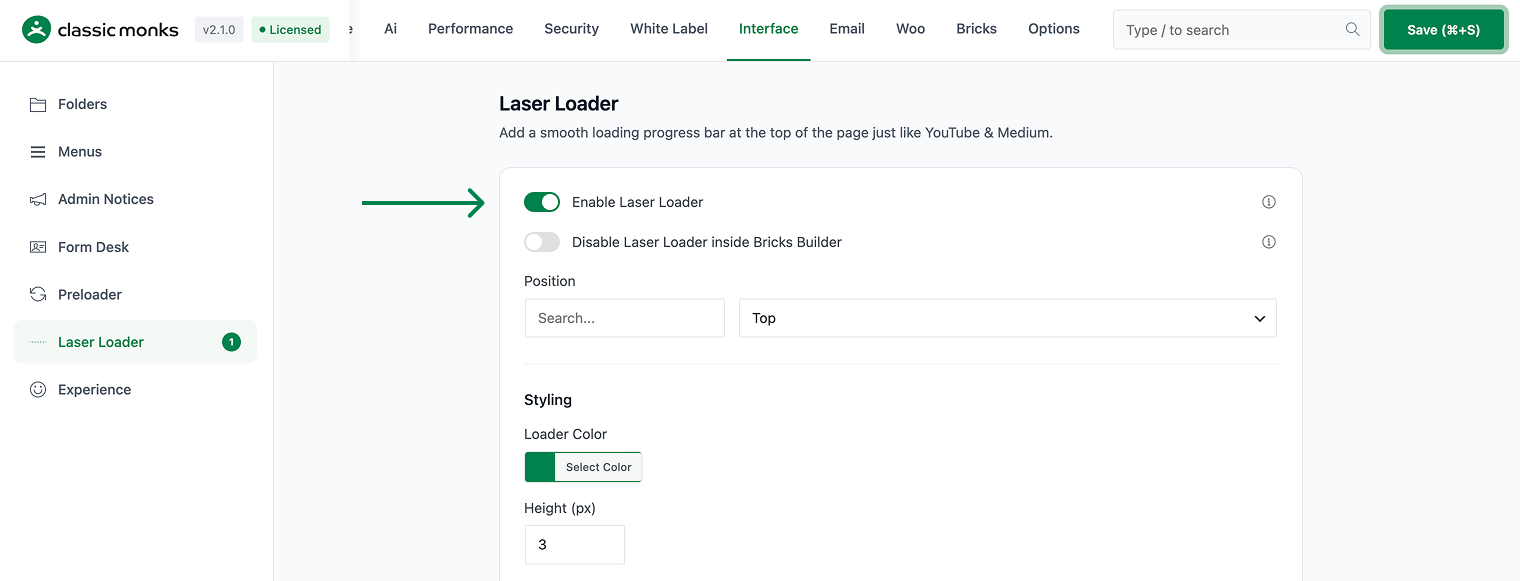
Enable Laser Loader
Toggle on Enable Laser Loader.
- Step 3
Configure Options (Optional)
Toggle on the specific options you want:
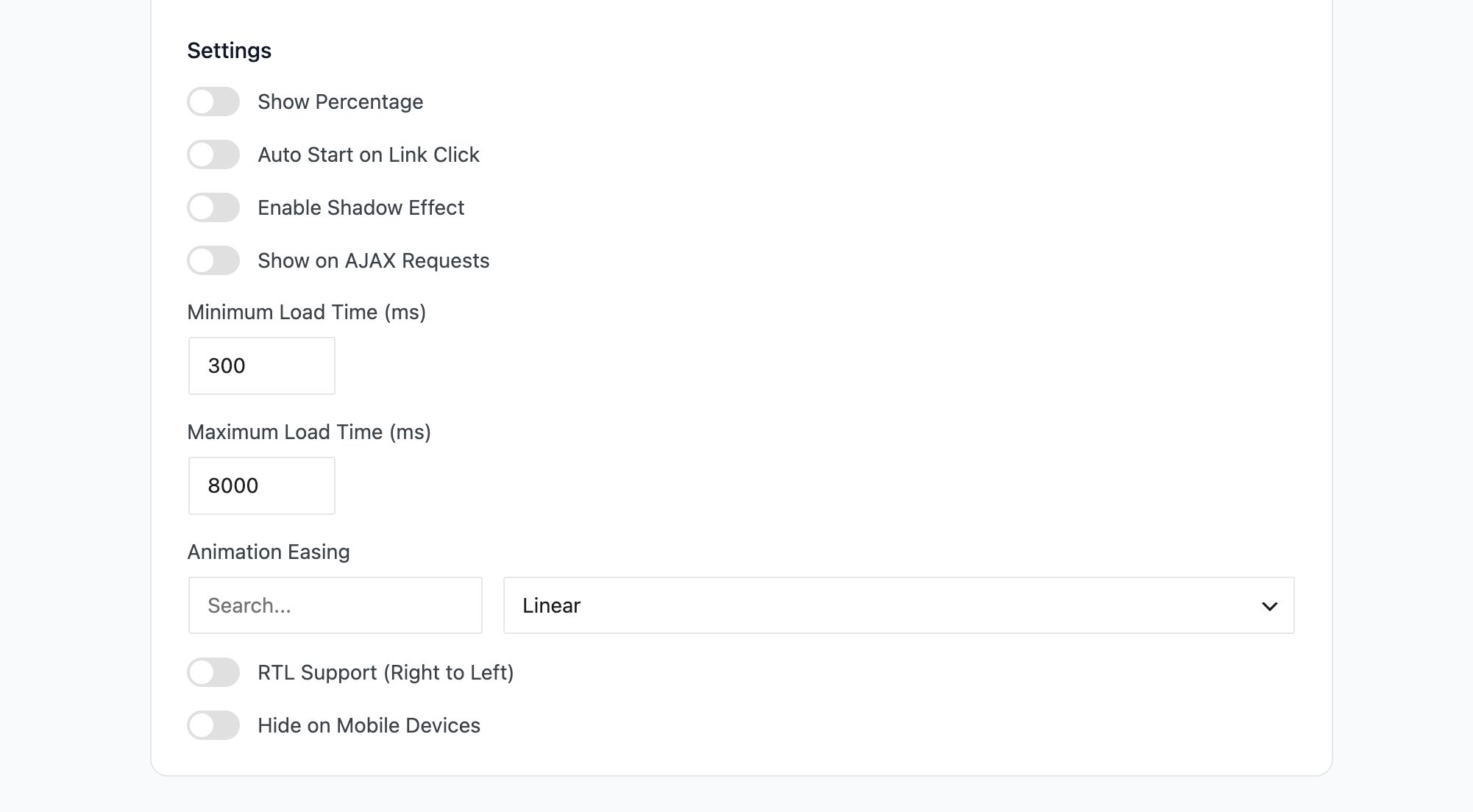
Option Description Default Hide on Mobile Devices Prevents the progress bar from appearing on phones and tablets where loading animations are less effective. Off Show on AJAX Requests Displays the progress bar when the page is making background requests (e.g., loading more posts, form submissions). Off Auto Start on Link Click Starts the progress bar automatically when a visitor clicks any internal link, before the browser starts loading. Off Show Percentage Displays a percentage indicator showing how much of the page has loaded. Off RTL Support The progress bar moves from right to left for Arabic, Hebrew, and other RTL languages. Off Shadow Effect Adds a glowing, neon-like shadow effect to the progress bar. Off - Step 4
Save and Test
Click Save Changes. Visit the frontend and navigate between pages. Verify the laser loader behavior matches your configuration.
Configuration Options
| Option | Description | Default |
|---|---|---|
| Enable Laser Loader | Master toggle. | Off |
| Hide on Mobile Devices | Prevents the loader on phones and tablets. | Off |
| Show on AJAX Requests | Shows the loader during background requests. | Off |
| Auto Start on Link Click | Starts the loader on link click. | Off |
| Show Percentage | Displays load percentage. | Off |
| RTL Support | Right-to-left progress bar direction. | Off |
| Shadow Effect | Glowing neon-like effect. | Off |
What Gets Affected
- The frontend: progress bar appears during page navigation
- The page load: the progress bar shows while the page loads
- The user experience: smoother perceived performance
What Does NOT Get Affected
- The actual load time: unchanged (visual only)
- The page content: unchanged
- The search engine indexing: unchanged
Common Use Cases
Content-heavy sites
For blogs and news sites with long articles, a progress bar shows visitors how far the page has loaded. This reduces the “is it loading?” anxiety on slow connections.
E-commerce sites
A laser-style loader on product pages shows the page loading progress. Visitors are more patient when they can see progress.
Client demonstrations
When showing a site to clients, a laser loader creates a professional, modern impression.
RTL sites
For Arabic, Hebrew, and other RTL language sites, the RTL support option ensures the progress bar moves in the correct direction.
AJAX-heavy sites
For sites that load content via AJAX (infinite scroll, form submissions, tab switching), the AJAX option shows the loader during these operations.
Troubleshooting
5 problems and how to fix each one.
The laser loader is not showing
Cause: The Laser Loader master toggle is not enabled, or a page caching plugin is serving old content.
Fix: Verify both toggles are on. Clear all caching layers.
The laser loader shows on pages where it should not
Cause: The laser loader is showing on all pages by default.
Fix: Use the cm_laser_loader_excluded_pages filter to exclude specific pages.
The laser loader conflicts with Bricks Builder
Cause: The laser loader is showing in the Bricks Builder editor.
Fix: Disable the laser loader inside Bricks Builder using the subtab option (separate feature).
The progress bar is not showing percentage
Cause: The Show Percentage toggle is off.
Fix: Enable the Show Percentage toggle in the Laser Loader settings.
The progress bar moves in the wrong direction on RTL sites
Cause: The RTL Support toggle is off.
Fix: Enable the RTL Support toggle for right-to-left language sites.
Not listed here? Ask on the forum.
Ask on the forum