

What Is the Enable Preloader Feature?
The Enable Preloader feature in Classic Monks adds a loading animation to your WordPress site. When a visitor navigates to a new page, the preloader shows while the page loads, then fades out when the page is ready.
This is a visual enhancement only. It does not affect the actual load time; it only changes how the load time is perceived.
Why You Need It
For sites where visual impression matters:
- Perceived performance: A preloader makes the site feel faster
- Brand consistency: The preloader can match your brand colors and style
- User engagement: Visitors are more patient when they see a loading animation
- Content protection: Prevents users from seeing partially loaded content
For most content-heavy sites, a preloader improves the user experience.
How to Use Enable Preloader in WordPress
- Step 1
Navigate to Settings
Click into the Classic Monks plugin settings in your WordPress dashboard.
- Step 2
Go to the Interface Tab
Click on the Interface menu, then click the Preloader subtab.
- Step 3
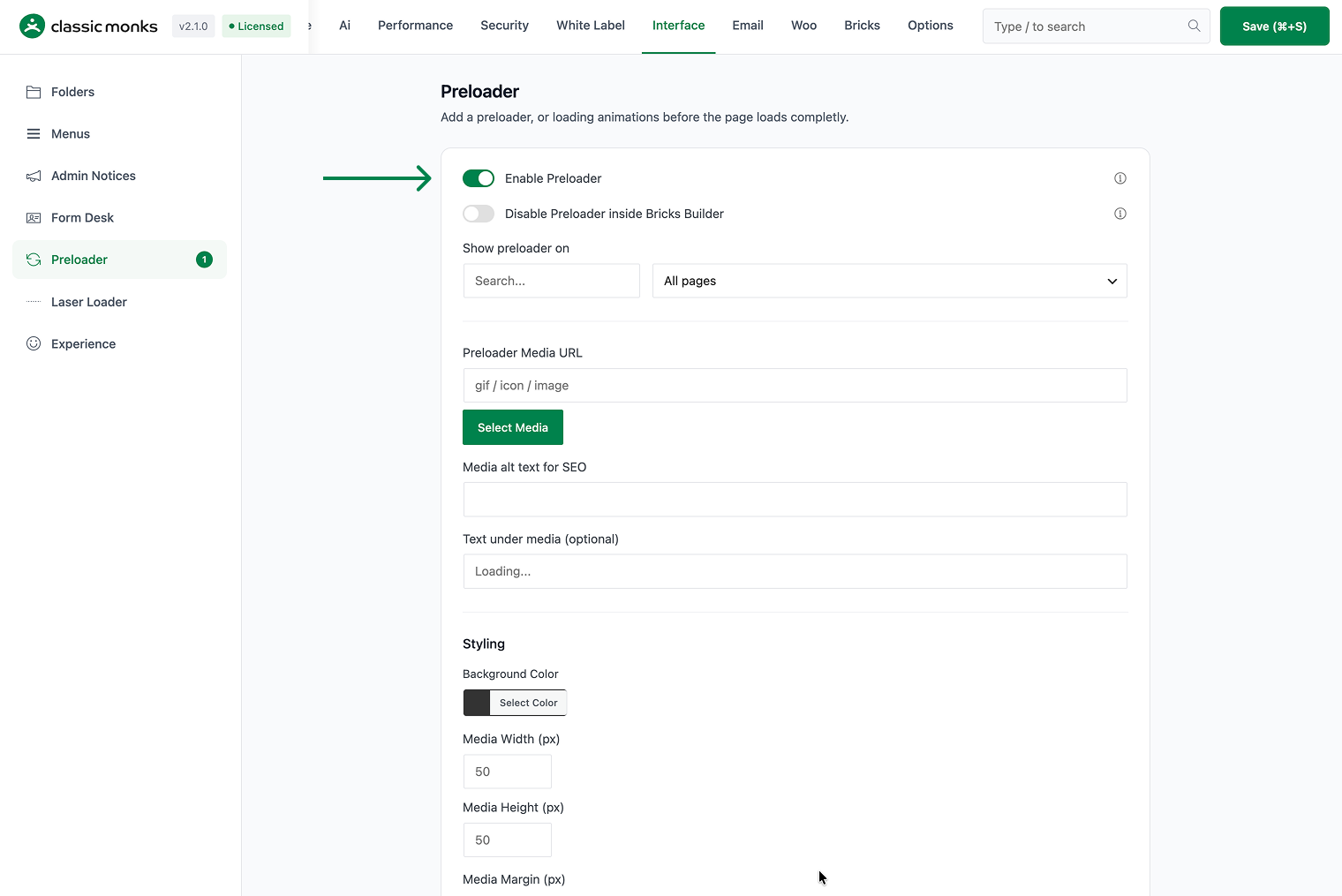
Enable Preloader
Scroll to Enable Preloader and toggle on.
- Step 4
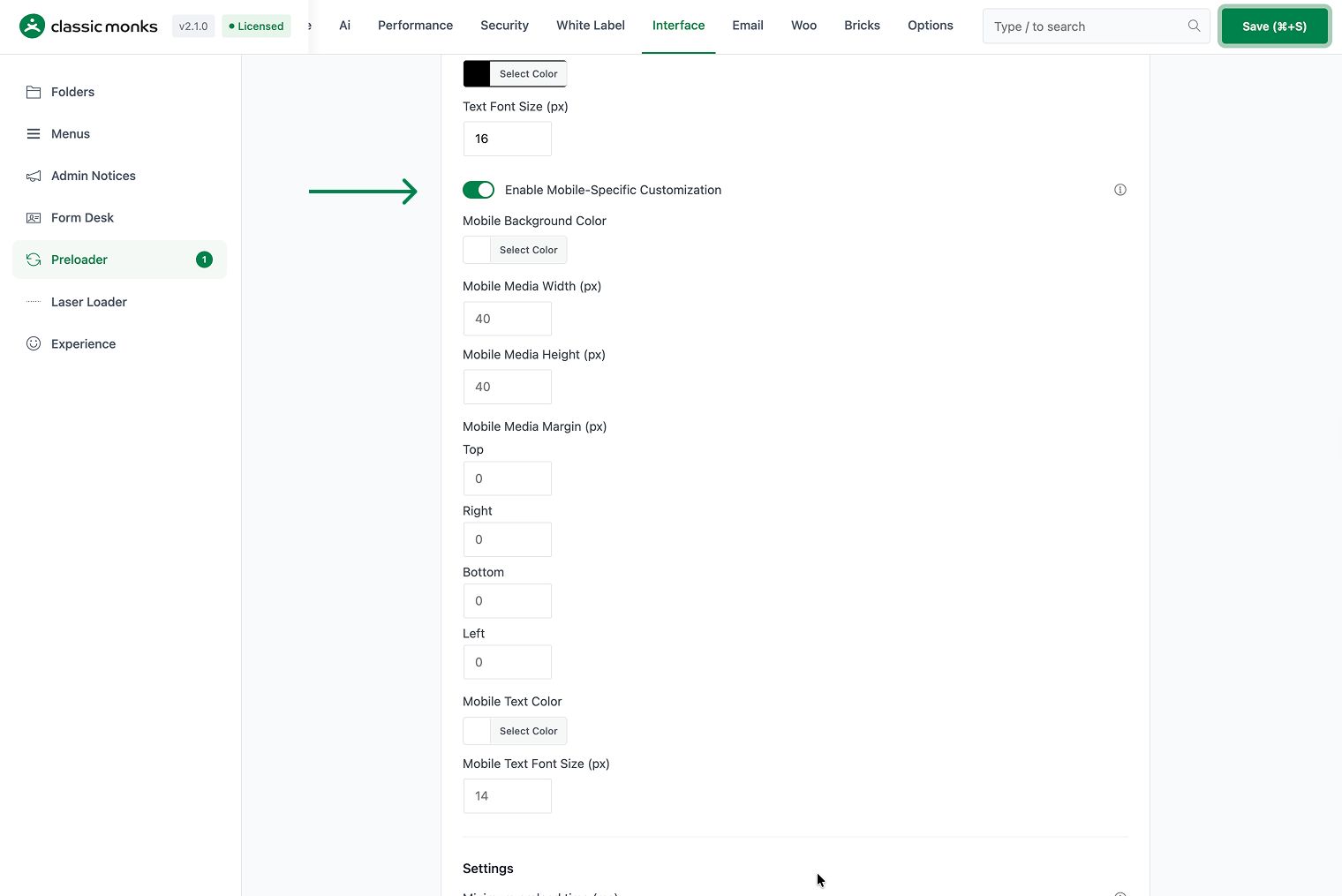
Configure Mobile Settings (Optional)
Toggle on Enable Mobile-Specific Customization to configure different preloader behavior for mobile devices. This is useful when:
- Your traffic is primarily mobile (60%+)
- Mobile connections are slower and a lighter preloader is preferred
- You want to test the mobile experience independently
- Step 5
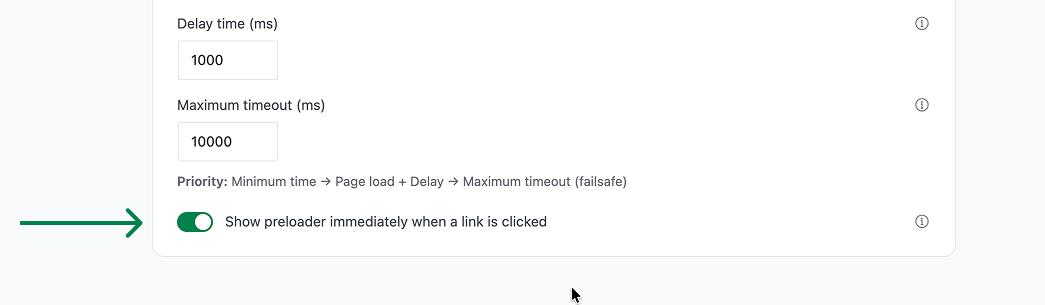
Configure Immediate Show (Optional)
Toggle on Show preloader immediately when a link is clicked to display the preloader as soon as the visitor clicks a link, before the browser starts loading. This creates the perception of an instant page transition.

The timing difference:
- Default: Click, wait for browser, preloader shows, page loads
- Immediate: Click, preloader shows, page loads
The second approach feels faster because the visitor sees immediate feedback after clicking.
- Step 6
Save Changes
Click Save Changes.
- Step 7
Test
Visit your site on the frontend. The preloader should appear on page navigation.
Configuration Options
| Option | Description | Default |
|---|---|---|
| Enable Preloader | Master toggle. | Off |
| Enable Mobile-Specific Customization | Different preloader behavior for mobile devices. | Off |
| Show preloader immediately when a link is clicked | Shows preloader on click instead of on page load. | Off |
The preloader animation style, color, and speed are configured via CSS and filters (see Developer Notes).
What Gets Affected
- The frontend: preloader appears during page navigation
- The page load: the preloader shows while the page loads
- The user experience: smoother perceived performance
What Does NOT Get Affected
- The actual load time: unchanged (visual only)
- The page content: unchanged
- The search engine indexing: unchanged
- The accessibility: unchanged (screen readers ignore the preloader)
Common Use Cases
Portfolio and agency sites
A preloader gives the impression that the site is loading content, even if the actual load time is fast. For portfolio and agency sites where visual impact matters, a preloader sets the tone.
E-commerce sites
A preloader on the shop page creates anticipation and masks slow-loading product images. It can reduce bounce rates by giving visitors something to look at while the page loads.
Sites with heavy media
If your pages have many high-resolution images, a preloader masks the load time. Visitors are more patient when they see a loading animation than when they see a blank or partially loaded page.
Mobile-first sites
If your traffic is primarily mobile, mobile-specific preloader settings ensure the best experience for your most common visitors. Mobile connections are often slower, so a lighter preloader (or no preloader) on mobile reduces perceived load time.
High-traffic sites
For sites with millions of visitors per month, the immediate preloader reduces the “did the click work?” uncertainty, improving engagement.
App-like experiences
For WordPress sites that want to feel like native apps, the immediate preloader creates the instant response that users expect from apps.
Troubleshooting
7 problems and how to fix each one.
The preloader is not showing
Cause: The toggle is off, or the JavaScript is not loading.
Fix: Verify the toggle is on. Check the browser console for errors. The preloader requires JavaScript to function.
The preloader never disappears
Cause: The page load is very slow, or the preloader timeout is not set.
Fix: The preloader should auto-hide after the page loads. If it does not, check the browser console for JavaScript errors.
The preloader is showing on every page load (including back/forward)
Cause: The preloader is configured to show on all navigations.
Fix: This is the default behavior. Configure excluded pages in the plugin settings under Interface > Preloader.
The preloader conflicts with Bricks Builder
Cause: The preloader is showing in the Bricks Builder editor.
Fix: Disable the preloader inside Bricks Builder using the subtab option.
The immediate preloader is not showing immediately
Cause: The Immediate toggle is off, or the preloader JavaScript is not loading.
Fix: Verify both the Preloader master toggle and the Immediate toggle are on. Check the browser console for errors.
The preloader shows on external links
Cause: The feature is triggered on all link clicks, including external links.
Fix: Add a CSS class to external links and exclude it via the preloader settings in the plugin dashboard.
The preloader conflicts with page transitions
Cause: Both the preloader and page transitions are active.
Fix: Choose one or the other. The preloader is a loading indicator; page transitions are an animation. Using both creates a confusing experience.
Not listed here? Ask on the forum.
Ask on the forum