




What Is the Search Engine Visibility Status feature?
The feature has two parts:
- Admin bar badge: For users with the
manage_optionscapability, it shows Search Visibility: ON (green) or Search Visibility: OFF (red) in the top admin bar. Clicking it opens Settings > Reading. - Automatic core setting flip: On each page load where the current site URL differs from your configured Live Site URL, the feature turns on the WordPress core setting that discourages search engines from indexing the site, which makes WordPress output a noindex meta tag across the site. When the current URL matches the live URL, it turns that setting off.
It targets the most common SEO disaster: a staging or development site that is publicly reachable and gets indexed, creating duplicate content and hurting the production site’s rankings.
Why You Need It
The classic staging site mistake:
- A developer creates a staging site at a subdomain like
staging.yoursite.com. - The staging site is publicly reachable and indexing is not disabled.
- Google indexes the staging pages.
- Google sees the same content at both
yoursite.comandstaging.yoursite.com. - Google treats this as duplicate content and can de-rank the production site.
Search Engine Visibility Status prevents this by flipping the core Discourage search engines setting on any URL that does not match the Live Site URL, and by surfacing the current status in the admin bar so the developer can see at a glance whether the site is indexable.
The feature is opt-in. It only acts after you enter a Live Site URL, so sites you have not configured are left untouched.
How to Enable Search Engine Visibility Status in Classic Monks
Step 1: Open the plugin settings
In your WordPress dashboard, click Classic Monks in the admin sidebar.
Step 2: Go to the Core tab and Content subtab
Click Core, then Content.
Step 3: Enable the toggle
In the SEO & Visibility section, turn on Enable Search Engine Visibility Status. The nested Live Site URL field expands below the toggle.
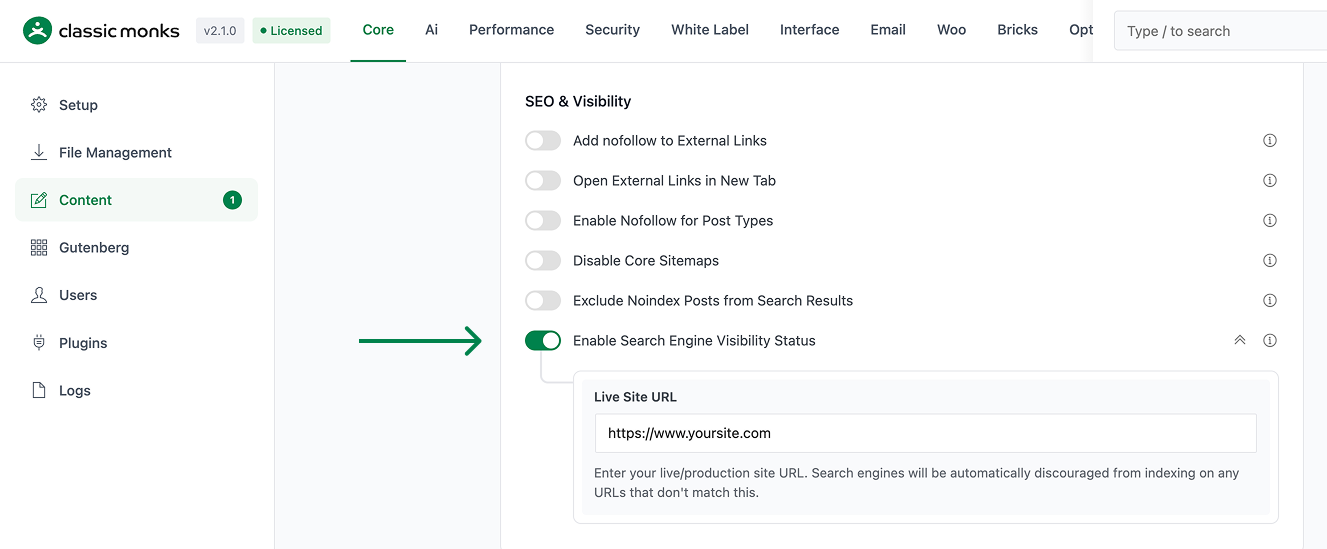
Step 4: Enter your Live Site URL
In the Live Site URL field, enter your production domain, including the protocol, for example https://yoursite.com. Use the same form your site uses when a visitor loads it. The field is a URL input with the placeholder https://example.com.
Step 5: Save Changes
Click Save Changes.
Step 6: Test the badge
Load any page while logged in as an administrator. In the top admin bar, you should see Search Visibility: ON (green) on your production site. The badge is clickable and opens Settings > Reading.

Configuration Options
| Option | Description | Default |
|---|---|---|
| Enable Search Engine Visibility Status | Master toggle. Loads the feature and shows the admin bar badge. | Off |
| Live Site URL | Your production domain. The feature only auto-flips the core setting when this is filled in. | Empty |
How It Works
On each page load (excluding AJAX, cron, and the settings-saved redirect), the feature compares the current site URL against the Live Site URL.
- It normalizes both URLs: strips the protocol (http or https), strips a leading
www, strips a trailing slash, and lowercases. - It compares the normalized current site URL to the normalized Live Site URL.
- If they match, it ensures the WordPress core setting
blog_publicis enabled (indexable), so search engines can index the site. - If they do not match, it ensures
blog_publicis disabled (discourage), which makes WordPress core output a noindex meta tag across the site.
Because the comparison normalizes protocol and www, switching between http and https or between www and non-www does not trigger a change. A subdomain difference (staging.yoursite.com vs yoursite.com) or a path difference does, since those are not normalized away.
Edge Cases
- Local development (
localhost,127.0.0.1,*.local): these will not match a production Live Site URL, so indexing is discouraged. - Staging sites on a subdomain (
staging.yoursite.com): discouraged, since the subdomain differs. - Production on the same domain as the Live Site URL: indexable.
- Live Site URL left empty: the feature still shows the admin bar badge, but it does not change any core setting.
Verify It Works
- On your production site, confirm the admin bar shows Search Visibility: ON. Go to Settings > Reading and confirm Discourage search engines from indexing this site is unchecked.
- Load the same site from a URL that does not match the Live Site URL (for example, a staging subdomain). Go to Settings > Reading and confirm Discourage search engines from indexing this site is now checked. WordPress core then outputs a noindex meta tag.
- Check the page source for the noindex meta tag that WordPress core emits when the Discourage setting is on.

Add your first comment to this post