




What Is the Tags No Comma Shortcode?
WordPress’s default tag display uses commas (e.g., “WordPress, Plugins, Bricks”). The [tags_no_comma] shortcode displays the same tags with a customizable separator, so you can use bullets, pipes, icons, or any character that fits your design.
The shortcode accepts a separator attribute:
[tags_no_comma separator=" • "]
[tags_no_comma separator=" | "]
[tags_no_comma separator=" ● "] <!-- bullet character -->The default separator is a single space when no attribute is provided.
Why You Need It
The default comma-separated tag list is functional but rarely matches a site’s visual design. Common reasons to use a custom separator:
- Design consistency: Many sites use bullet (•) or pipe (|) separators to match navigation and footer styling
- Visual hierarchy: A non-comma separator (like → or ⇒) suggests forward motion or progression
- Internationalization: Some languages and scripts have different separator conventions (e.g., middle dot · in French, ideographic comma 、 in Chinese/Japanese)
- Accessibility: A meaningful separator (vs. a comma) is easier for screen readers to parse when reading the tag list aloud
The shortcode is a small but useful customization for any site that cares about tag display.
How to Use the Tags No Comma Shortcode in Classic Monks
Step 1: Enable the Shortcode
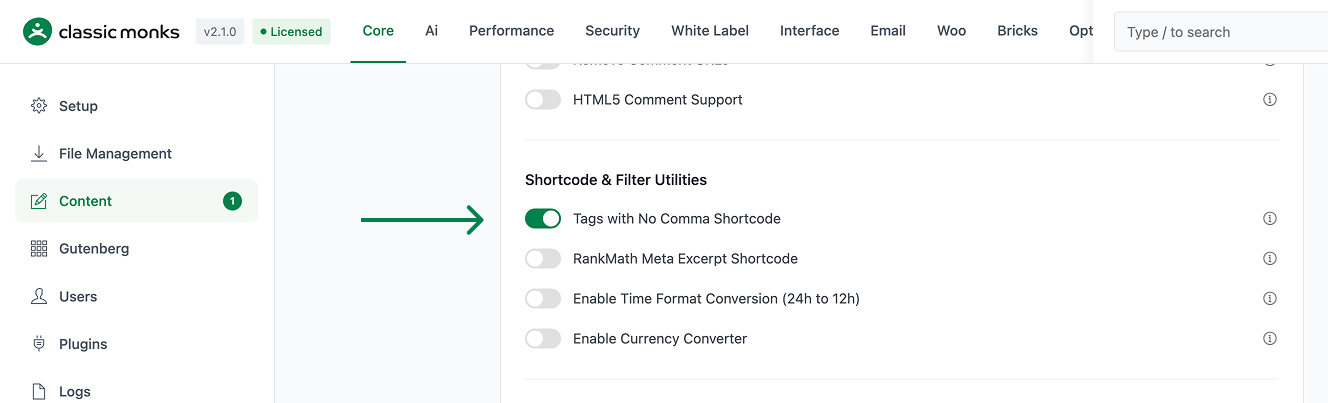
In the Classic Monks settings, go to the Core tab, Content subtab. Scroll to the Shortcode and Filter Utilities section and toggle on Tags with No Comma Shortcode.
Step 2: Save Changes
Click Save Changes.
Step 3: Add the Shortcode to Your Content
Open any post or page edit screen. In the content editor, add the shortcode where you want the tag list to appear:
[tags_no_comma separator=" • "]Step 4: Customize the Separator
Change the separator attribute to whatever character or string fits your design:
[tags_no_comma separator=" | "]      <!-- pipe -->
[tags_no_comma separator=" / "]      <!-- forward slash -->
[tags_no_comma separator=": "]     <!-- em dash (do not actually use this; use a colon or comma in real text) -->
[tags_no_comma separator=" " ]      <!-- single space (the default) -->
Step 5: View the Result
Preview or publish the post. The tags appear with your custom separator.
Configuration Options
| Option | Description | Default |
|---|---|---|
| Tags with No Comma Shortcode | Master toggle. Enables the [tags_no_comma] shortcode. |
Off |
The separator attribute is per-shortcode-instance, set when you use the shortcode.
Usage Examples
# Default (single space):
[tags_no_comma]
Output: WordPress Plugins Bricks

# With bullet separator:
[tags_no_comma separator=" • "]
Output: WordPress • Plugins • Bricks

# With pipe separator:
[tags_no_comma separator=" | "]
Output: WordPress | Plugins | Bricks

# With arrow separator:
[tags_no_comma separator=" → "]
Output: WordPress → Plugins → Bricks

# No separator (just space):
[tags_no_comma separator=" "]
Output: WordPress Plugins Bricks (single space between)

# Empty separator (no space):
[tags_no_comma separator=""]
Output: WordPressPluginsBricks
Developer Notes
This feature is a single toggle with no developer hooks currently exposed. The feature-specific logic is loaded conditionally when the toggle is enabled.
Options used:
| Option | Type | Default |
|---|---|---|
| Feature toggle | Boolean | false |

Add your first comment to this post