




What Is the Time Format Conversion feature?
Time Format Conversion provides two related capabilities:
- A shortcode
[cm_time_format time="14:30"]that takes a time string and outputs it in the chosen format (12-hour or 24-hour, with or without AM/PM) - A global filter that automatically converts time displays in templates and theme functions, so all times appear in 12-hour format without changing your theme code
The shortcode is useful for ad-hoc conversions in content; the global filter is useful for site-wide time display changes.
Why You Need It
Most WordPress sites use the WordPress time format setting (Settings > General > Time Format), which defaults to the site’s locale. Some scenarios require overriding this:
- Multi-audience sites: A US-based site serving a European audience (or vice versa) may want to standardize on one format
- Custom themes: Some themes hardcode
the_time('g:i a')(12-hour) orthe_time('H:i')(24-hour) without using the WordPress setting. Time Format Conversion overrides the hardcoded format - Content with mixed time displays: When a page shows multiple times in different places, the shortcode lets you normalize them all to one format
The feature does not change WordPress’s internal time storage. All times remain in 24-hour format in the database; only the display is affected.
How to Use the Time Format Conversion in Classic Monks
Step 1: Enable the Feature
In the Classic Monks settings, go to the Core tab, Content subtab. Scroll to the Shortcode and Filter Utilities section and toggle on Enable Time Format Conversion (24h to 12h).
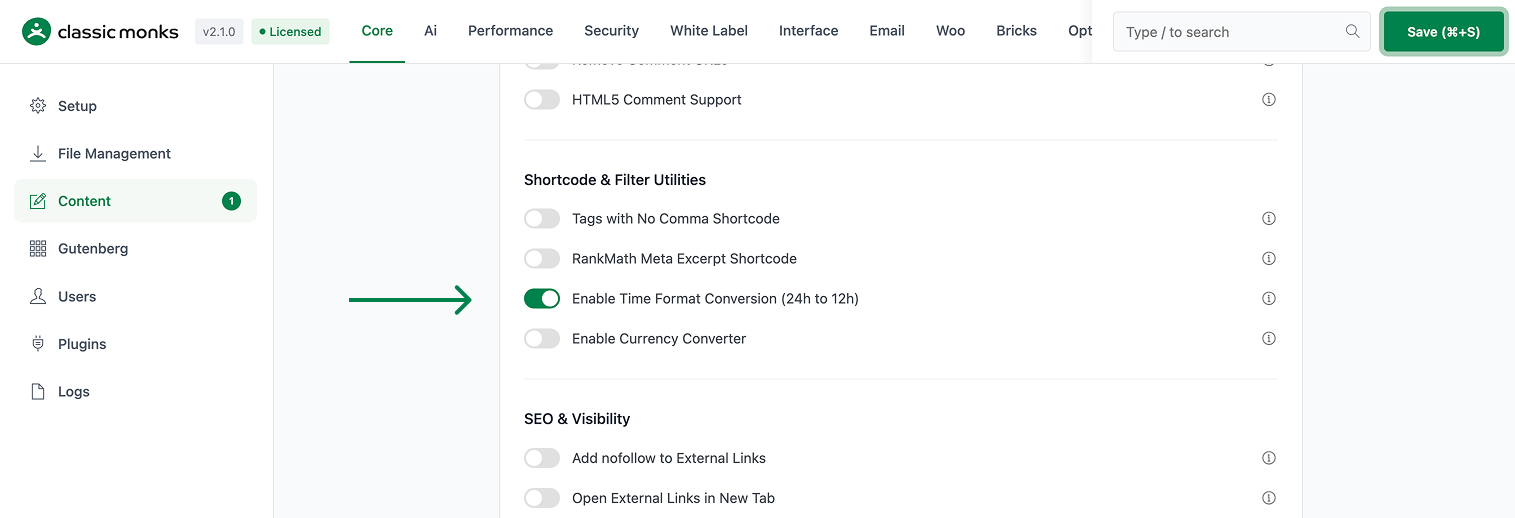
Step 2: Save Changes
Click Save Changes.
Step 3: Use the Shortcode
In any post, page, or template that processes shortcodes, use [cm_time_format] to display a time:
[cm_time_format time="14:30"]
[cm_time_format time="09:00" format="12h"]
[cm_time_format time="23:45" format="24h"]
[cm_time_format time="14:30" show_am_pm="true"]
The shortcode accepts three attributes:
time(required): The time string in 24-hour formatformat: Either “12h” (default) or “24h”show_am_pm: “true” (default) or “false” (for 24-hour display, AM/PM is hidden)
Step 4: (Optional) Customize the Global Filter
The global filter automatically converts time displays in the_time() and get_the_time() calls throughout your theme. To customize the filter behavior, use the available filters in the Advanced Options below.
Configuration Options
| Option | Description | Default |
|---|---|---|
| Enable Time Format Conversion (24h to 12h) | Master toggle. Enables both the shortcode and the global filter. | Off |
Per-instance options are passed as shortcode attributes.
Usage Examples
# Convert a 24-hour time to 12-hour with AM/PM:
[cm_time_format time="14:30"]
Output: 2:30 PM

# Convert to 24-hour format (no AM/PM):
[cm_time_format time="14:30" format="24h"]
Output: 14:30

# Show 12-hour without AM/PM:
[cm_time_format time="14:30" show_am_pm="false"]
Output: 2:30

# Midnight conversion:
[cm_time_format time="00:00"]
Output: 12:00 AM

# Noon conversion:
[cm_time_format time="12:00"]
Output: 12:00 PM
Developer Notes
This feature is a single toggle with no developer hooks currently exposed. The feature-specific logic is loaded conditionally when the toggle is enabled.
Options used:
| Option | Type | Default |
|---|---|---|
| Feature toggle | Boolean | false |

Add your first comment to this post