

What Is the Cloudflare Turnstile feature?
Cloudflare Turnstile is a free, privacy-first captcha alternative to Google reCAPTCHA. It validates that the user is human without tracking them, without showing puzzles (in most cases), and without selling data to advertisers.
The Cloudflare Turnstile feature in Classic Monks adds Turnstile to your WordPress, WooCommerce, and comment forms. Users see a small Turnstile widget (usually invisible or one-click) instead of solving a captcha puzzle.
Why You Need It
Standard captcha solutions have issues:
- Google reCAPTCHA v3: Tracks users across the web, sells data
- reCAPTCHA v2: Shows puzzles that frustrate users
- hCaptcha: Better than reCAPTCHA but still tracks some user behavior
Cloudflare Turnstile is different:
- No tracking: Doesn’t follow users across the web
- No puzzles (usually): Validates in the background; users only see a challenge if suspicious
- Free: No usage limits, no enterprise pricing
- Fast: Reduces form abandonment vs traditional captchas
For most sites, Turnstile is the best captcha option in 2026.
How to Use Cloudflare Turnstile in WordPress
- Step 2
Create a Turnstile Widget
Go to Cloudflare Dashboard > Turnstile. Click Add Widget. Configure:
- Widget Name: Any descriptive name (e.g., “My WordPress Site”)
- Domain: Your site domain
- Widget Mode: Choose “Managed” (recommended) or “Non-Interactive” (always show)
- Hosted Domain: Your site domain
Click Create. Cloudflare provides a Site Key and Secret Key.
- Step 3
Navigate to Settings
Click into the Classic Monks plugin settings in your WordPress dashboard.
- Step 4
Go to the Security Tab
Click on the Security menu, then click the WP Protection subtab.
- Step 5
Enable Cloudflare Turnstile
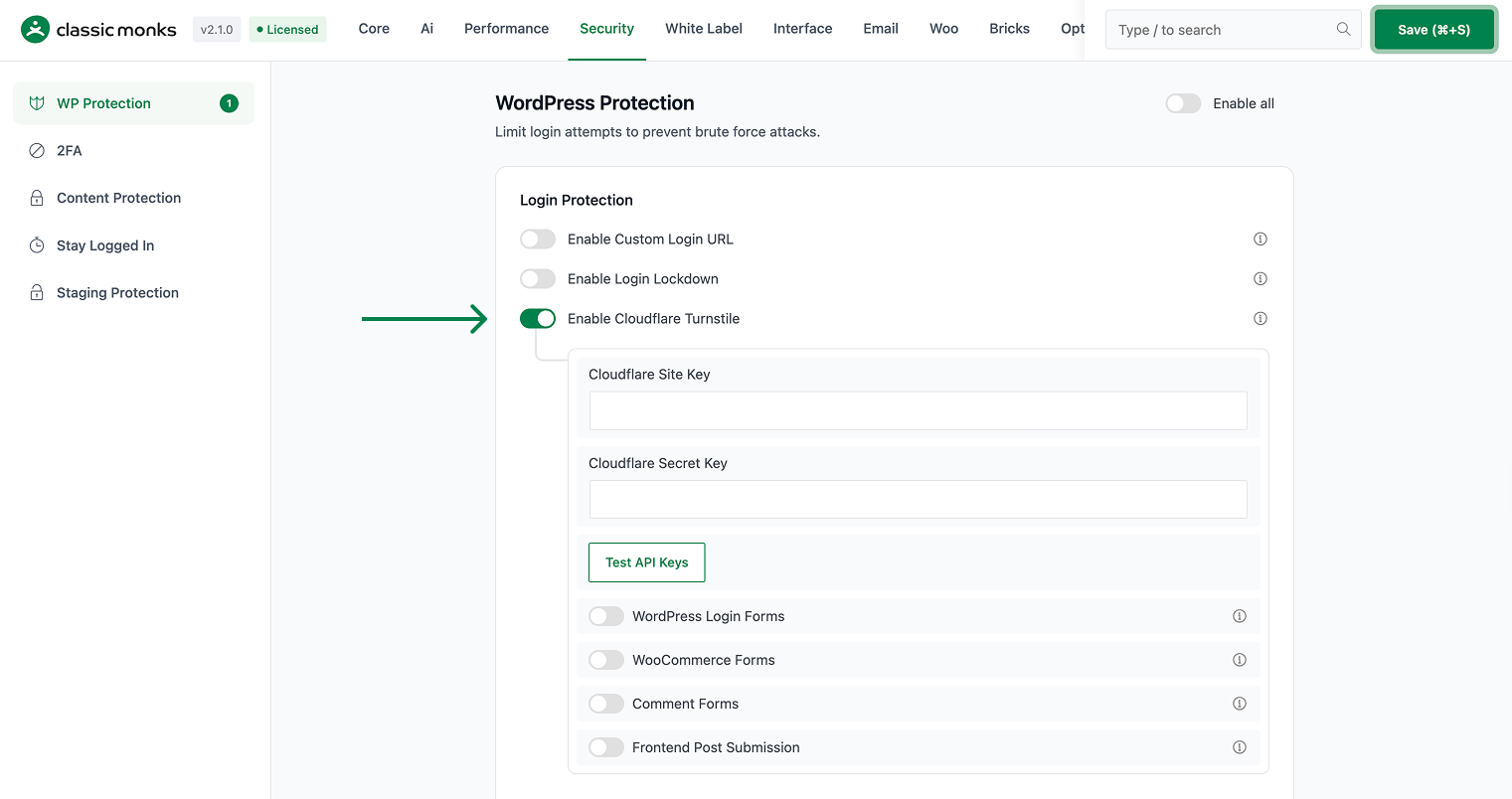
Scroll to Enable Cloudflare Turnstile and toggle on. Nested options expand.
- Step 6
Configure API Keys
Enter the Cloudflare Site Key and Cloudflare Secret Key from Step 2.
- Step 7
Configure Form Scope
Select which forms get Turnstile:
- WordPress Login Forms: Login, registration, password reset
- WooCommerce Forms: Login, registration, checkout (if applicable)
- Comment Forms: Standard WordPress comments
- Frontend Post Submission: Frontend post submission plugins (e.g., frontend post forms)
- Step 8
Save Changes
Click Save Changes.
- Step 9
Test
Visit the login form. The Turnstile widget should appear (or run invisibly in the background).
Configuration Options
| Option | Description | Default |
|---|---|---|
| Enable Cloudflare Turnstile | Master toggle. | Off |
| Cloudflare Site Key | Public key from Cloudflare. | (empty) |
| Cloudflare Secret Key | Secret key from Cloudflare. | (empty) |
| WordPress Login Forms | Apply to WP login forms. | On |
| WooCommerce Forms | Apply to WC forms. | On |
| Comment Forms | Apply to comments. | On |
| Frontend Post Submission | Apply to frontend submission forms. | On |
What Gets Affected
- The login form: shows Turnstile widget
- The registration form: shows Turnstile widget
- The password reset form: shows Turnstile widget
- WooCommerce forms: shows Turnstile widget
- The comment form: shows Turnstile widget
- Form submission: requires Turnstile validation to succeed
What Does NOT Get Affected
- The admin (after login): not affected
- The user experience for legitimate users (Turnstile is usually invisible)
- The form fields themselves: only the captcha is added
- The form data: submitted normally once Turnstile passes
Advanced Options (Developers)
This feature registers 7 WordPress hooks in cloudflare-turnstile.php:
Actions:
login_enqueue_scriptscallscm_enqueue_turnstile_script()(Enqueues Turnstile JS on login pages (priority 5))login_formcallscm_add_turnstile_to_forms()(Adds Turnstile widget to login form)woocommerce_login_formcallscm_add_turnstile_to_forms()(Adds Turnstile to WooCommerce login)
Filters:
authenticatecallscm_verify_turnstile_response()(Verifies Turnstile token during authentication (priority 30))registration_errorscallscm_verify_turnstile_response()(Verifies Turnstile token during registration (priority 10))comment_form_field_commentcallscm_add_turnstile_to_comment_form()(Adds Turnstile to comment form)preprocess_commentcallscm_verify_turnstile_comment()(Verifies Turnstile token for comments)
// Hooked in cloudflare-turnstile.php
add_action( 'login_enqueue_scripts', 'cm_enqueue_turnstile_script' );
The feature modifies WordPress behavior by registering or removing hooks. Disabling it reverses those changes and WordPress returns to its default behavior.
Troubleshooting
5 problems and how to fix each one.
Turnstile is not showing
Cause: The Site Key or Secret Key is wrong, or the toggle is off.
Fix: Verify both keys are correct. The Site Key is public (visible in the page source). The Secret Key is private (verify in the Classic Monks settings).
Turnstile is showing but the form submission fails
Cause: The Secret Key is wrong, or Cloudflare is rejecting the verification.
Fix: Verify the Secret Key. Check the WordPress error log for “turnstile verification failed” errors. The Cloudflare API has rate limits; if exceeded, the verification fails.
Turnstile shows a challenge every time
Cause: The widget mode is “Non-Interactive” instead of “Managed”.
Fix: Change the widget mode to “Managed” in the Cloudflare dashboard. Managed mode validates in the background and only shows a challenge if the user behavior is suspicious.
The Turnstile widget shows “Invalid domain”
Cause: The Site Key is for a different domain than the one being used.
Fix: Go to Cloudflare > Turnstile and verify the domain configuration. If the domain is different, create a new widget for the correct domain.
The form is rejecting submissions from legitimate users
Cause: The Turnstile validation is failing for some users (e.g., users on privacy-focused networks, VPN users, Tor users).
Fix: Use the “Managed” widget mode (more lenient than Non-Interactive). Consider adding a fallback for users who fail Turnstile (e.g., a manual review queue).
