




What Is the Disable Save feature?
The saving the page via the keyboard shortcut behavior is a common browser feature. The Disable Save feature disables it on your WordPress site, preventing users from using the keyboard shortcut to save the page.
This is a soft deterrent, not a security feature. Determined users can still save the page via the browser’s developer tools or by disabling JavaScript.
Why You Need It
For some types of sites, preventing casual saving the page is useful:
- Premium content sites: Where the content itself is the product
- Image-heavy sites: Where images are the unique value
- Course sites: Where the lessons are paid
- Recipe sites: Where recipes are the unique value
For most sites, this is unnecessary. The content is already protected by copyright.
Trade-offs vs allowing saving the page
Disabling saving the page has trade-offs:
- Accessibility: Users with disabilities who rely on saving the page are affected
- User experience: Sharing and quoting become harder
- Real protection: Doesn’t actually protect the content (anyone with dev tools can save the page)
For most sites, the trade-offs are not worth it.
How to Disable Save in WordPress
Step 1: Navigate to Settings
Click into the Classic Monks plugin settings in your WordPress dashboard.
Step 2: Go to the Security Tab
Click on the Security menu, then click the Content Protection subtab.
Step 3: Enable the Feature
Scroll to Disable Save and toggle on.
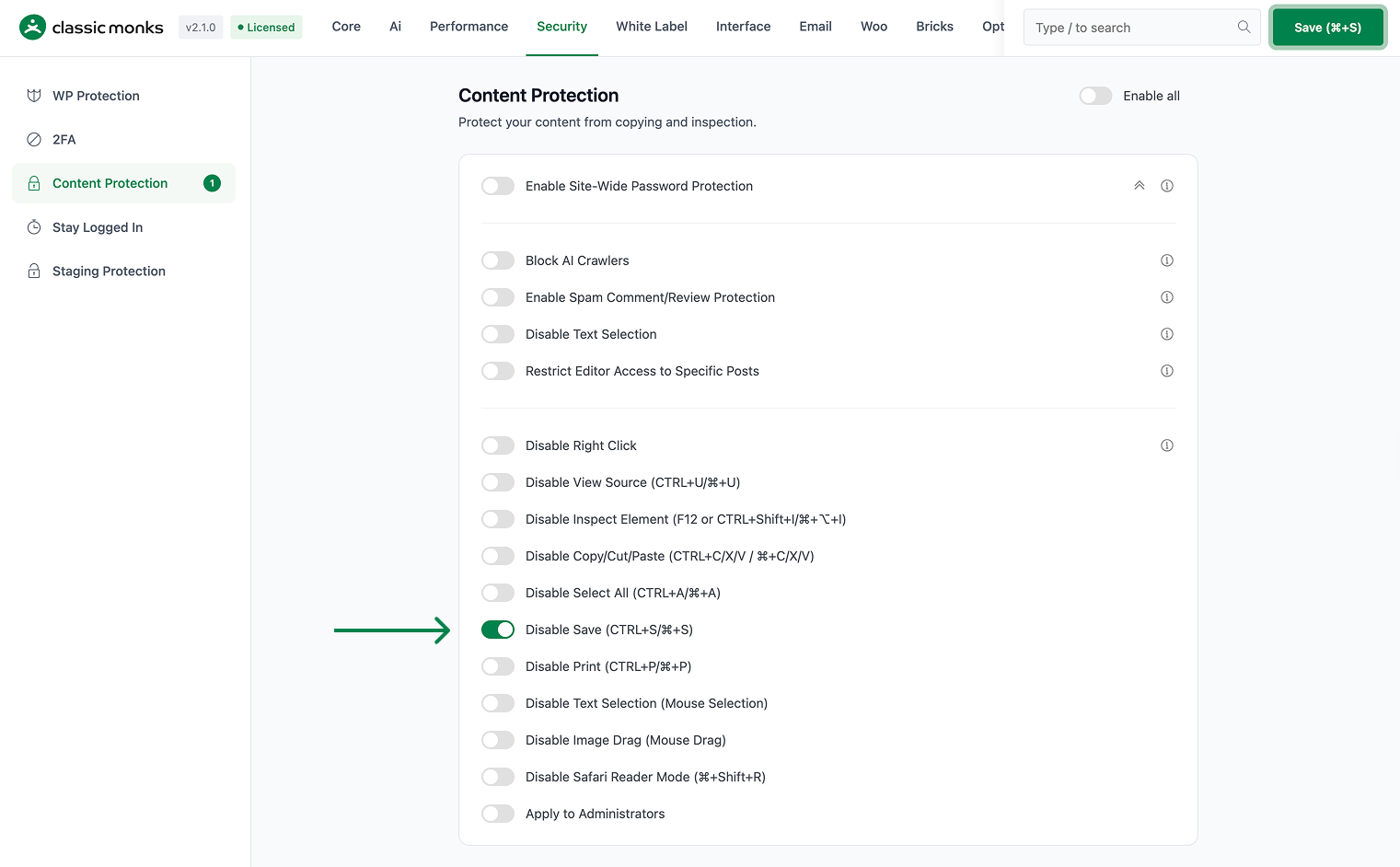
Step 4: Save Changes
Click Save Changes.
Step 5: Test
Visit the frontend. Try to save the page. The save shortcut should not saving the page via the keyboard shortcut.
Configuration Options
| Option | Description | Default |
|---|---|---|
| Disable Save | Master toggle. | Off |
| Apply to Administrators | Admins can still save the page. | On |
What Gets Affected
- The frontend: saving the page via the keyboard shortcut via JavaScript is disabled
- The admins: can still save the page (if “Apply to Administrators” is on)
- The accessibility: may affect users who rely on saving the page
What Does NOT Get Affected
- The admin: admins can still save the page
- The browser’s developer tools: still allow bypassing
- The keyboard shortcuts (other than the disabled one): still work
- The screen readers: usually not affected
Advanced Options (Developers)
This feature registers 1 WordPress hook in disable-save.php:
Actions:
wp_headcallscm_disable_save_script()(Injects save/disable script)
// Hooked in disable-save.php
add_action( 'wp_head', 'cm_disable_save_script' );
The feature modifies WordPress behavior by registering or removing hooks. Disabling it reverses those changes and WordPress returns to its default behavior.

Add your first comment to this post