




What Does the Feature Do?
WooCommerce’s cart fragments feature lets the mini cart and cart count update without a full page reload. It does this by loading the wc-cart-fragments.js script and re-fetching the cart contents over AJAX when the page changes. That background request runs site-wide, even on pages where the cart is never shown.
The Disable WooCommerce Cart Fragmentation feature dequeues that script, so the cart no longer refreshes asynchronously. The store’s cart data is unchanged; only the auto-refresh behavior is removed.
Why You Need It
Cart fragmentation adds a request to nearly every page:
- It deletes the need for a global background fetch when no mini cart is shown
- It reduces one round-trip per page load
- It avoids the “recalculate cart” churn that fragments can trigger
- It cleans up performance on content-heavy and non-checkout pages
How to Disable WooCommerce Cart Fragmentation
Step 1: Enable the Feature
- In WordPress admin, open Classic Monks > WooCommerce.
- Open the Optimization settings area.
- Toggle on Disable WooCommerce Cart Fragmentation.
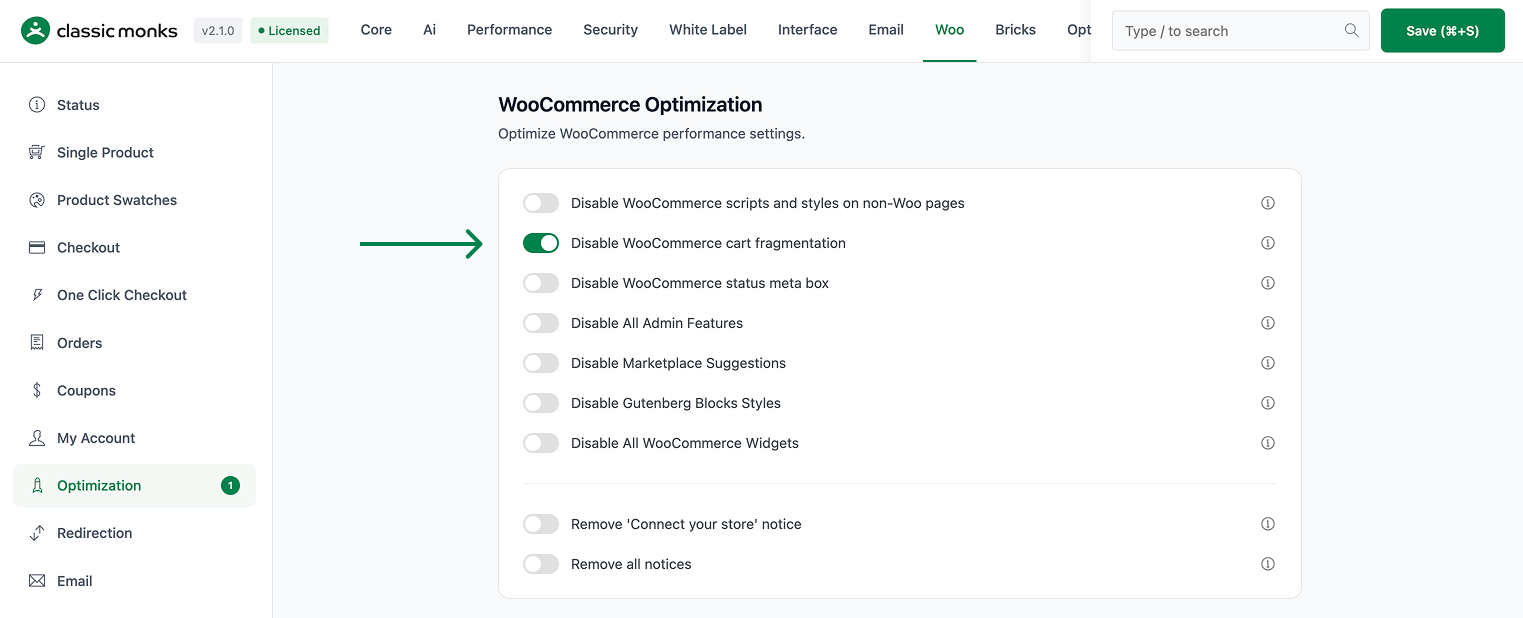
Step 2: Save and Test
Click Save Changes. Load a page and check that the wc-cart-fragments script is no longer enqueued. Note that a mini cart that relied on live AJAX updates will no longer refresh that way.
Configuration Options
| Option | Default |
|---|---|
| Disable WooCommerce Cart Fragmentation | Off |
There are no nested options. The feature is a single on/off control.
What Gets Affected
- The
wc-cart-fragmentsscript: no longer enqueued on the front end - Automatic mini cart and cart count refreshes: no longer happen over AJAX
What Does NOT Get Affected
- The cart data and contents: these remain stored in the session
- The cart and checkout pages: the main cart functionality works normally
- Page loads on shop and checkout pages: these still work with the refresh gone
- Manually refreshed cart actions: add to cart still works as usual
Advanced Options (Developers)
The feature registers one hook in functions/woocommerce/woocommerce-functions.php:
add_action( 'wp_enqueue_scripts', 'cm_disable_woocommerce_cart_fragmentation', 99 );wp_enqueue_scripts (priority 99) calls cm_disable_woocommerce_cart_fragmentation(), which dequeues wc-cart-fragments so the script does not load site-wide.
Common Use Cases
Mini cart not used. If the theme does not rely on a live mini cart, the fragments script is pure overhead.
Performance tuning. Removing a background request is a small, safe win on every page.
Cache-friendly sites. Static or cached pages gain from not triggering cart re-fetches.

Add your first comment to this post